Tag: lg

  • How to connect Android to a TV (screen mirroring and casting)

    How to connect Android to a TV (screen mirroring and casting)

    One of the greatest ways to take advantage of your Android phone’s full potential is to view your favorite movies, pictures, or simply browsing apps on a larger screen.

    Fortunately, it’s now simpler than ever to connect your Android to a TV, whether you want to mirror your phone’s screen, stream YouTube, or display vacation images. Using built-in features like screen mirroring, Chromecast, and HDMI adapters, we’ll go over several methods in this article for connecting your Android phone to a TV—both wirelessly and with cords. Third-party apps are not necessary.

    Check your TV compatibility

    Before you start, it’s important to know what kind of TV you’re working with. Most modern TVs support one or more of the following:

    • Smart TV with built-in casting (e.g., Android TV, Samsung Smart TV, LG WebOS)
    • TV with Chromecast built-in
    • TV with HDMI port and no smart features

    Also, for wireless option, your Android phone and smart TV should be on the same Wi-Fi network and running Android 5.0 or later.

    Use native casting with Chromecast or smart TVs

    Most Android phones come with built-in support for casting via the Google Cast protocol. Here’s how to use it:
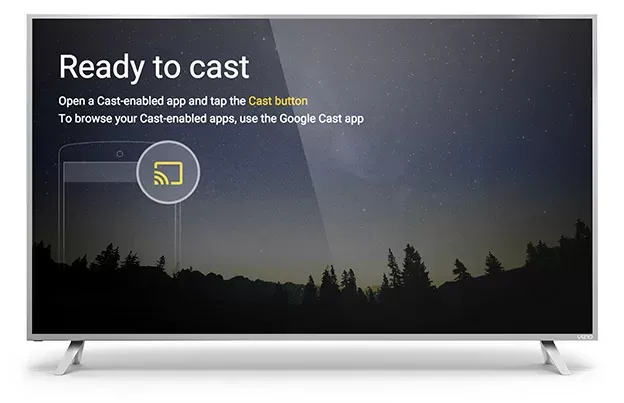
    Steps:

    1. Connect your Android and smart TV to the same Wi-Fi network.
    2. Swipe down from the top of your Android screen to open Quick Settings.
    3. Tap Cast or Screen Cast.
    4. Your phone will search for compatible devices. Select your TV or Chromecast from the list.
    5. Your screen will be mirrored onto the TV. You can now open apps, play videos, or browse the web.

    Best for: Watching YouTube, streaming apps like Netflix, showing off photos.

    Note:

    YouTube is one of the apps that has its own cast icon. You can select your TV without full screen mirroring by tapping the cast symbol in the upper-right corner.

    Use Samsung’s Smart View or SmartThings

    Wireless casting is made easy using the Smart View or SmartThings app if you own a Samsung Galaxy phone and a Samsung Smart TV.
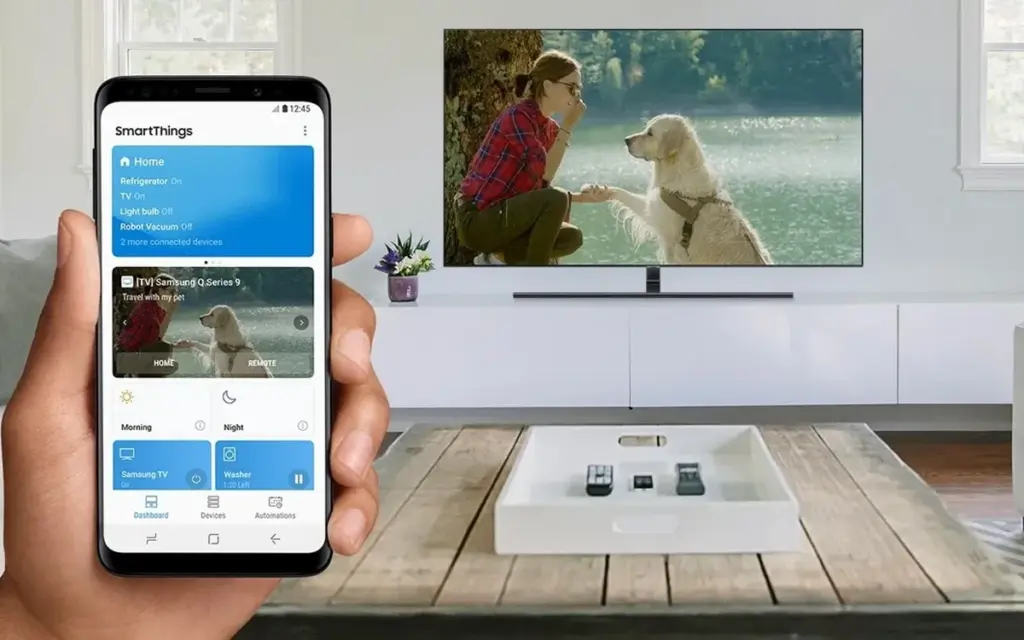
    Steps:

    1. Open Settings > Connections > Smart View on your Samsung device.
    2. Select your compatible Samsung TV.
    3. Tap Start now to begin mirroring.

    As an alternative, you may connect to manage your TV, cast media, or mirror the screen using the SmartThings app, which comes pre-installed on newer models.

    Best for: Samsung users who want the most integrated experience.

    Miracast (for supported devices)

    Miracast, a wireless display protocol that reflects your screen, is supported by a large number of non-Google Android devices (such as LG, Huawei, and older phones).

    Steps:

    1. On your TV, enable Miracast or Screen Mirroring mode.
    2. On your phone, go to Settings > Connected Devices > Cast.
    3. Choose your Miracast-enabled TV or dongle from the list.

    Your phone may not display the choice at all if it lacks native Miracast functionality. If so, try some of the other techniques in this tutorial.

    Best for: Older smart TVs without Chromecast but with Miracast support.

    HDMI cable with a USB-C to HDMI adapter
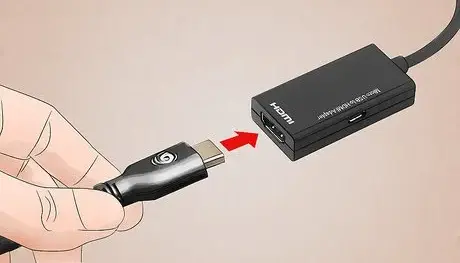
    cast to TV screen mirroring with cable

    If your TV isn’t Wi-Fi enabled or you prefer a connected connection, a USB-C to HDMI converter provides a convenient plug-and-play option.

    Steps:

    1. Get a USB-C to HDMI adapter (make sure it supports video output).
    2. Plug the USB-C end into your Android phone.
    3. Plug an HDMI cable into the adapter and then into the TV.
    4. Switch your TV to the correct HDMI input.

    The screen of your phone should show on the TV after it has been connected. In the display settings of certain phones, screen mirroring must be enabled.

    Best for: TVs without smart features or Wi-Fi access.

    Troubleshooting

    • Make sure both devices are on the same Wi-Fi network.
    • Restart your phone and TV if the device doesn’t show up.
    • For wired connections, ensure the adapter supports video output (some cheap models only support charging).
    • For best performance, avoid mirroring heavy 3D games—use casting for videos and apps instead.

    A whole new realm of efficiency and fun is made possible by connecting your Android phone to a TV. The technique is easy and doesn’t require any specialized software or gear, whether you’re playing mobile games, presenting slides at work, or binge-watching on a larger screen. Your phone is ready to go large wherever you are if it has native support for Chromecast, Miracast, or a simple HDMI adaptor.

    Stay connected with the latest from Droid Tools—follow us on X @droid_tools, like our page on Facebook, check out our updates on Instagram, and follow us on Google News for real-time news, device tips, and mobile tech insights.
  • Things iPhone 14 stole from Android

    Things iPhone 14 stole from Android

    Since Apple’s official unveiling of the iPhone 14 range has not yet settled, several of the announcements caught us off guard. Although I’ll reserve my opinions on the Apple Watch Ultra for another time, I do have some thoughts on it. Instead, I’m going to discuss a few features that the iPhone 14, namely the Pro and Pro Max, “stole” from earlier Android devices.

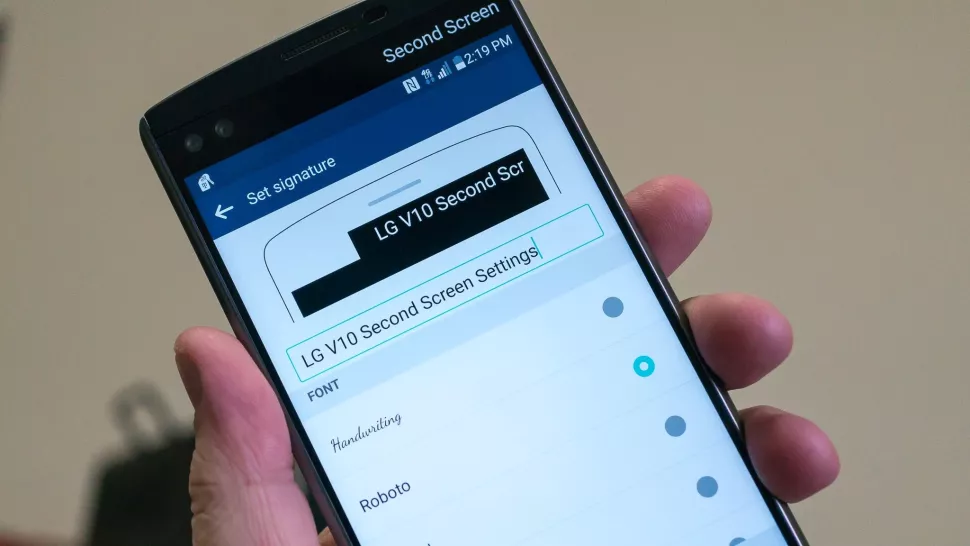
    Dynamic Island from LG V10

    iPhone 14 stole dinamic island

    The debut of the Dynamic Island along with the iPhone 14 Pro and Pro Max was perhaps the announcement made during Apple’s “Far Out” event that sparked the most heated debate. Since the release of the iPhone X, everyone has been requesting that Apple remove the notch, and they have finally done so. Although it’s still present on the iPhone 14 and iPhone 14 Plus, it makes sense from the standpoint of Apple wanting to provide a feature that sets its non-Pro and Pro models apart.

    While the Dynamic Island may appear to be a ground-breaking new feature, LG actually arrived first with the LG V10, despite the fact that this is accurate to some extent. LG introduced the “Second Screen,” which allowed users to read incoming notifications, make shortcuts for contacts, and control any music that was playing without using the primary display, in an effort to provide users a another method to interact with their alerts.

    It was one of those instances where LG tried to do something different, but the overall implementation and lack of support doomed the Second Screen from the start. The LG V20 kept the Second Screen around, providing essentially the same implementation, but it was still met with mixed results. Some V20 owners found this to be extremely convenient, while others found that “it doesn’t really add much to the experience.”

    Apple’s implementation of Dynamic Island merely operates in a completely different manner as opposed to introducing a new screen. The “Island” will display “Dynamic” information, such as the song’s album art, when you start playing music and quit the app. Additionally, instead of taking up your full screen for simple notifications like when FaceID is required, it turns them into a drop-down image tied to the Island.

    Although Dynamic Island isn’t an identical copy of LG’s Second Screen, it’s very obvious that there is some inspiration.

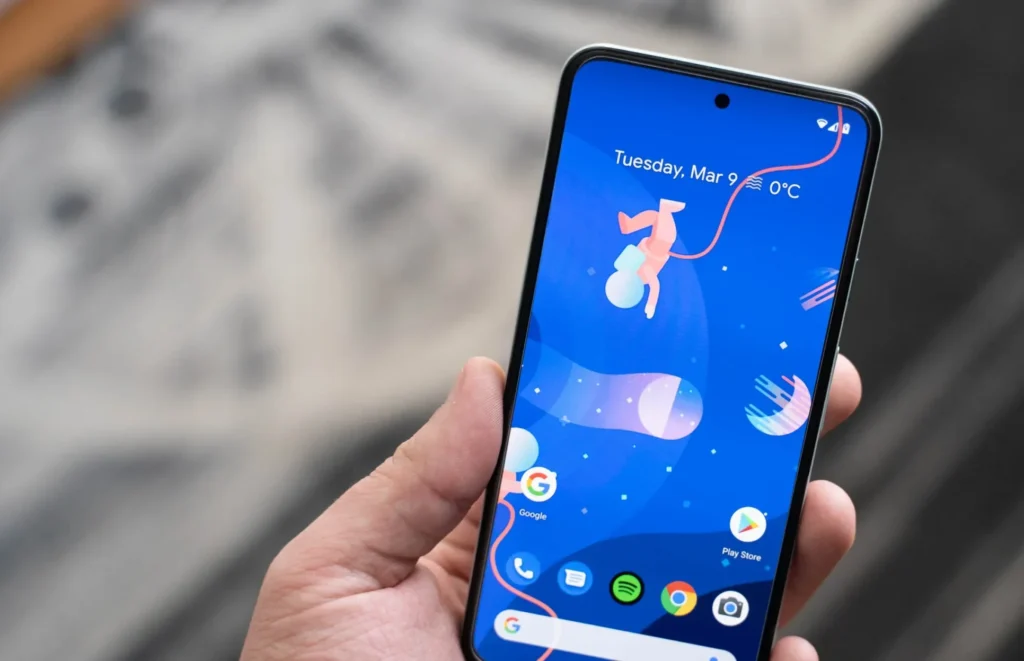
    Hole-punch selfie camera

    Hole-punch selfie camera

    Speaking of the notch, we were aware that Apple wouldn’t use it indefinitely. It was only a matter of time before the company made the “revolutionary” decision to use a hole-punched selfie camera cutout. Apple had to alter the modules it uses because of the different sensors that are integrated into the notch, and there are actually two cuts. The selfie camera is in one, while the proximity sensor and other Face ID-related components are housed in the other.

    With the Huawei Nova 4, the first business to completely do away with the notch, Huawei introduced the hole-punch selfie camera. However, it has been more difficult to find a smartphone that doesn’t include one since then. Many of the top Android smartphones are included in this, including the Galaxy S22 series, Pixel 6, ASUS ZenFone 9, and others.

    Apple is obviously falling behind the curve here, as a few phone manufacturers are starting to adopt an under-display selfie camera. Notably, the Galaxy Z Fold 4 and ZTE Axon 40 Ultra are two of the most recent models with a UDC; nevertheless, it wouldn’t be surprising to see further phones produced in the near future with such a change.

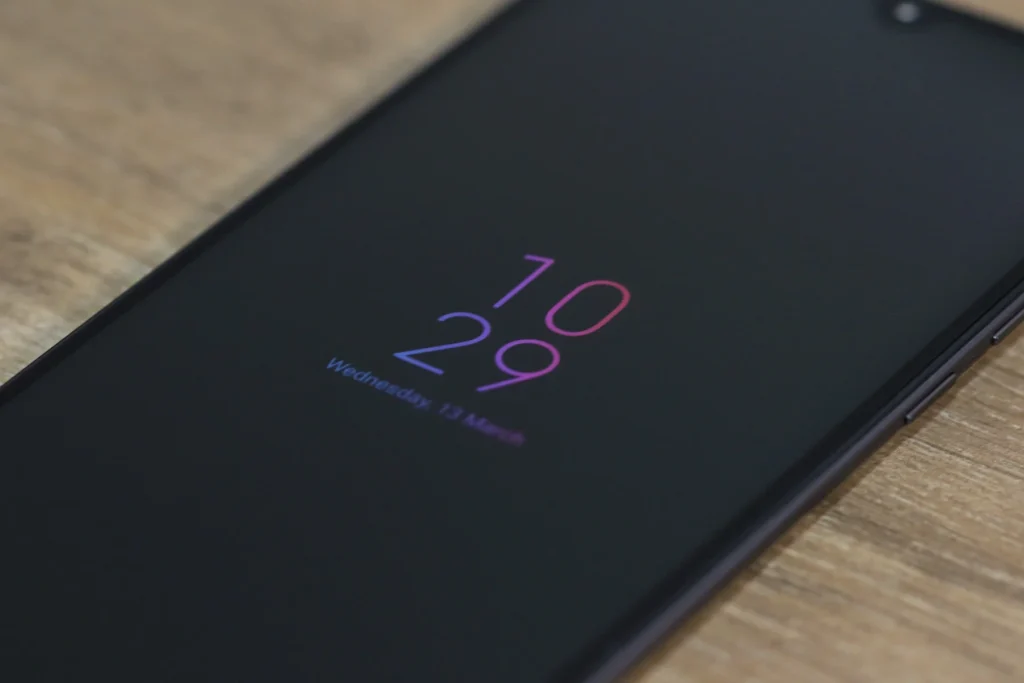
    Always-On Display

    Consider how long Apple has taken to provide a feature that it ought to have done years ago. Android phones have long had the Always-On Display (AOD), which allows users to quickly and easily see the time and any unread alerts. Following the announcement of iOS 16 and the addition of lock screen widgets, the writing was already on the wall.

    Then, one of the iOS 16 Developer Beta builds kind of let the cat out of the bag when several users discovered that the UI on their iPhone lock screens was unfamiliar. In actuality, Apple was simply putting the software in place to support the Always-On Display.

    In true Apple fashion, this isn’t available on all four iPhone 14 models, as the AOD is reserved solely for the iPhone 14 Pro and Pro Max.

    Dynamic Refresh Rate

    It’s still remarkable that Apple waited so long to implement quicker refresh rates and dynamic refresh rates considering how long Android users have enjoyed this privilege. ProMotion was created because we anticipated Apple would substitute “dynamic refresh rates” with some fancy marketing word. The iPhone 13 Pro and Pro Max from last year were the first devices to feature this, but they could only refresh the screen between 24Hz and 120Hz.

    Apple decided it was high time to slow things down even further with the release of the iPhone 14 Pro and Pro Max with the Always-On Display. With its ProMotion display, the iPhone 14 Pro range can now dynamically refresh the screen all the way down to 1Hz instead of bottoming out at 24Hz. Since stale content doesn’t need to be refreshed as frequently, the obvious benefit is to prevent battery drain anytime the AOD is shown on the iPhone.

    Due to the LTPO display, the OnePlus 9 Pro and Oppo Find X3 Pro were two of the first smartphones to provide dynamic refresh rates between 1Hz and 120Hz. And as you might anticipate, this has appeared on additional gadgets, like the Galaxy S22 Ultra and the current generation of iPhone 14 Pro models.

    Car Crash Detection

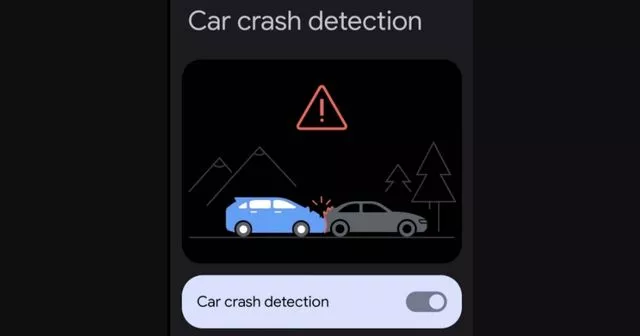
    If you were able to endure the full “Far Out” event, you might have become weary of the numerous commercials showcasing the positive effects the Apple Watch and iPhone have had on people’ lives. One new feature, though, is something that everyone should be grateful to Google for introducing with the Pixel back in 2020. As part of the March 2020 Feature Drop for owners of the Pixel 2, 3, and 4, Car Crash Detection was initially integrated to Android.

    The many motion sensors and ambient sounds on your Pixel phone were used to make this feasible. Your phone can sound an alarm in the event of a car mishap, prompting you to decide whether you require additional assistance. If no response is given, emergency services will be contacted and their location will be given by your Pixel.

    Apple is adding this to all of its iPhone 14 models, but the Apple Watch Series 8 is also the first wearable to do so. Apple has updated its three-axis gyroscope and combined it with a “high g-force accelerometer” that can measure up to 256 gs of force to enable this. Once an algorithm has determined whether an accident has happened, the iPhone and/or Apple Watch will inform emergency contacts and services if no answer is received within 10 seconds.

    In June 2022, it was discovered that the Car Crash Detection feature might not be exclusive to Pixel phones for much longer. Hidden code within Google’s Personal Safety app suggests that this functionality could make its way to other Android phones in a future update. But at the time of this writing, it looks like Google and Apple will be the only phone makers with this available.

  • Galaxy Note alternative for stylus – LG Stylo 5x

    Galaxy Note alternative for stylus – LG Stylo 5x

    If you have been watching from afar the painfully expensive Samsung Galaxy Note family, you don’t have to go without a stylus just because you want a smartphone that’s more realistically priced. The new LG Stylo 5x continues LG’s series of stylus-packed smartphones, and it does so at a price that is almost a tenth of the cost of the most expensive model Samsung has to sell.

    The LG Stylo 5X offers a 6.2 “display for the sort of scale you can expect from a device, giving you plenty of room to draw, doodle, color in the coloring book, or scribble out a few notes using the built-in stylus. This display is also bright with a resolution of 2,160x 1,080, bumping slightly above Full HD. The extra bit of vertical screen space will give you more scope for wider formats man.

    And, thanks to a 3,500mAh pack, you’ll be able to watch the device the entire day. That would be enough battery life for most people to make it across the day without wondering whether you’ll be able to find somewhere to power up. And, if your battery gets low, you can easily recover it using Fast Charge 3.0 using the USB-C port on your computer.

    The LG Stylo 5x also features both a headset jack and the link to Bluetooth 5.0. Which means you can listen with your favorite wired headphones to music and movies, or enjoy a secure wireless link with Bluetooth earbuds. The right to pick your favorite link is often a bonus, and lately, it’s something that’s still missing on other higher expensive smartphones. Best still, you can allow DTS: X for surround sound if you are connected to wired headphones.

    You will waste time creating your own content while you are not watching content. The LG Stylo 5x sports a 13MP rear camera and 5MP front-facing camera, both capable of capturing Full HD video. Plus, you can use the trendy camera

    The handset isn’t too huge given the wide screen. It measures 6.34″x 3.09″x 0.34 “and it manages to maintain the slim due to an 80 percent screen-to-body ratio. This means there isn’t a lot of wasted room on the front of the handset. It also leaves it small at just 181 grams–marginally lighter than an iPhone 11. The LG Stylo 5x is powered by a Qualcomm Snapdragon 450 octa-core processor with 3 GB of RAM, allowing it enough of capacity to handle.

    Best of all, the new LG Stylo 5x has launched at the same price as its predecessor, the LG Stylo 5. You can even get the LG Stylo 5x at a discount right now from Boost Mobile.

    Check out the LG Stylo 5x for $149 at Boost Mobile.

  • Update LG Smartphone To The Latest Version Of Android

    LG isn’t known for releasing updates to its Android smartphones in a very timely fashion. But once they do, you are going to want to know the way to get that update and fiddle with the most recent version of Android.

    LG does roll out other updates for its smartphones, typically bug fixes and security updates are what LG smartphone owners will get. Which are arguably more important than the remake of Android updates that other phones get. As this keeps your phone and your information from becoming susceptible to being hacked or attacked.

    So how exactly do you update your LG smartphone to the newest version of Android? Well it’s quite simple. Let’s start .

    Settings app on your phone.

    LG settings app

    Go to System then tap on System Updates and tap Check for new system updates.

    LG system updates
    LG update android

    After that you will be either prompted by an update, which you can then just start the update. Or there will be a Check Now button you can use to check for a software update.

    If there is an update available, you will see detailsof the update and the changelog, if there is one. The update will be large if it’s for a new version of Android. If you don`t want to install the update right now, just hit Later.

    Updates do not wipe your data.

    S However, it is always smart to go ahead and back up your data before you install a new update, just in case. As something could go wrong and you could end up needing to factory reset your phone following the update.