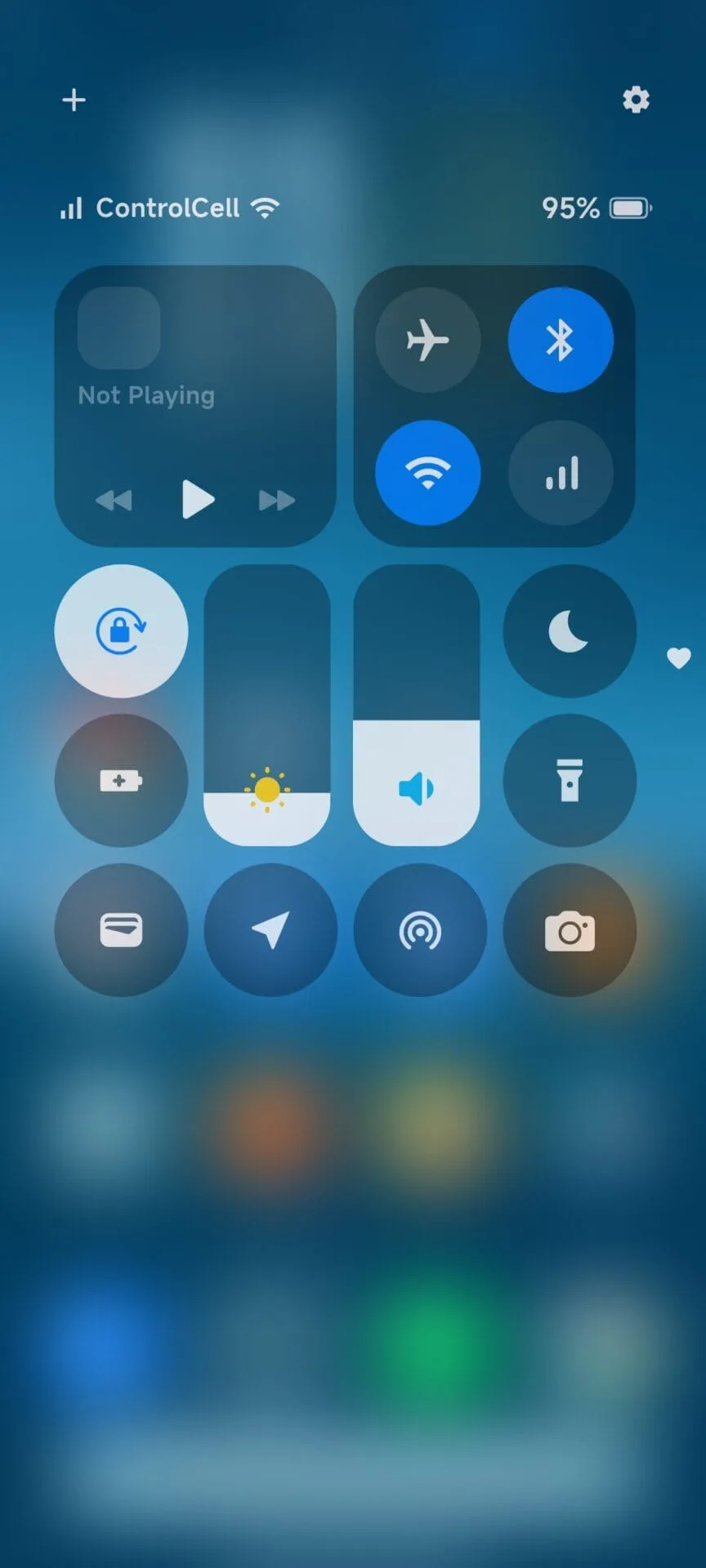
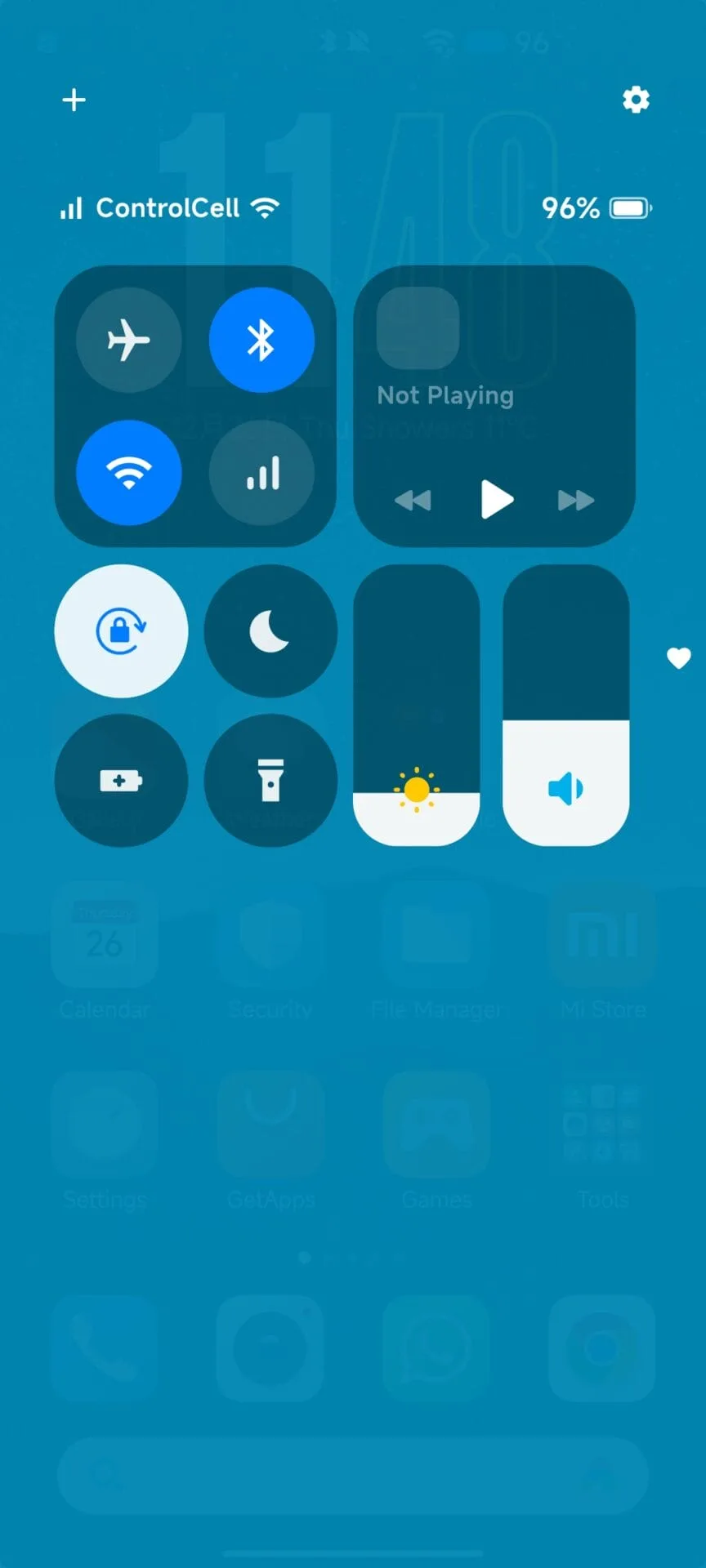
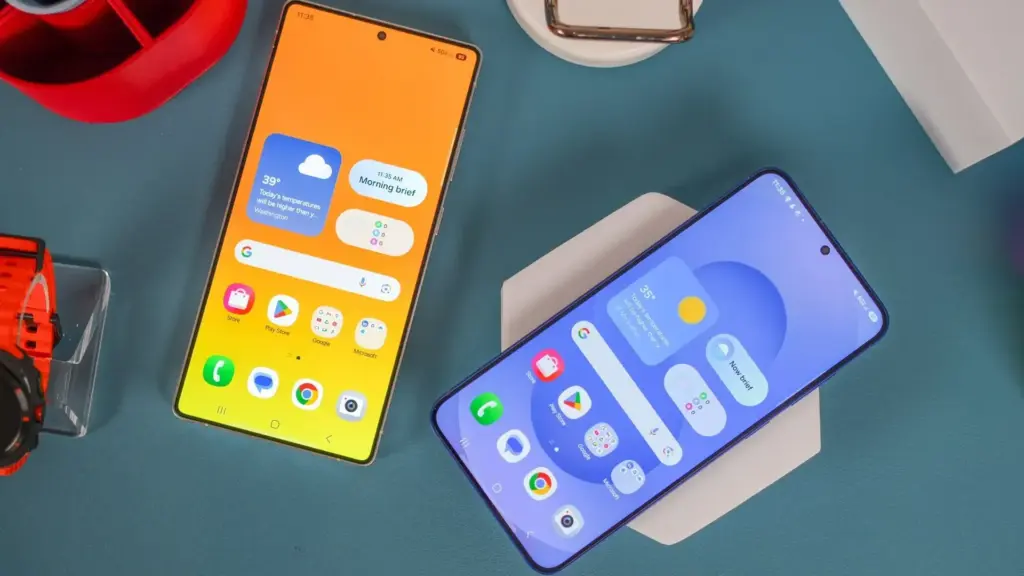
Many affordable Xiaomi phones, such the Redmi 15, Redmi 14C, and Redmi 13X, continue to use the conventional Android-style control panel rather than the contemporary iOS-inspired Control Center found on high-end phones running HyperOS. The main cause of this limitation is hardware and performance issues, which make it difficult to execute sophisticated animations and transitions smoothly.
Users of Xiaomi do not have to give up the new features and design in spite of this. It can be set up to mimic the new Control Center appearance on the majority of Redmi and POCO phones with the aid of third-party modification applications like Control Center 18.
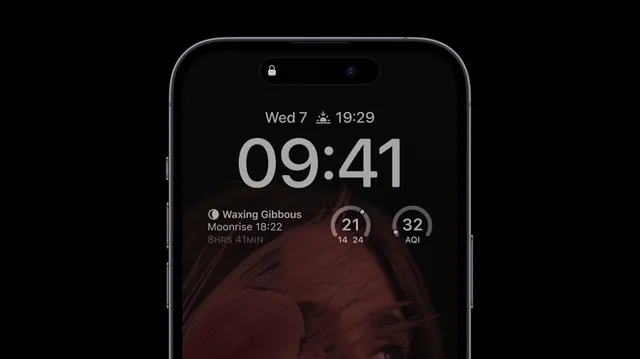
Announced alongside HyperOS 1.0, Xiaomi’s new Control Center features an iOS 18-like interface, smoother animations, and adjustable brightness adjustments. But not every gadget satisfies the necessary performance requirements. Xiaomi limits the new UI to mid-range and flagship smartphones since entry-level handsets with low GPU and memory capacity can encounter lag or frame drops.
Xiaomi’s software framework is still adaptable, though. You may still improve the visual experience using third-party solutions like Control Center 18, which essentially replicates the look and functionality of the HyperOS Control Center, even if your phone doesn’t support the most recent control center natively.
Get the New Control Center with Control Center 18
You can simply duplicate the new Control Center with Control Center 18 app if your Redmi or Xiaomi phone does not have it natively loaded. With smooth animations, toggleable toggles, and quick access to your most commonly used options, this layout is almost exact.
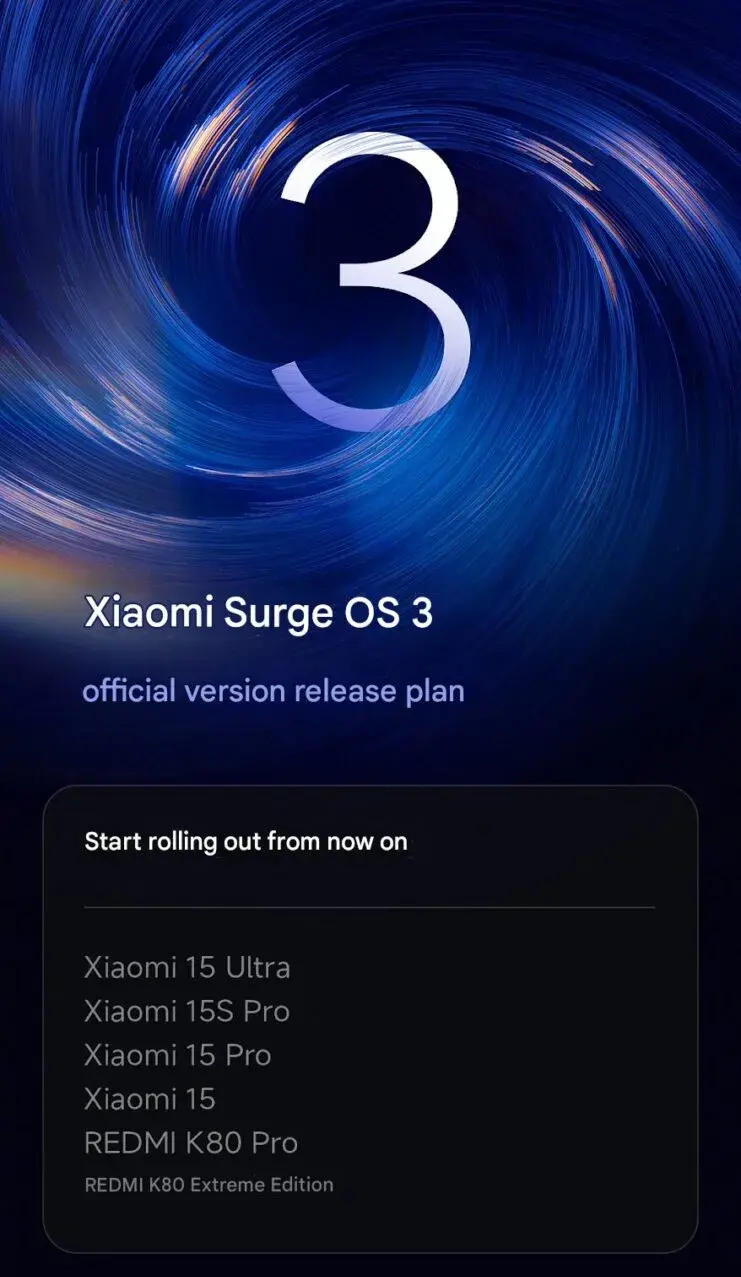
Following the initial beta release on August 25, 2025, Xiaomi has released the stable HyperOS 3 for six of its flagship devices in China. Better AI features, more fluid animation, and greater device unity across the Xiaomi platform are all included in the current upgrade, which represents the most recent advancement in Xiaomi’s system development. new week, the upgrade is anticipated to roll out globally in the models, marking the beginning of Xiaomi’s new generation of user interfaces.
he HyperOS 3 stable rollout’s initial roll out happens with the following devices in China:
Xiaomi 15 — OS3.0.2.0.WOCCNXM
Xiaomi 15 Pro — OS3.0.3.0.WOBCNXM
Xiaomi 15S Pro — OS3.0.4.0.WODCNXM
Xiaomi 15 Ultra — OS3.0.2.0.WOACNXM
REDMI K80 Pro — OS3.0.2.0.WOMCNXM
REDMI K80 Ultra — OS3.0.2.0.WONCNXM
The Xiaomi 15 series will soon be available globally, and these structures are currently housed in Xiaomi’s Chinese OTA server stores.
What’s New in HyperOS 3
In order to make the Xiaomi ecosystem more intelligent and connected, HyperOS 3 delivers a sophisticated UI along with a number of clever AI-enabled capabilities.
New look and new feel: new color scheme, fresh look and feel throughout the UI.
Hyper Island: Xiaomi’s interpretation of the Dynamic Island, providing smoother animation and better multitasking choices.
Cross-device synergy: effortless call, message, and screen-sharing integration between Xiomi smartphones, tablets, and laptops.
AirDrop-like file transfer: seamlessly exchange files just by bringing the Xiaomi devices nearer.
Better performance: 30% faster and more stable system tuning.
Improved AI capability
In the coming week, customers worldwide will begin receiving the upgrade, even though the initial rollout was restricted to Chinese versions. With this extension, Xiaomi has reaffirmed its commitment to offering coordinated worldwide update rollout dates that align with its ambitions for the whole HyperConnect ecosystem.
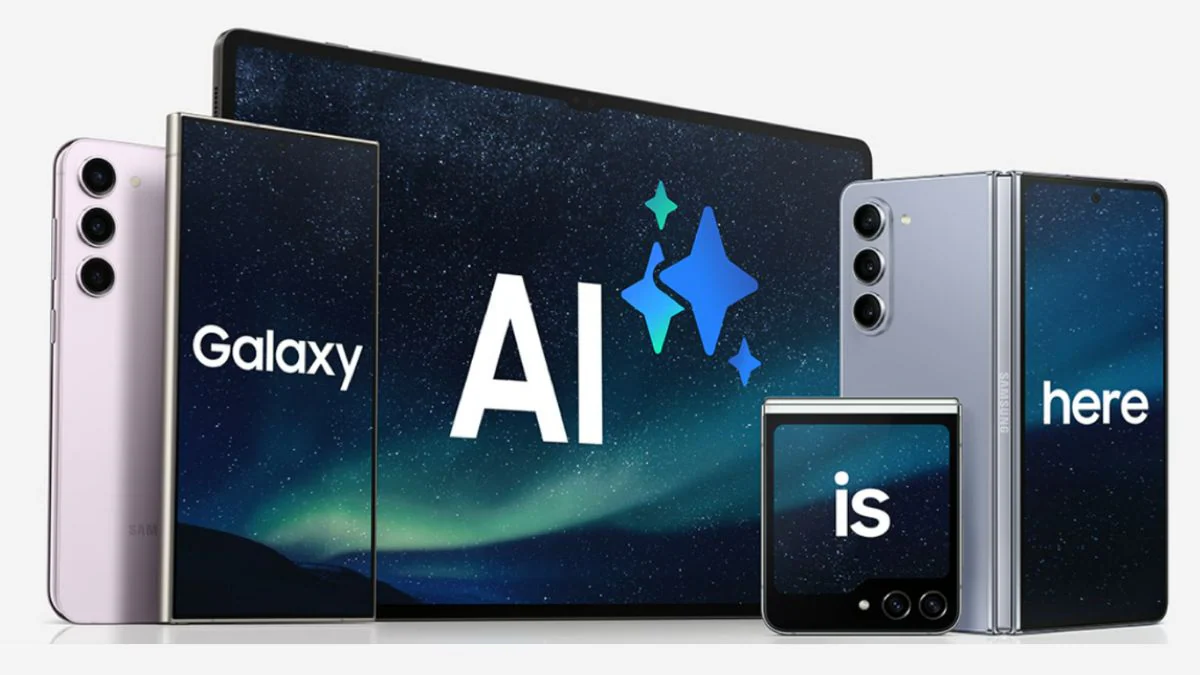
Samsung is already rolling out One UI 8, its version of Android 16, to all Galaxy phones that support it, but the upcoming major update may be much more important.
At least four new Galaxy AI functions may be included in One UI 8.5, according to a report from the Korean website ETNews.
But you may have to wait a long time. The Galaxy S26 series phones are expected to get OneUI 8.5 in January or February 2026, with a broader rollout to follow in the coming weeks and months.
They would be the first new Galaxy AI features in more than a year, if that is the case. Here is what you have to look forward to.
Meeting assistant
Has somebody ever met with you using a language you don’t understand? I’m not referring to ROIs and KPIs, though Galaxy AI might be able to assist you with that as well—a real foreign language.
Meeting Assistant was created with certain situations in mind. Theoretically, it can identify what is being spoken, precisely transcribe it, and then translate it in real time into your target language. If all goes according to plan, this may be quite helpful in some meetings, as well as in situations like interviews and press conferences, if you connect headphones.
Touch assistant
Similar real-time translation capabilities are provided by Touch Assistant, but only for text that is displayed on the screen. You can choose to translate a passage of text by simply selecting it as though you were going to copy it.
Although it’s unclear exactly what this means, ETNews claims that Touch Assistant also “organizes it for easy reading.”
Smart clipboard
You can move text without being restricted to the most recent item you copied by using the clipboard feature, which is available through the Samsung Keyboard.
By employing AI to recommend actions for any material that shows up, Smart Clipboard seeks to improve this. For instance, you could want to add particular words or phrases to your favorites, summarize a lengthy text section, or translate anything that isn’t in your system language.
Social composer
Do you like sharing content on Instagram but find it difficult to think of a clever caption? Social Composer can assist you.
It can analyze your uploaded photos, identify the people or things in them, and then provide a variety of textual descriptions about them. Along with a more thorough description and even links to any products it recognizes, this can also include a caption.
A big Galaxy AI leap for free?
Whether all of these capabilities will be available on One UI 8.5 in the format ETNews has outlined is still up in the air.
It could, however, significantly improve the Galaxy AI experience on your phone. Will it be able to match the Google Pixel phones’ Gemini-powered experience? We’ll find out in time.
Additionally, Galaxy AI might not always be free, even though Samsung has not indicated that it will charge for certain services.
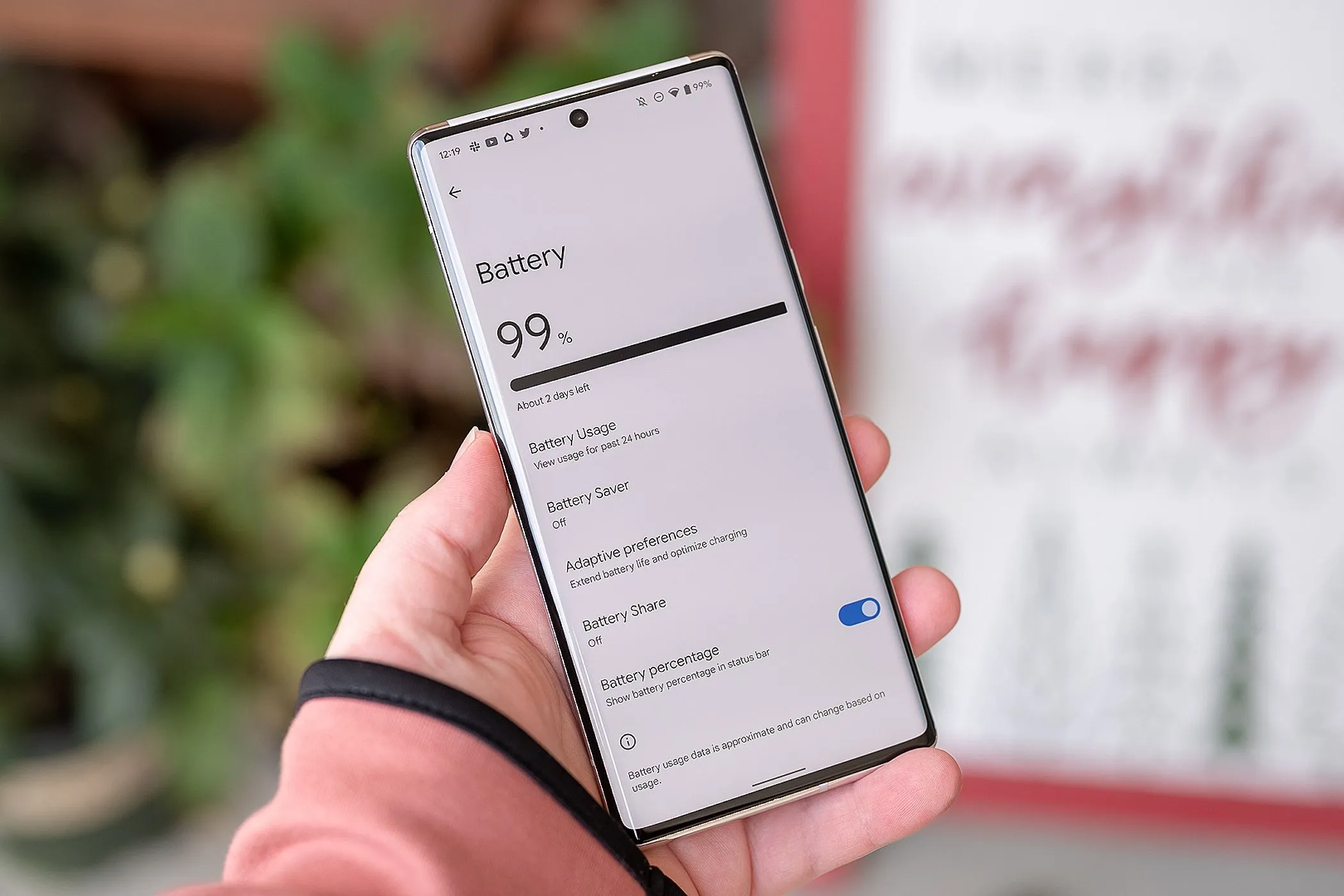
It’s likely that you carry an Android phone in your pocket if you’re not using an iPhone. Google’s mobile operating system, Android, powers a variety of phones, including the Google Pixel and Samsung Galaxy. The lithium-ion battery is a feature shared by almost all Android phones. Only when these batteries are in good health can they be strong and effective. Your phone may start to drain more quickly, take longer to charge, or even shut down without warning as it ages or wears out. Because of this, monitoring the condition of your battery is more crucial than you may imagine.
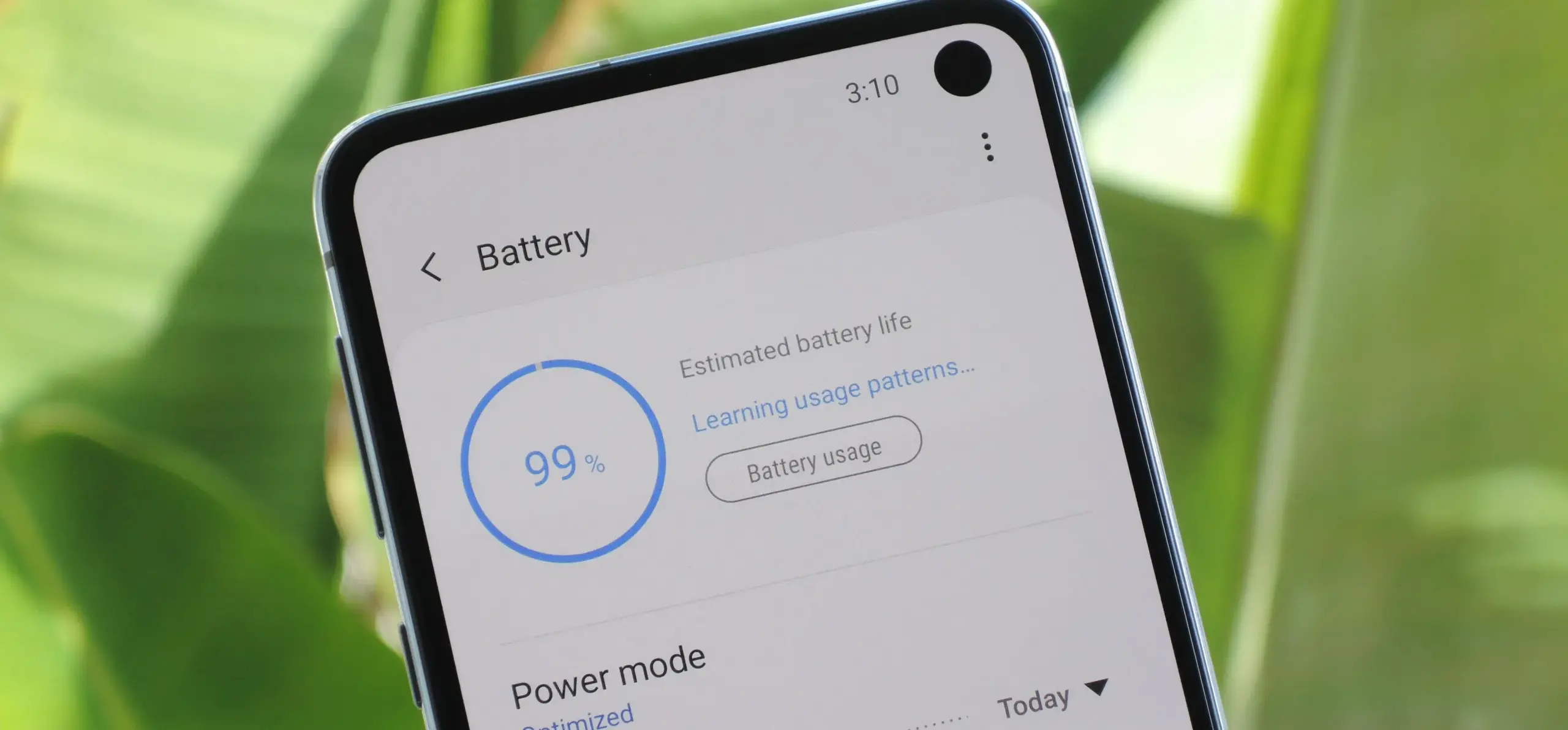
You can check the condition of your Android phone’s battery in two major ways. You can access your phone’s diagnostics by dialing a code. But not every phone can use this dial code. You can also utilize a third-party or internal app, such as Samsung’s Members app, to keep an eye on the condition of your phone’s battery.
Using a dial code to check the battery health
A dial code is a string of characters and digits that you enter as though you were making a phone call. You can access an automated system that gives you a summary of your phone’s diagnostics by dialing a code on compatible phones. This will cover the temperature and condition of the battery.
Enter ##4636## on the dial screen of your phone. After that, access your battery health diagnostics by navigating through the menu. In the menu, this is typically called Battery Information. Depending on the phone kind you own, the options could change.
Regretfully, not all Android smartphones are compatible with this code. Some are in favor of it, while others are not. You can determine whether the model of your phone supports this dial code in advance if you still have the manual or can get it online. However, just dialing it and seeing what happens might be quicker.
Using an app to check the battery health
To check the health of the battery, several Android phones offer a personal app option. The Samsung Members app is available from Samsung. You navigate to Support and then Phone Diagnostics using that app. From there, you can test the phone’s battery and other systems.
AccuBattery
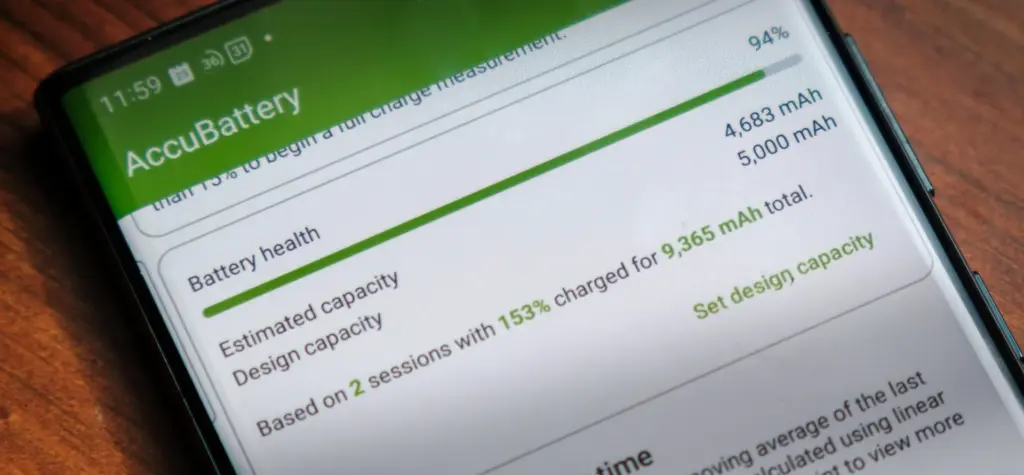
AccuBattery displays battery usage information, and measures battery capacity (mAh) based on science.
Another option is to use a third-party app, such as AccuBattery. AccuBattery can be downloaded from the Google Play Store. To demonstrate how well the battery is charging, it has a health monitor. Additionally, it offers up-to-date information about the battery life of your phone. This can help you maximize the battery’s performance and extend its lifespan.
Maintaining the health of your Android’s battery is essential to its long-term functionality. The dial code is a fast way to check the battery, but not all phones can use it. By downloading an app, you can keep an eye on the condition of your battery and receive real-time reports to improve battery performance. With these resources at your disposal, you can properly care for your phone.
Even though your mobile device has many built-in safeguards to preserve your privacy and keep your data safe, it could still be subject to snooping if someone you know gains access to your accounts or installs hidden programs, or stalkerware, that follow you about. These malicious apps may spy on you by taking use of permissions and built-in capabilities on your Android or iPhone. Here’s how to find stalkerware on your smartphone and get rid of it.
What is a stalkerware?
Stalkerware is a type of malware that tracks and monitors your device’s activities, including messages, images, and location in real time, without your permission. Most frequently, stalkerware is an app that is downloaded straight to your device. It can be hidden from your home screen or masqueraded as something normal to make it harder for you to spot anything fishy. TechCrunch points out that Cocospy, Spyic, and TheTruthSpy are examples of popular stalkerware applications. Stalkerware can be installed or side-loaded from unapproved sources other than the Apple and Google Play stores.
Large data usage on your device, a warmer or slower-than-normal phone, a faster-than-normal battery drain, an increase in screen time, and odd alerts are some potential indicators of stalkerware (and other dangerous programs). But stalkerware can exist without any of these problems. The Coalition Against Stalkerware claims that a typical indicator of monitoring isn’t really related to your phone’s technological features: Instead, it’s the stalker’s altered conduct or awareness of your actions.
Keep in mind that although stalkerware apps are one way for someone to secretly monitor you, other phone settings, such backups, location sharing, and Google and Apple accounts that are controlled or accessible by someone else, can also be misused.
If you think your phone may be compromised, you should consult Cornell University’s Clinic to End Tech Abuse (CETA), which offers comprehensive resources for detecting and eliminating stalkerware as well as other security measures to protect your device from eavesdropping.
Create a safety plan first
You must have a safety plan in place before trying to remove stalkerware from your device or alter shared access to your accounts and apps. The danger of abuse or harassment may rise if monitoring applications are removed or permissions are updated, alerting the person who installed them. A list of organizations and services for survivor aid in various nations may be found on the Coalition Against Stalkerware.
Eliminating stalkerware also has the potential to destroy any evidence you might need to provide to law police if you intend to report the occurrence. You might want to record your experiences in a journal.
Check for unrecognized apps
Even without an icon on the home screen, you can still access installed apps in your device’s settings. This can be found in the settings app on both iOS and Android, under the Apps or App management option. (On iOS, you have to scroll all the way to the bottom of the list to see hidden apps.) Keep an eye out for anything unfamiliar.
You should look for any apps listed under this section of your settings because stalkerware on Android may exploit the access granted by your device’s accessibility mode. You can have a harmful program installed if you don’t use accessibility features or don’t identify an app. Device admin settings may potentially be exploited by stalkerware. Go to Device Admin App under Settings > Security. Nothing should be included here for the majority of personal devices.
Review app permissions and settings
Because stalkerware may misuse access to your device’s data, permissions are another approach to spot questionable programs. In your settings, you can view permissions for each individual app, including location, camera, microphone, and keyboard access. TechCrunch advises carefully examining which third-party apps on Android have access to your notifications, as this permits monitoring of your messages and alerts (check your device settings for Special app access).
To control permissions and sharing with people and apps, utilize Apple’s Safety Check feature (Settings > Privacy & Security > Safety Check) if you’re running iOS 16 or later. Among other settings, you can update your passcode, reset system privacy permissions, switch devices linked to your Apple account, and verify who you are sharing information with. There is a Quick Exit button in case you need to exit with a single push, as well as an Emergency Reset option that will instantly stop transmitting all data from your device.
Use this CETA guide to iOS safety if you don’t have Safety Check installed on your device or if you want to look into specific phone settings that might be sharing your data with someone else, such Family Sharing or text message forwarding.
How to remove stalkerware from your device
Getting a new phone, which you can and should lock down with a new PIN to stop someone with physical access to your device from installing dangerous apps, is the most drastic action you can take to avoid stalkerware.
A factory reset is an additional choice that will remove all data and programs from your smartphone. This may be found in the Settings app on Android and Settings > General > Transfer or Reset iPhone on iOS (you can find the exact path on your device manufacturer’s support website). Keep in mind that any data that isn’t backed up, such contacts, messages, and pictures, will be lost. Even if you’re not positive whether your phone has a stalkerware program installed, a factory reset can be helpful. However, it could not resolve the problem if the spy still has access to the Google account or Apple ID linked to your device.
Additionally, you can manually remove or uninstall programs from your device and utilize an antivirus app from a reliable provider to check for hidden and harmful apps (Google Play Protect can also do this on Android).
After deleting stalkerware, make sure your device has a new lock screen passcode that is difficult for someone with physical access to figure out. You should also take precautions to secure your email and other accounts by using two-factor authentication and using strong, one-of-a-kind passwords.
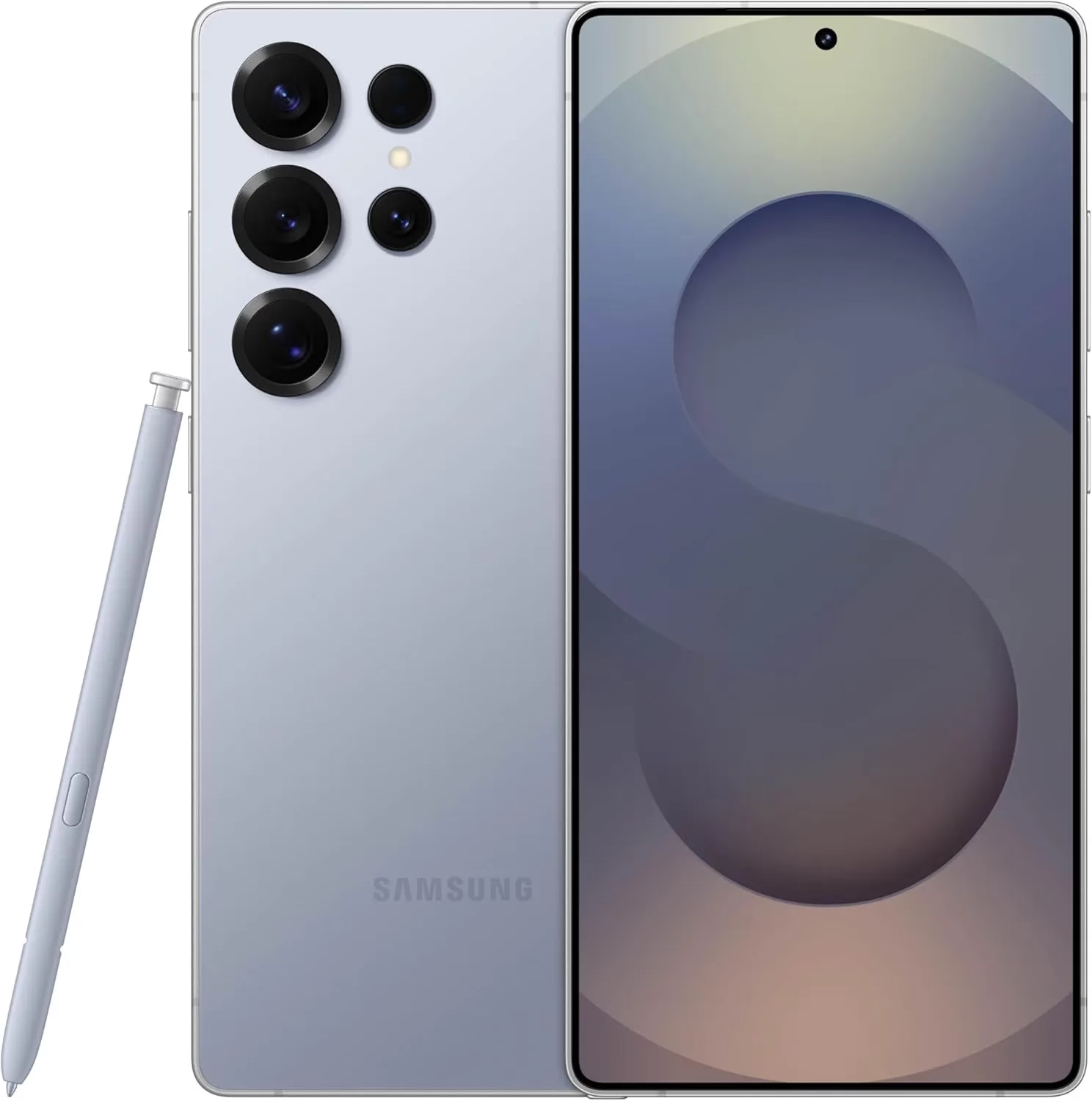
Because of their feature-rich and responsive software, Samsung’s Galaxy smartphones are among the best Android phones on the market right now. However, the majority of Samsung phones, particularly premium models like the Galaxy S25 Ultra, Galaxy Z Fold 6, and Z Flip 6, include extravagant features that you might not utilize on a regular basis.
There are ways to maximize what you have without degrading the user experience if your new Galaxy phone isn’t able to survive a full day between charges.
Here are seven strategies to extend your Galaxy phone’s battery life. Don’t worry, I won’t be Captain Obvious and suggest that you use your phone at a lower refresh rate or lower the screen resolution. The suggestions on this list ought to enhance your quality of life while optimizing the functionality of your phone.
Adaptive Brightness
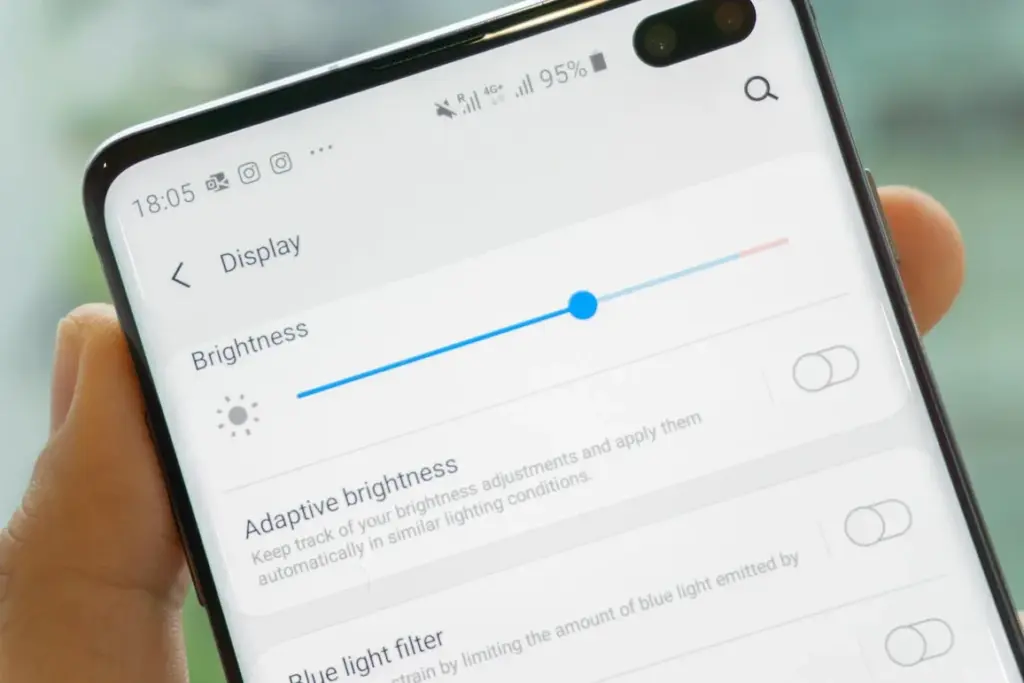
Although this setting should ideally be turned on by default, some individuals disable it because it’s not always reliable. Nonetheless, the quality of Samsung’s ambient light sensor has increased over time. Your Galaxy phone is capable of accurately detecting ambient illumination and adjusting the screen brightness on its own. By doing this, you can make sure your display is more effective and not overly bright.
Toggle Adaptive Brightness on by going to Settings > Display. Although it should function in most settings, you can use the Quick Settings panel to slide down to change the brightness if necessary.
Scheduel Always-On Display
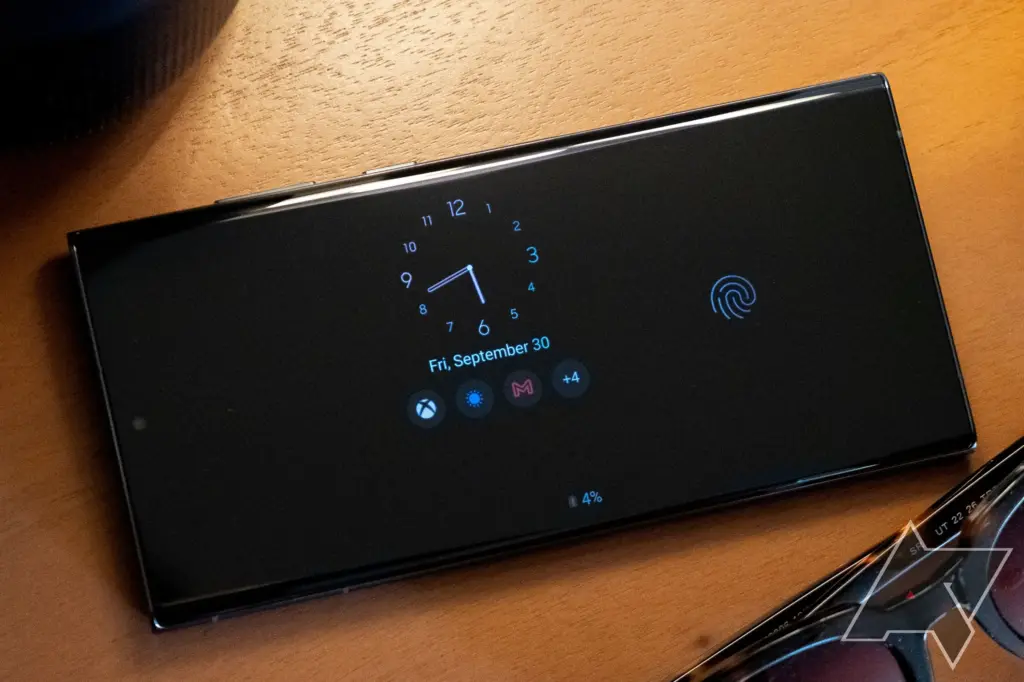
I adore my Galaxy S25 Ultra’s Always-On Display (AOD). For efficiency, its LTPO display lowers to 1Hz, which is useful for functions like AOD. Using AOD may not be as effective if your Galaxy phone is midrange and has a minimum refresh rate of 60 Hz. You can use it wisely, though, by planning AOD for when it’s required.
For example, I’ve set it for 10 a.m. to 6 p.m. so I don’t miss any crucial messages and can quickly get the information I need.
How to: Select Settings > AOD and Lock Screen > Select Always On Display > As scheduled under When to show. Additionally, disable the Show lock screen wallpaper in the AOD options while you’re at it.
Enable Performance profile
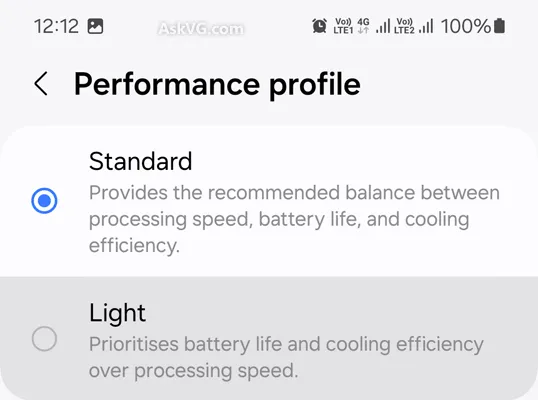
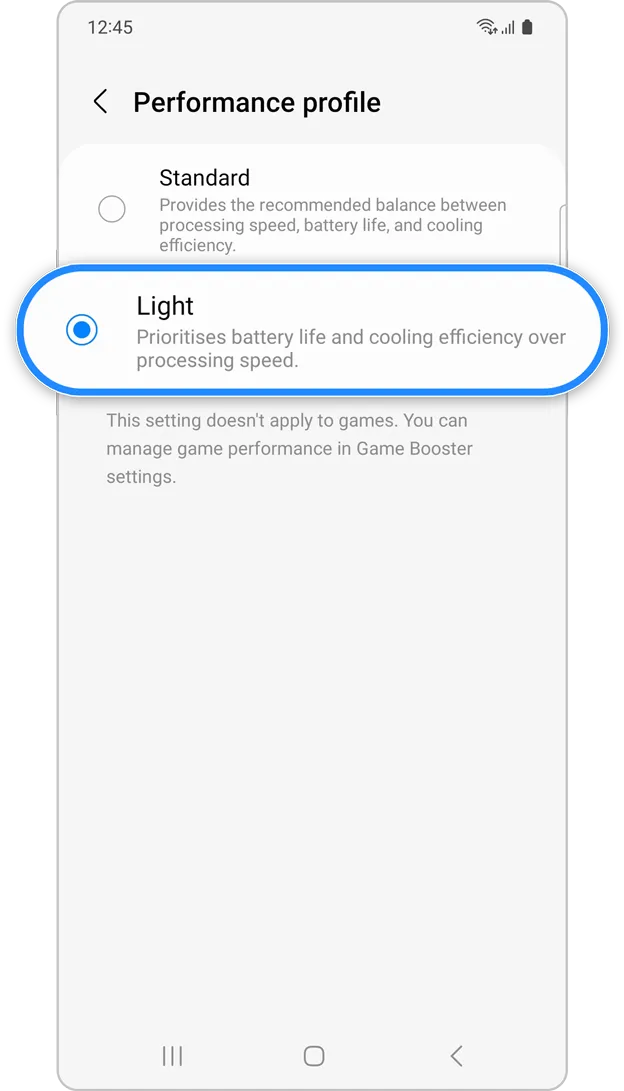
Samsung lets you select a performance profile according on how you use it. The Light Performance profile is a better option than the Standard if you don’t play games and use your phone mostly for everyday activities like surfing and making calls. It will put cooling and battery life ahead of processing performance.
Open the Settings app and go to Device care > Performance profile and select Light. This is ideal for average phone users.
Use Dark Mode
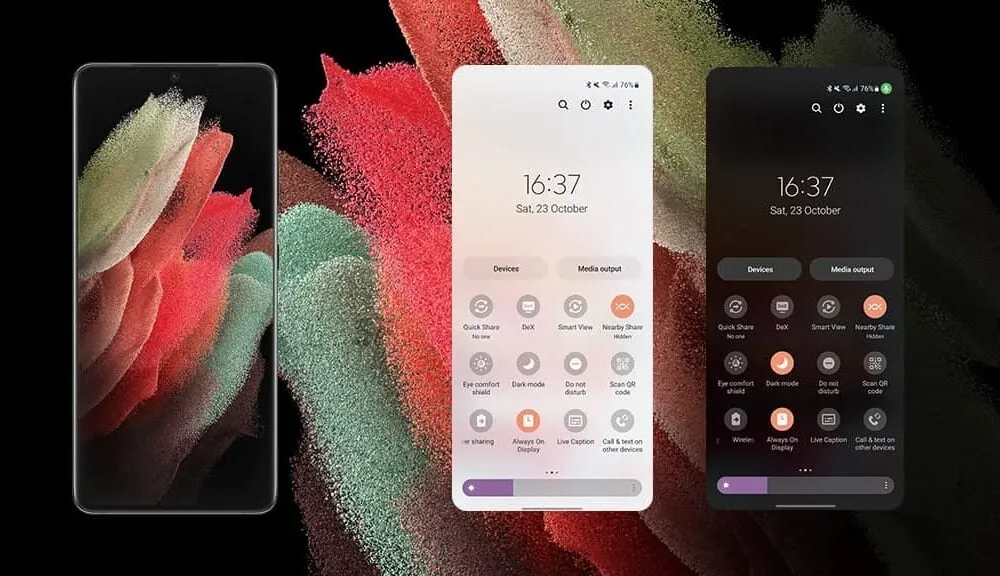
AMOLED screens, which can control individual pixels, are seen on the majority of Samsung phones. Therefore, the area of the screen that must remain black won’t activate those pixels when you choose a dark theme or dark wallpaper. As a result, your screen uses less power and your battery lasts a little longer.
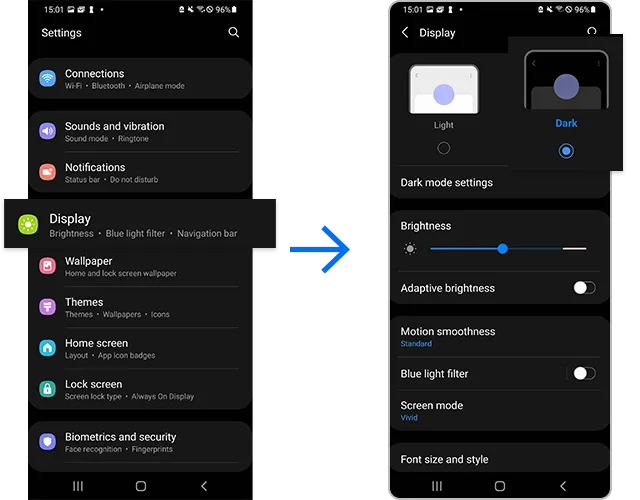
How to do it: Go to Settings > Display. Two cards for Light and Dark will be dealt to you. Press the Dark option. Changing the system wallpaper and sticking with the light theme is an alternative, but it won’t have the same impact on energy life as switching to dark mode.
Use offline content when you can
It’s a good idea to download such stuff offline if you listen to the same podcasts and playlists or travel the same path every day. Google Maps and the majority of streaming apps use a lot of battery power over 5G and LTE. It may also cause your phone to feel warm to the touch when you’re outside. With a little advance forethought, you can handle this: Before you leave the house, use Wi-Fi to download your favorite music or maps.
How to: Go to the streaming apps you want to download content from and follow the in-app steps. For instance, YouTube has a download button on videos, and Spotify lets you download complete playlists.
Force stop or uninstall power-draining apps
Numerous programs, including Facebook, Microsoft 365, OneDrive, and numerous Samsung and Google apps, are pre-installed on Samsung phones. To stop them from running in the background, find the ones you don’t need and either remove them or force-disable them.
For instance, not everyone requires OneDrive or the Samsung Smart TV app. I remove those two apps along with others like Facebook, Outlook, Microsoft 365, Tutor, and more when I set up a new Galaxy phone.
To unistall an app tap and hold the app you want to uninstall. A pop-up menu will appear. Tap Uninstall. As a result, none of these non-required apps will use your battery.
Check what apps are power-draining
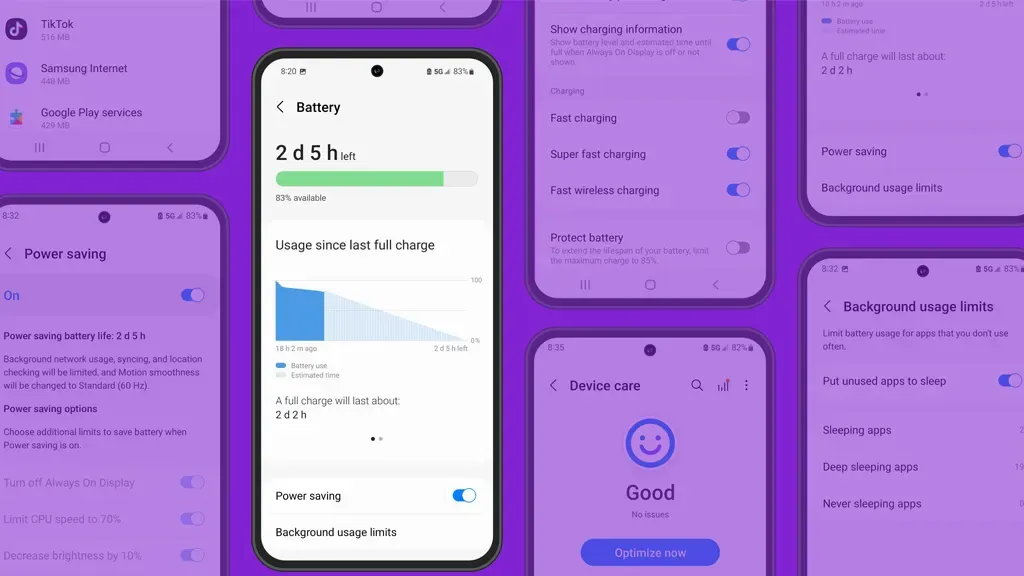
Depending on your location, 5G connectivity, and background usage, some apps need more power. To assist you reduce unnecessary battery usage, Samsung allows you to recognize certain power-hungry programs.
How to: Go to Settings > Battery and device care > Battery > Background usage limitations on your Galaxy smartphone to find apps that use a lot of power. Then, choose the apps you wish to disable.
What to do when you are low on battery?
The top functions of your Galaxy phone will not be compromised by the seven settings mentioned above. But if your phone’s battery is low while you’re out, you should:
Turn on Power Saving
Toggle off data roaming
Turn off location services
Switch off AOD altogether
When your phone’s battery is less than 20% and you’re still a few hours away from a charger, I advise activating these options. The Samsung settings listed above will also help you get the most out of your Galaxy phone’s battery.
Stay connected with the latest from Droid Tools—follow us on X @droid_tools, like our page on Facebook, check out our updates on Instagram, and follow us on Google News for real-time news, device tips, and mobile tech insights.
The formal rollout of Android 16’s stable version has started, with Google’s Pixel smartphones leading the way. Other significant Android manufacturers are getting ready to release their own unique skins and upgrade schedules in tandem with the latest OS version. The most important question for users anxiously anticipating the update is: will my device get the update? This is the list of devices that are compatible with Android 16.
We have put up a thorough list of smartphones and tablets from well-known manufacturers, like Samsung, Xiaomi, Motorola, and Oppo, that should be compatible with the Android 16 update in order to assist in answering this question.
Google Pixel Android 16 Eligible devices
As always, Pixel devices are first in line and the rollout is already underway for these models.
Other manufacturers may need a few weeks to incorporate Android 16 with their own user interfaces, such as One UI, HyperOS, and ColorOS, while Google Pixel phones are currently getting the upgrade. The majority of brands are anticipated to start releasing stable versions in July 2025, with widespread beta testing set to commence shortly.
Stay connected with the latest from Droid Tools—follow us on X @droid_tools, like our page on Facebook, check out our updates on Instagram, and follow us on Google News for real-time news, device tips, and mobile tech insights.
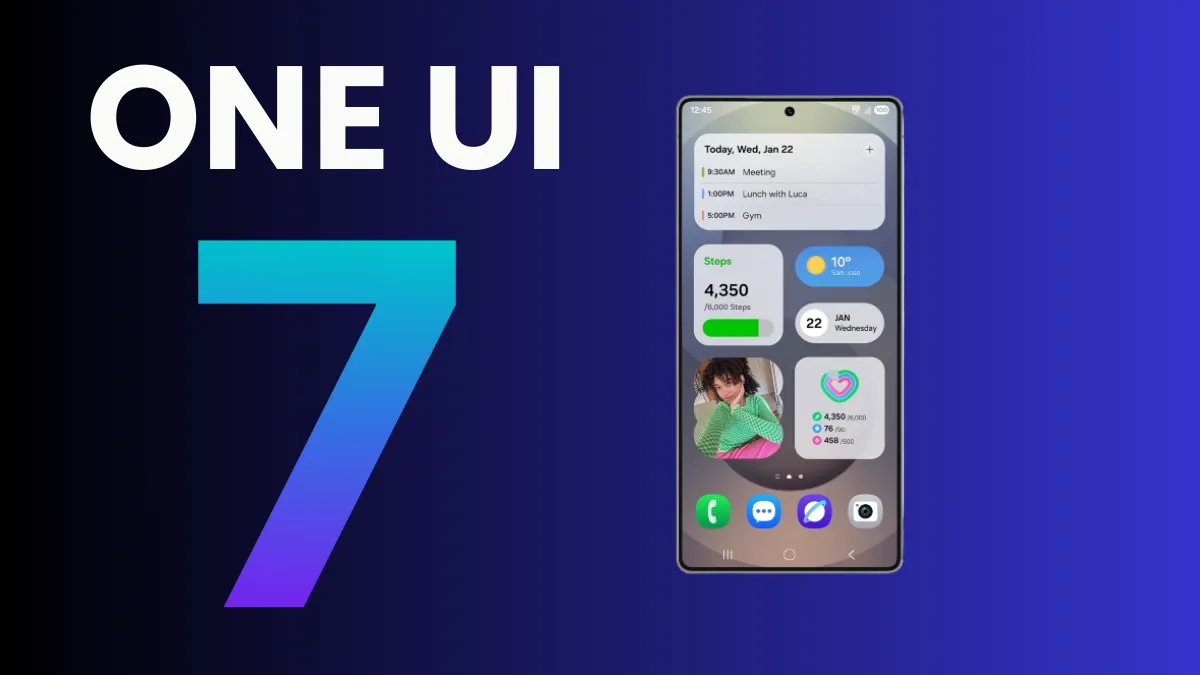
A number of Samsung handsets are getting UI 7, and as the final significant update, certain Galaxy A phones will get it as well. Along with many new features and design modifications, software updates also reach a support milestone.
Samsung is progressively rolling out the One UI 7 upgrade for Galaxy smartphones. With the most recent OS update, flagship smartphone users have joined the party. Nonetheless, the expansion will last until this year’s July.
One UI 7 was the most recent OS update for the Galaxy S21 series, Z Flip3, and Z Fold3. It’s a significant firmware that adds new features and design modifications. It’s worth the remaining time to use One UI 7.
This also applies to other lineups, such as the Galaxy A series. The availability will vary depending on hardware capabilities and optimization stage, but the majority of the design improvements and essential OS features will be offered.
One UI 7 is the last major upgrade for these Galaxy A phones
Galaxy A14
Galaxy A14 5G
Rollout is expected in June 2025.
Released in 2023 with Android 13, the Galaxy A14 and A14 5G are expected to receive two significant updates (Android 14 and 15), making One UI 7 their last version. For security enhancements, these devices might get additional quarterly or biannual patches.
Therefore, One UI 7 is not a concern if you own a Galaxy A14 or its 5G version. Samsung is dedicated to offering the Android 15 update with as many features and modifications as feasible while still satisfying hardware requirements.
Samsung has already provided a specific schedule for the stable rollout, but the company is now having trouble launching One UI 7. Users must be wondering which handsets will be eligible for the update, as Samsung will be concentrating on One UI 8 after this is finished. Here is the complete list of (anticipated) One UI 8 compatible devices.
As the initial glance has already been made public, Samsung has in fact started working behind closed doors on One UI 8, their next major OS version that will run Android 16.
Although Samsung has already given a precise timeline for the stable rollout, the business is currently experiencing issues with One UI 7. After this is done, Samsung will focus on One UI 8, therefore users must be wondering which phones will be eligible for the update. The full list of (expected) One UI 8 supported devices is available here.
Samsung has actually begun working behind closed doors on One UI 8, their next major operating system version that will run Android 16, as the first look has already been made public.
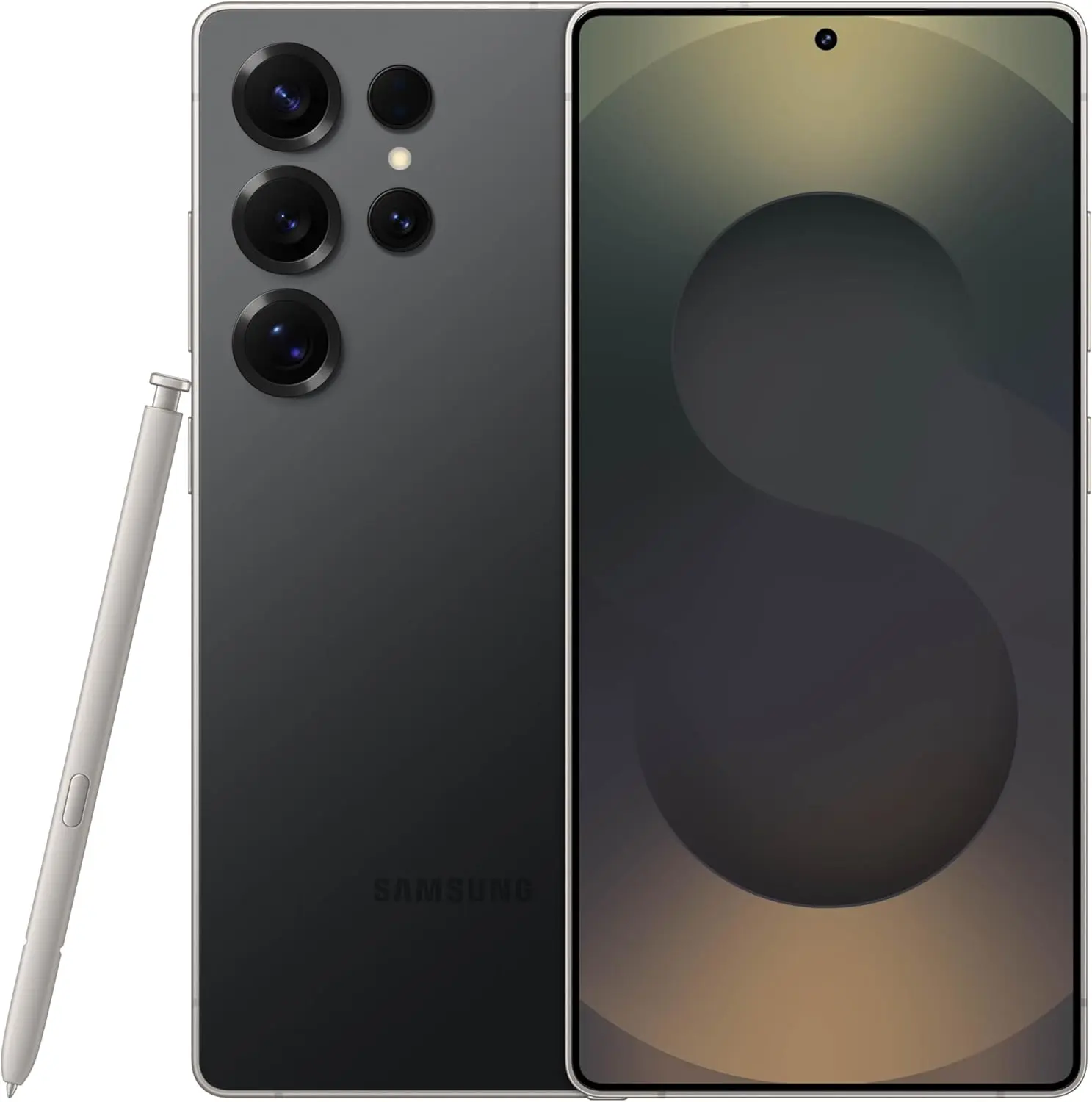
Samsung Galaxy S25 Ultra 512GB
Streamline your day with an assistant that gets you. Ask it to Google search for a pet-friendly vegan restaurant nearby and text it to your friend— your Galaxy S25 Ultra handles multiple tasks with a single ask.
Android 16 with One Ui 8 release date and features
It is anticipated that the most recent One UI 8.0, which is based on Android 16 and is a modest upgrade that improves One UI 7 capabilities, would be released in late July or early August. Because it comes pre-installed on the Galaxy Z Fold 7 and Z Flip 7, an early distribution is expected.
Because of their full of features and efficient software, Samsung’s Galaxy smartphones are among the best Android phones on the market right now. However, the majority of Samsung phones, particularly premium models like the Galaxy S25 Ultra, Galaxy Z Fold 6, and Z Flip 6, include extravagant features that you might not utilize on a regular basis. There are ways to maximize what you have without degrading the user experience if your new Galaxy phone is not able to last a full day between charges.
Here are seven ways to extend your Galaxy phone‘s battery life. Do not worry, I will not be Captain Obvious and suggest that you use your phone at a lower refresh rate or lower the screen resolution. The suggestions on this list ought to enhance your quality of life while optimizing the functionality of your phone.
Use Dark Mode
AMOLED screens, which can light individual pixels, are seen on the majority of Samsung phones. Therefore, the area of the screen that must remain black will not activate those pixels when you choose a dark theme or dark wallpaper. As a result, your screen uses less power and your battery lasts a little longer.
How to do it: Go to Settings > Display. Two cards for Light and Dark will be dealt to you. Press the Dark option. Changing the system wallpaper and sticking with the light theme is an alternative, but it will not have the same impact on energy life as switching to dark mode.
Use Adaptive Brightness
Although this feature should ideally be turned on by default, some individuals disable it because it is not always reliable. Nonetheless, the quality of Samsung’s ambient light sensor has increased over time. Your Galaxy phone is capable of accurately detecting ambient illumination and adjusting the screen brightness on its own. By doing this, you can make sure your display is more effective and not overly bright.
Toggle on Adaptive Brightness by going to Settings > Display. Although it should function in most settings, you can use the Quick Settings panel to slide down to change the brightness if necessary.
Force stop or uninstall power-draining apps
Many applications, including Facebook, Microsoft 365, OneDrive, and numerous Samsung and Google apps, are pre-installed on Samsung devices. To stop them from running in the background, find the ones you do not need and either remove them or force-disable them.
For instance, not everyone requires OneDrive or the Samsung Smart TV app. I remove those two apps along with others like Facebook, Outlook, Microsoft 365, Tutor, and more when I set up a new Galaxy phone.
How to: Tap and hold the app you want to uninstall. A pop-up menu will appear. Tap Uninstall. As a result, none of these non-required apps will use your battery.
Identify power-draining apps
Depending on your location, 5G connectivity, and background usage, some apps need more power. To assist you reduce unnecessary battery usage, Samsung allows you to recognize certain power-hungry programs.
By selecting Settings > Battery and Device care > Battery > Background usage limits, you may find and disable power-draining apps on your device.
Samsung Galaxy S25 Ultra
Streamline your day with an assistant that gets you. Ask it to Google search for a pet-friendly vegan restaurant nearby and text it to your friend – your Galaxy S25 Ultra handles multiple tasks with a single ask.
I like my Galaxy S25 Ultra’s Always-On Display (AOD). For efficiency, its LTPO display lowers to 1Hz, which is useful for functions like AOD. Using AOD may not be as effective if your Galaxy phone is midrange and has a minimum refresh rate of 60 Hz. You can use it wisely, though, by planning AOD for when it is required.
How to: Go to Settings > Lock Screen and AOD > Tap on Always On Display > When to show > As scheduled. While you’re at it, also turn off the Show lock screen wallpaper within AOD settings.
Use Performance profile
Samsung lets you select a performance profile according on how you use it. The Light Performance profile is a better option than the Standard if you do not play games and use your phone mostly for everyday activities like surfing and making calls. It will put cooling and battery life ahead of processing performance.
How to: Open the Settings app and go to Device care > Performance profile and select Light. This is ideal for average phone users.
Download offline content before travel
It is a good idea to download such stuff offline if you listen to the same podcasts and playlists or travel the same path every day. Google Maps and the majority of streaming apps use a lot of battery power over 5G and LTE. It may also cause your phone to feel warm to the touch when you are outside. With a little advance forethought, you can handle this: Before you leave the house, use Wi-Fi to download your favorite music or maps.
How to: Go to the streaming apps you want to download content from and follow the in-app steps. For instance, YouTube has a download button on videos, and Spotify lets you download complete playlists.
What should you do if the battery on Galaxy phone runs low?
The seven settings above will not hinder your user experience and will retain the best Galaxy phone features. However, if you’re out and your phone is low on battery, you should:
Turn on Power Saving
Toggle off data roaming
Turn off location services
Switch off AOD altogether
When your phone’s battery is less than 15% and you are still a few hours away from a charger, I advise activating these options. The Samsung settings listed above will also help you get the most out of your Galaxy phone’s battery.
Samsung Galaxy S25 Ultra
Streamline your day with an assistant that gets you. Ask it to Google search for a pet-friendly vegan restaurant nearby and text it to your friend – your Galaxy S25 Ultra handles multiple tasks with a single ask.