According to a survey by cloud security firm Zscaler, hundreds of malicious Android apps on Google Play were downloaded over 40 million times between June 2024 and May 2025.
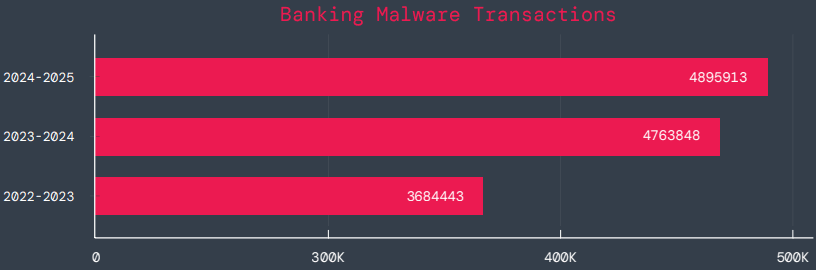
The company saw a 67% year-over-year increase in malware that targeted mobile devices during that time, with banking trojans and spyware being the most common threats.
According to telemetry data, threat actors are leveraging phishing, smishing, SIM-swapping, and payment frauds to take advantage of mobile payments instead of traditional card fraud.
The shift to social engineering assaults can be explained by the widespread use of mobile payments and enhanced security standards like chip-and-PIN technology.
According to Zscaler, “to carry out these assaults, fraudsters use phishing trojans and malicious programs designed to steal financial information and login passwords.”
Zscaler estimates that it has found 239 harmful apps in the official Android store, with a total of 42 million downloads, compared to 200 malware apps on Google Play last year.
The emergence of adware as the most significant threat in the Android ecosystem, which now accounts for over 69% of all detections—nearly twice as many as the previous year—is another noteworthy trend observed at that time.
After leading with 38% the previous year, the Joker info-stealer is currently in second position with 23%.
The SpyNote, SpyLoan, and BadBazaar families—which are used for identity theft, extortion, and surveillance—were the primary drivers of the notable 220% year-over-year (YoY) increase in spyware.
Geographically speaking, 55% of all attacks were directed towards the United States, Canada, and India. Attacks against Israel and Italy also showed substantial increases, ranging from 800% to 4000% YoY, according to Zscaler.
Malicious Android apps and malware
In its annual study, Zscaler identifies three malware families that significantly affected Android users. The first is Anatsa, a banking trojan that occasionally enters Google Play through productivity and utility apps and receives hundreds of thousands of downloads each time.
Since its discovery in 2020, anatsa has undergone continuous evolution. The most recent version is capable of stealing data from bitcoin sites, more than 831 financial institutions, and new areas like South Korea and Germany.
The second is Android Void (Vo1d), a backdoor malware that targets Android TV boxes and has infected at least 1.6 million devices with out-of-date Android Open Source Project (AOSP) versions, mostly in Brazil and India.
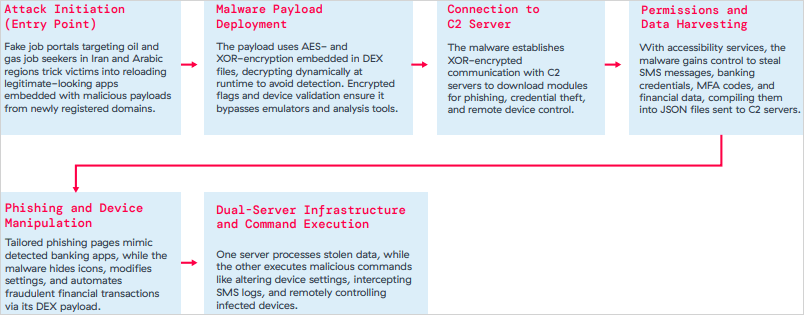
The third is Xnotice, a brand-new Android remote access trojan (RAT) that specifically targets job seekers in the oil and gas sector in Iran and Arabic-speaking areas.
Xnotice propagates via applications that are disseminated through phony employment websites and pose as tools for registering for exams or applying for jobs.
Through overlays, multi-factor authentication (MFA) codes, SMS messages, and screenshots, the spyware targets banking credentials.
Users are encouraged to install security updates, only trust reliable publishers, reject or restrict accessibility permissions, refrain from downloading unnecessary apps, and routinely run Play Protect scans in order to protect themselves from Android malware threats, including those from Google Play.
Routers continued to be the most targeted IoT equipment this year, according to Zscaler’s study. Hackers added routers to botnets or used them as proxies to spread malware by taking advantage of command injection flaws.
The majority of IoT attacks took place in the United States, with rising hotbeds in Hong Kong, Germany, India, and China following, suggesting that attackers are targeting devices throughout a larger geographic area.
The cybersecurity company advises businesses to harden IoT and cellular gateways by keeping an eye out for anomalies and implementing firmware-level protections, as well as to deploy zero-trust solutions for key networks.
Strict application control guidelines, security against phishing attacks, and monitoring SIM-level communications for anomalies should all be part of mobile endpoint protections.
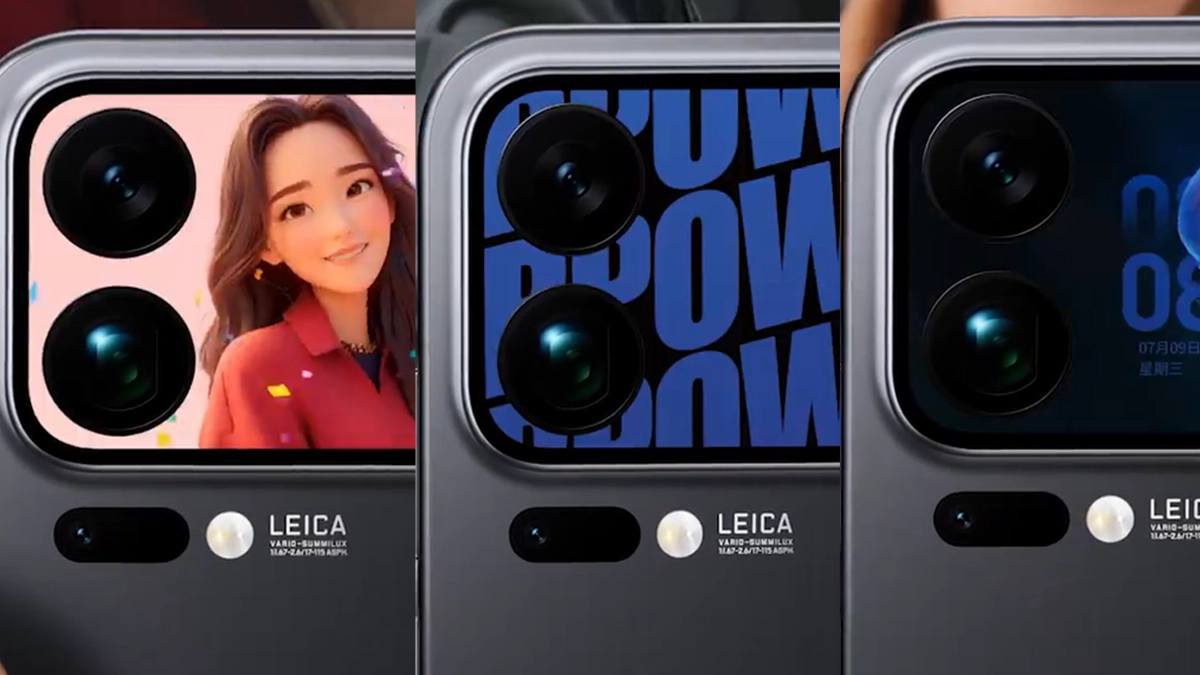
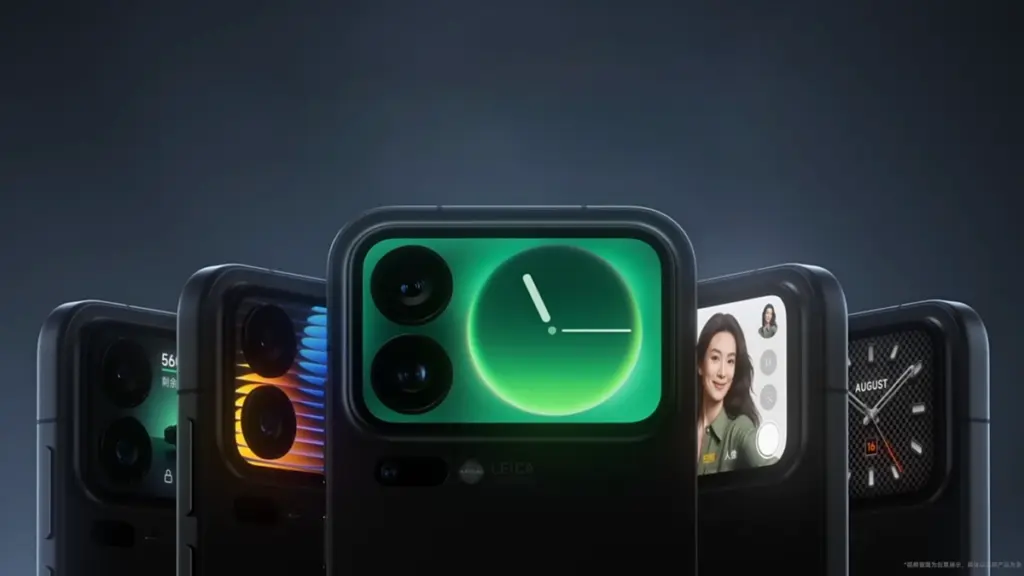
For the Xiaomi 17 Pro series, Xiaomi has released a new software update that enhances the secondary display with a number of interactive features. The launch includes dynamic avatars, real-time translation, five live wallpapers, and two portable games, according to the company’s HyperOS Weibo post.
Animated profile photographs can now be set on the back screen, and by mid-November, new bright-style themes will be available. Users can converse in Chinese on the main display and see translated text on the back panel thanks to a conversation translation feature.
Xiaomi 17 PRO get new visuals and games
Along with two games, Plants vs. Zombies and Snowman Sokoban, the update also includes five live wallpapers with themes related to technology, nature, and pets. You can manually update the Entertainment Box from the app store to access these. With new features scheduled every month, Xiaomi previously stated that the rear display will continue to be a major design priority for its upcoming smartphones. TCL Huaxing panels, measuring 6.3 and 6.9 inches, respectively, with a maximum brightness of 3500 nits and Xiaomi Dragon Crystal Glass protection, are used in both the 17 Pro and 17 Pro Max.
The Xiaomi 17 Pro’s innovative rear screen has practical applications in addition to aesthetics. When the phone is inactive or on a desk, it makes the user’s daily phone time more lively and vibrant. The company wants to transform the back screen from a mirror or clock into a tool for work and enjoyment. Cute loops, small critters, and light art forms can now be set as live images by users. More improvements will be made next mo
The new games aid in evaluating the rear panel’s touch and speed. Every one of them utilizes the entire small display and operates smoothly. According to Xiaomi, the objective is to provide customers who want light entertainment in their free time with a “soft joy.” To give it a more authentic sense, the company is also incorporating little sound effects. The fix is currently being released in stages, and more devices will receive this update in the days to come. To locate the update, users can look at the HyperOS setup’s update tab. According to Xiaomi, the update will be available on all devices by the middle of November.
After setting up a new Samsung Galaxy, you should think about the apps you use and don’t use.
There are many unnecessary preinstalled apps on your phone that don’t always enhance the user experience. Therefore, it is safe to remove any bloatware and superfluous apps.
These apps clog your home screen, suck up storage space, and slow down your phone.
All of Samsung’s devices, from the most recent high-end Galaxy phones to the most affordable variants, come with these apps.
When setting your Samsung Galaxy device, stay away from adding bloatware.
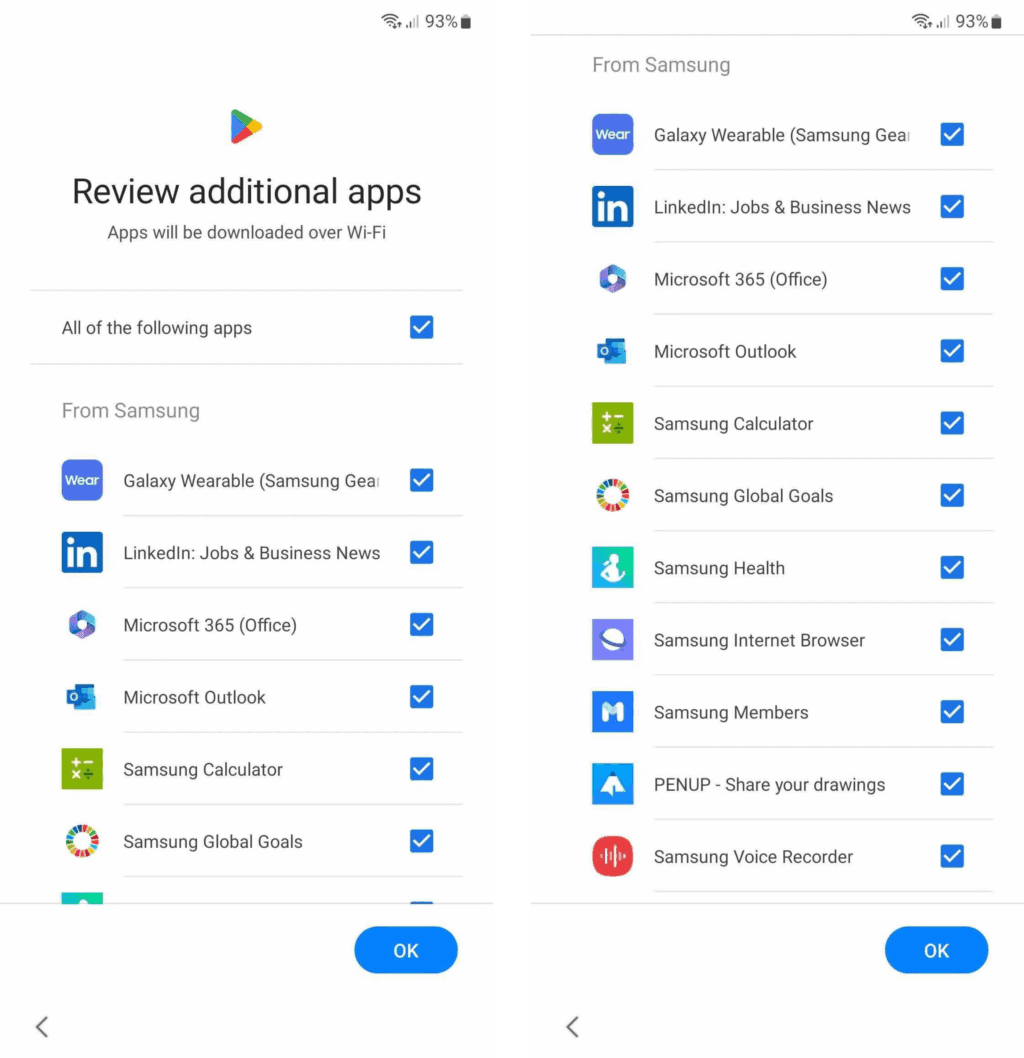
You are prompted to install extra apps when you set up a new Samsung device.
Take your time and uncheck the apps you don’t need because it automatically chooses the ones on that list. This is a simple method of avoiding additional bloatware.
If not, you’ll have to take them out by hand when you decide they’re useless.
Which apps on your Samsung Galaxy phone are safe to remove or deactivate?
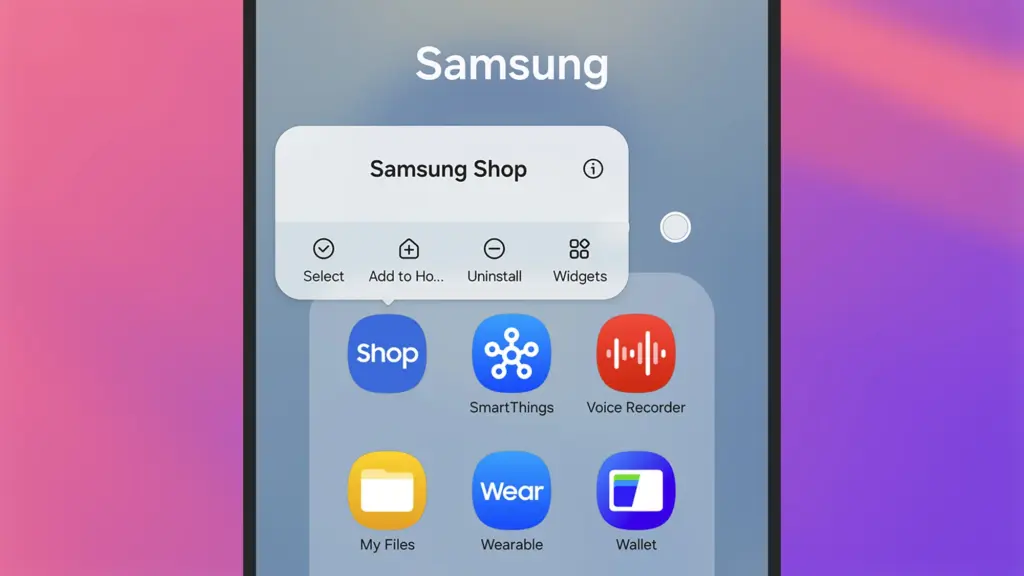
On a Samsung phone, deleting and uninstalling apps is simple. The Settings menu allows you to remove or deactivate the majority of apps; for others, you can use ADB commands.
Many preloaded system-related apps can be securely removed, although we don’t advise the typical user to do so.
Although these apps don’t take up much space, you may need to factory reset your phone in order to restore it if you remove the incorrect one.
Additionally, you are unable to remove or disable apps that are essential to the phone’s operation. Put them in a different folder if you want them hidden.
The popular apps that you can remove or disable from your Samsung Galaxy phone are listed below. You might see different apps than those on this list depending on your area or carrier.
Many of them are Samsung’s substitutes for Google apps like Drive or Chrome. Since they don’t interfere with how your device functions, you can safely uninstall them—especially if you like Google’s app suite.
These are some great alternatives that you can download from the Play Store if you don’t want to utilize Google or Samsung apps.
Get the best possible performance out of your new Samsung Galaxy mobile.
One of the first things you should do when configuring your Samsung Galaxy phone is to remove any unneeded software. Performance can be enhanced, particularly on low-cost Samsung phones.
Additionally, removing bloatware frees up space on your Samsung phone. Installing Good Lock modules will help you take advantage of this.
I have six computers of different sizes and specs, but lately I’ve noticed that I use my Chromebook more frequently. It has one amazing feature that I can’t live without, despite its obviously poor performance and small 11-inch footprint: full-fledged Android app support. I’m not just saying this because I write for Android Authority; having access to smartphone apps that don’t have a true PC equivalent is revolutionary.
Unfortunately, earlier this year Microsoft ended the Windows Subsystem for Android (WSA) experiment, which enabled the use of Android apps on Windows 11. Additionally, Phone Link is still in use, although it just lets you mirror the screen of your smartphone. Furthermore, the Pixel and the great majority of other devices still do not have screen sharing enabled by Microsoft. Therefore, I have to decide between using an emulator or a Chrome OS device if I want the finest Android experience on my PC.
The sole issue? At best, Android emulators on PC provide a mediocre experience. Performance is lost due to emulation costs, and even the best Android emulators, such as BlueStacks, have crowded interfaces and advertisements designed for particular applications, like gaming. On Chrome OS, however, the experience is far more seamless: you may open individual Android apps, and they coexist peacefully with native apps.
Waydroid
Waydroid brings all the apps you love, right to your desktop, working side by side your Linux applications.
Is it possible to accomplish this Android-PC harmony without installing Chrome OS and forfeiting the ability to use a conventional desktop environment? Yes, but the only catch is that Linux is needed. Nevertheless, I believe it’s totally worth it, and Microsoft’s growing hostility against Windows privacy is just one more reason to think about switching.
Why running Android apps on PC matters more than ever
I enjoy having access to Android’s extensive app store on my PC for a number of reasons, including my investing portfolio tracker and other smart home apps. I frequently think that Android services are simply superior to their web or PC versions. For instance, WhatsApp for PC keeps me from scaling the window to my preferred size. In particular, it feels like a needless waste of screen space because it won’t shrink any smaller than a quarter of my screen.
Apps for smartphones, on the other hand, are made to fit on almost any screen size. Therefore, the window size should be much more adjustable if you can figure out how to run them on a computer. Additionally, you may already understand the appeal if you have ever tried multitasking on a computer with a single display.
Try using a web browser to launch Google Maps and minimizing the window size (see below). As soon as you click on a business, the sidebar will occupy all of the available space, leaving you with nothing except the search box. Without ignoring this sidebar, you are unable to move about the map.
You can see how much smaller the windows for the Android versions of WhatsApp and Google Maps can get on the right. This discrepancy is not the fault of Meta or any other developer; desktop applications are made to work on reasonable screen sizes, and my smaller windows don’t precisely meet that requirement.
Nevertheless, the difference is clearly noticeable on a 24-inch screen, such as the monitor on my gaming PC. I’ve considered purchasing a second monitor, but my desk isn’t large enough to fit one. I must therefore use every available inch of screen real estate for the time being. Aside from density considerations, I occasionally like mobile apps because of their simple user interfaces. For instance, AI mobile apps respond far more quickly than the web version, which is useful when I only need a brief response to a small query.
Because of my propensity for multitasking, I usually find myself using two chat apps (WhatsApp and Telegram) in addition to a full-featured web browser and possibly one other program, such as Maps or a social media app like X/Twitter. Normally, switching between the different full-screen windows would require a lot of Alt+Tab. However, with top-notch Android app support, I can use many windows simultaneously.
Android apps on PC without emulation
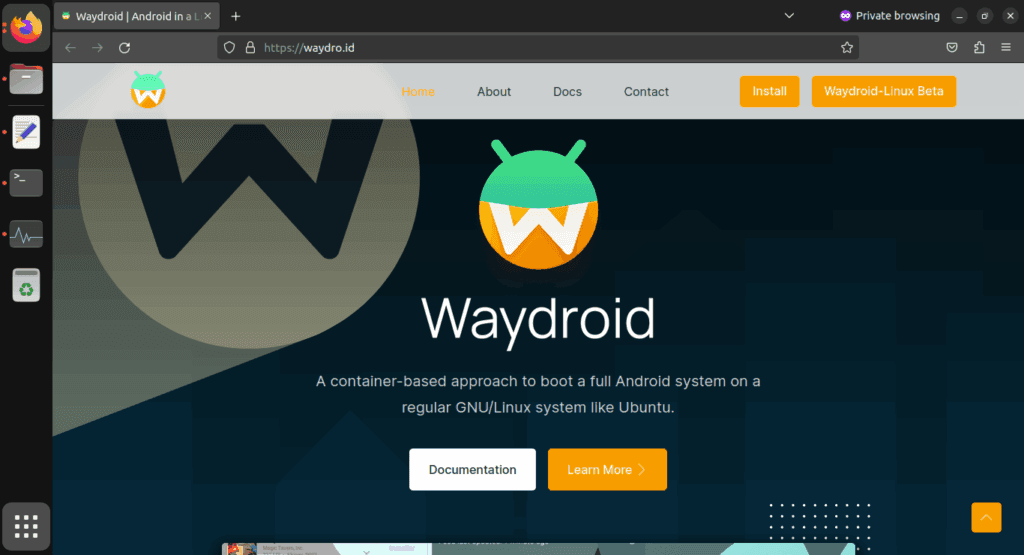
I came found Waydroid, an open source project that lets you run Android apps on a PC. Waydroid doesn’t simulate a whole Android device in a virtual machine, in contrast to Android emulators like BlueStacks or Genymotion, which you may already be familiar with. Rather, it shares the host OS’s kernel and makes use of Linux namespaces. In summary, it runs an entire Android system directly on Linux using a container-based methodology. This results in near-native performance with no overhead or performance penalty associated with virtualization.
Admittedly, installing Waydroid is more complicated than just downloading the installer for an emulator and repeatedly selecting Next, as is the case with Windows. However, it merely required entering two simple commands into the terminal, and Waydroid is available in the app stores of many distributions. It wasn’t a problem for me because I already use Linux on a daily basis, but I would advise you to give the operating system a try if you haven’t used it recently. Stable versions, such as Ubuntu, are largely similar to Windows and require no tweaking.
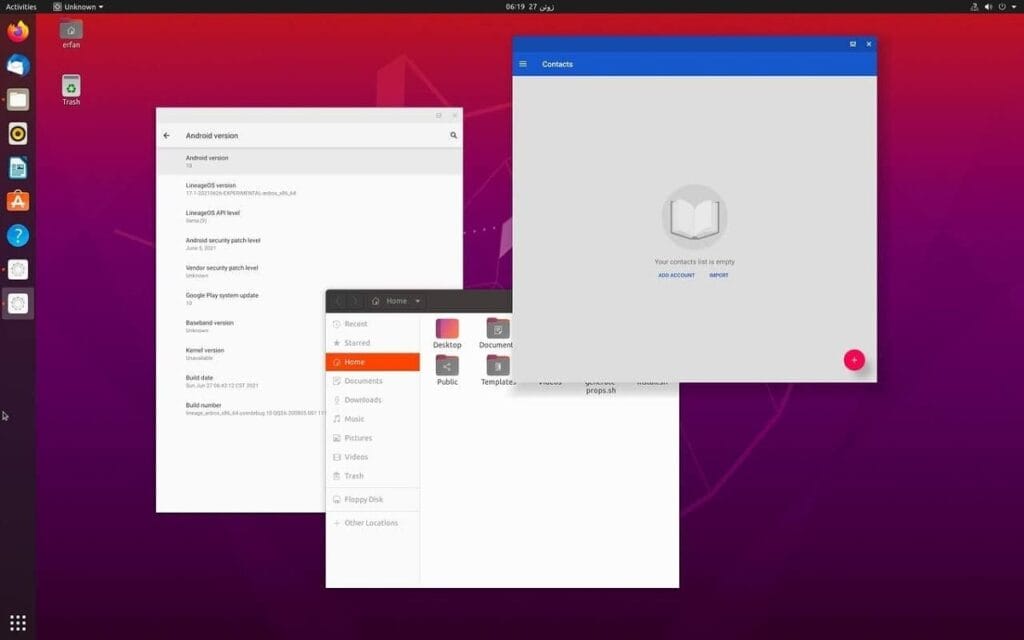
Returning to the topic of Waydroid, there are two builds available: one with Google apps (GApps) and one without. I chose the former, which included a minimum build of Android 13 based on LineageOS along with the Play Store and Google Play Services framework.
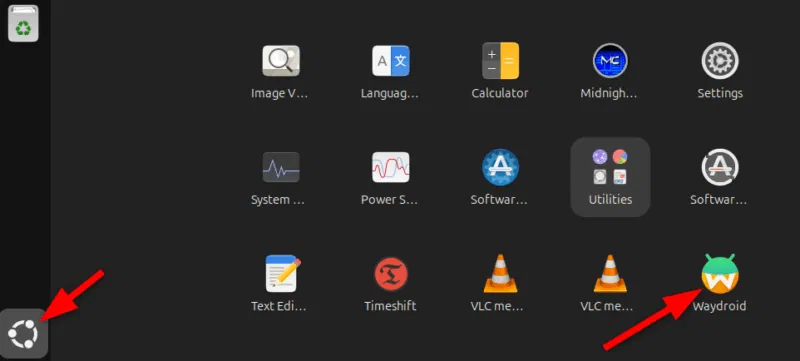
After installation, Waydroid displays installed Android apps in the application menu of your computer, complete with taskbar entries and unique icons, just like native programs. Additionally, you may enable multi-window mode, which lets each program open in a separate window, by changing one setting.
Is using Waydroid pleasant?
Waydroid
Waydroid brings all the apps you love, right to your desktop, working side by side your Linux applications.
Despite being an open-source, community-built program, Waydroid feels quite well-designed. With the exception of a few configurable configuration changes (such as turning off the on-screen keyboard), the main experience is identical to that of an Android tablet. I can use my monitor without even using my keyboard and mouse because it allows touch input.
I was pleasantly happy to discover that practically every software I wanted to run on Waydroid worked without any issues, despite my initial concerns about compatibility. You must first take a moment to register your Waydroid installation with Google Play Protect, but I could download everything from the Play Store. Of course, you may also utilize other app stores like F-Droid or sideload apps. Compared to Windows Subsystem for Android, which was formally restricted to the Amazon App Store, this is already a significant improvement.
We tested all of my favorite apps, including Telegram, YouTube, and Google Maps, and they all functioned perfectly without a single frame loss. Even my Chromebook, which runs Android apps less effectively, stands in sharp contrast to this. You see, with the release of Chrome OS 109 in 2023, Google shifted to a virtualization-based strategy for running Android. Since then, a lot of Chromebooks with lower specs have had trouble running Android apps.
The term “way” alludes to Waydroid, a crucial part of the graphics infrastructure of contemporary Linux that enables even hardware acceleration and fluid input. Even though I have AMD hardware, as the project suggests, I tested a few simple games and they ran perfectly. Allowing Waydroid to utilize your PC’s built-in graphics or switching to software rendering are two workarounds for NVIDIA’s lack of official support.
That’s not to imply that Waydroid doesn’t have drawbacks. You’ll soon discover that you can’t view incoming notifications when you run programs in multi-window mode. Apps lack the ability to send notifications outside of the container they reside in, in contrast to Chrome OS. If you install the appropriate desktop application and use a forwarding app, such as KDE Connect, you can easily get around this.
Additionally, Waydroid shields a large portion of your device’s hardware from Android apps. For example, the camera input is broken, which is really important if you care about video calls. Similarly, apps are inherently unable to directly access Bluetooth or GPS. However, this only truly matters in ancillary use scenarios, such as when attempting to configure a smart home device straight from Waydroid.
Overall, Waydroid fills the void better than anything else available at the moment, although it doesn’t completely replace my Pixel or even my detachable Chromebook. I can highly recommend Waydroid if you’re among the numerous folks who either use an emulator or wish that Windows Subsystem for Android would come back.
Waydroid
Waydroid brings all the apps you love, right to your desktop, working side by side your Linux applications.
Free apps are a welcome anomaly in a world when nothing really comes free! Today, we’re exploring a carefully chosen collection of free apps for iOS and Android smartphones that come in a range of categories, such as games and other practical utilities. Remember that these offers are temporary, and their availability may change at any time, so make sure to take advantage of the chance while it lasts.
From free to paid options, the Google Play Store and Apple’s App Store each provide an amazing assortment of apps that appeal to a wide range of interests. It may come as a nice surprise to many customers to learn that some premium apps periodically go free during exclusive sales. Some of the most interesting apps available for free right now have been hand-picked by us.
Android apps
Burning Sky VIP($2.49) – An entertaining 90’s arcade-style shooter that offers cool, fast-paced graphics that do not let up on the action. This retro vertically scrolling shooter game delivers loads of adrenaline in a modern dogfight style, where you and your reflexes go up against insane bosses as they rain bullet hell on you.
My Medicine Pro – Health Log($1.99) – Do you find it difficult to keep track of all your medication details? I would like this app to help simplify my life as I grow older. It is an all-in-one solution to manage my health and wellness needs. This app was designed to ensure nobody ever misses a dose, an appointment, or an important health update again.
Empire Warrior: Tower Defense($0.99) – Rather than just having a bunch of towers shooting enemies down from afar, in the hope that they do not breach your defenses, you also now have the help of heroes who are mobile. Control these heroes to turn the tide of the seemingly overwhelming battle.
iOS apps
Pentris($1.99) – OK, so this is basically the same game premise as Tetris, albeit in a different name. You line up blocks of various sizes into rows to ‘delete’ them, and the game is over when the screen is filled to the top with rows as you fail to clear your lines.
Palette Hunt($0.59) – Do you have an eye for design? If so, discover the fun of creating perfect color palettes with Palette Hunt. I am sure designers, artists, or anyone who loves colors will find exploring shades to be an inspiring experience, as this app lets you transform existing photos into ready-to-use color palettes.
Eat the Rainbow Food Journal($2.99) – They say the best diet is one whose food is filled with many colors. Well, I am quite sure nutritionists and dietitians do not mean having nothing but Fruit Loops for all your meals. Rather, eat a variety of foods with different colors, and this journal helps you keep track of that.
At the time this post was published, all of the apps we are showcasing here were free to download. Regretfully, developers frequently fail to indicate the duration of these offers. Don’t hesitate to download an app if you enjoy it.
However, you should always check the app page in the store before downloading a free program. Because there are occasionally unnoticed obstacles that you should be mindful of.
The majority of free apps either offer in-app purchases or have advertisements. But some apps that cost money also accomplish this. It is crucial to give these factors the consideration they require, particularly if the game is meant for young players.
Many apps gather user information and frequently sell it to outside parties. Therefore, make sure you only give the program the rights it truly requires if you want to be safe. For instance, a flashlight shouldn’t be interested in your location information, and an alarm clock doesn’t require access to your contacts or cameras.
Even while there isn’t such a thing as a free lunch, there is such a thing as free apps! We’ll look at a selection of free apps for iOS and Android phones today, which includes games and other kinds of apps. Please be aware that you must act immediately because these offers are time-sensitive and we are unsure of when they may end.
A wide variety of programs, from free to premium solutions, are available in the Google Play Store and Apple App Store, respectively. Many customers may be surprised to learn that during promotional events, a number of paid apps are frequently made temporarily available for free. We’ve put together a list of some of the most interesting apps available for free right now.
Free premium apps (Android)
Reminder Pro($3.49) – If you ever need a second brain like me, then this is the app to go for. It is a reminder app that will definitely come in handy, giving you alerts and various options to be notified, so that you know what’s next on your “To Do” list without falling behind on deadlines.
Resume Builder – CV Maker($4.99) – Ever wanted to conjure a resume while you are on the move? If you have answered in the affirmative, you can do so on the move with this nifty little app. Of course, some of us might use other apps, but this is rather comforting for old school folks like me.
Age Calculator Pro($0.49) – If you are poor in math, just like me, then this age calculator app might be just the thing! It is ideal to calculate my age and discover the total years, months, days, weeks, hours, minutes, and seconds between two dates! Of course, this is also nifty to find the date difference between important events like marriage anniversaries, work anniversaries, birthdays, festivals, and holidays, among others.
Free premium apps (iOS)
Lego Duplo Doctor(S4.99) – What do you think your little one is going to grow up to be? Well, let’s not pressure the tiny tots just yet and let them play. And who does not like Lego? Duplo can be said to be the introductory doorway to the world of Lego, and this game squarely places them into a hospital environment.
BJJ Old Man Style($19.99) – Check out this instructional app that features a 1 hour 45 minute video, where Jiu Jitsu black belt Rick Ellis showcases how he approaches the BJJ game as an older athlete. Rick emphasizes developing your game into systems of attack and defense, opening up various options when faced with different opponents.
Pixel Thoughts($0.99) – I would highly recommend using this app with a pair of headphones, as it lets you enjoy meditation by placing your thoughts into a star. Just focus on what’s boggling your mind and meditate to gain some perspective in a more focused manner.
At the time this post was published, all of the apps we are showcasing here were free to download. Regretfully, developers frequently fail to indicate the duration of these offers. Don’t hesitate to download an app if you enjoy it.
However, you should always check the app page in the store before downloading a free program. Because there are occasionally unnoticed obstacles that you should be mindful of.
The majority of free apps either provide in-app purchases or have advertisements. But some apps that cost money also accomplish this. It is crucial to give these factors the consideration they require, particularly if the game is meant for young players.
Many apps gather user information and frequently sell it to outside parties. Therefore, make sure you only give the program the rights it truly requires if you want to be safe. For instance, a flashlight shouldn’t be interested in your location information, and an alarm clock doesn’t require access to your contacts or cameras.
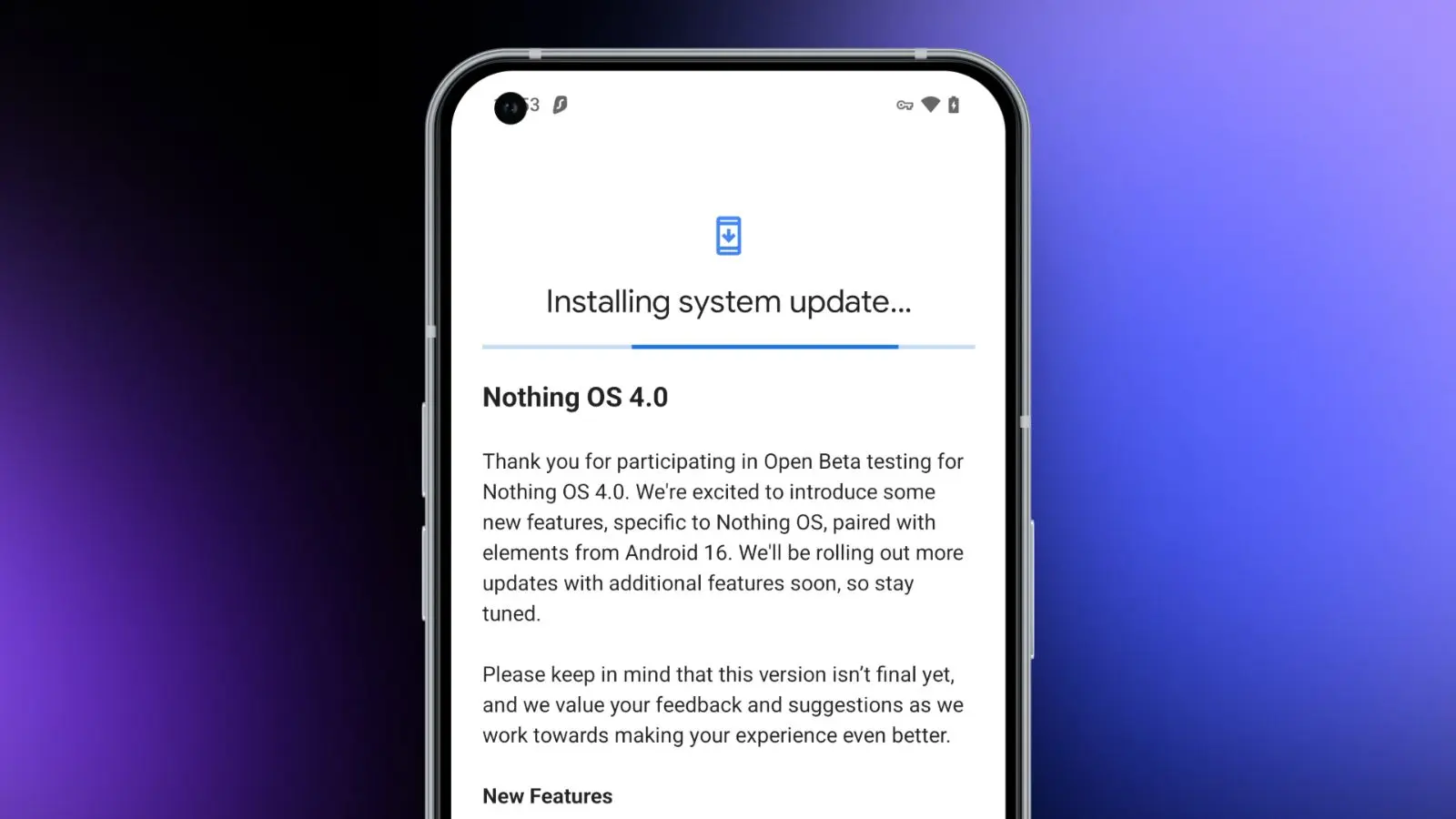
Today, we need to discuss a few significant news from Nothing. First, for those who own a Nothing phone and would like to try out Android 16 before it becomes stable, Nothing has made the Nothing OS 4.0 Open Beta (Android 16) available. The other news relates to that since it presents the Playground and Essential Apps, both of which require additional explanation. In summary, Nothing came up with a really great idea.
Download the Nothing OS 4.0 Open Beta:
Let’s start with Nothing OS 4.0, which is now in beta testing. To obtain this, you must have a Phone 3 or any of the Phone 2 and 2a versions. You might be out of luck right now if you own a Phone 3a device, as they haven’t mentioned them yet.
There are a number of changes in the Nothing OS 4.0 beta, all of which we’ve detailed in this post. It includes “generic” enhancements like a more sophisticated design, an additional dark mode, enhanced app optimization, and a better photography experience. Nothing also mentioned two new lock screen clock faces, a new Pop-up View, and support for 2×2 Quick Settings tiles in today’s announcement.
Installing the Nothing Beta Updates app, joining the beta through it, and then installing the beta software are the largely straightforward steps to begin, providing you enjoy testing beta software.
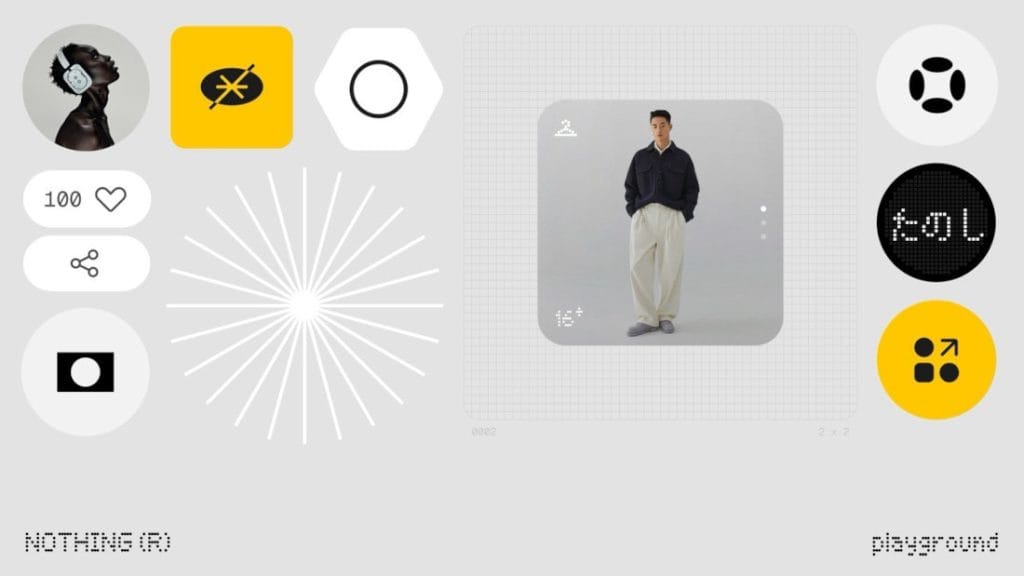
Nothing Essential Apps and Playground: In other exciting news, Nothing has introduced the Playground and Essential Apps that are housed within it since we enjoy fresh concepts. If your Nothing device is running Nothing OS 4.0, you can install programs, Glyph Toys, camera settings, and EQ profiles from the Playground, which is effectively a community storefront. Even while you might not find that concept particularly novel or intriguing, the apps and their origins may be.
Nothing has developed a web gateway that lets you make your own programs that your Nothing phone may install as widgets. You go to the Nothing Playground website (here) and try to explain a phone app you want. To put it another way, you would be describing a widget that isn’t currently on your device but may be a helpful program or action. This Playground site’s AI will install it on your device if it is capable of doing so.
You only need an idea that you can clearly express in a prompt that AI could grasp and then develop from, as this is all happening from AI prompts. You don’t need to know how to code to accomplish this. But in case you were curious, you can see the code it spits out. All of this is a sort of early “alpha” with some obvious restrictions. There has been no indication that it will grow and incorporate agents, APIs, and integrations in the future, which should make this something really amazing.
A Tic Tac Toe app, an F1 timetable, a water intake tracker, a flight reminder, a solar clock, a small calculator, and a breathing tracker are a some of the apps that are now available on the Playground. You may already have some of those features from other apps, but the idea is that you may think of something useful at the time and instruct the Playground to create it. In only a few minutes, that might be on your home screen and be usable. That is a significant idea.
You will be able to download other members’ apps and share your own publicly on the Playground to completely increase the number of apps and ideas available.
The Samsung Galaxy S25 Ultra and iPhone 17 Pro are two of the greatest phones available right now because of their incredible cameras and powerful processors. Even though these high-end flagships could be the best mobile devices available right now, getting them will cost you a fortune. Even phones that are affordable, like the Google Pixel 9A, are still expensive, and since people’s budgets are getting tighter everywhere, it’s more crucial than ever to get the most out of your purchases. Instead of updating more frequently, the simplest approach to achieve that is to just stay using your phone longer, spreading out that expensive purchase across the years.
Not only is it better for your wallet, but it’s also much better for the environment. If you upgrade your phone less frequently, fewer phones will be made and distributed, and fewer old phones will wind up in landfills. The good news is that manufacturers such as Apple, Google, Samsung, and others are extending the support period for their phones’ software updates, so the phone you purchase today will continue to be safe to use for many years to come.
You are responsible for the remainder. It takes some work, a lot of attention, and a few crucial tactics to keep your phone in good operating order for the seven or eight years of software support it may receive.
Therefore, these are the best ways to extend the life of your phone.
Update the software
Avoid using a phone that isn’t receiving security upgrades since it’s just not safe. Phones like the Google Pixel 9 series now come with seven years of software support, whereas before it was typical for many Android manufacturers to support new phones for only two to three years. Unfortunately, some less expensive phones, such as the recently released OnePlus Nord CE4 Lite, only get upgrades for a few years. When purchasing a new phone, be sure to inquire about its support duration since this will provide you with greater value during the phone’s lifetime.
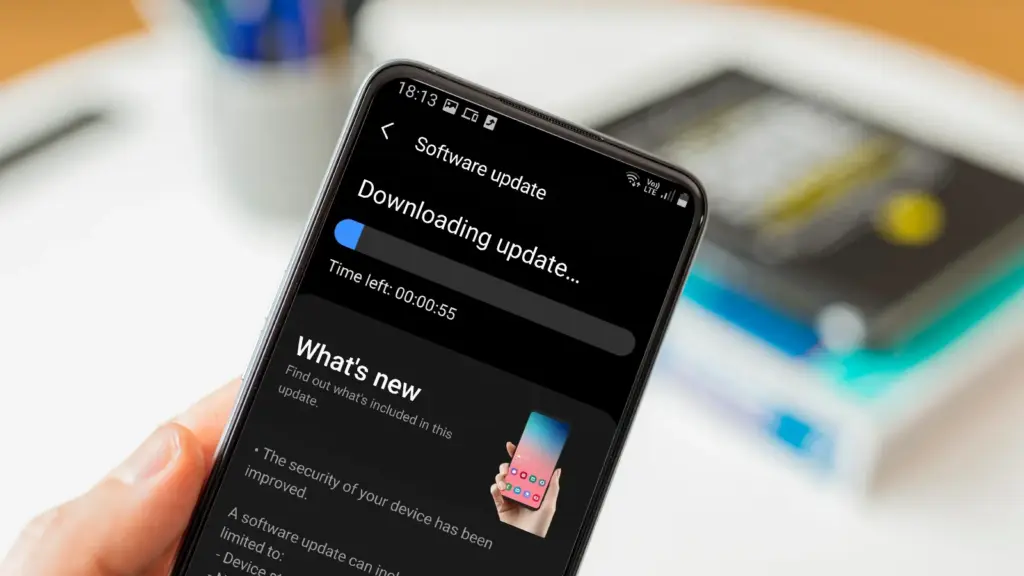
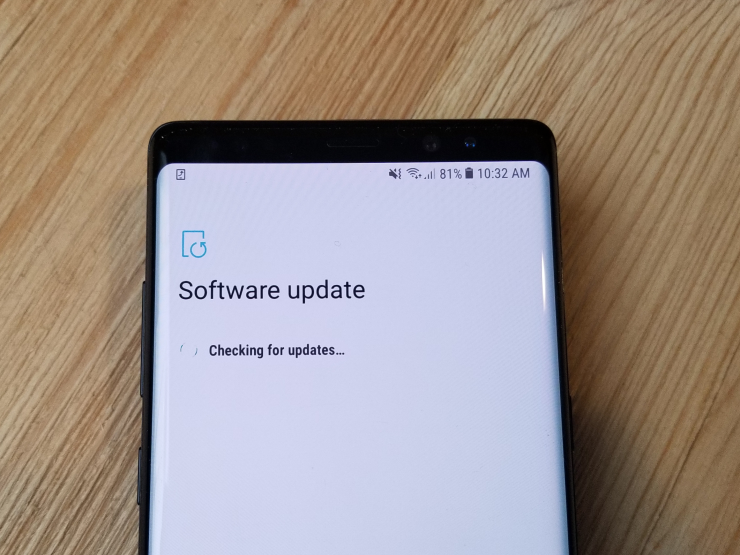
Keeping your phone up to date with the most recent security update will help prevent hackers and remove any dangerous software that might infiltrate and cause your phone to lag. If you have an older phone, go to the settings menu, scroll down to Software Update, and click to see if there is an update available. Most phones will automatically ask you to install the most recent upgrades, and you sh
This also applies to your apps, which must be updated to stay compatible with the iOS or Android version you’re using. Allowing apps to update automatically in the background is a good idea, but if you don’t, make sure you’re running the most recent versions by going into your preferred app store.
Protect it with a case
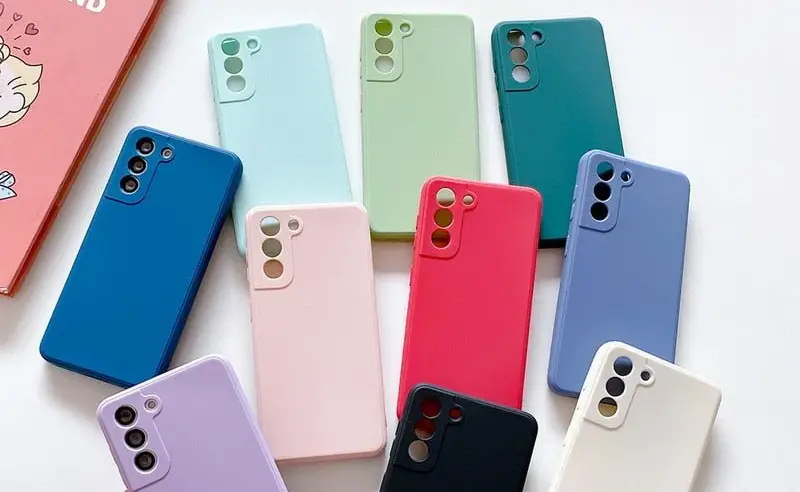
If you recently purchased a brand-new iPhone, installing a case right away is the best way to preserve it physically. In addition to protecting it in the event that you drop it, it will also assist prevent it from absorbing tiny scratches from your pocket’s coins or keys.
Since there isn’t much you can do to repair your phone’s screen after it becomes damaged, a screen protector is also a smart option. You can easily change a screen protector if it gets a severe scratch, keeping the phone itself looking brand new for many years to come. When it’s time to update, keeping your phone looking new could help you sell it for more money on the used market, even if you don’t intend to keep it for many years.
Replace the battery
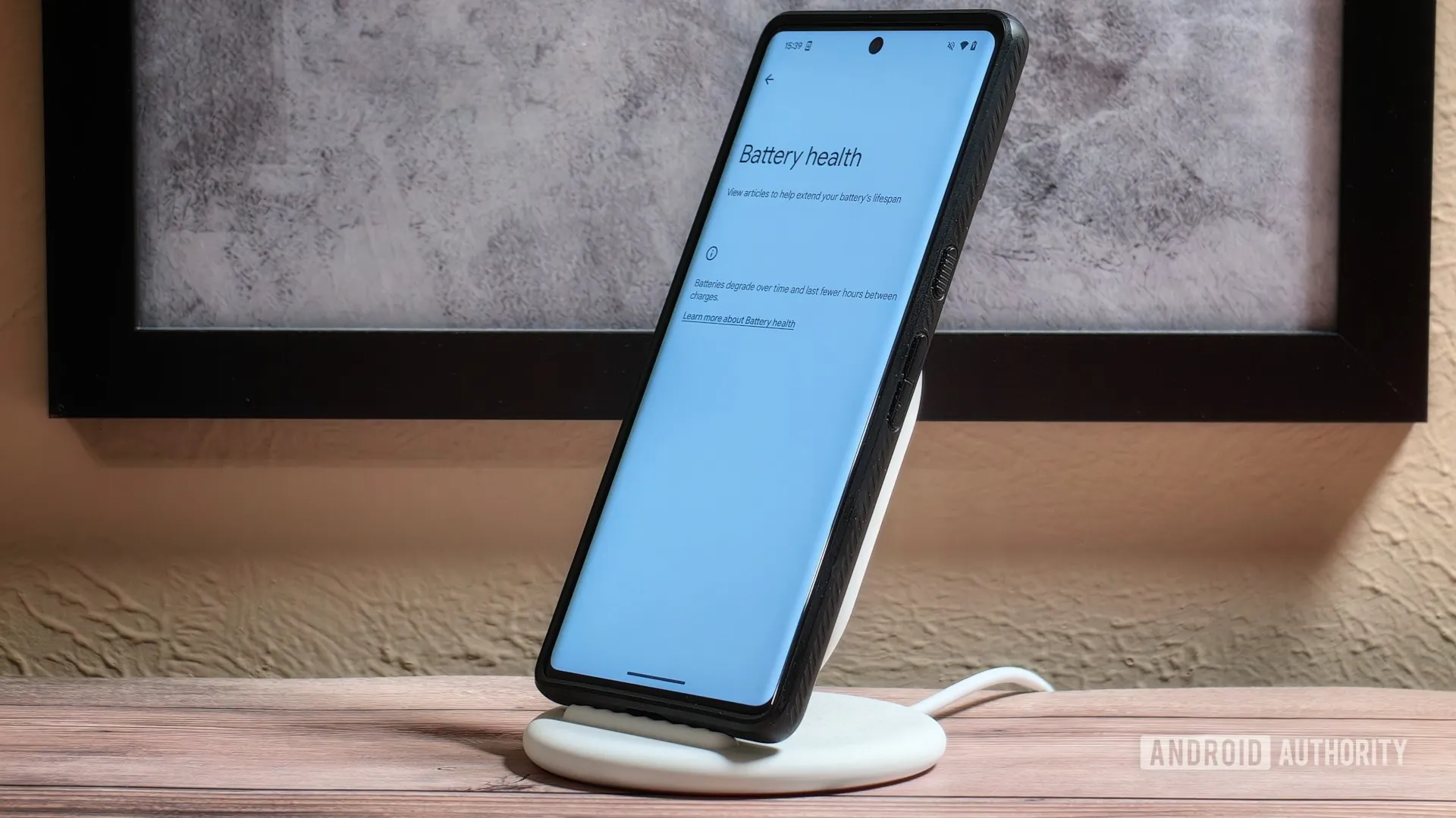
Over time, the battery in your phone will progressively degrade, giving it less life between charges than it did when it was brand-new. All phones are like this. Batteries in certain older phones might only provide 50% of their previous capacity. Your phone may even alert you when it senses that your battery isn’t providing enough power, in which case it may limit your processor to make up for it.
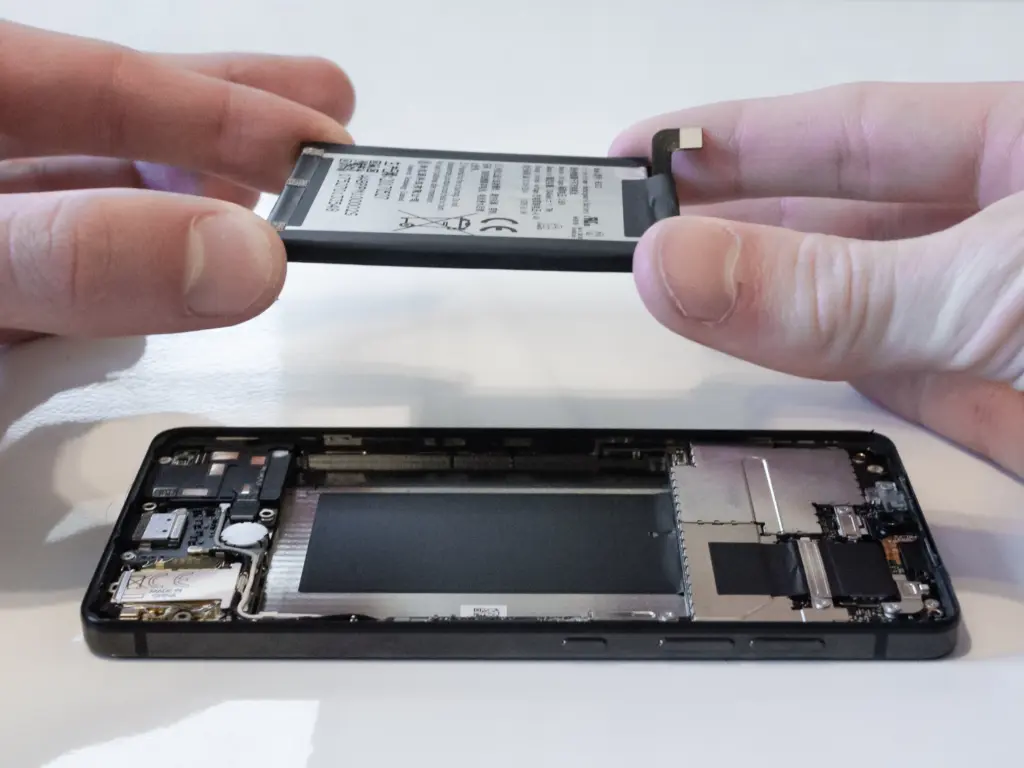
Don’t worry; most phones have a battery that is rather simple to change on your own to give it a fresh lease on life. If your battery is about to die, it could be worth trying to repair it yourself. iFixit offers a wide range of kits and third-party replacement batteries to fit a large number of phones.
If you’re not very confident with your screwdriver skills, this might be a nice alternative to think about. There are a number of places you can take your phone to have your battery replaced, or even other components like a broken screen. However, not all of them are really legitimate.
Remove old apps that you are not using anymore
Your phone is probably cluttered with thousands of pictures of your friends, pets, or the plates of food you’ve consumed over the years if you’ve owned it for a long time. You probably have a number of outdated apps and games that you downloaded on the spur of the moment, played for a few bus rides, and then switched to the newest mobile gaming craze.
In addition to negatively impacting your phone’s general performance, a shortage of storage may also make it more difficult to install important software updates. It’s worthwhile to look through your archives, remove anything from your phone that is wasting space, and backup any pictures and movies you wish to store to the cloud.
It might even be worth backing up all of your crucial data and performing a complete factory reset, starting over, and only installing the necessary apps if your phone has been slow for a long period.
Clean out your ports
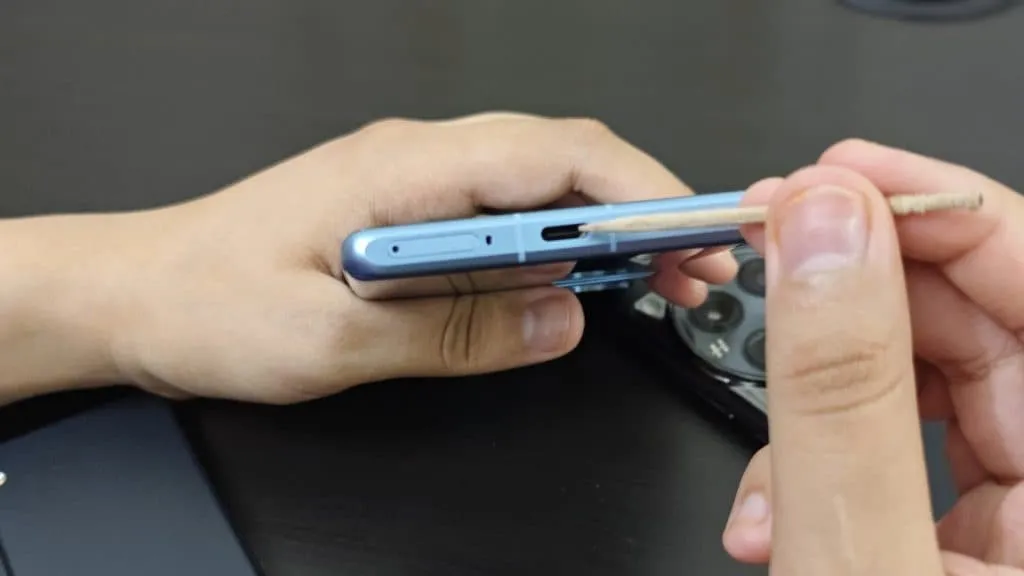
Last but not least, cleaning your phone can offer unexpected benefits. Your phone may suffer greatly from pocket fluff, especially when it comes to the charging connector, which frequently becomes clogged with bits of junk. As a result, your phone won’t charge when you plug in your charger because it can’t connect completely.
It’s tempting to assume that something has broken, like the cable or the charging port itself, but it could just be that the port is overflowing with lint. To make sure your charger fits without requiring forceful wriggling, occasionally insert a wooden toothpick into the area and try to ease out any dirt or debris you notice.
To make sure you can clearly hear—and be heard—during your phone calls, it’s also worthwhile to carefully brush away any debris you may discover near the speakers and microphones with an old toothbrush that has been cleaned and dried.
The first thing you should do if your Android phone has become sluggish is to wipe off its storage. Here are some tips for speeding up your outdated Android phone if you’re not sure where to start.
Delete unused apps
Phones can accumulate a large number of unused apps over time, leaving your device looking crowded. You may have used an outdated photo editing app or a QR scanner app from a restaurant on your previous trip. Uninstalling these apps is the best way to free up space on your Android phone.
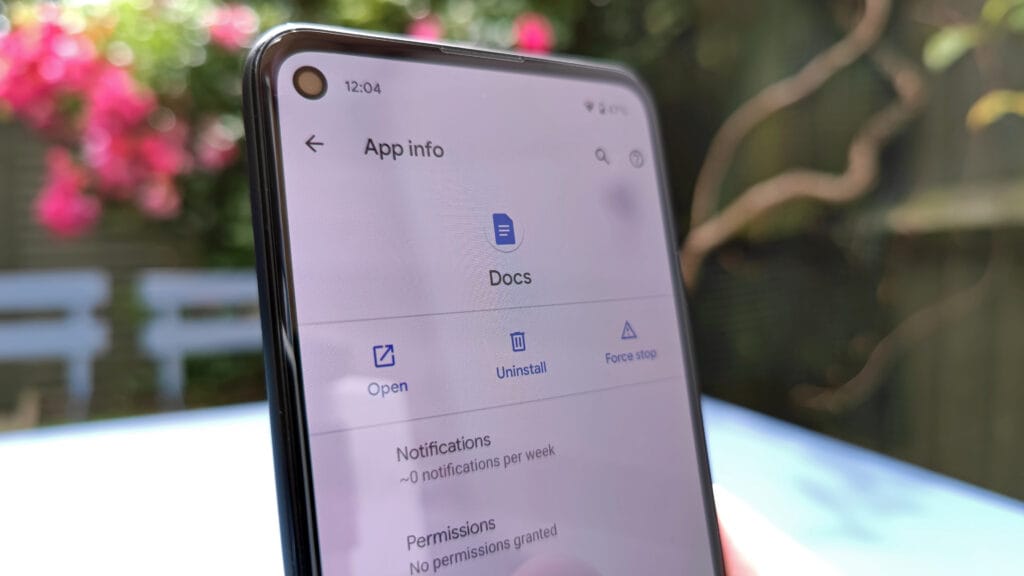
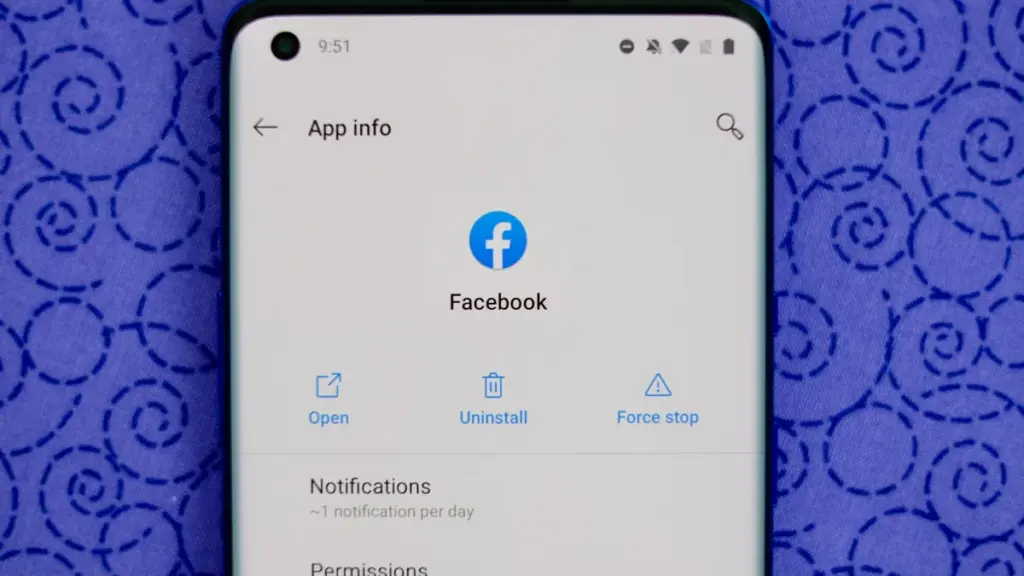
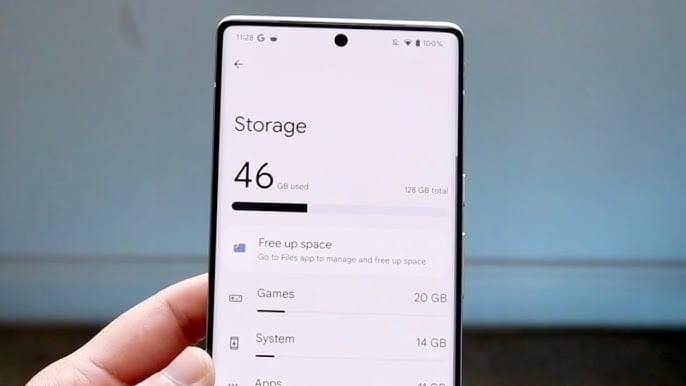
Because your Android phone won’t have to spend resources on apps that aren’t being used, decluttering it can speed it up. Removing these APKs will improve resource management and make your phone quicker. To view the list of installed apps and remove those you no longer require, navigate to Settings > Storage > Apps. You may also long-press on these forgotten apps on the app screen to get App Info > Uninstall.
Clear storage
Files and long-forgotten pictures of school notes are just two examples of the trash that accumulates on old Android phones. Following the removal of unnecessary apps, you should try to free up space on your Android phone by browsing through the stored files and images.
To see what’s saved, open the File app on your phone. The majority of garbage, including long-forgotten PDF files, images, etc., is frequently found in the Downloads folder. You should check two more areas to make sure the storage is clear.
Offload photos from your phone and save them to an external drive or the cloud. This helps create a backup of your memories and clear space on your old Android phone.
Clear the app cache. For the unaware, cache is bits of data that an app saves so it is quicker to operate the next time you open it. I recommend clearing the cache for less-used apps with no saved login information. You can go to Settings > Storage > App > Clear Cache to save more space.
Check for updates
Verify that the operating system on your Android phone is up to date. Updating it will install the most recent security procedures and make it snappier. To verify and install the most recent software version, navigate to Settings > General > System Update.
After updating your old Android phone to the most recent OS version and removing the uninstalled apps, you should update the remaining apps from the Google Play Store. To get the newest features, enhanced security, and faster performance, it’s critical to utilize the most recent versions of these programs.
Adjust the animation speed
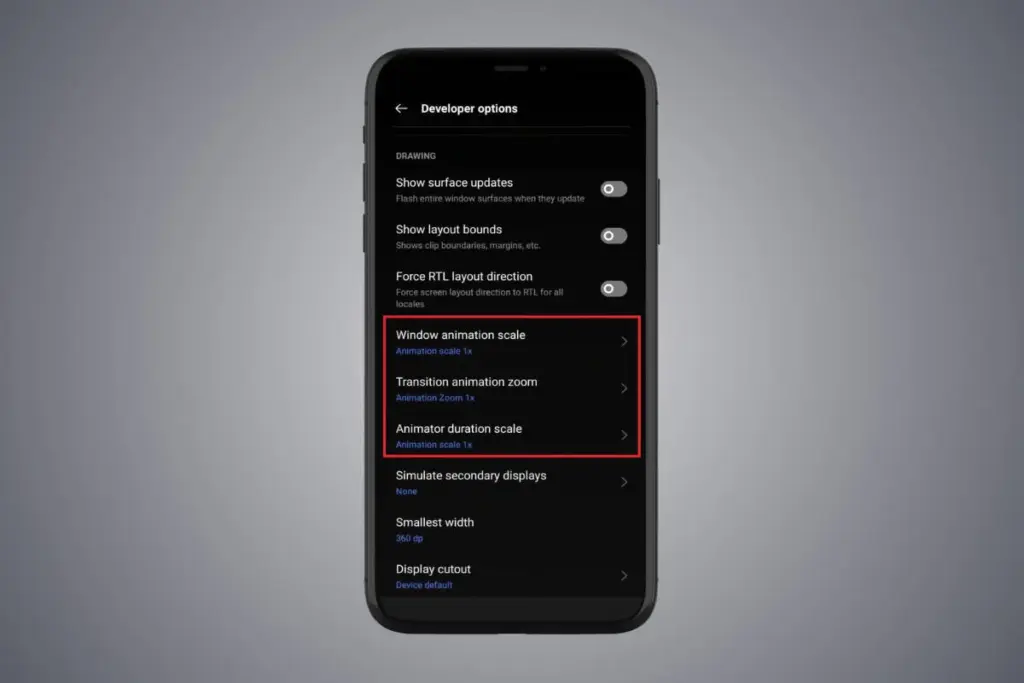
A few features, such as Developer options to alter the animation speed, can be enabled or disabled to make your phone feel faster. This can make your phone feel much faster, but it’s a little trickier than the other settings discussed above.
Go to Settings > About phone > Tap on Software details >, then tap your Build number seven times to enable Developer options. You should now be able to access various animation scale parameters as this should activate the Developer options.
Next, locate the Window animation scale by scrolling down in the Drawing section of the Developer settings. To make apps and window pop-ups run faster, tap on it and adjust the animation to 0.5x.
To reduce the speed at which you move between home screen panels and within apps, you may also change the Transition animation scale. Additionally, reduce the Animator duration scale to speed up typical UI motions like unlocking the phone and opening and closing apps.
You may breathe fresh life into your aging Android phone by adjusting these settings. After adjusting, it ought to feel quicker and have more zip when performing daily tasks. If you want to give it a refresh, I recommend tinkering around with your home screen, changing the wallpaper, and modifying extra settings to help it stay longer.
Users of iOS and Android, take note! You currently have the opportunity to download several premium apps for free. But act quickly—these amazing deals aren’t around for long, so take advantage of them before these apps revert to their premium editions.
With a wide range of programs to suit all your needs, the Google Play Store and the Apple App Store are overflowing. Many of the alternatives are free, while some have a cost. The sporadic promotional events where a variety of paid apps are available for free download are sometimes overlooked. We’ve compiled a fascinating list of some of the most intriguing apps available for free at the moment.
Even if you don’t require an app right away, install it if it piques your curiosity. It will be added to your app library and marked as “bought” as a result. After that, you may uninstall the app straight from your phone and get it back for free anytime you need it.
Android
Free Android Apps
DJ Music Mixer ($9.99): Have a bunch of MP3s or audio files on your phone and want to play DJ? Do so with this app!
Equalizer & Bass Booster Pro ($2.49): Get better-sounding audio from the software perspective with this app. Oh yes, a kick of bass doesn’t hurt, either.
Volume Booster & Sound Booster ($2.99): Just when you think that the music is not loud enough, this app comes to the rescue.
Clean Wave Water Eject Pro ($2.49): Even if your phone is waterproof or water resistant, why not remove unwanted water from its speaker area with this app that claims to do so? We have not tried it, so it’s your call!
Free Android Games
Brain App Daily Training ($7.99): Our brain is also an organ that would benefit from mental exercises, so why not give this game a spin?
Grow Zombie ($1.99): What kind of grotesque creation do you think you can come up with in this zany zombie-growing game?
Neo Monsters ($0.99): Collect monsters, train them, take care of them, send them out to fight, and watch them grow more powerful!
Heroes Legend: Epic Fantasy ($0.99): Train heroes up and equip them with better weapons and gear as you progress in the game to grow even more powerful.
Sky Wings ($0.99): An intense, fast-paced shoot ’em up that is set in space. Do you have the reflexes to take down your enemies?
iOS
Free iOS Apps
Alarmix ($3.99): Waking up to a jarring alarm clock can be disturbing, but the good thing is that this alarm app does so gently.
Air ShareWifi File Transfer ($4.99): An easy way to transfer music, videos, documents, photos, heck—any files from the PC or Mac to an iOS device over Wi-Fi by simply dragging and dropping.
Bed Time Large Clock ($0.49): The regular clock doesn’t have a large enough font for you to see? Good thing there’s an app for that.
iDousyn ($6.99): An app that transforms the iPhone or iPad into a professional music production powerhouse wherever you go, with its touch-based interface.
The Jiu Jitsu Class Volume 1 ($19.99): While you cannot download kung-fu modules like Neo in The Matrix, you can still learn Jiu Jitsu from an app…
Free iPhone games
Get Gabbin’ ($1.99): I guess this is more of a game, offering conversational topics so that no date or meet-up will be awkward, ever again.
Puffin Rock Music! ($1.99): An educational game for the little ones, where they embark on an adventure with a group of puffins and create their own music.
Pro Wrestling Manager ($3.99): Time to make a career out of wrestlers, as you manage them well and make them superstars.
Axion Run ($0.99): A game that tests your reflexes, as you try to break free from gravity in an intense competition with friends.
Sky Master ($0.99): A beautiful shoot ’em up that is set in space, where you take down enemy ships in intense space dogfights.
Even if you don’t require an app right away, install it if it piques your curiosity. It will be added to your app library and marked as “bought” as a result. After that, you may uninstall the app straight from your phone and get it back for free anytime you need it.
As of the date of publication, the deals were active. Please share any expired deals you come across in the comments section below.
We advise you to review the app’s details in the Play Store or App Store before downloading any of the aforementioned apps. This is crucial as some of these free apps can offer unique features or drawbacks of their own.
Both free and paid apps should be avoided since they could have unnoticed in-app purchases and adverts. This is especially important while downloading kid-friendly games.