Google has finally released Android 17 for Pixel phones, following a brief tease yesterday afternoon. This morning, Google said that Android 17 Beta 1 will be available to developers without a Pixel as pictures in Android Studio and as an over-the-air upgrade in the Android Beta Program.
You might be wondering why we aren’t receiving a Developer Preview build first or why this seems so early. We no longer receive developer preview builds, therefore it’s different. You may obtain these new beta builds earlier than ever before since Google is using the Android Canary track, which was released last year, as a developer preview moving forward.
Regarding scheduling, Google declared that Android releases would alter toward the end of 2024. Google shifted to a two-release Android strategy for 2025, with the primary and largest Android 16 release stabilizing by the middle of the year and a secondary release occurring before the year’s conclusion. Android 17 will follow the same timetable. A Platform Stability release is scheduled for sometime in March, although the first release has already begun and will stabilize rather fast. Similar to what happened with Android 16 last year, a small SDK update is scheduled for Q4 of this year.
We will explore all of the exciting new features that Android 17 offers on your own device in a separate post that will be published soon. However, as of right now, Google has simply disclosed the modifications that developers should be aware of. There are various performance enhancements (such as new garbage collection and notification constraints), more professional-grade camera capabilities and media experiences, a redesigned print dialog for improved usability, and restrictions on screen resizability so that apps can run on all devices.
You may receive Android 17 on your Pixel device immediately by signing up for the Android Beta Program. System images are also available to developers (here).
Two groups of researchers have found two new, distinct types of malware that function similarly and are embedded in a variety of programs that are accessible through different channels. Worst of all, the standard advice to “don’t install apps from strange sites” is less helpful because some of them are even available on the Google Play Store.
Although these two pieces of malware appear to be distinct, they function similarly. They exploit the functions of your phone to click on advertisements nonstop, slowing it down and significantly depleting its battery.
Virtual screens, real ads
Researchers at the mobile security company Dr.Web found the latest recent spyware, which has not yet been named. Bleeping Computer revealed the discovery. This malware makes use of the TensorFlow.js framework that Google distributed with Android phones to enable machine learning operations in browsers.
And it works: when the malware is activated, it creates a virtual (false) screen where it shows and clicks on advertisements. Compared to more traditional ad-clickers, the clicks appear far more natural due to the usage of a machine learning technique. However, it has an equally detrimental effect on your device as earlier malware, with notable effects on battery life and processing speed.
Even worse, the app allows attackers to interact with the fake display as needed by opening a permanent livestream on your device.
Interestingly, Xiaomi’s GetApps software catalog is where the apps originates. Dr.Web claims that the malware is introduced after the apps are uploaded, avoiding all possible security measures.
inevitably, third-party app websites like Apkmody and Moddroid have also been severely compromised by the malware. Researchers assert that both the latter’s Editor’s Choice list and “premium” versions of apps like Spotify that may be accessible on Telegram channels are rife with compromised apps.
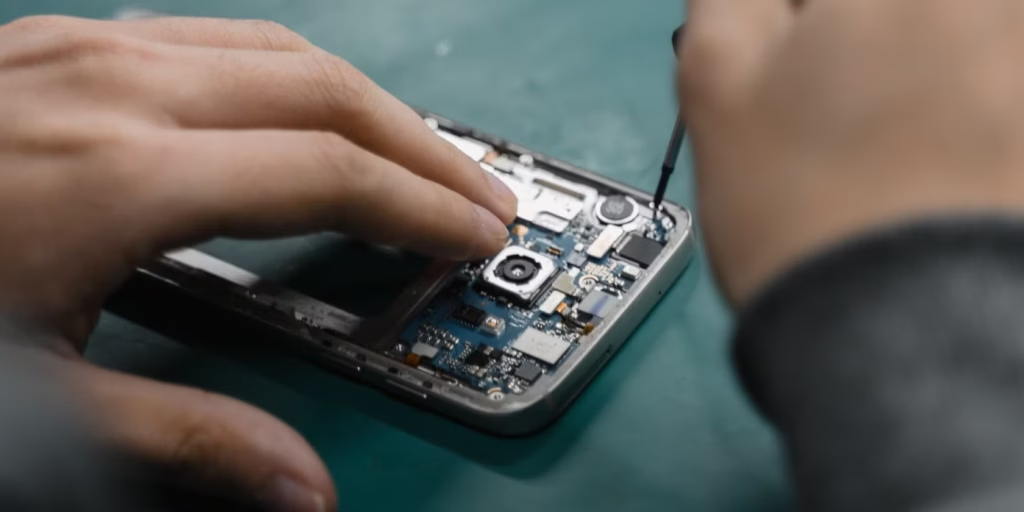
Your android device is going in for service or repair, and yeah… it’s easy to tell yourself, “It’s just a screen replacement, what could happen?” Then you remember: your phone is basically your pocket brain. Photos, notes, bank apps, work chats, that one folder you never show anyone—everything.
So let’s do this properly.
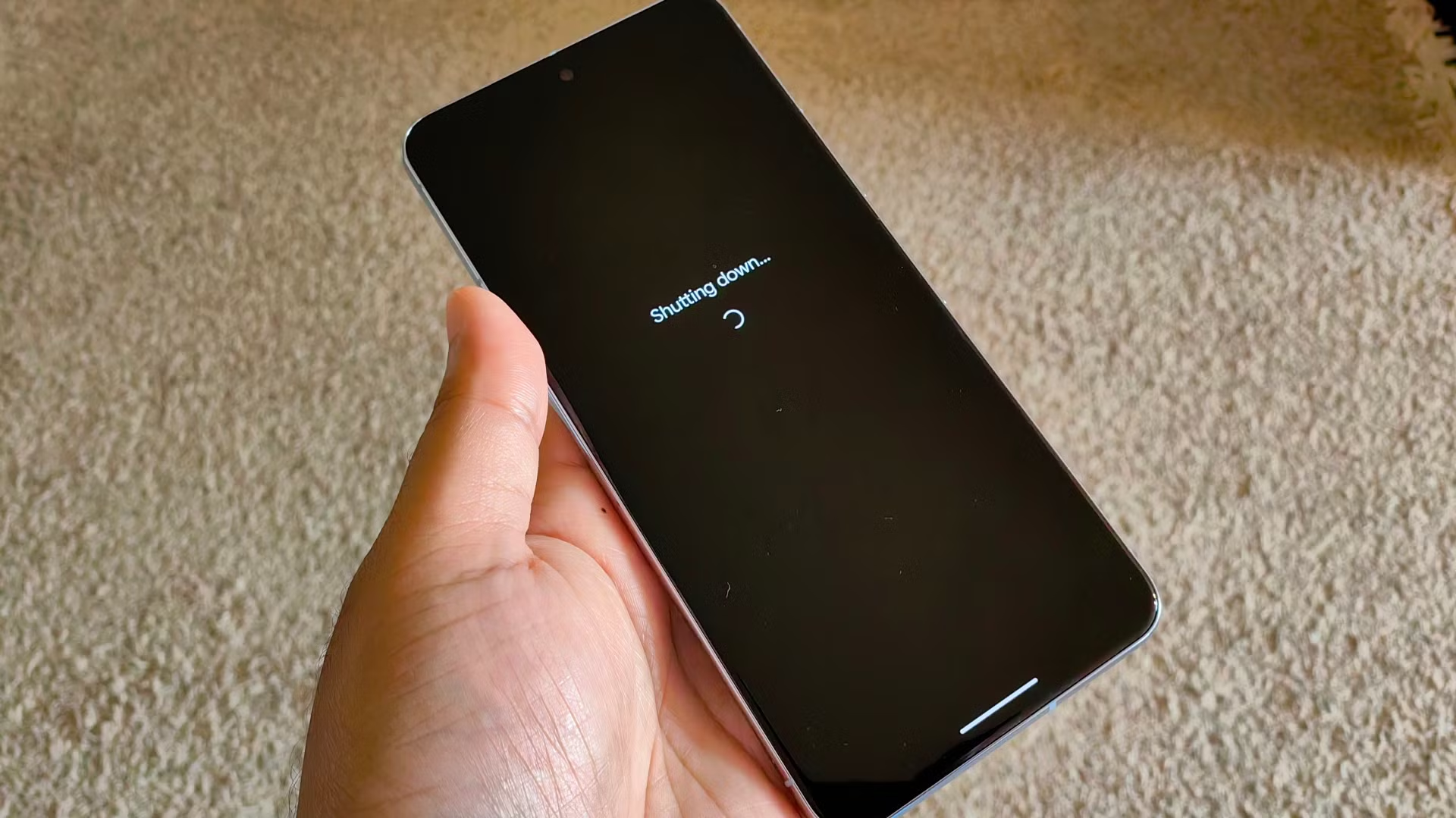
This guide is a practical, no-drama checklist to prepare your android device before you hand it to a technician. Not the paranoid kind of prep. The smart kind. The kind that prevents data loss, protects your privacy, and makes the repair process smoother.
Secondary keywords used naturally: Android backup, factory reset, phone repair checklist, protect personal data, Google account removal, SIM card and SD card, Find My Device.
The “Quick Outline” (Internal, For Flow)
You’ll go through:
Why prep matters (even with trustworthy shops)
Backup (cloud + local)
Remove SIM/SD and sensitive access
Decide on factory reset (and when not to)
Document your issue like a grown-up (so repairs go faster)
Privacy + security settings that actually matter
What to do at drop-off and pickup
Common mistakes and a simple final checklist
Why Preparing an Android Device Before Repair Matters (More Than You Think)
Here’s the uncomfortable truth: even honest repair shops can cause data loss.
Not because they’re evil. Because diagnosing problems often involves resets, firmware updates, battery disconnects, or tests that can corrupt storage. And if your android device is acting weird already (boot loops, overheating, random restarts), the risk of “it died during testing” is real.
Also, there’s privacy. Most technicians don’t care about your personal life. But your phone is still unlocked data sitting in someone else’s hands. It’s like leaving your house keys on the counter and hoping nobody opens the wrong door.
You don’t need to be anxious. You just need a process.
Step 1: Back Up Your Android Device (Cloud First, Local Second)
If you only do one thing, do this.
Use Google Backup (Fast and Built-In)
On most phones:
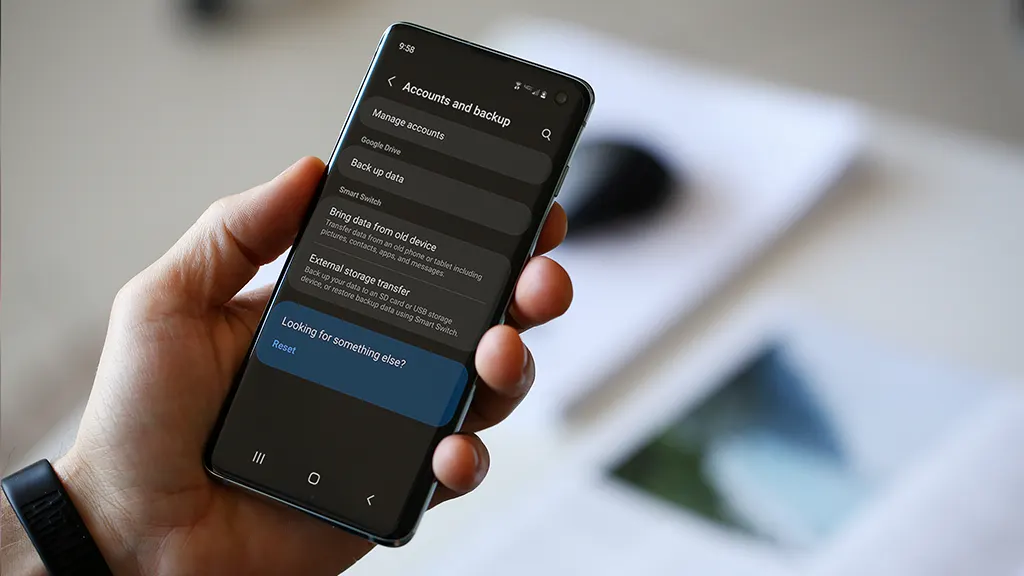
Settings → Google → Backup or
Settings → System → Backup
Turn it on and let it run. Then check the backup timestamp. Don’t assume it worked “at some point.”
What it usually covers:
App list and some app data
Call history
Contacts (often via Google Contacts sync)
Device settings
SMS/MMS (on many devices)
But – small contradiction – Google backup is both great and not enough. It’s reliable for basics, but it’s not a perfect clone of your phone.
Back Up Photos and Videos
If you use Google Photos:
Open Google Photos → profile icon → Photos settings → Backup
Then scroll your gallery and confirm recent photos actually uploaded. People think they’re backed up… until they aren’t.
Make a Local Copy (Because Clouds Have Limits)
Plug your android device into a laptop/PC:
Select “File Transfer” (MTP)
Copy these folders:
DCIM (camera photos/videos)
Pictures
Download
Documents
WhatsApp/Telegram media folders (if you use them heavily)
If you don’t have a PC, use:
An external USB drive with an OTG adapter
A microSD card (if your phone supports it)
Local backup feels old-school. But it’s the “seatbelt” you’ll appreciate if the cloud fails.
[img here – alt: android device backup before service]
Don’t Forget Two “Annoying” Things
These are the ones that hurt most when they’re gone:
For authenticator apps, check inside the app for export/transfer options before your device gets wiped. Otherwise you might lock yourself out of accounts. Not fun.
Step 2: Remove SIM Card and SD Card (Small Action, Big Protection)
This part is quick and oddly satisfying.
Remove the SIM card (your number and carrier access)
Remove the SD card (your personal files and media)
Even if the repair shop is trustworthy, SIM/SD cards can be misplaced. They’re tiny. Things happen.
Also, if your SD card has photos—don’t leave it in the phone. Just don’t.
Step 3: Decide If You Should Factory Reset the Android Device
The repair is software-related (crashes, freezing, weird bugs)
You’re shipping the phone to a service center
You don’t want anyone to access anything—even by accident
You’re okay with restoring everything later
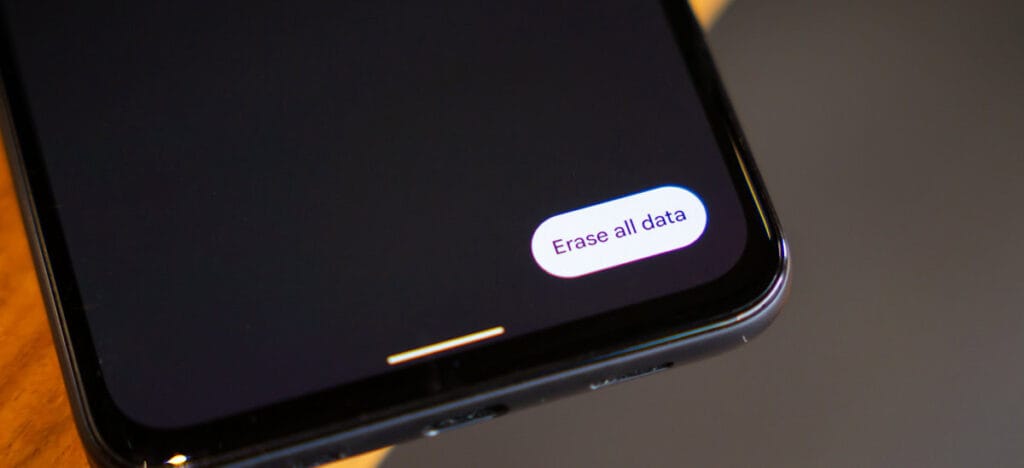
Path usually looks like:
Settings → System → Reset options → Erase all data (factory reset)
When You Shouldn’t Reset Yet
Don’t reset if:
You need to show the issue (random reboots, screen glitch, camera error)
The repair center asks you not to (rare, but possible)
You rely on on-device data that you can’t back up properly
Here’s the clarification: privacy matters, but so does diagnosis. If the technician can’t reproduce the issue, you might get the dreaded “no fault found” result. So sometimes you keep the data… but you lock it down.
Step 4: Lock Down Access (Without Making the Repair Impossible)
If you’re not factory resetting, this part is essential.
Use a Strong Lock Screen
Set a PIN (not 0000, please). Disable “Smart Lock” features that keep the phone unlocked at home or near a watch.
Pause or Remove Highly Sensitive Apps
For apps like:
Banking
Crypto wallets
Password managers
At minimum:
Sign out
Remove biometric login
Consider uninstalling temporarily (after backup)
Technicians don’t need that access to replace a screen.
Keep “Find My Device” Enabled (Usually)
If the phone is lost during transit or at a large facility, Find My Device can help locate it. Just make sure you remember your Google login.
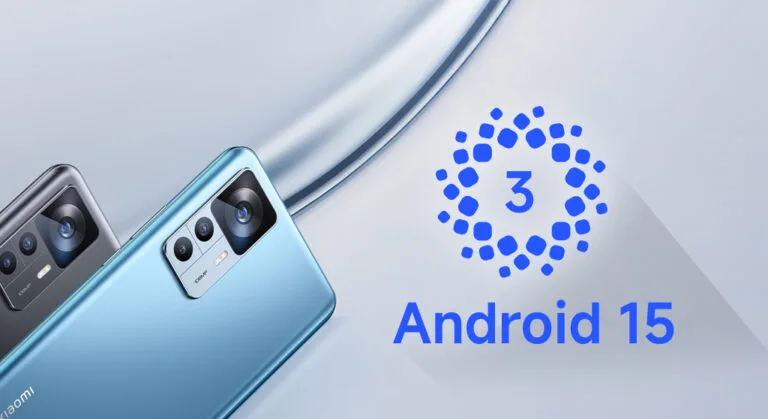
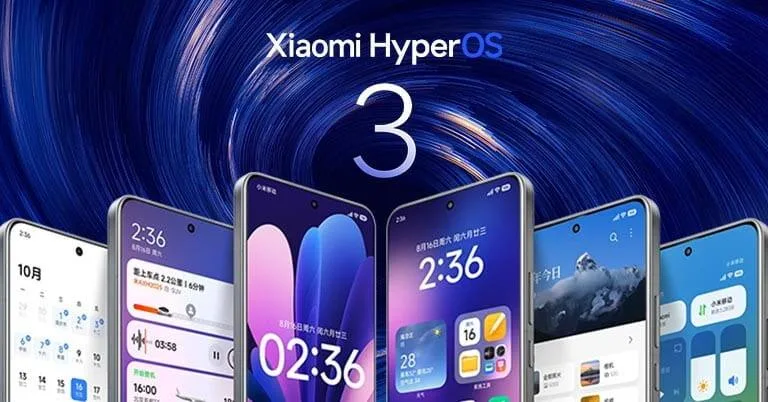
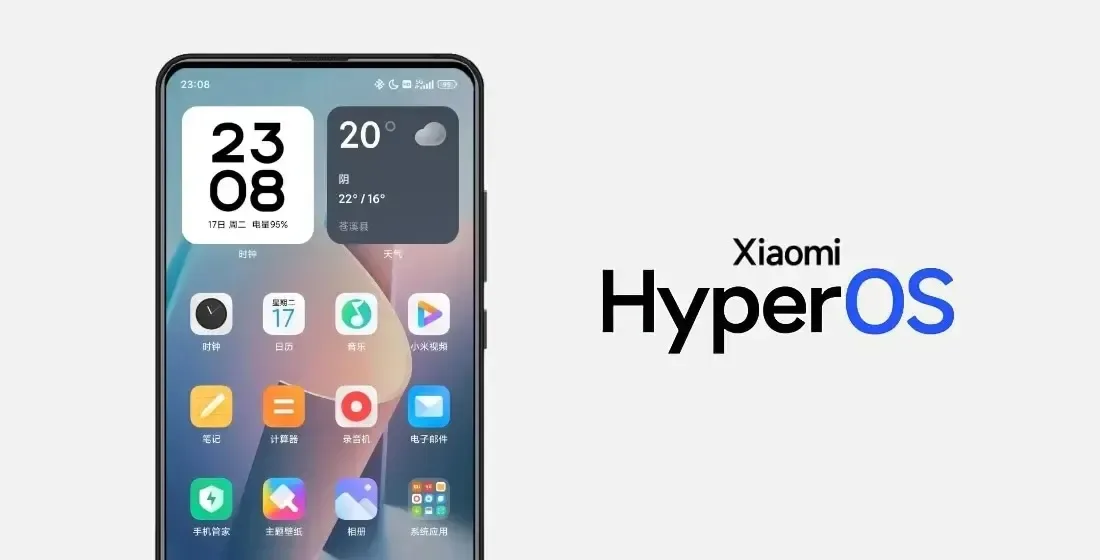
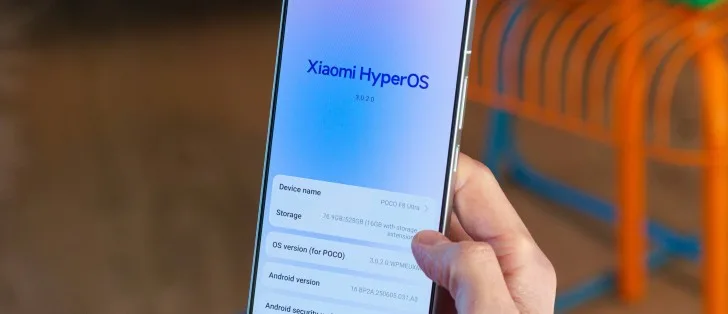
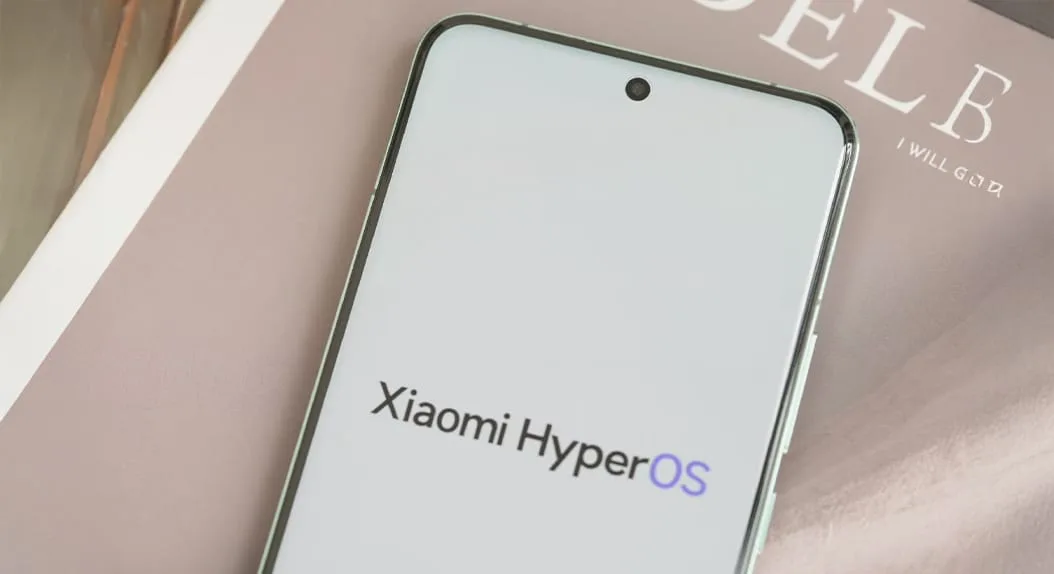
The HyperOS 3 upgrade for a new range of devices has started to be released by Xiaomi. This build of HyperOS 3 is unique. Its foundation is Android 15, which just started to be released for the Redmi K60 and Xiaomi Pad 6 Pro series. It is now being extended to further devices, such as the Xiaomi 12 series, Xiaomi 12S series, and others.
Currently, only China has access to the HyperOS 3 build, which is based on Android 15. According to Xiaomi Time, the most recent Xiaomi devices receiving this update are listed below, along with the firmware versions:
For these devices, the HyperOS 3 update is now accessible as a Mi Plot release, which is essentially a beta release. You must register to be a beta tester in order to receive this update (click here for all the processes). After Xiaomi confirms that the build is free of serious defects, the update will shortly be made available to non-beta customers.
The HyperOS 3 update, which is based on Android 15, has not yet been verified to be released worldwide by Xiaomi. Nonetheless, the inclusion of international versions like the Xiaomi 12, Xiaomi 12 Pro, and Xiaomi Civi 3 on the aforementioned list is encouraging. Usually, the company releases the update in China first, and after a few weeks, it spreads to the rest of the world.
We’ll continue to update our Xiaomi area with the most recent HyperOS updates. For the most recent information, don’t forget to frequently check this section. As an alternative, you may sign up for our Telegram channel to receive real-time notifications about new product releases, software updates, and the greatest tech news.
Xiaomi gives owners fantastic news to start 2026. For several models, the company offers up to five years of HyperOS support. POCO, Redmi, and Xiaomi tablets and phones get longer updates. For years, gadgets remain safe and continue to receive updates.
Strong software support is currently available from Xiaomi. Updates for flagship phones will be available until 2031. Budget and mid-range gadgets come next. Tablets are also added to the list.
The most recent HyperOS versions are longer enjoyed by users. AI tools, longer battery life, and security updates are added to phones. This aligns with Google’s and Samsung’s policies. People tend to keep gadgets longer. It benefits the environment and saves money.
Launch date determines the duration of support. More years are awarded to newer models. Extra months are given to the elderly.
HyperOS Eligible Devices – Support End Dates
Updates until 2031: Xiaomi 15T / 15T Pro, Xiaomi 15 Ultra, Xiaomi Pad 7, Redmi 15 / 15 5G / 13C, Redmi Note 14, POCO F8 Ultra / F8 Pro, POCO F7 / F7 Pro / F7 Ultra, POCO M7 / C85
Updates until 2029: Xiaomi 14T / 14T Pro, Xiaomi 14 Ultra, Xiaomi MIX Flip, Xiaomi Pad 7 Pro, Redmi A5, Redmi Pad 2 / 2 Pro / 2 Pro 5G series, POCO M7 Pro 5G, POCO Pad M1
Shorter support: Xiaomi 13 Lite (until 2027), older Xiaomi 12T / 12 series and some Redmi 12 models (extra months only)
Updates are released progressively per area. To find the most recent version, check the settings on your phone. This list of devices that are compatible with HyperOS brings significant value. Xiaomi phones are becoming more intelligent purchases.
The extended assistance is adored by fans. The action strengthens Xiaomi.
Xiaomi has quietly stopped supporting software updates for the Redmi 12C and its international counterpart, the POCO C55. No new firmware, including HyperOS 2, has been released in the last two months, and the devices were last updated with the October 2025 security patch. These devices are anticipated to become officially EOL in February 2026, according to Xiaomi’s internal software roadmap.
Why these devices eeached EOL
For its entry-level series, Xiaomi has clear updating policies. The POCO C55 and Redmi 12C were marketed as reasonably priced smartphones designed for everyday use, typically with shorter support cycles.
Each device finished its usual update window with HyperOS maintenance releases and Android fixes prior to hitting EOL. This change is intended to allow Xiaomi to focus attention on more recent models and maintain system stability throughout the ecosystem.
Users can still improve device stability by updating compatible system apps even after system firmware updates have ceased. Xiaomi smartphone owners have two reliable options:
Recommended Update Channels
HyperOSUpdates.com: provides direct links to Xiaomi system app packages.
MemeOS Enhancer app on Google Play – allows users to update system apps, enable hidden features of Xiaomi, and manage interface components smoothly.
EOL does not automatically affect device functionality, and users may still experience adequate performance for daily tasks.
With smartphones that offer increasingly better performance and longer support cycles, Xiaomi continues to broaden its selection of reasonably priced products. As part of the broader shift to the enhanced environment offered by HyperOS and more efficient update delivery, devices like the Redmi 12C and POCO C55 are being retired organically. A more explicit software policy is anticipated in upcoming budget releases.
We recently reported about another type of banking Android malware that operates in the background and leverages accessibility settings to steal data, including passwords and bank credentials. More malware that allows remote attacks on Android devices and is freely disseminated among hackers as part of a subscription service has just been disclosed.
More banking malware on the loose
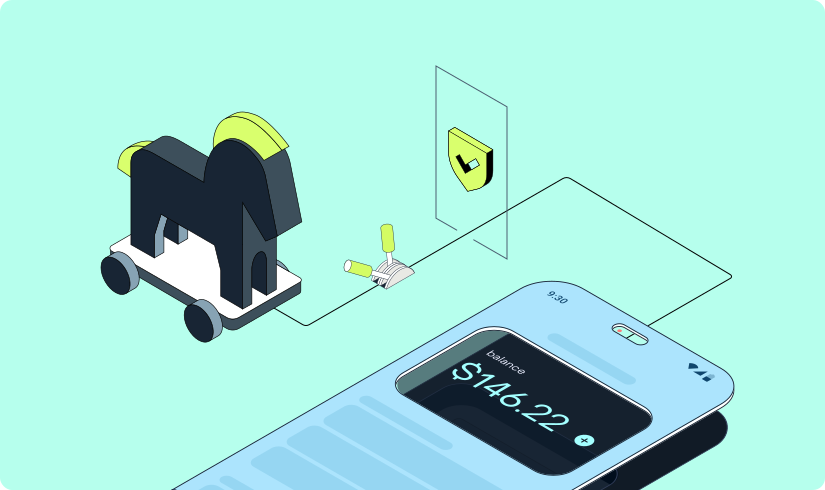
A new Android trojanware known as Albiriox has been found by researchers at the online fraud protection company Cleafy. Albiriox is disseminated through what are referred to as “dummy” or infected APKs to deceive users into downloading real apps, much as Sturnus, the malware that was discovered last week.
Hackers have tricked people by making phony copies of Google Play Store app listings, as Android Authority noted. As a result, potential victims may think they are downloading an app from a secure site when, in fact, they are not. Additionally, hackers have enticed victims by posting fictitious offers and promotions, requesting contact information, and then distributing the malicious APKs via well-known messaging services like Telegram and WhatsApp.
The research group claims that hackers in Russia and other nearby regions have been the primary users of these approaches. After being disseminated as a Malware-as-a-Service (MaaS) on dark web forums, it is reported to have lately acquired popularity.
The “install unknown apps” permission on users’ devices is mostly enabled via the APK files that hackers disseminate. The current (and destructive) program containing Albiriox is installed by the dropper app after that is activated.
According to Android Authority, the research organization has already caught over 400 fraudulent apps that target consumers in categories including banking, fintech, digital payments, and cryptocurrencies. Instead than obtaining users’ login credentials, these software versions enable hackers to conduct transactions directly on users’ banking apps.
You should be wary of any strange programs you install, especially if they appear to be connected to banking or any other financial service, as the malware works more covertly and silently. Make sure you have the most recent Play Protect update installed and that you only download apps from the official Google Play Store app.
In terms of updates, make sure your device has the most recent firmware that is supported, as this contains patches for vulnerabilities that have just been discovered. Similarly, Google has published the December Android Security Bulletin.
Android 16 QPR2 has made Google’s Pixel smartphones safer and smarter. Discover why you should get this update immediately, including new lock screen widgets, AI-powered notifications, and an essential security fix.
Google is finally releasing Android 16 QPR2 to compatible Pixel devices after much testing. Based on the most recent version of Android, this is the second quarterly release. It offers well-considered features and modifications, much like the initial release. More significantly, it contains the security update from December, which fixes a number of worrisome vulnerabilities.
The Pixel 10, Pixel 9, Pixel 8, Pixel 7, Pixel 6, Pixel Tablet, and Pixel Fold are all compatible with Android 16 QPR2. On my Pixel 9 Pro XL, the update is roughly 800 MB+ in size.
Improved screen customizations
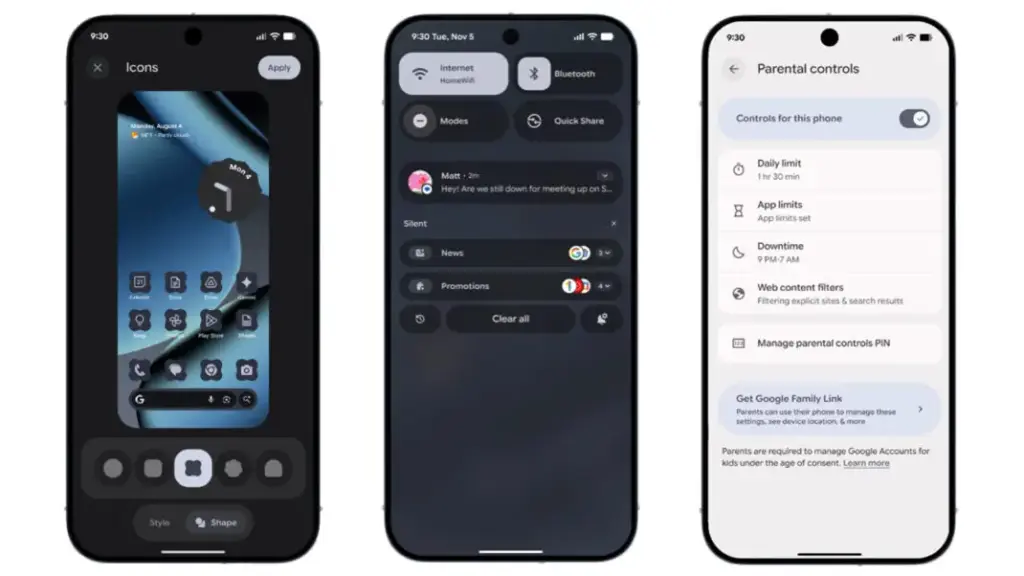
Google is still improving Android 16 QPR2’s user interface. Users may now add new shape options for app icons on the home screen, such as circle, squircle, four-sided cookie, seven-sided cookie, and arch.
Additionally, users of Pixel phones now add widgets to the lock screen—a function that was previously exclusive to tablets. Although there are fewer widgets and layouts than on the home screen, you can still access them by swiping left on the lock screen.
A new low-light setting for the screen saver, which turns on a dim clock in dull scenes to conserve battery life, is one of the other lock screen modifications. Furthermore, fingerprint scanning can now operate on a switched-off display without requiring the screen to be woken.
We highlighted in the beta the ability to minimize or eliminate blur effects in background components like the quick settings and alerts panel. All users can now utilize this functionality. For better accessibility, blur can be disabled under the Color and Motion area and replaced with plain color.
Expanded dark mode, which compels apps that don’t support dark themes to switch to dark mode, is another accessibility improvement. Better yet, you can program expanded dark mode to activate on its own.
Additionally, Android 16 QPR2 has an upgraded HDR feature that allows you to change the HDR intensity. You can select brightness levels from dimmer to more vibrant using a slider.
More usability and productivity
In addition to 50:50, 70:30, and 30:70 ratios, the update offers a more adaptable split-screen arrangement that supports ratios like 90:10.
Additionally, Google is adding two new features to its AI-powered notifications: a notification organizer and notification summary. While the organizer automatically organizes alerts in the panel, summaries condense lengthy messages from apps. The apps that are included can be customized by users. The Pixel 9 and more recent variants with Gemini Nano support these functionalities.
Additionally, parental controls have been reinforced. More apps now allow parents to set secure PINs, set screen-time limits, plan downtime, and control timers right from the settings.
Additional accessibility-related features include Expressive Captions, which are real-time captions in social media apps and video communications that are enhanced with emoticons and ambient sound overlays. Google has improved Circle to Search to allow users to flag and report problematic messages in order to fight spam and scams. Additionally, the new Call Reason function will alert suspected spam calls or classify calls according to urgency.
New security patch
The December security patch for Android 16 QPR2 addresses a number of issues. The update fixes vulnerabilities ranging from high to critical severity, some of which have already been exploited by attackers, according to Google’s security alert.
In addition to the eye-catching new features, Pixel owners should apply this update right now to lower the chance of attacks and keep safe from threats.
Other companies, including as Samsung, Xiaomi, and OnePlus, will also implement the December security patch, though the exact release date may differ.
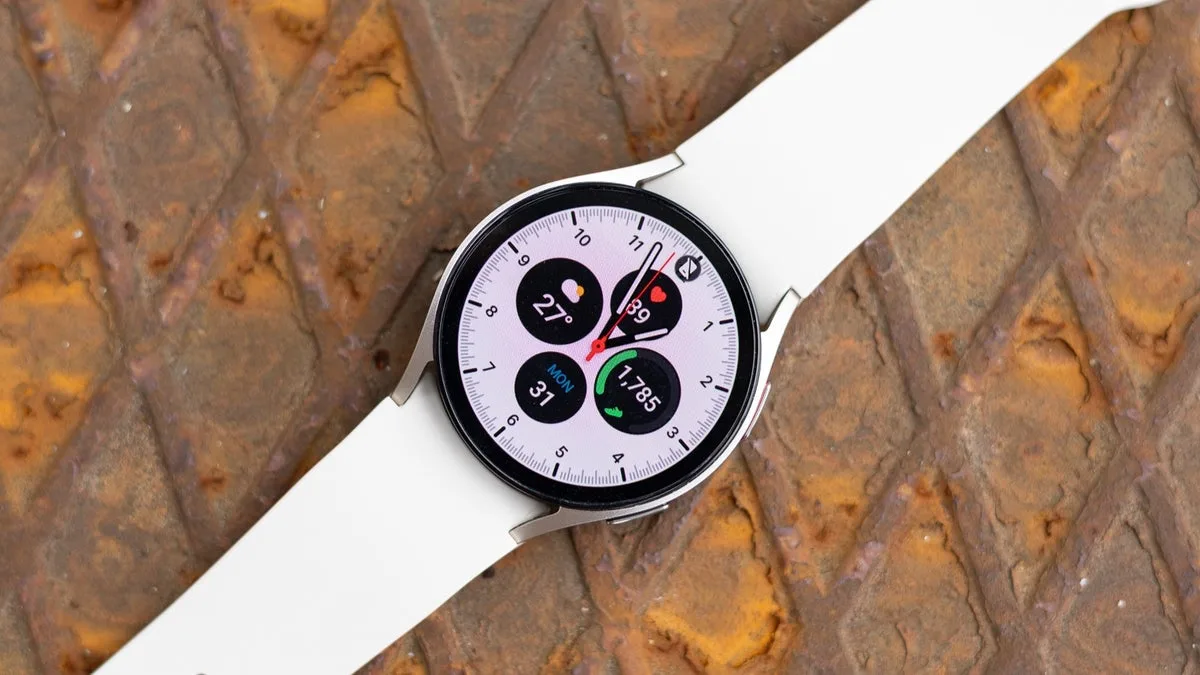
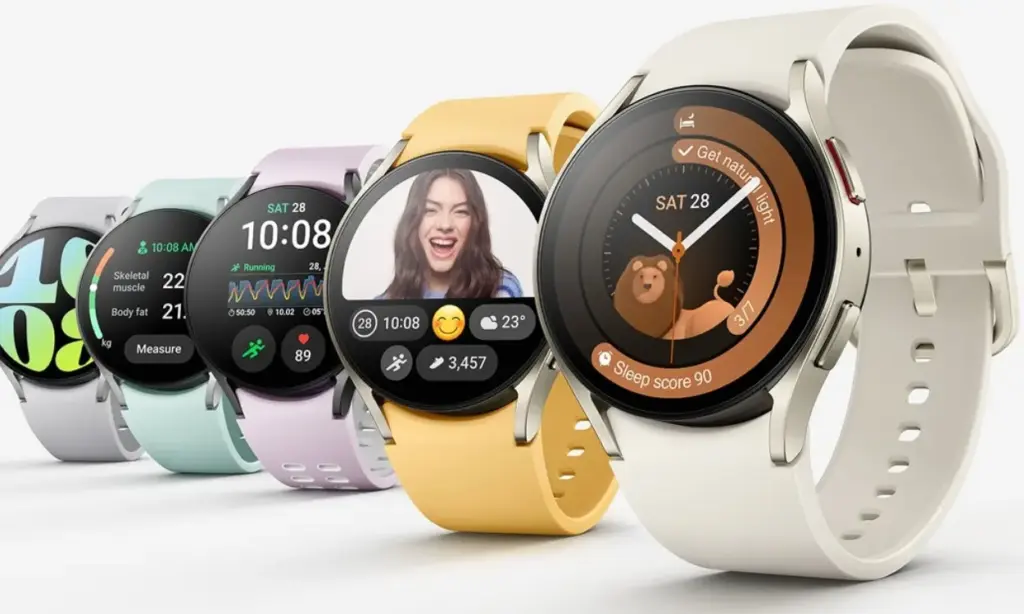
Less than a month ago, Samsung released another beta update for the Galaxy Watch 6, which perhaps caused some people to question when the full build would be released. With Samsung releasing One UI 8 based on Wear OS 6 for the Galaxy Watch 6 series, it seems like it will happen sooner rather than later.
In Korea, Samsung’s initial One UI 8 upgrade for the Galaxy Watch 6 and 6 Classic is presently being released (via GSMArena). The US should soon follow suit, adding more regions to the list as similar updates usually do.
The UI and fitness features of the Galaxy Watch 6 and 6 Classic will evolve as more regions become accessible. In particular, One UI 8 Watch introduces a new stacked tile feature for improved widget access, which is much appreciated.
Wear OS 6 is coming
If Samsung is sticking to the same schedule as it did with the Watch 6 series, the Galaxy Watch 5 is scheduled for another beta upgrade in the near future. Although Samsung hasn’t given any timeframe information, it is anticipated that the Galaxy Watch 5 will have access to a final build of Wear OS 6.
Instead of using the Members app, you can download the update using the Galaxy Wearables app. Go to the settings and search for the software update page after that.
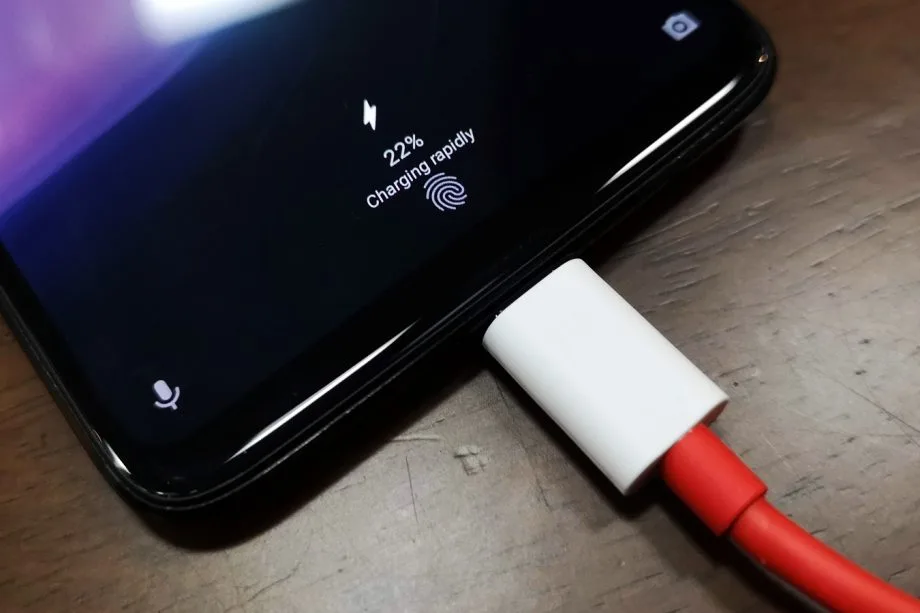
30 minutes to fully charge the battery? A growing number of cellphones can be fully charged in less than an hour. Does this rapid charging, however, harm the battery? This has been examined in an experiment, which yields an unexpected result.
30 minutes to fully charge the battery? A growing number of cellphones can be fully charged in less than an hour. Does this rapid charging, however, harm the battery? This has been examined in an experiment, which yields an unexpected result.
A Chinese do-it-yourself team called HTX Studio looked into this precise subject. After purchasing ten identical iPhones and ten Android devices, the do-it-yourselfers split them up into groups. A fast-charging power supply unit was used to charge one group, while a slow charger was used for the other. We finally have a response after 500 full charges and six months.
How did they do it?
Two groups of iPhones were created. Apple’s 40-watt power supply was used to charge three gadgets, while the outdated 5-watt power supply was used for the remaining three. To ascertain the typical aging of the battery over time, a second iPhone was left completely uncharged as a control group.
For the Android cellphones, the configuration was the same. The iQOO7, which is unavailable in this nation, was utilized twice: once with 18 watts and once with the maximum power of 120 watts.
The smartphones are fully charged by self-programmed software, which then uses up the battery once again until it is only five percent. After that, the charging procedure resumes. In this way, 500 charging cycles were carried out over a few months.
Is fast charging bad for your phone’s battery?
The enthusiasts looked at the batteries both before and after the experiment. This is due to the fact that not all smartphones have the same battery capacity when they are manufactured. There may be slight variations of less than one percent. The batteries were inspected once more after 500 cycles, and the amount of capacity they had lost was calculated:
iPhone (slow charge): 11.8%
iPhone (fast charge): 12.3%
Android (slow charge): 8.8%
Android (fast charge): 8.5%
The outcomes are unexpected. Faster charging caused the batteries in iPhones to lose 0.5 percent of their capacity, but the batteries in Android cellphones even lost 0.3 percent. Only in a lab can these variations be quantified. Therefore, the service life of your battery is essentially unaffected by fast charging.
How to take care of your battery
For the longest potential service life, batteries should be kept between 30 and 80 percent charged, according to another battery myth. For mobile cellphones, some manufacturers even include an 80 percent charge cap.
In order to test this notion, the Baster team charged another set of cellphones to 80% capacity before draining the battery to 30%. The experiment was repeated 1000 times because this was only half of a charging cycle.
iPhone (30-80 percent): 8.3%
Android (30-80 percent): 6.0%
Therefore, you are actually doing your smartphone’s battery a favor if you never charge it to more than 80%. However, the difference in day-to-day living is negligible even here. Therefore, the experiment demonstrates that you should just charge your smartphone whenever it is most convenient for you rather to spending a lot of time and effort doing so.