Category: Guides

Whether you’re a beginner or an advanced user, find expert guides on troubleshooting, customization, and optimizing your Android experience.

  • Do the background apps on your phone use up your battery more quickly?

    Do the background apps on your phone use up your battery more quickly?

    In terms of convenience, smartphones have advanced significantly. You can communicate with your loved ones online using a variety of instant messaging apps, such as Facebook Messenger and WhatsApp. Additionally, with almost every phone release in recent years, there has been an increase in AI-assisted features. These include smart object removal, precise transcriptions, and even the ability to screen and handle incoming calls for you.

    The our phones manage and communicate information to us continuously through notifications. Have you received a text on iMessage? On your iPhone, a notice appears instantly. Since leaving an app open all the time would have been the alternative, this is really convenient and, to be honest, taken for granted.

    The ability to upload huge files to Google Drive and switch between apps without stopping or terminating the upload is also made possible via background app activity. It’s reasonable to believe that most of the apps on your phone have access to background data given the volume of notifications it receives, but how? When not in use, do all apps burn up the same amount of battery life? Viewing and controlling background apps is really simple in recent iterations of iOS and Android. Here’s how to optimize your phone to extend its battery life.

    Android background app management
    Android largely divides battery consumption based on three states of an app — foreground app when in use, foreground service that isn’t visible, and background parts of an app. Phones running Android 13 and newer are equipped with a power consumption tracker that monitors and alerts users if any foreground or background service has been consuming more battery than usual.

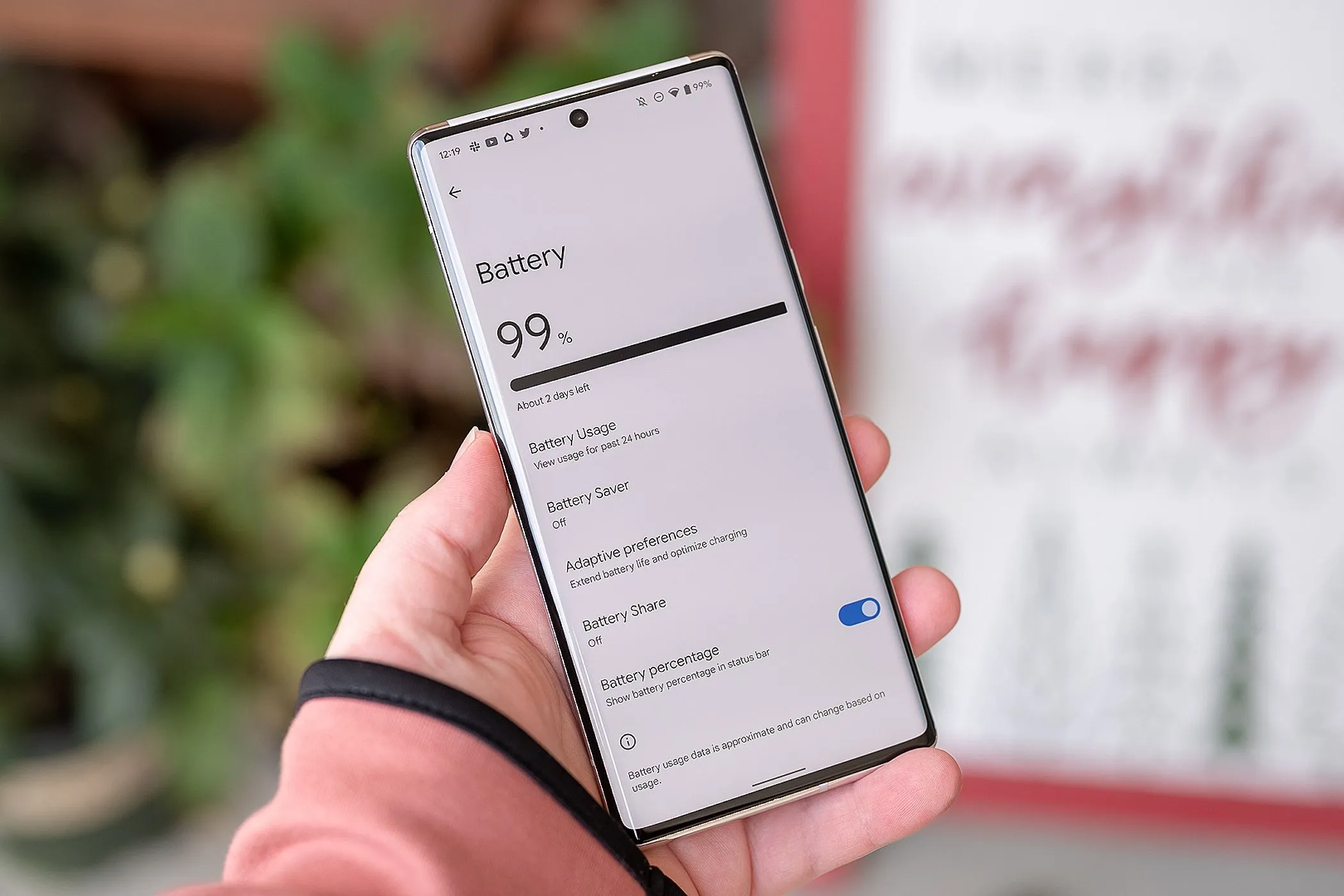
    Pulling down to reach the quick controls for phones running a vanilla Android experience, such as Pixel or Motorola smartphones, will display a list of apps that are now active. Here, you can see how long each background program has been running and use a simple press to end it. By going to Settings > Battery > Battery Usage, you can also see how much battery your apps have been using. Keep in mind that the manufacturer and model of your phone will have a minor impact on the precise menu titles.

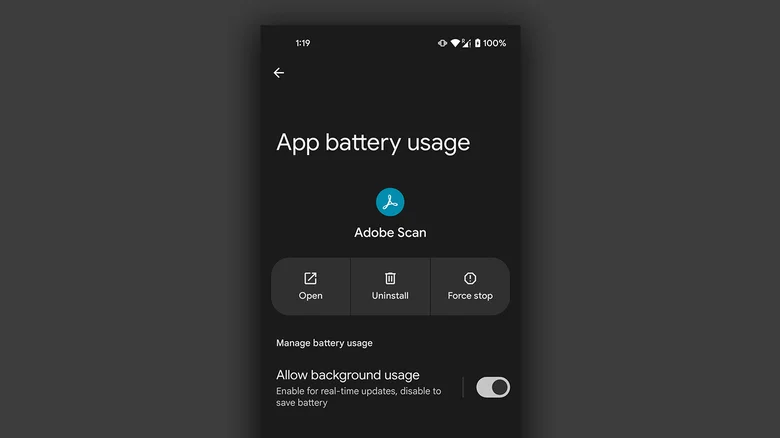
    On Android, you can manually disable an app’s background usage if you discover that it has been using excessive amounts of battery power even when it is not in use.

    • On your Android phone, launch the Settings app.
    • Navigate to Apps > See all apps, and select the one that has been draining your phone’s battery.
    • Tap on “App battery usage” and uncheck the “Allow background usage” toggle.

    Note that certain services like messaging apps require background activity to function properly and send you notifications in real time.

    Managing background apps on iOS
    When it comes to power management and app speed, iPhones have generally improved over time, but malicious actors may still consume excessive resources in the background. Although iOS does not alert users when an app is using more battery than is necessary, it does include safeguards against this. This is in contrast to Android.

    The “open app to finish upload” prompt may occasionally appear on iOS due to the substantially stricter operation of background services. To see how much battery life your iPhone or iPad has used, go to Settings > Battery and scroll down to see a list of the apps that have used up the most in the last 24 hours. Additionally, you can see how long an app has been running in the background and how well your iPhone’s battery is doing.

    If you find a culprit that has been draining way more juice than it needs to, chances are that it has been consuming a lot of resources in the background.

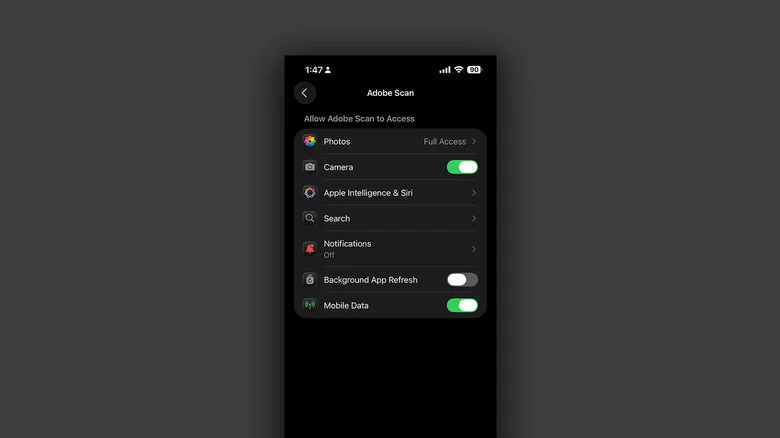
    • On your iPhone, launch the Settings app.
    • Navigate to Apps and select the one that has been causing you battery issues.
    • Tap the “Background App Refresh” toggle to turn it off.

    Once more, this will prevent the app from updating data in the background, which is undesirable if you rely significantly on real-time updates from a service, such as location sharing or navigation.
  • 2 ways to check your battery health on any Android phone

    2 ways to check your battery health on any Android phone

    It’s likely that you carry an Android phone in your pocket if you’re not using an iPhone. Google’s mobile operating system, Android, powers a variety of phones, including the Google Pixel and Samsung Galaxy. The lithium-ion battery is a feature shared by almost all Android phones. Only when these batteries are in good health can they be strong and effective. Your phone may start to drain more quickly, take longer to charge, or even shut down without warning as it ages or wears out. Because of this, monitoring the condition of your battery is more crucial than you may imagine.

    You can check the condition of your Android phone’s battery in two major ways. You can access your phone’s diagnostics by dialing a code. But not every phone can use this dial code. You can also utilize a third-party or internal app, such as Samsung’s Members app, to keep an eye on the condition of your phone’s battery.

    Using a dial code to check the battery health

    A dial code is a string of characters and digits that you enter as though you were making a phone call. You can access an automated system that gives you a summary of your phone’s diagnostics by dialing a code on compatible phones. This will cover the temperature and condition of the battery.

    Enter ##4636## on the dial screen of your phone. After that, access your battery health diagnostics by navigating through the menu. In the menu, this is typically called Battery Information. Depending on the phone kind you own, the options could change.

    Regretfully, not all Android smartphones are compatible with this code. Some are in favor of it, while others are not. You can determine whether the model of your phone supports this dial code in advance if you still have the manual or can get it online. However, just dialing it and seeing what happens might be quicker.

    Using an app to check the battery health

    To check the health of the battery, several Android phones offer a personal app option. The Samsung Members app is available from Samsung. You navigate to Support and then Phone Diagnostics using that app. From there, you can test the phone’s battery and other systems.

    acubattery battery logo

    Accu​Battery

    Accu​Battery displays battery usage information, and measures battery capacity (mAh) based on science.

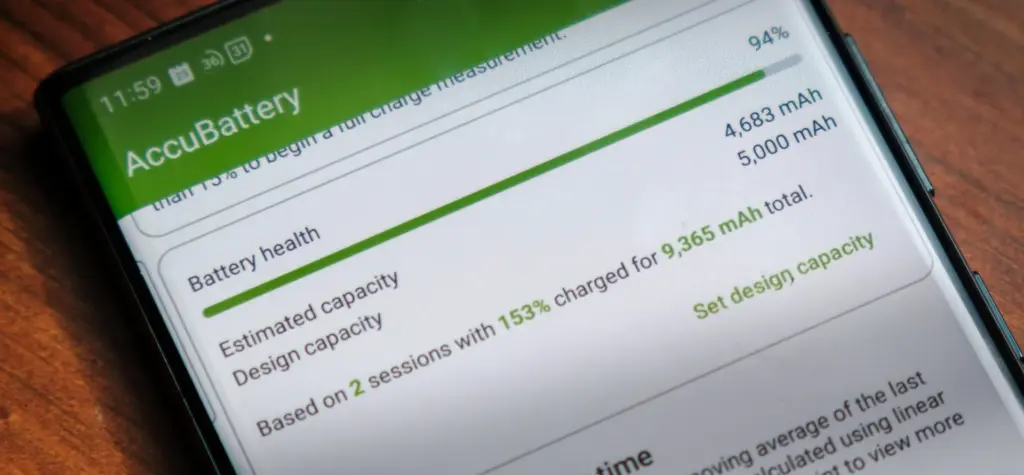
    Another option is to use a third-party app, such as AccuBattery. AccuBattery can be downloaded from the Google Play Store. To demonstrate how well the battery is charging, it has a health monitor. Additionally, it offers up-to-date information about the battery life of your phone. This can help you maximize the battery’s performance and extend its lifespan.

    Maintaining the health of your Android’s battery is essential to its long-term functionality. The dial code is a fast way to check the battery, but not all phones can use it. By downloading an app, you can keep an eye on the condition of your battery and receive real-time reports to improve battery performance. With these resources at your disposal, you can properly care for your phone.

  • Get almost 60% off for the Galaxy Watch 6 Classic LTE

    Get almost 60% off for the Galaxy Watch 6 Classic LTE

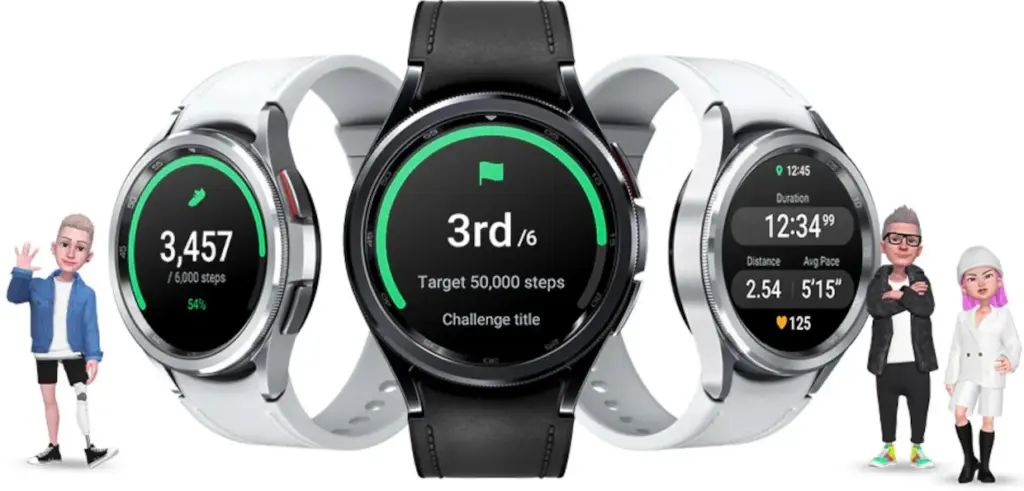
    The Pixel Watch 2 for Android users is the primary competitor of the Samsung Galaxy Watch 6, which debuted in 2023 with excellent specifications and features. By 2025, both of these smartwatches – made by Samsung and Google, respectively—remain viable choices for users in those ecosystems. If you’re searching for a good price on a reliable wristwatch and you use Samsung or Android, the Galaxy Watch 6 Classic is now only $180.99 (was $449.99) thanks to an almost 60% reduction from Best Buy. For comparison, the current price of this model on Amazon is $329.99.

    The 1.3-inch, 2,000-nit brilliant AMOLED screen of the Watch 6 features a digital bezel that allows for fast menu navigation. Best Buy also offers the larger 47mm screen with LTE for $240.99 (was $479.99) if that’s what you’re looking for.
    All of the newest Wear OS features are available to you if you have an Android smartwatch. The Watch 6 has a number of unique functions, such as a temperature sensor, heart rate monitor, blood oxygen monitor, GPS tracking, and an accelerometer for measuring speed. Whether or whether your Android phone is within Bluetooth range, the Galaxy Watch 6 also lets you make and receive calls from it.

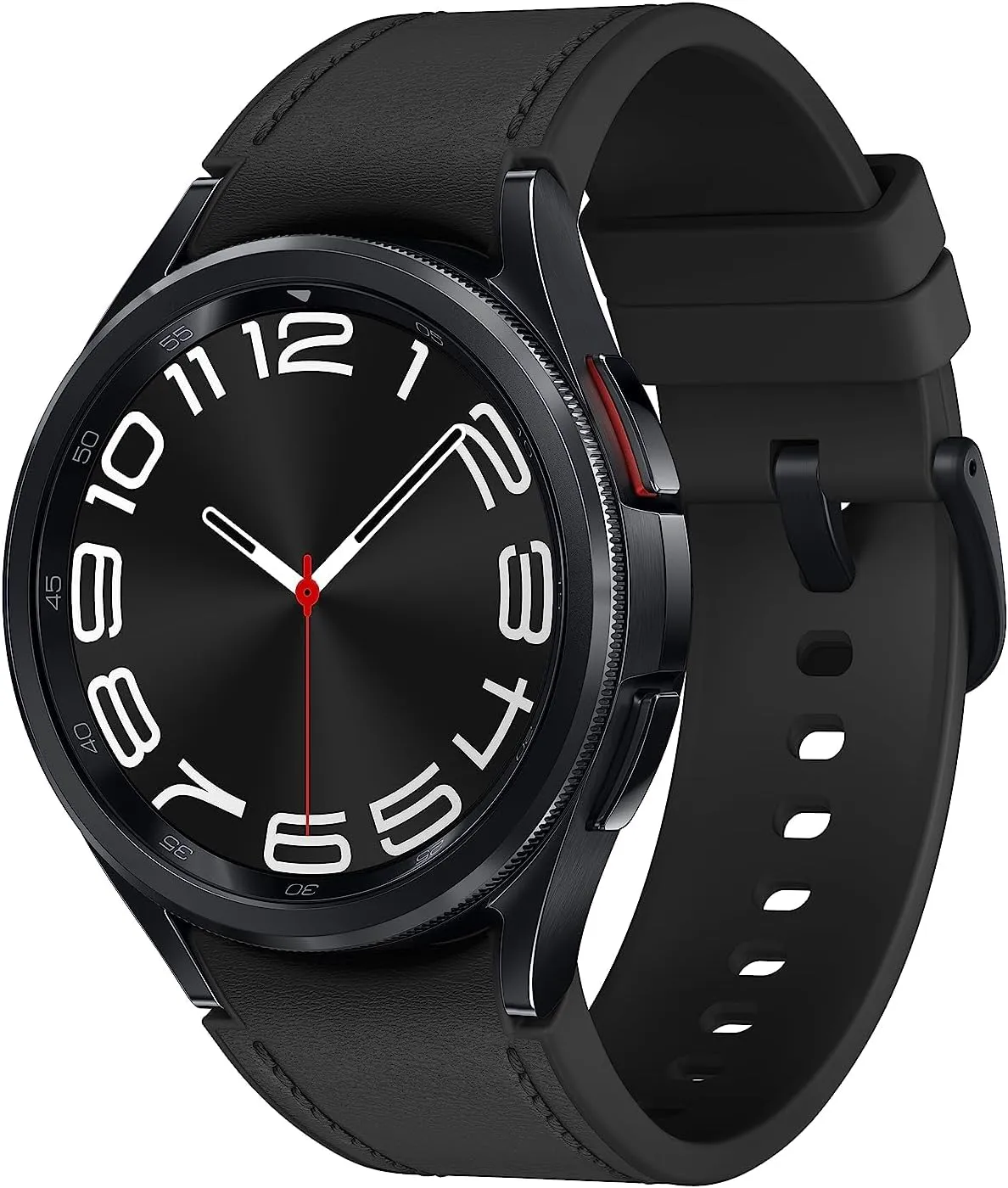
    galaxy watch 6 classic lte

    Samsung Galaxy Watch 6

    Galaxy Watch6 Classic features a timeless, iconic look and a bezel that just clicks with your style; It not only looks great, but it also rotates to give you easy access to all your apps

    $449.99$180.99Best Buy

    The Galaxy Watch 6 is “outstanding,” according to PCMag, which also named it the top 2023 wristwatch that works with Android. Yes, that was nearly two years ago, but for the price, Samsung customers still have a good choice. The main drawback will be the battery’s short lifespan of 22 hours, depending on usage.

    The Galaxy Watch 6 Classic is a cost-effective way to monitor your body composition, calendar, daily activities, heart rate, sleep, stress, weather, and exercises. Even though it was only released this month, the Galaxy Watch 8 is also on sale right now if you want the newest model.

  • Does fully charging your Android device damage the battery?

    Does fully charging your Android device damage the battery?

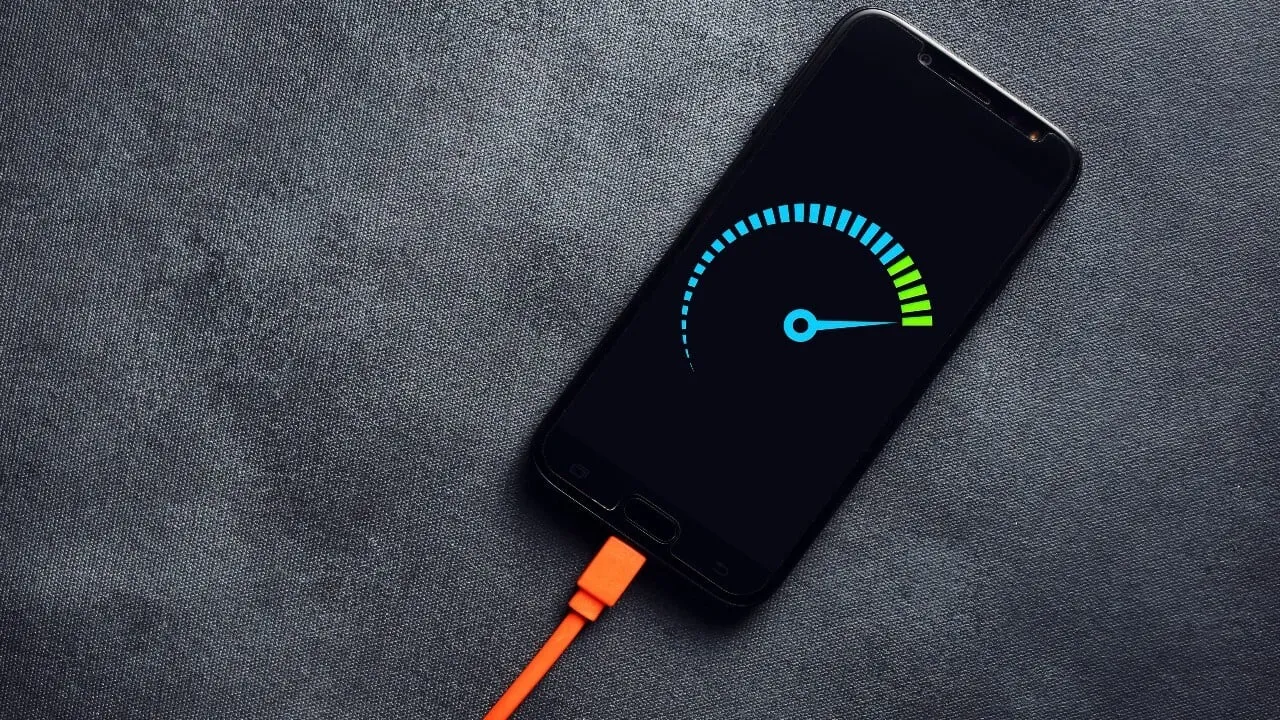
    Although charging your Android phone to 100% seems like a sensible approach to make sure it lasts you the entire day, doing so may be harming your phone over time. This is due to the fact that lithium-ion batteries, which power the majority of Android smartphones, deteriorate with time. Because your phone battery is always maintained at a high voltage, charging it to full can hasten its chemical aging. Compared to charging your battery to a smaller level, like 90%, this can gradually degrade its capacity by 10-15% more quickly.

    Thus, you may eventually have a reduced battery life and require a replacement sooner if you’re always charging to 100%.Fortunately, you can preserve the best possible battery health by changing the way you charge your devices.

    However, the majority of modern phones have excellent battery life, so occasionally using a full charge is unlikely to cause any issues. Therefore, topping up to 100% is not an issue if you have a very busy day or if you require a constant supply of movies and music to keep you from becoming bored while traveling.

    It can decrease the overall capacity

    To keep your Android phone in top condition, top manufacturers recommend that you keep it charged above 50% most of the time. The life of your phone can be shortened by repeatedly letting it run completely dead, but it can also be shortened by always charging it to 100%. Therefore, until batteries that hardly degrade become commonplace, the sweet spot is to maintain your battery charged between 50 and 80% whenever possible.

    The good news is that majority of modern smartphones come equipped with functions that optimize battery health. For example, several Samsung models come with the “Protect battery” feature, which automatically sets the charging limit at 85%. Similar to this, “Charging optimization” on a lot of Google Pixel phones can be adjusted to limit charging to 80%. By cutting down on the amount of time spent at full charge, these features aid in reducing battery wear.

    Another element that affects battery health is extremely high or low temperatures. The battery of your phone will deteriorate more quickly if you often use it in extremely hot or cold temperatures. For the same reason, many Android phones include the really handy option of quick charging, which over time may harm battery health because of the increased heat generation.

    Extreme temperatures – both hot and cold – can actually be worse for battery health than fully charged. The ideal range of outside temperatures to preserve the battery life of your phone is 32 to 95 degrees Fahrenheit (or 0 to 35 degrees Celsius).

    A good solution

    Developing more intelligent charging practices, such as maintaining the battery at its ideal temperature and range, can significantly extend the life of your Android phone’s battery.Additionally, utilize certified or original chargers for your phone. Although third-party or generic ones could be less expensive, they run the danger of damaging voltage fluctuations or overheating your battery.

    You can get more battery life during the day by making a few minor adjustments if you’re seeing that your battery isn’t lasting as long. For example, you may extend the life of your phone’s battery by lowering the screen brightness, using dark mode, and shutting off Bluetooth and location services when not in use.When your phone’s battery is low and you don’t have access to a charger, you can temporarily activate the battery saving feature on many phones to reduce background tasks.

    It’s a good idea to update your apps to the most recent versions to prevent problems like a certain program draining your battery life.You can check the general health of your phone’s battery and see which apps use the most juice by opening the settings.

    battery life
  • How to fix Xiaomi battery drain after HyperOS update

    How to fix Xiaomi battery drain after HyperOS update

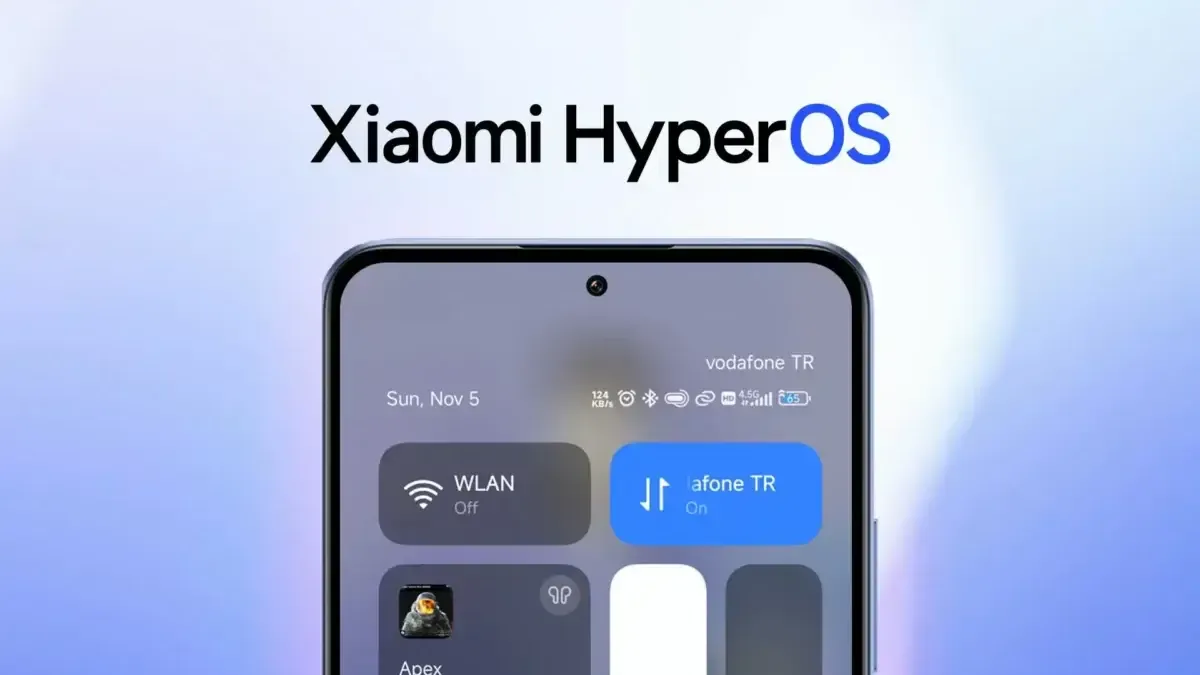
    Many users of Xiaomi devices have complained of a notable decline in battery performance after major HyperOS updates. This problem has affected productivity for professionals who depend on their smartphones for work throughout the day. These abrupt variations in power usage can be unpleasant and uncomfortable, especially for corporate activities that rely on reliable devices. Thankfully, there are practical measures you can take to lessen these problems and extend the battery life of your device.

    hyperos screen

    Restart the device to complete optimization

    Xiaomi devices frequently carry out a number of background operations following major updates, like reindexing apps and rebuilding caches, which can momentarily raise battery consumption. Usually, these procedures take between thirty and an hour to do. You should restart your device 15 to 30 minutes after the update is finished to speed up system stabilization. This can aid in your device’s more effective adaptation to the new software environment by renewing the optimization cycle.

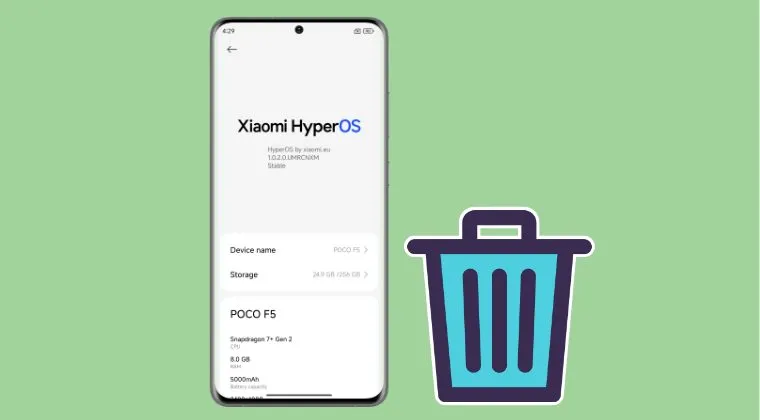
    Remove bloatware applications

    New, pre-installed apps that operate in the background and can cause significant battery drain are frequently introduced by updates. It’s crucial for business users to periodically check their device’s app list and disable or delete any apps that aren’t directly necessary. There are a number of monitoring solutions on the Play Store that offer real-time data if you need to determine which apps are using the most resources.

    Roll back to a stable version

    Reverting to an earlier, stable software version might be the best course of action when a particular upgrade is associated with widespread battery drain problems. Depending on your Xiaomi model, the rewind procedure can differ greatly, thus it’s important to review official documentation or knowledgeable community members before moving forward. By taking this precaution, data loss and gadget malfunction can be avoided.

    Device reset

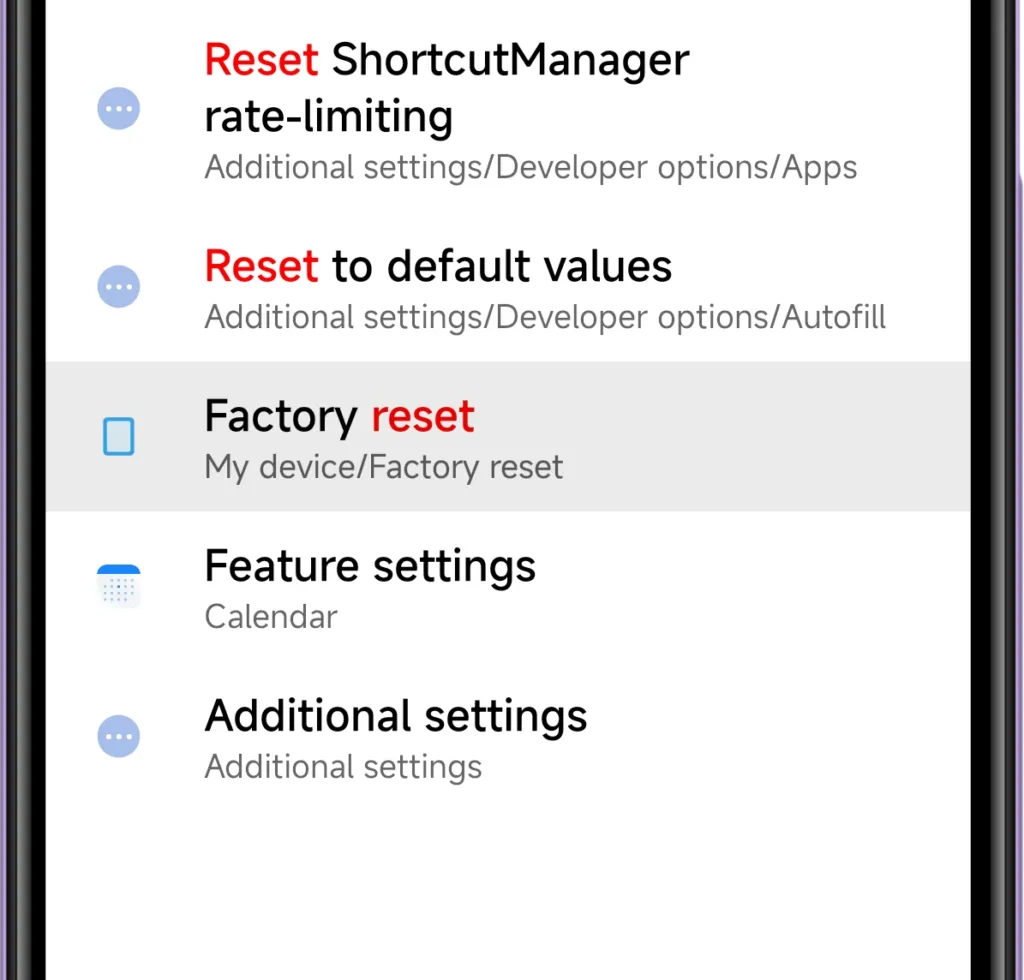
    A complete system reset might be required if battery problems continue after trying alternative fixes. Conflicts between new features and residual data from previous software versions can occasionally lead to persistent issues with power consumption. Since a reset will remove all personal data and return to factory settings, make sure all crucial business data, including contacts, documents, and messages, are safely backed up before starting the procedure.

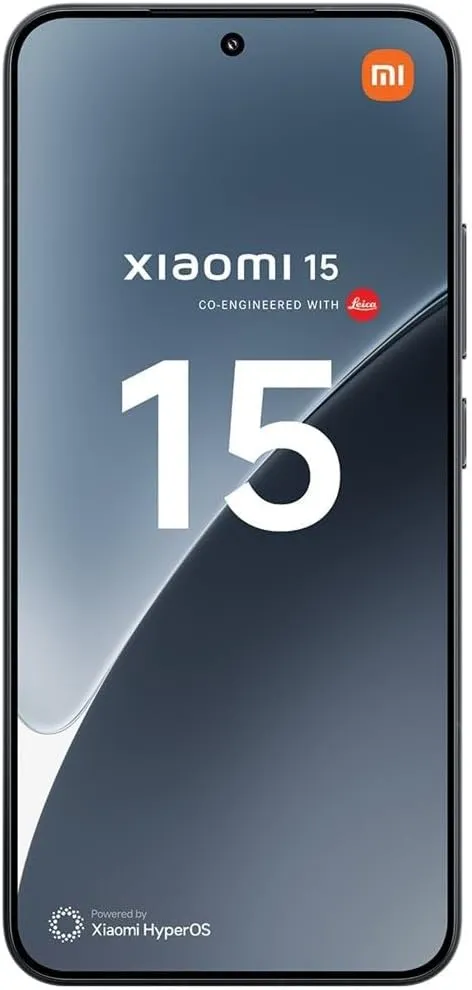
    Xiaomi 15

    Xiaomi 15 5G

    International Model Dual SIM eica Summilux optical lensLEICA VARIO-SUMMILUX 6.36″ 3200 nits ultra-bright displayCrystalRes AMOLED Snapdragon 8 Elite Mobile Platform 3nm Ultrasonic in-screen fingerprint sensor 32MP in-display selfie camera

    999.00$942.50Amazon

    Stay connected with the latest from Droid Tools—follow us on X @droid_tools, like our page on Facebook, check out our updates on Instagram, and follow us on Google News for real-time news, device tips, and mobile tech insights.

  • Most common smartphone charging myths debugged

    Most common smartphone charging myths debugged

    Android smartphones nowadays are available in a wide variety of sizes, styles, and form factors. There is a large market with many possibilities for foldable phones in addition to the traditional slab flagship smartphones and all-around mid-range smartphones.

    However, battery life has always been a problem for all Android users, regardless of the device they use. The majority of Android users are concerned about how long their phone will last between charges. Many people adopt practices based more on misconceptions than facts in an effort to maintain battery health.

    Although many old pieces of advise still exist, Android phones have become much more intelligent. Here are some typical fallacies about charging that people still hold onto, along with the actual facts.

    Only the original charger for your phone brand should be used.

    charging smartphone

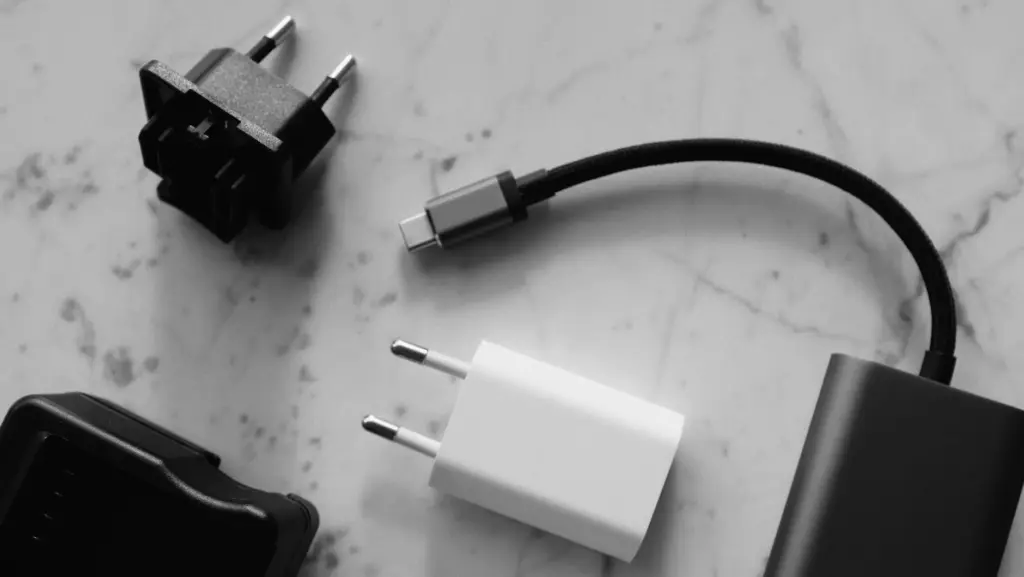
    The majority of smartphone manufacturers have followed Apple’s example and ceased included a charger in the box since the release of the iPhone 12 in 2020. Additionally, they frequently encourage you to purchase their official charger, which is typically more expensive than alternatives found on Amazon or Best Buy. However, that isn’t the complete story.

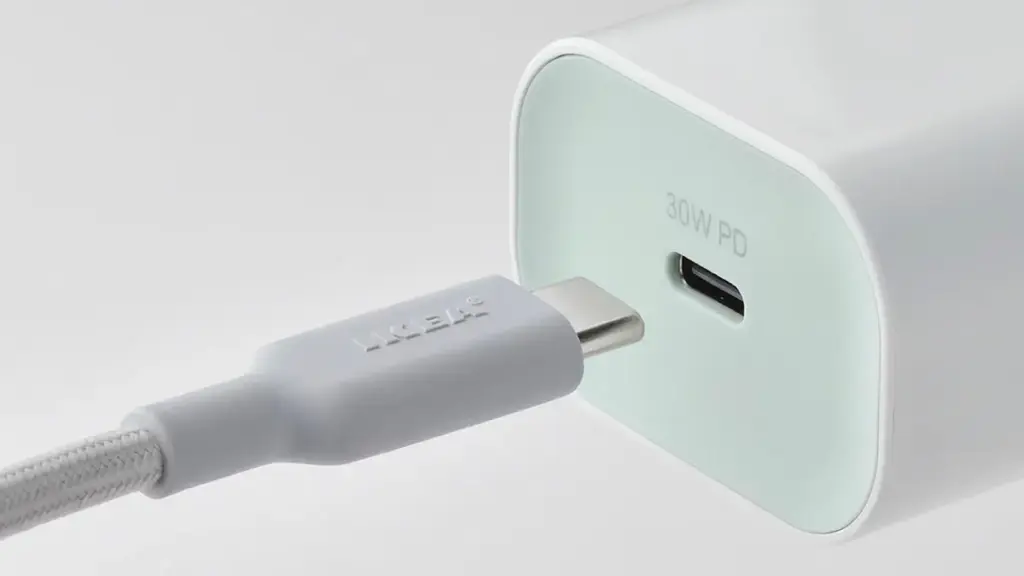
    For a quick and safe charge, you don’t have to use the same brand of charger. In addition to meeting all safety and charging requirements, certified third-party chargers from companies like Anker, Belkin, Spigen, and UGreen are less expensive than those offered by phone OEMs.

    Additionally, the majority of these brands’ chargers support the majority of fast charging protocols, including USB-PD, PPS, and Quick Charge. It’s likely that a decent third-party charger will function perfectly unless your handset uses extremely specialized proprietary charging technology, like as Xiaomi’s HyperCharge or OnePlus’ SuperVOOC.

    Wireless charging is incredibly effective and safe.

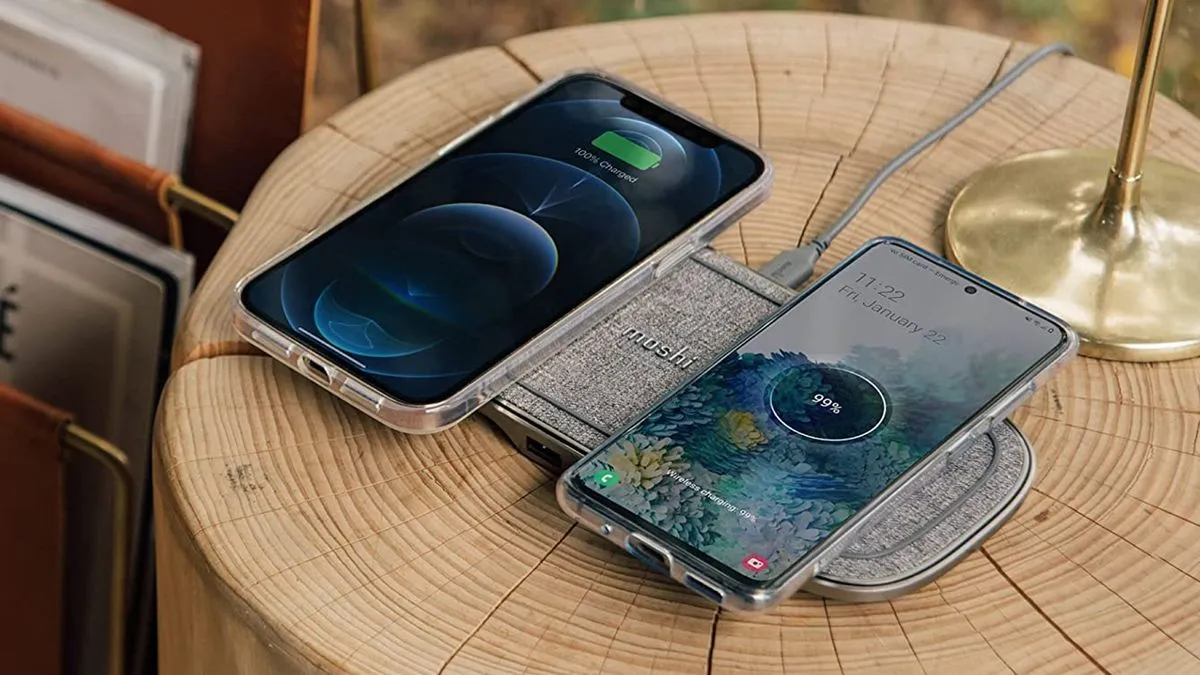
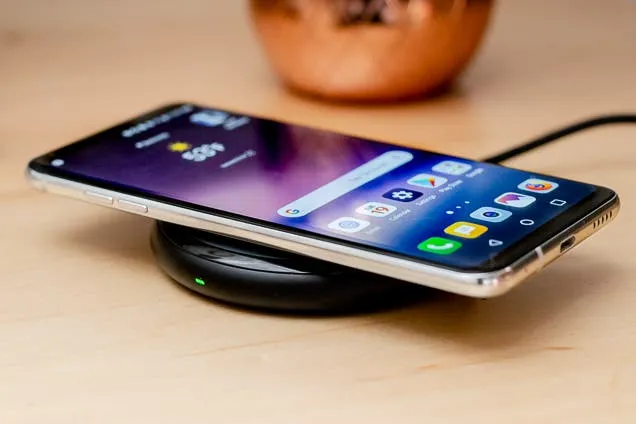
    Wireless charging is now supported by the majority of Android flagship handsets, and although it’s a handy feature, it’s not necessarily the best option for battery health. Compared to wired charging, wireless charging produces more heat. Your battery may lose some of its original charge over time due to the accelerated degradation caused by excessive heat.

    Therefore, try to avoid using wireless charging on a regular basis. Although it’s acceptable on occasion, if you would rather use a Qi-certified charger on a regular basis, take into account wireless chargers with integrated fans or temperature control, as these features aid in lowering heat production. Despite this, cable charging is still one of the greatest choices (and it’s typically faster, too).

    Your phone’s battery will die if you leave it plugged in all night.

    The idea that leaving cellphones plugged in overnight will “overcharge” the battery, damage it, and accelerate its depletion is one of the most widespread misconceptions regarding charging. However, that is untrue. These days, Android devices are intelligent enough to charge overnight without causing battery damage.

    myth - Your phone's battery will die if you leave it plugged in all night.

    Nowadays, the majority of phones have intelligent battery optimizations that learn your usage and cut off charging when the battery reaches 80%. These optimizations are frequently AI-enabled. To reduce battery stress, the last 20% is charged right before you usually disconnect your phone.

    However, charging to 100% on a regular basis is also not recommended. When left fully charged for extended periods of time, lithium-ion batteries—found in phones like the Google Pixel 9 Pro and Samsung Galaxy S25 Ultra—degrade more quickly. Setting a charge restriction, such as stopping at 80%, is a better long-term habit if your phone allows it.

    It’s not good to charge your phone several times a day.

    It's not good to charge your phone several times a day.

    Another widespread misconception is that you should only charge your phone when battery reaches 0% and that charging it more than once a day is detrimental. However, that is untrue. Frequently charging lithium-ion batteries is not a problem for them. Actually, tapping 0% repeatedly may cause more damage than good to these cells.

    For the optimum battery health, you should try to keep your phone within the 20% to 80% range, as this is where lithium-ion batteries are meant to operate. Charging your phone in short bursts throughout the day is less stressful on the battery than completely draining it to nothing.

    Every phone is compatible with every fast charger.

    Fast charging is supported by almost all Android devices nowadays, although it is unrealistic to expect all fast chargers to function in the same manner. The charger you’re using might not function as intended because the majority of Android OEMs utilize different fast charging protocols. There are numerous rapid charging protocols, such as USB-PD, PPS, and OnePlus’s proprietary SuperVOOC.

    An incompatible fast charger won’t harm your phone’s port, but it probably won’t provide rapid charging. Using the correct charger will charge your phone as intended. You won’t receive the speed you’re hoping for if you don’t check your phone’s supported charging protocol before purchasing a new charger.

    Did you knew all these?

    Overall, we still hold onto several widespread myths about charging gadgets, many of which date back to the 2000s. However, cellphones have advanced significantly over time, and thanks to a number of clever features, they can now control charging more effectively.

    Beyond being aware of these facts, you can really extend the battery life of your phone by incorporating a few simple tips into your daily routine.

    Stay connected with the latest from Droid Tools—follow us on X @droid_tools, like our page on Facebook, check out our updates on Instagram, and follow us on Google News for real-time news, device tips, and mobile tech insights.

  • 8 tips to increase your Samsung device battery life

    8 tips to increase your Samsung device battery life

    Because of their feature-rich and responsive software, Samsung’s Galaxy smartphones are among the best Android phones on the market right now. However, the majority of Samsung phones, particularly premium models like the Galaxy S25 Ultra, Galaxy Z Fold 6, and Z Flip 6, include extravagant features that you might not utilize on a regular basis.

    There are ways to maximize what you have without degrading the user experience if your new Galaxy phone isn’t able to survive a full day between charges.

    Here are seven strategies to extend your Galaxy phone’s battery life. Don’t worry, I won’t be Captain Obvious and suggest that you use your phone at a lower refresh rate or lower the screen resolution. The suggestions on this list ought to enhance your quality of life while optimizing the functionality of your phone.

    Adaptive Brightness

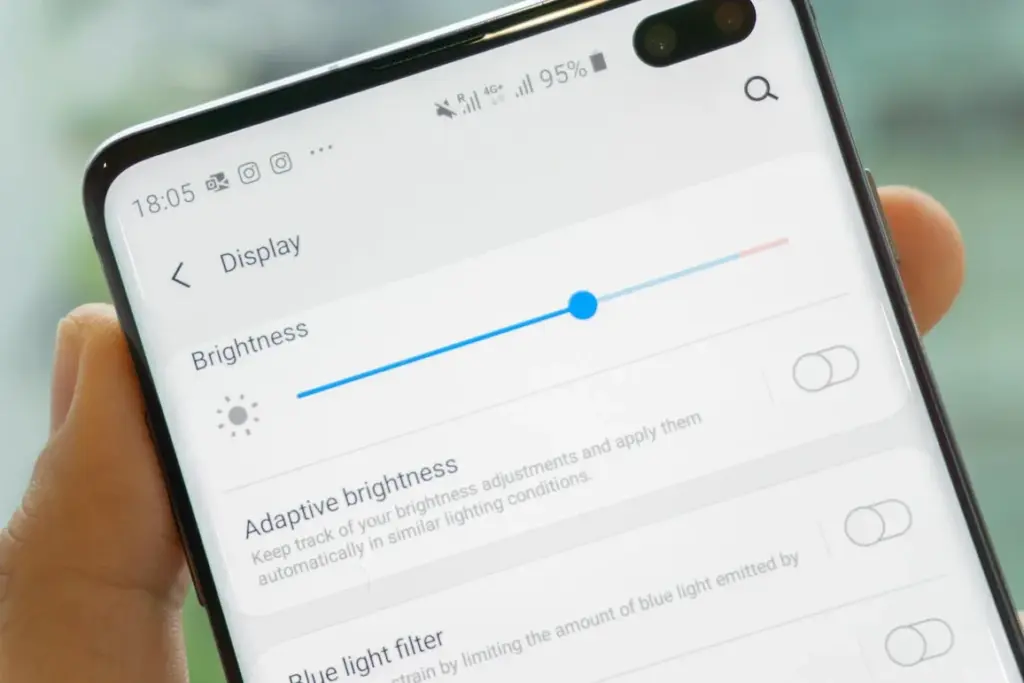
    Although this setting should ideally be turned on by default, some individuals disable it because it’s not always reliable. Nonetheless, the quality of Samsung’s ambient light sensor has increased over time. Your Galaxy phone is capable of accurately detecting ambient illumination and adjusting the screen brightness on its own. By doing this, you can make sure your display is more effective and not overly bright.

    Toggle Adaptive Brightness on by going to Settings > Display. Although it should function in most settings, you can use the Quick Settings panel to slide down to change the brightness if necessary.

    Scheduel Always-On Display

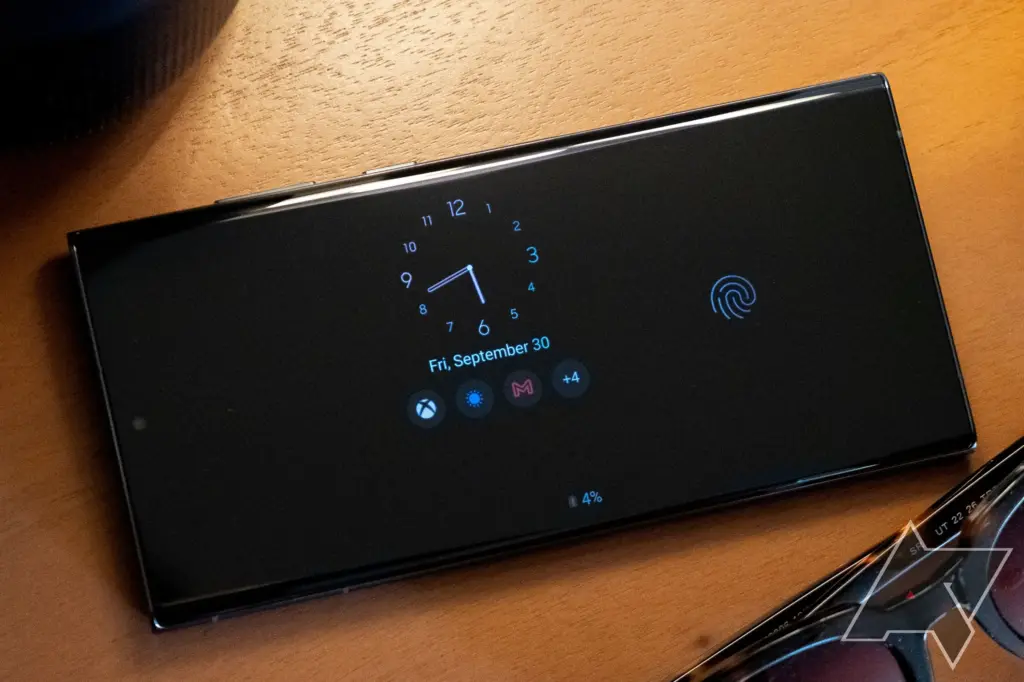
    I adore my Galaxy S25 Ultra’s Always-On Display (AOD). For efficiency, its LTPO display lowers to 1Hz, which is useful for functions like AOD. Using AOD may not be as effective if your Galaxy phone is midrange and has a minimum refresh rate of 60 Hz. You can use it wisely, though, by planning AOD for when it’s required.

    For example, I’ve set it for 10 a.m. to 6 p.m. so I don’t miss any crucial messages and can quickly get the information I need.

    How to: Select Settings > AOD and Lock Screen > Select Always On Display > As scheduled under When to show. Additionally, disable the Show lock screen wallpaper in the AOD options while you’re at it.

    Enable Performance profile

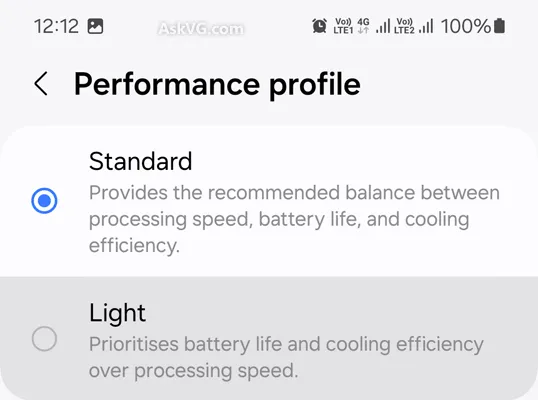
    Samsung lets you select a performance profile according on how you use it. The Light Performance profile is a better option than the Standard if you don’t play games and use your phone mostly for everyday activities like surfing and making calls. It will put cooling and battery life ahead of processing performance.

    Open the Settings app and go to Device care > Performance profile and select Light. This is ideal for average phone users.

    Use Dark Mode

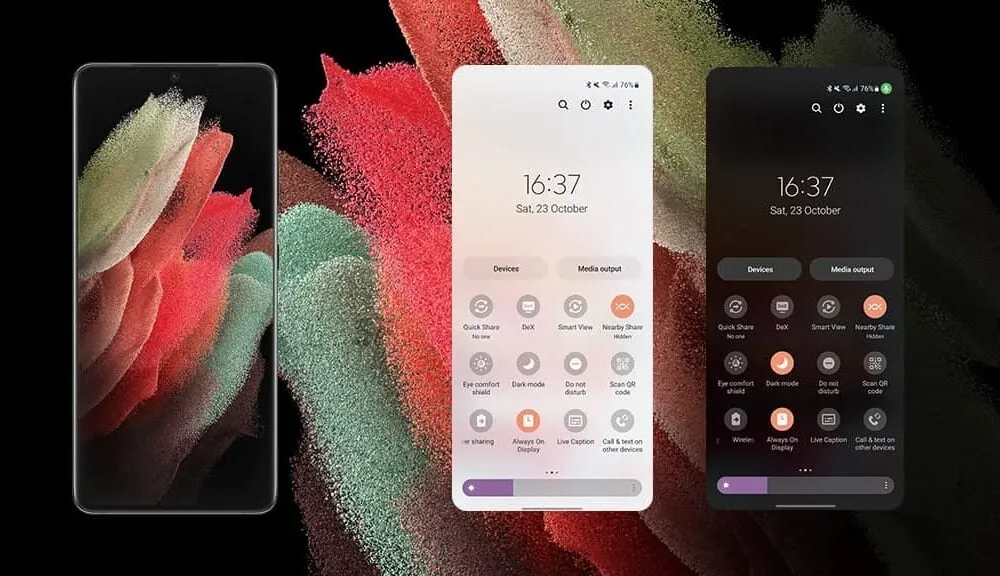
    AMOLED screens, which can control individual pixels, are seen on the majority of Samsung phones. Therefore, the area of the screen that must remain black won’t activate those pixels when you choose a dark theme or dark wallpaper. As a result, your screen uses less power and your battery lasts a little longer.

    How to do it: Go to Settings > Display. Two cards for Light and Dark will be dealt to you. Press the Dark option. Changing the system wallpaper and sticking with the light theme is an alternative, but it won’t have the same impact on energy life as switching to dark mode.

    Use offline content when you can

    It’s a good idea to download such stuff offline if you listen to the same podcasts and playlists or travel the same path every day. Google Maps and the majority of streaming apps use a lot of battery power over 5G and LTE. It may also cause your phone to feel warm to the touch when you’re outside. With a little advance forethought, you can handle this: Before you leave the house, use Wi-Fi to download your favorite music or maps.

    How to: Go to the streaming apps you want to download content from and follow the in-app steps. For instance, YouTube has a download button on videos, and Spotify lets you download complete playlists.

    Force stop or uninstall power-draining apps

    Numerous programs, including Facebook, Microsoft 365, OneDrive, and numerous Samsung and Google apps, are pre-installed on Samsung phones. To stop them from running in the background, find the ones you don’t need and either remove them or force-disable them.

    For instance, not everyone requires OneDrive or the Samsung Smart TV app. I remove those two apps along with others like Facebook, Outlook, Microsoft 365, Tutor, and more when I set up a new Galaxy phone.

    To unistall an app tap and hold the app you want to uninstall. A pop-up menu will appear. Tap Uninstall. As a result, none of these non-required apps will use your battery.

    Check what apps are power-draining

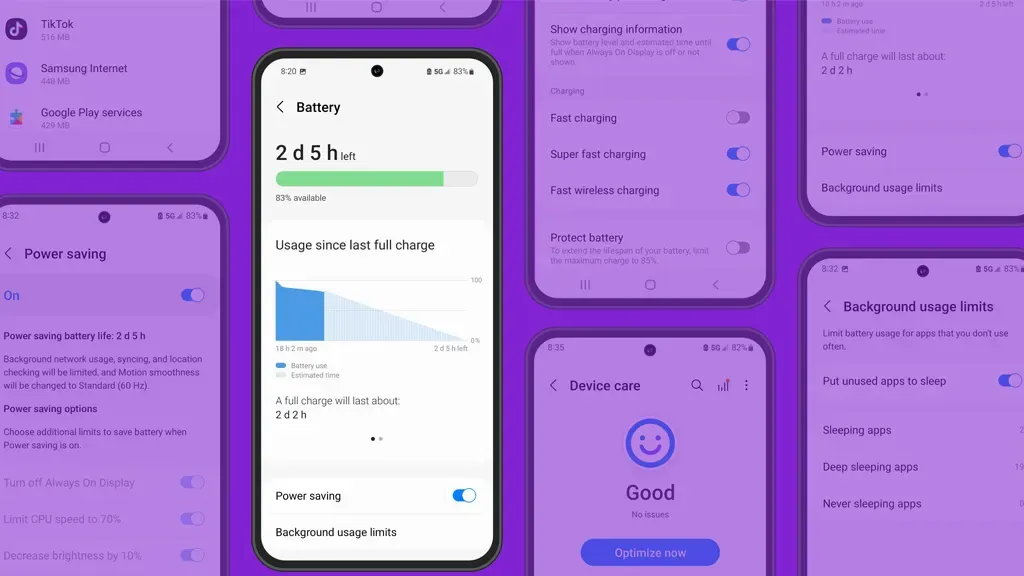
    Depending on your location, 5G connectivity, and background usage, some apps need more power. To assist you reduce unnecessary battery usage, Samsung allows you to recognize certain power-hungry programs.

    How to: Go to Settings > Battery and device care > Battery > Background usage limitations on your Galaxy smartphone to find apps that use a lot of power. Then, choose the apps you wish to disable.

    What to do when you are low on battery?

    The top functions of your Galaxy phone will not be compromised by the seven settings mentioned above. But if your phone’s battery is low while you’re out, you should:

    • Turn on Power Saving
    • Toggle off data roaming
    • Turn off location services
    • Switch off AOD altogether

    When your phone’s battery is less than 20% and you’re still a few hours away from a charger, I advise activating these options. The Samsung settings listed above will also help you get the most out of your Galaxy phone’s battery.

    Stay connected with the latest from Droid Tools—follow us on X @droid_tools, like our page on Facebook, check out our updates on Instagram, and follow us on Google News for real-time news, device tips, and mobile tech insights.

  • Performance trick on Xiaomi devices – RAM expansion

    Performance trick on Xiaomi devices – RAM expansion

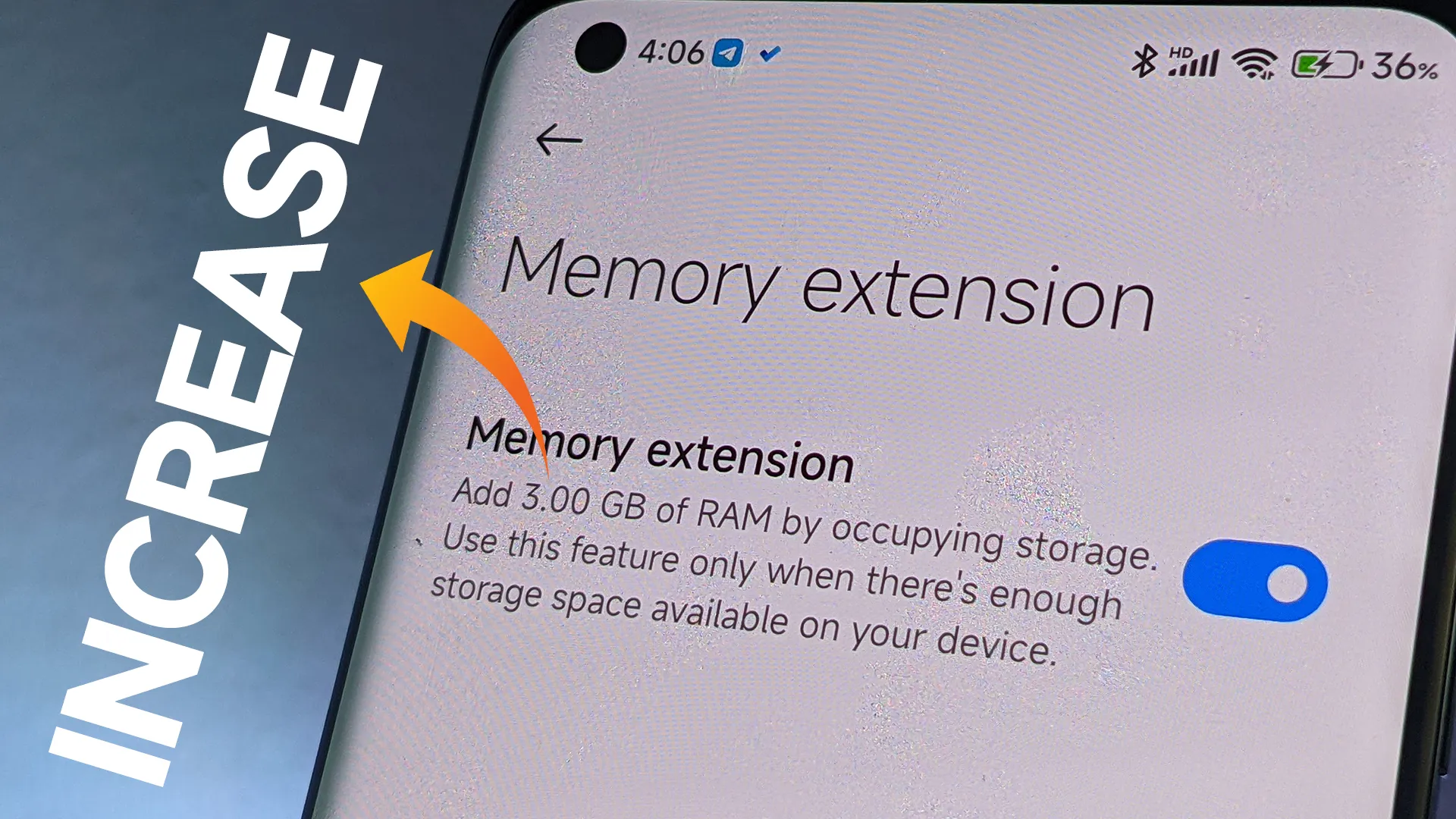
    One of the most frequent complaints from smartphone users is slowdowns brought on by insufficient RAM, which Xiaomi has subtly added. By designating a piece of internal storage as virtual RAM, the Dynamic RAM Expansion function allows Xiaomi, Redmi, and POCO handsets running MIUI or HyperOS to augment their physical RAM. This method is especially cost-effective for both premium and budget-conscious customers since it enables users to improve device performance without spending money on expert services or hardware changes.

    About RAM expansion

    RAM serves as every smartphone’s working memory, facilitating seamless multitasking and quick access to open apps. The increasing sophistication of mobile operating systems and applications puts even more strain on limited memory. Users encounter slowness, slower app transitions, and occasionally even unplanned system restarts when a device’s RAM is low—all of which are unacceptable in a fast-paced work setting.

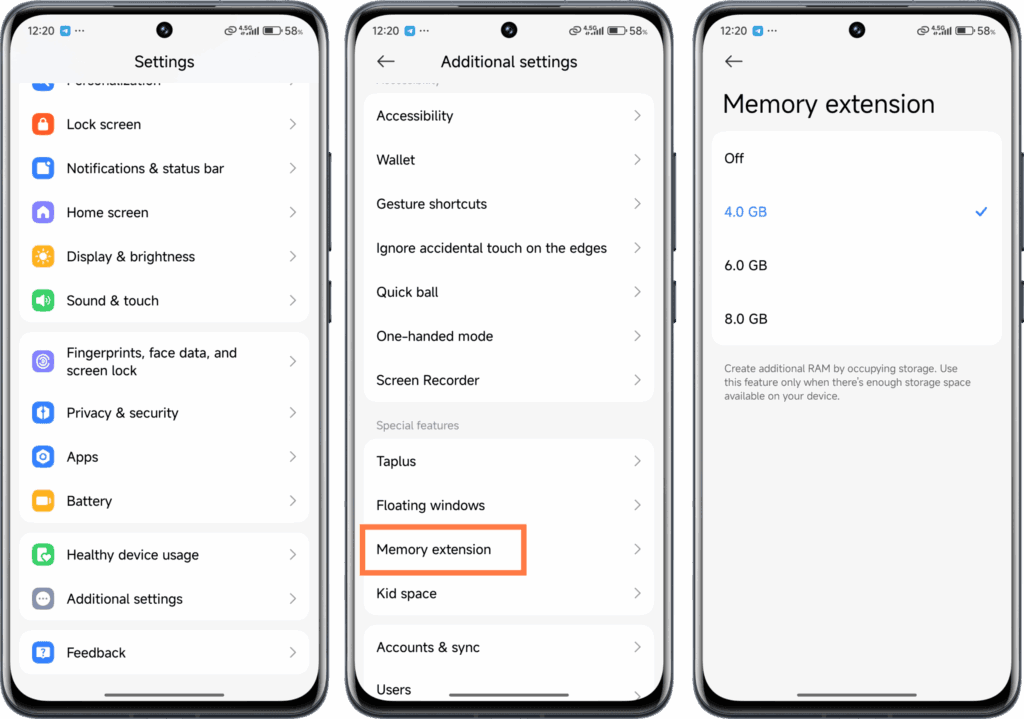
    By setting aside a piece of internal storage and using it as virtual RAM, dynamic RAM expansion helps to overcome these limitations. For instance, a device having 8GB of physical RAM can be set up to add an additional 4GB from storage, giving users “8+4GB” as shown by system settings. This approach is especially beneficial for companies wishing to prolong the lives of their hardware assets because it doesn’t need any physical intervention or additional costs.

    Throughout the Xiaomi ecosystem, this capability is generally accessible. Dynamic RAM Expansion is available to a wide spectrum of customers, from the top POCO models to affordable Redmi handsets, including mid-tier choices like the Redmi Note 13 Pro 5G. The individual device and available storage determine how much expandable RAM (4GB, 6GB, or 8GB) is needed, providing flexibility for a range of business requirements.

    How to enable Ram expansion

    Enabling the feature is designed to be user-friendly:

    • Open the Settings application
    • Navigate to “Additional Settings”
    • Locate and select “Memory Extension” (or “Memory Expansion”)
    • Choose the desired amount of expansion (4GB, 6GB, or 8GB)
    • Confirm and restart the device to activate
    xiaomi RAM expansion

    Users can experience quantifiable increases in device responsiveness in a matter of steps, which is advantageous in settings where productivity is a top priority.

    Even though dynamic RAM expansion has several advantages, it needs enough free storage to work properly. To activate the feature, users might need to make room. It’s also crucial to remember that virtual RAM functions more slowly than real RAM, but for everyday business applications like email, productivity suites, and communication, the difference is usually noticeable.

    Stay connected with the latest from Droid Tools—follow us on X @droid_tools, like our page on Facebook, check out our updates on Instagram, and follow us on Google News for real-time news, device tips, and mobile tech insights.

  • Make your phone hackproof with Advanced Protection feature

    Make your phone hackproof with Advanced Protection feature

    Google has released the Material 3 Expressive design language for Android 16 QPR1 Beta. In addition to the new UI changes, it comes with a new Advanced Protection feature, which is a collection of security measures intended to keep Android users safe. Here’s how to activate it and when you should think about activating it.

    The Advanced Protection feature was included in the Android 16 QPR1 update for Pixel devices, but it is anticipated that the final stable update will make it available on further devices in the future.

    What is Advanced Protection?

    Advanced Protection, as the name implies, is a new mode that gives your Android device and linked Google account overall increased security. When you believe there are security risks or breaches, you can activate it.

    It combines and activates a number of current and future Android features, despite sounding like a brand-new security feature. Put differently, it’s a feature that combines multiple protections in one location and activates them all at once when required. This is especially helpful when you just want to make sure your device and account are as safe as possible but are unable to pinpoint a threat or assault.

    This features enable different security tools

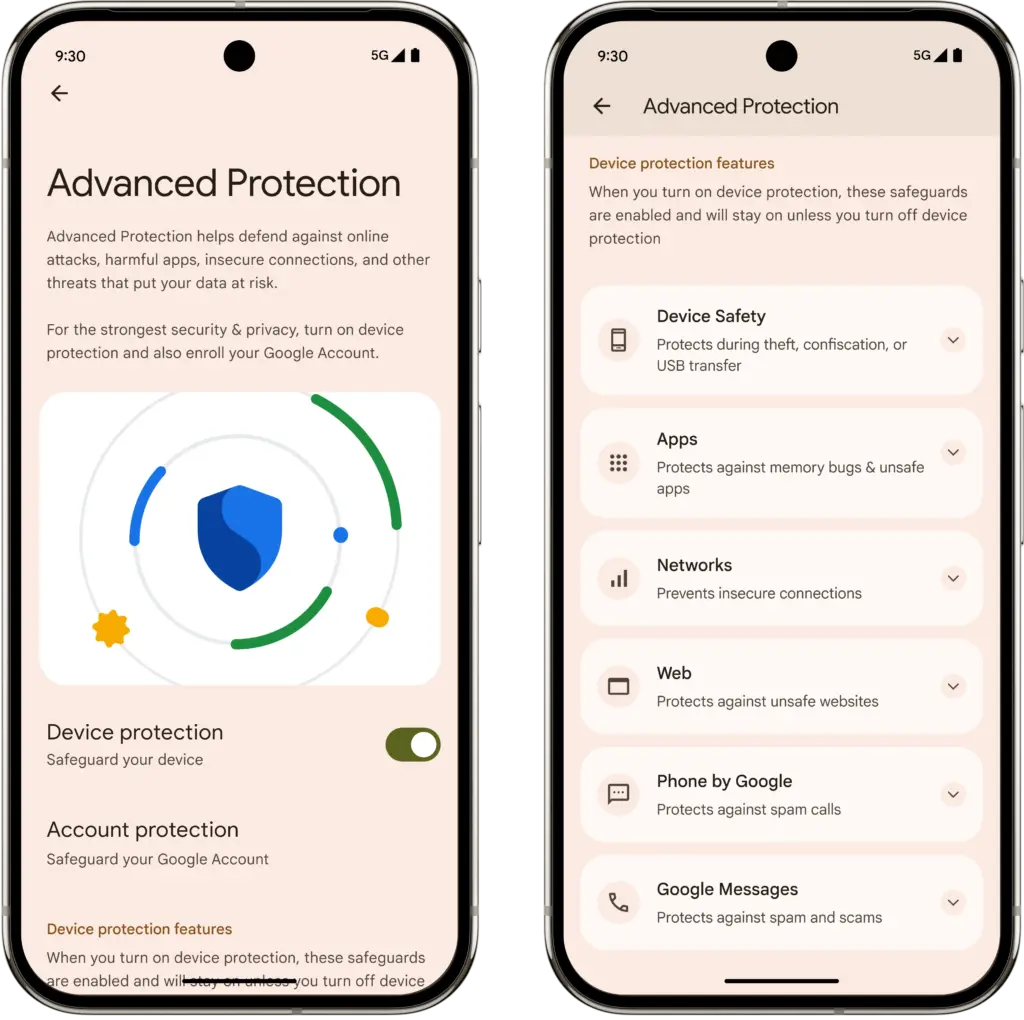
    Device theft, app, network, browser, and phone protections are among the options available in Pixels’ Advanced Protection mode.

    In order to further prevent access to stored data, device theft prevention, an anti-theft feature for stolen phones that is already commonly present on the majority of contemporary Android smartphones, will immediately lock the device and compel a restart if it stays locked for three days. Additionally, it will prevent unwanted USB access.

    App protection, meanwhile, checks for memory problems in apps, screens for malware and dangerous apps, and prevents installations from unreliable developers and sources. At the same time, the network tool prevents the device from using 2G, which is based on a less secure protocol, and requires it to utilize 3G and newer networks.

    These protections apply to browsing as well as making and receiving calls and messages. While the Phone by Google and Messages applications check numbers during calls and chats to determine whether they are spam or real businesses using Google’s scam detection, the web blocker prevents non-HTTPS and malicious websites.

    How to Enable Advanced Protection

    Advanced Protection feature on Android 16

    Once enabled, the feature is located in the Security & Privacy section of the settings on your Google Pixel or compatible Android smartphone. To turn it on, follow these steps:

    1. Go to Settings > Security & Privacy.
    2. Scroll down and look for Other security settings.
    3. Tap on Advanced Protection.
    4. Toggle on Device protection.
    5. Confirm the step.
    6. Restart your device.

    To disable it again after it has been enabled, you must authenticate using biometrics or your password and PIN.

    Stay connected with the latest from Droid Tools—follow us on X @droid_tools, like our page on Facebook, check out our updates on Instagram, and follow us on Google News for real-time news, device tips, and mobile tech insights.

  • How antivirus software secures your Android data from theft and loss 

    How antivirus software secures your Android data from theft and loss 

    Android devices are extremely popular, mainly due to their open-source model, wide range of device options, and affordability, which makes them appealing to a broad demographic and accessible to people from diverse incomes.  

    However, due to its popularity, it makes Android devices an easy target for attacks, resulting in multiple risks associated with storing sensitive data on mobile devices.  

    This is why it is important to secure Android devices and data against theft and loss, especially in the current digital landscape.  

    Threats that Android users face 

    If you haven’t installed a suitable antivirus for Android, you are opening yourself to multiple cybersecurity threats to your private data, which can result in the theft and loss of confidential information that can lead to financial losses. 

    Malware Threats 

    These include viruses, spyware, ransomware, and trojans, among other malware. They are harmful for a number of reasons, which sometimes overlap with each other. 

    • They are sometimes disguised as legitimate apps.
    • Monitor activity and collect data to send to attackers
    • They can steal sensitive information like banking credentials 
    • They can intercept communications to access confidential information 
    • It locks or encrypts files to demand a ransom in order to restore access. 

    Phishing attacks

    • These attackers can create apps that mimic legitimate ones or fake overlay screens to trick users into entering their credentials.
    • They can disguise themselves as popular services which are distributed through unofficial app stores, bypassing Google Play’s protections 
    • They can send deceptive messages that come from seemingly trusted sources to click on malicious links or input sensitive information. 
    • Some phishing apps can read information from the Android notification bar and access information like one-time passcodes, which can help bypass multifactor authentication.  

    Biggest data concerns for Android users 

    • Widespread privacy concerns: Android users actively seek ways to configure privacy settings on their devices. This is due to the majority of privacy-related concerns reflecting anxiety on how personal data is handled by the OS and popular apps.  
    • Excessive Data Collection and Sharing: Android devices often collect and share large amounts of user data with third parties, sometimes they don’t offer users a way to opt out. Google tracks Android phones using cookies, identifiers, and other data stores, often without user awareness. 
    • Security Vulnerabilities and Exploits: Android’s open nature and fragmented update system expose users to high-severity vulnerabilities. This includes zero-day exploits that lead to privilege escalation and remote code execution. 
    • Malicious Apps and Sideloading Risks: Android users are at risk of malicious apps, especially those installed outside of the official Google Play Store, which can bypass Google’s security checks. These apps can introduce malware, spyware, and stalkerware that compromise device security and user privacy.  
    • Insecure App Permissions and Poor Passcode Hygiene: Many users grant excessive permissions to apps, which increases the risk of data misuse or leakage. Weak or reused passwords and simple device passcodes make it easier for attackers to gain unauthorised access. 
    • Biometric and financial data exposure: Vulnerabilities in Android can put biometric data, like fingerprints, and financial information, like credit card details, leaving many devices exposed to known vulnerabilities for extended periods.  

    Built-in Android security features 

    Android devices come with their own set of security features that attempt to protect data stored on them.  

    • Google Play Protect: The official store for downloading apps, scans apps and actively monitors for malware and prompts users to uninstall apps that may be harmful. It also blocks apps from untrusted sources.  
    • Safe browsing and permission management: Alerts users when they attempt to visit dangerous sites, suspicious links, or files that may be harmful.  
    • Encryption and authentication: The devices come with encryption by default, which ensures all data is stored securely, and only someone with the PIN, password, or authentication can access the data and protect it if the device is lost or stolen. 
    • Find My Device: For locating or erasing data on lost devices. It prevents unauthorised access to personal data. 

    Why Additional Measures are Needed 

    There are several gaps in Android’s native security, such as delayed security updates from manufacturers and the risks of sideloading apps and using public Wi-Fi. This is why additional protection, such as antivirus software, is needed.  

    Scenarios where antivirus is especially important 

    • Handling sensitive data such as banking, work files, and personal information. 
    • Frequent connection to unsecured networks. 
    • Downloading apps from third-party sources. 

    How anti-virus software protects your data

    • Real-time malware protection and detection, and removal of these threats. 
    • This software blocks ransomware before device lockout occurs. 
    • It scans for phishing URLs and fraudulent websites before users access them. 
    • Conducts privacy audits to monitor app permissions and data access. 
    • Monitors for identity theft protection and aids with secure online payments. 
    • Some software has VPN and secure browsing features. 
    • Has in place a remote device location, lock, or wipe in case of loss or theft.

    What to be wary of

    • With Antivirus Software: Some apps contain vulnerabilities, like exposing the address book or allowing attackers to disable the antivirus software itself. Some also track user data and end up creating new risks instead of eliminating them. 
    • Google Play Protect: These and other official store apps are not always foolproof;  malicious apps are able to slip through the vetting process, and antivirus software that scans before and after installation can add a layer of defence. 
    • Making the Choice: When choosing the right software for you, you want a comprehensive malware detection, real-time protection and updates, privacy controls, app permission management, and additional tools like VPN, anti-theft, backup, and Data Loss Prevention (DLP). 

    DLP and Advanced Security Features of Antivirus Software 

    • It encrypts data in transit and at rest. 
    • Separates personal and corporate data for business users. 
    • Centralised password and access management. 
    • Remote wipe and selective data erasure for lost or stolen devices. 
    • App and domain whitelisting to restrict access. 

    Practices for Maximising Android Security

    • Keep operating system and apps updated: Install the latest Android OS and app updates to patch vulnerabilities and protect against new threats. 
    • Regular review app permissions: Check which permissions each app has and revoke those that are unnecessary. Only grant essential permissions for app functionality.  
    • Avoid downloading from untrusted sources: Download apps from the Google Play Store or reputable sources. Avoid third-party app stores, which are more likely to host malicious apps.  
    • Use strong passwords and enable biometric authentication: Use a strong PIN pattern for the lock screen, and use fingerprint or face access for added security. 
    • Enable remote tracking: Enables wiping features if devices are lost or stolen to protect confidential information. 

    Conclusion

    Installing antivirus software on Android devices helps protect the device’s data from being compromised and open to cyber threats. To make the most of your protection attempts, make use of built-in features in conjunction with a reputable antivirus solution for comprehensive protection.