Category: Guides

Whether you’re a beginner or an advanced user, find expert guides on troubleshooting, customization, and optimizing your Android experience.

  • Boost your Samsung TV performance with these 6 simple settings

    Boost your Samsung TV performance with these 6 simple settings

    Let’s say you just got a brand-new, sparkling TV. Like a child at Christmas, you open the box and get ready to enjoy all of its aesthetic splendor. It’s 2025,” you think to yourself. TV technology is booming, and it will always look fantastic. Thus, you plug it in without even checking the default settings. A huge error.

    I’ve done it myself. And because it’s generally acknowledged that most customers forget to change the most fundamental settings when configuring their televisions, I’m fine with it. You may have never changed the default settings on your TV, even if it’s a few years old.

    You may adjust a few settings on Samsung TVs in particular to enhance your viewing experience and add even more appeal to a dystopian survival thriller. Here are six suggestions to help you do that.

    Turn off Brightness Optimization

    Go ahead and turn off Brightness Optimization by turning it off as you’ve already reached Power and Energy Saving.
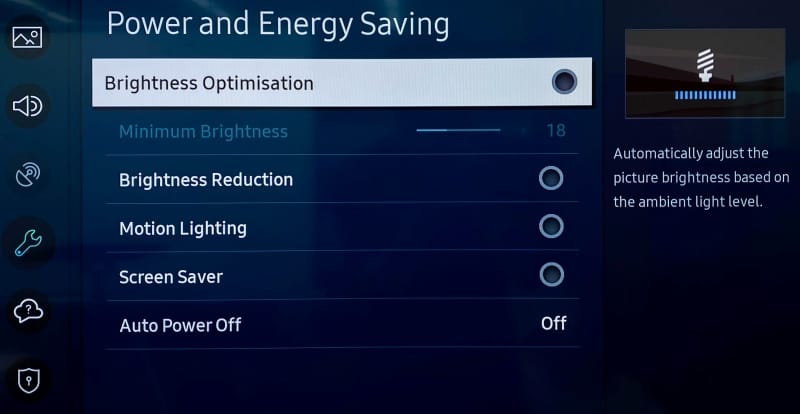
    samsung turn off Brightness Optimization

    Nowadays, a lot of TVs have optical sensors that can determine the brightness of your room and its potential temperature. The TV then makes adjustments on its own, ostensibly optimizing color temperature and brightness based on that information. This isn’t always accurate, and the feature may end up producing worse results, particularly in a space where lighting conditions can fluctuate, such as on a sunny day when the sky is obscured by large clouds.

    Adjust Brightness levels to suit your eyes

    The type of content you’re viewing will determine the optimal brightness level. Even if HDR (high dynamic range) is gradually gaining popularity, SDR (standard dynamic range) has been the only option for decades of movies. You can readily change the brightness levels for both situations, though.

    Open any software, like Prime, for SDR, but don’t start watching a video just yet. Proceed to All Settings > Picture > Expert Settings > Brightness (keep in mind that this is located under Picture Setup on some Samsung models). Adjust the sliders to determine the SDR brightness sweet spot, in your opinion.

    Finding a video that is shown in high dynamic range is the first step in adjusting HDR brightness. Since many of its movies are tagged with brief descriptions identifying their genre, visiting YouTube TV is a quick way to make sure you are watching HDR content. Another option is to just search for “HDR video.”

    You will notice a difference when viewing both technologies (SDR/HDR), however the brightness level you select depends on your personal preferences. I think HDR looks its best when the brightness is at its highest. You may discover that SDR appears best at a lower level.

    Turn off Motion Smoothing for cinematic viewing

    The majority of films are (and have always been) shot at 24 frames per second. Motion smoothing reduces juddering and blur by interpolating images in footage captured at 24 frames per second. Given that live television is filmed at 30 frames per second, this can be useful when watching sports.

    disable samsung Motion Smoothing

    However, Motion Smoothing—another popular default feature—has a reputation for giving televisions a “soap opera appearance.” Just from that description, you’ll likely understand. In photographic prints, I conceive of it as glossy versus matte, where glossy refers to the look of a soap opera that mimics a live broadcast. Even though I always strive for an immersive viewing experience, I don’t have to see the actors and crew filming the scene on the set.

    Browse to Picture Clarity Settings under All Settings > Picture > Expert Settings.(Note that Motion Smoothing is referred to as Picture Clarity or Auto Motion Plus on Samsung TVs.)

    From here, you can select Custom Settings or completely disable Picture Clarity (Motion Smoothing). You may want to increase the Blur Reduction and Judder Reduction sliders there if you’re playing a video game or watching a soccer match. Turning off Motion Smoothing, however, is the best option for traditional (filmic) aesthetics.

    Choose a Picture Mode that suits you

    The Movie, Cinema, or Filmmaker modes, in my opinion, are typically the best since they seek to offer the most genuine and accurate depiction of the content creator’s vision. These settings also lessen the possibility of introducing artifacts and other problems with image quality by cutting down on superfluous image processing.

    Select Picture Mode from the All Settings menu. Then browse between these three selections (Movie, Cinema, or Filmmaker) to find your favorite.

    The color temperature is typically cooler or bluer when using the standard mode by default. Vivid mode, which Samsung refers to as Dynamic mode, is frequently included with TVs. Both the Dynamic and Sports modes can make colors appear overly bright, giving the entire image a harsh shine, therefore I would suggest avoiding that. Because the colors will stand out more in storefronts, businesses are more likely to employ these modes when setting up display TVs.

    Turn off Eco Mode
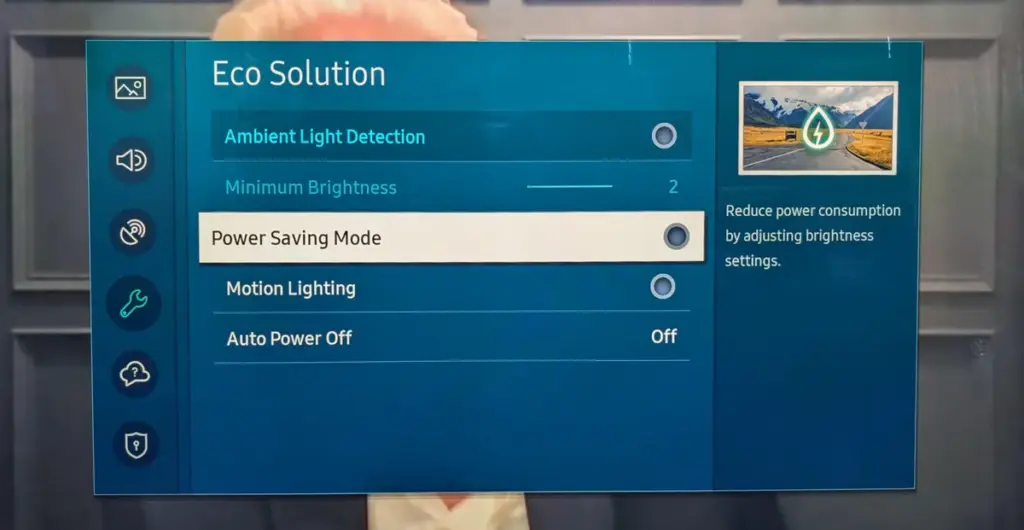
    samsung eco mode

    Nowadays, almost every TV has some sort of “Eco Mode” on by default. By lowering the contrast and dimming the TV’s brightness, Eco Mode is intended to conserve power. According to a recent research, turning on Eco Mode can reduce your annual electric cost by as low as $7. (That is a daily amount of less than two cents.) There are other ways to more efficiently lower your carbon footprint, therefore it doesn’t make a big difference whether “eco” stands for economics or ecology.

    To disable Eco Mode, click the gear button on your Samsung remote to access the settings. Then follow this path: All Settings > General and Privacy > Power and Energy Saving > Energy Saving Solution. Lastly, toggle Energy Saving Solution off.

    Check Local Dimming

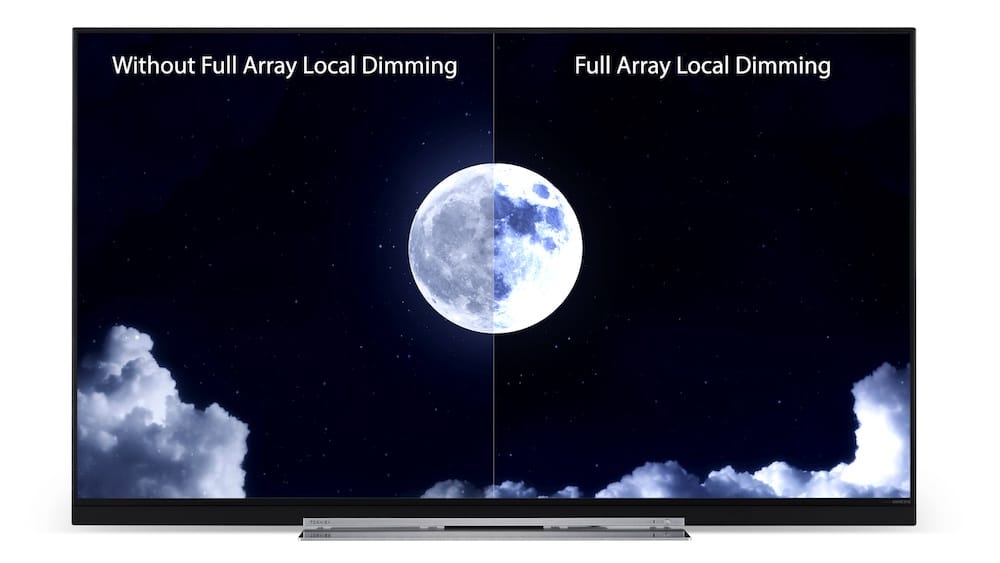
    There are three settings for Local Dimming on Samsung TVs, which is another control that affects brightness levels. Select Local Dimming under All Settings > Picture > Expert Settings.
    samsung Local Dimming

    To find the one that works best for you, try sampling Low, Standard, and High. When Local Dimming is set to Low, bright objects on dark backgrounds see reduced halo and blooming. My favorite setting on Samsung TVs is High since it maintains maximum brightness without haloing surrounding images.

    After making changes to Local Dimming, you may wish to go back and evaluate if the brightness levels on both SDR and HDR content are adequate.

  • Hidden Pixel tools: 8 features that enhance productivity

    Hidden Pixel tools: 8 features that enhance productivity

    The Pixels are even more feature-rich than Android. You find more the deeper you go. Given that he finds more features than Google even promotes, our own Mishaal Rahman may likely attest to that. And that speaks volumes about a platform that the majority of us use on a regular basis on our phones, which are our main devices.

    Having spent years immersed in the vibrant and colorful world of Android, I have created certain personal favorites—features that are really essential yet still go unappreciated. Although you may be aware of them all, I’m willing to wager that many of us are unaware of them until we come across them in a random Reddit comment.

    I now use these functions on a regular basis; some are exclusive to the Pixel, while others are available on all Android devices.

    Quick tap

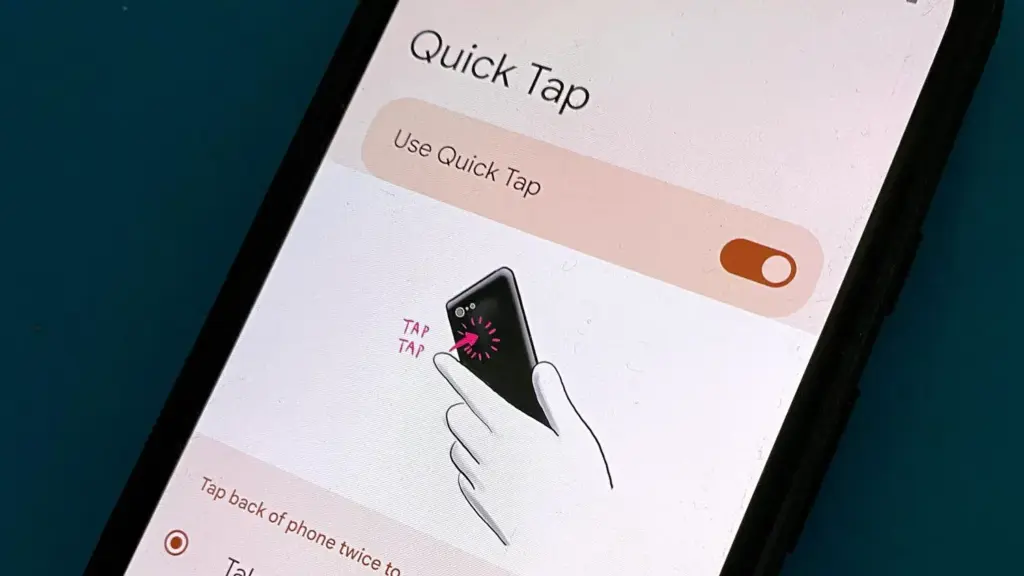
    Double-tapping the back of a Pixel phone activates shortcuts, which is a great gesture. I have my Quick Tap in Settings app set to pull down the notification shade, which I probably do a thousand times a day, whether it’s to ignore a barrage of Instagram direct messages or obsessively check for a message.

    Particularly when utilizing an app, it’s far simpler than reaching your thumb all the way to the top of the screen. I just need to lightly tap my index finger, which is where it naturally sits, to check who has ping-ed me, and then I can immediately resume my job while ignoring them. Easy.

    Clipboard manager on Gboard

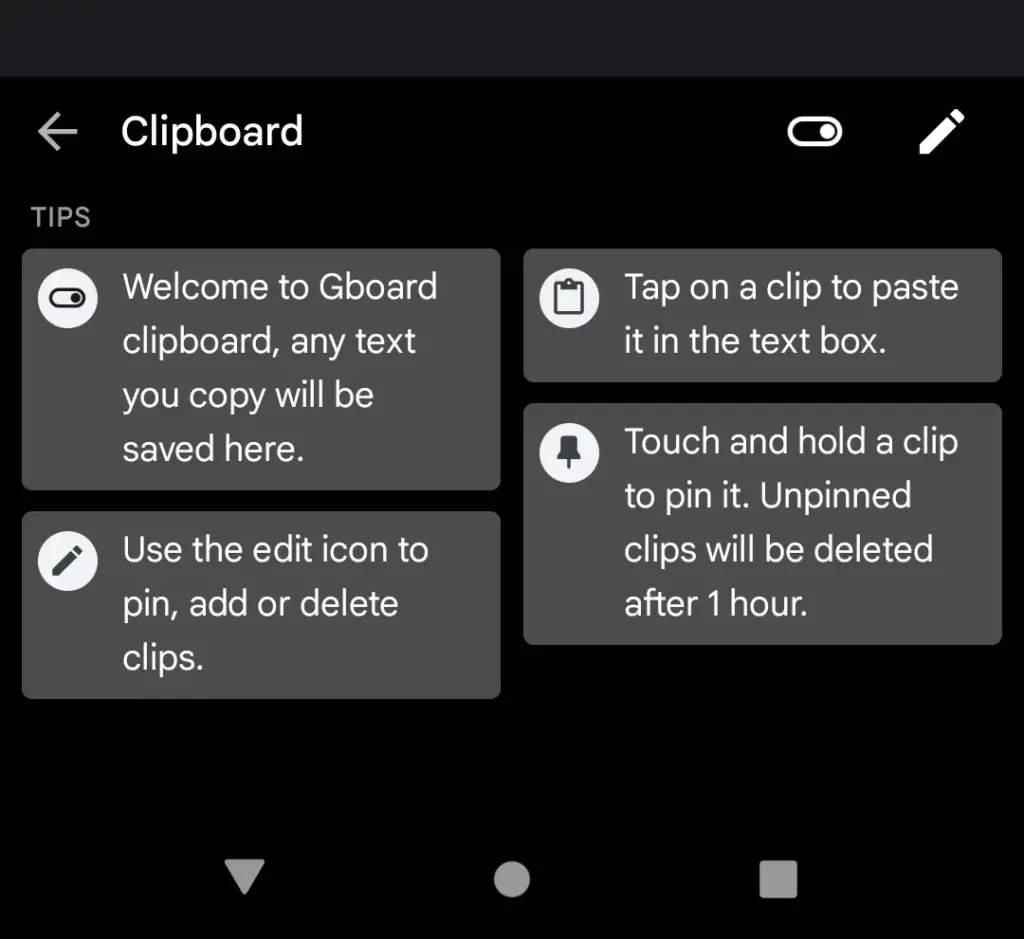
    Sincerely, I’m not sure how I’ll manage without this anymore. I’m always storing text snippets, URLs, package tracking numbers, and even Instagram captions that I’m still working on using Gboard’s clipboard manager. Additionally, it is located beneath Gboard‘s menu selections and is only a tap away.

    Gboard clipboard manager

    It’s an underappreciated talent to be able to pin things so they don’t disappear after an hour. Additionally, it helps me fill out those nagging forms that always reload when I switch between apps. My sanity has been rescued numerous times by having lengthy responses stored in the clipboard.

    Smart text selection in overview

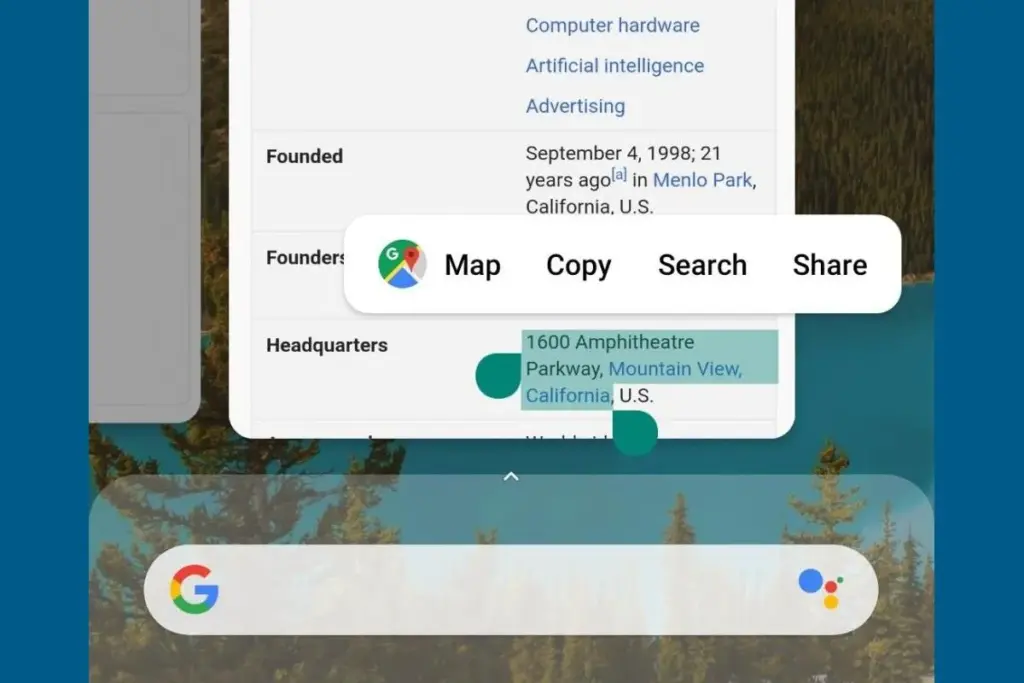
    Who knew it could feel like such a victory to save one more tap? Long-pressing text in the app overview screen on Pixel phones allows you to copy it without having to return to the app.

    Smart text selection in overview

    At first, it might not seem like a significant deal. However, those saved taps add up if you’re copying information one by one, for example, from WhatsApp to fill out a form somewhere else while making sure everything is correct. It’s a minor detail that helps me avoid a lot of conflict and irritation.

    Multitasking with split-screen

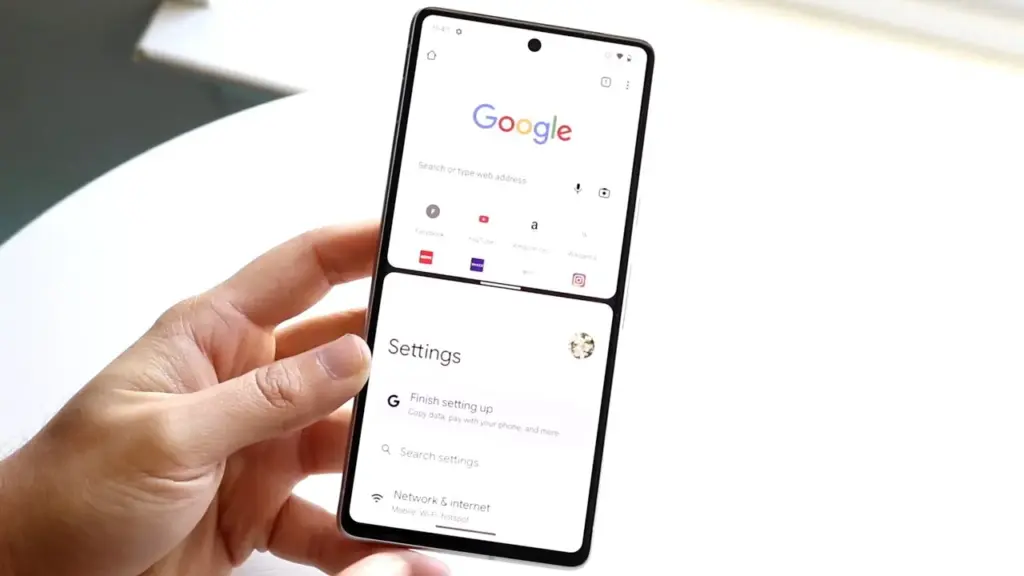
    I believe this function to be equally useful on smaller devices, even though it’s frequently marketed for phones with giant screens and foldables. To avoid continually switching between apps, I regularly utilize it to run utilities like the calculator alongside other programs, again from the Overview page.

    Split-screen multitasking

    I’ll admit that I occasionally forget it’s there, but I spare myself the hassle by arranging my programs into split-screen the instant I see myself switching between them too frequently.

    App pinning

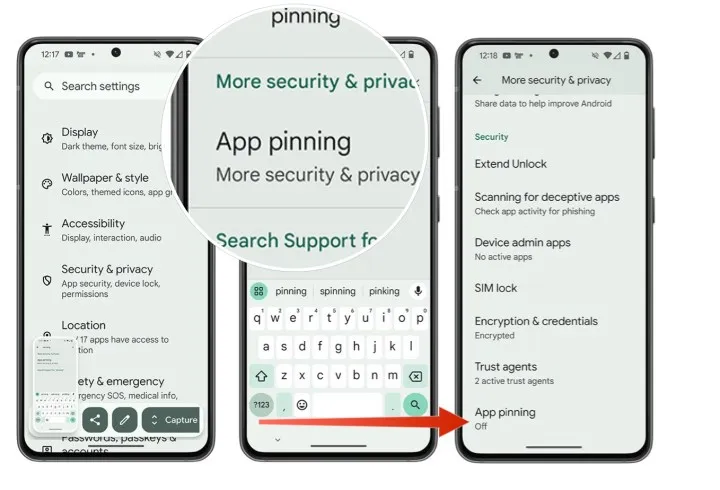
    It’s simple but incredibly underappreciated. I pin the app by choosing the Pin option from the Overview screen whenever I give my phone to someone, such as to pick up a contact or scan a QR code at a movie theater (you must first enable app pinning in your phone’s Security and privacy settings). This prevents them from inadvertently or purposely swiping into another app.

    App pinning

    When I show friends and family a single picture, I can’t stop them from idly browsing around my gallery, but I can stop them from switching to Messages or Keep. It comes in particularly handy when my young niece or nephew borrows my phone to play games and I don’t want them to change applications or erase random notes.

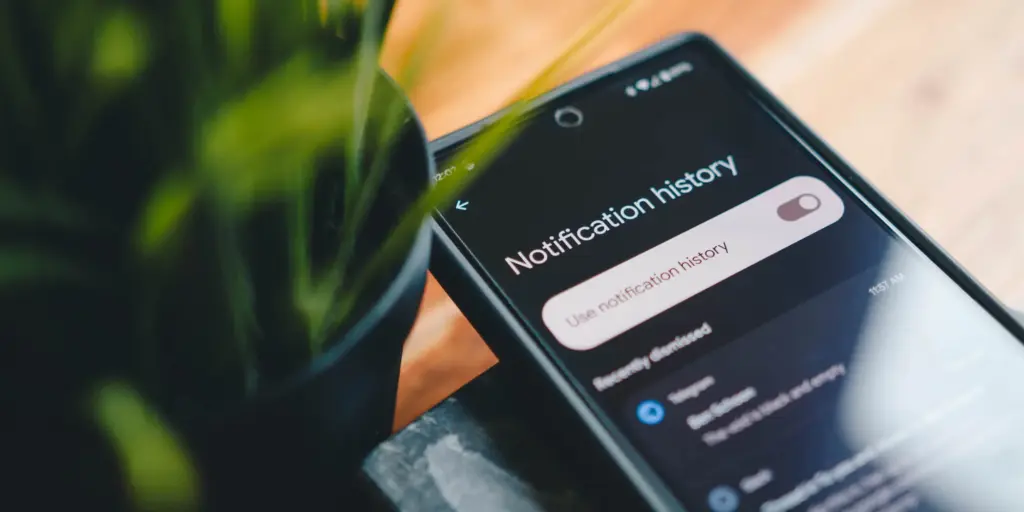
    Notification history if you dismissed one by mistake

    It would be an understatement to say that this is a lifesaver. I vividly recall how taken aback I was to discover that Android even possessed this capability.

    I occasionally unconsciously swipe away notifications from a particular app out of habit, only to discover later that I truly needed that particular app. Even if accessing notification history through the Notifications area of the Settings app isn’t the most user-friendly method, knowing that those messages aren’t permanently erased calms my racing thoughts.

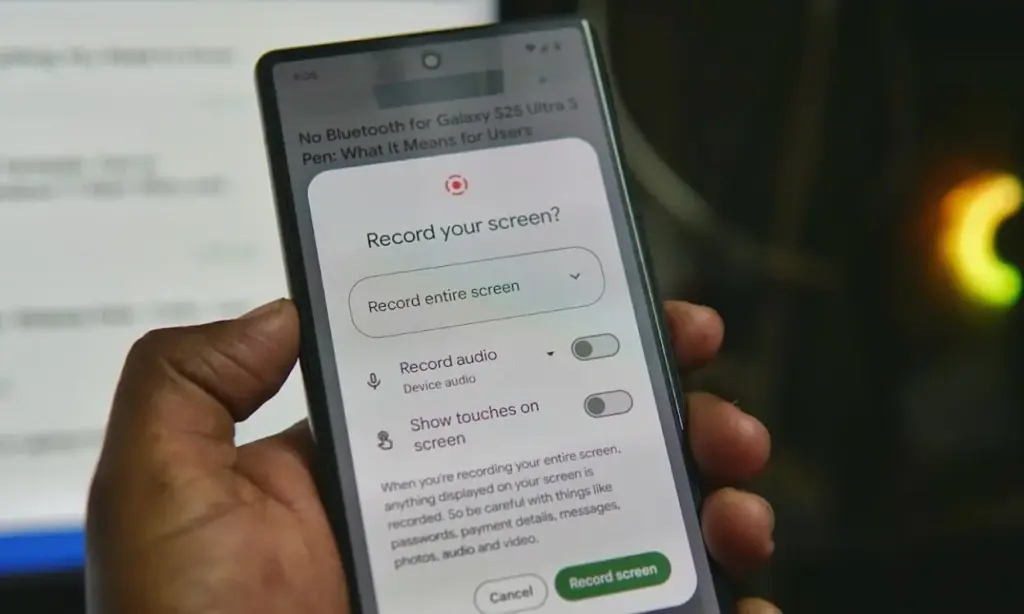
    Screen recording has built-in audio

    In addition to recording the screen, Android’s built-in screen recorder also records internal audio, not simply microphone input. Every time you choose the option from the Quick Settings menu, it allows you to choose the audio source.

    Screen recording with built-in audio

    I utilize the functionality for more enjoyable (and practical) purposes, but it’s also useful for sending how-tos to friends and relatives. When a song strikes, you can save synced lyrics from music applications to share with someone, record buggy app behavior to report bugs (and collect huge bug bounties, just saying), or record clear audio broadcast parts from YouTube.

    The microphone does not pick up any noise during any of this. Furthermore, you definitely don’t need any dubious third-party tools for this.

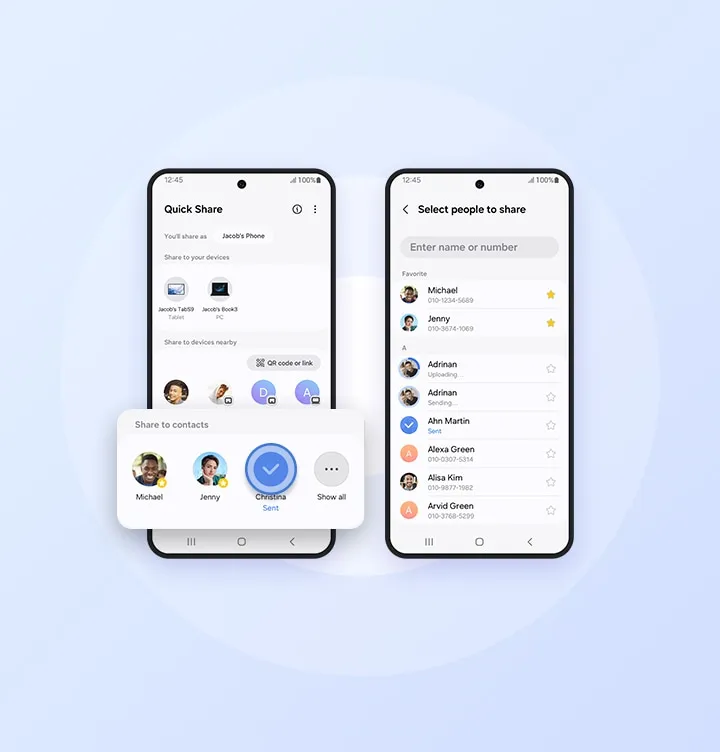
    Quick Share

    Fast file transfers between devices are a feature of Quick Share, however I use it more for myself than for other people.

    android Quick Share

    I frequently have to transfer screenshots and images from my Pixel to my Mac for work. I can share files as quickly and smoothly as AirDrop if I have a third-party app installed on macOS. Even better, Google’s first-party Quick Share software functions flawlessly on Windows, so you’re in luck.

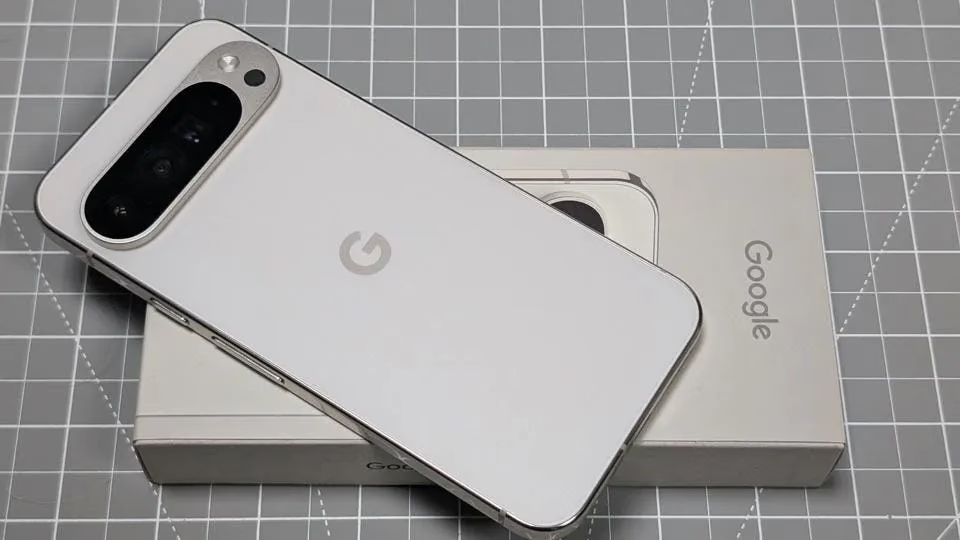
    google pixel 10 pro xl

    Google Pixel 10 Pro XL

    Google Pixel 10 Pro XL is the ultimate Pixel experience, featuring advanced AI – Gemini, unbelievable camera quality, impeccable design, and the next-gen Google Tensor G5 chip

    $1,199.00Amazon

    I’m confident that there are a dozen more hidden gems like this in the UIs of Android and Pixel if I look more closely. However, I use these on my Pixel every single day. My flow and my sanity would be totally disrupted if I were to lose even one of them.

  • Simple tips to extend your phone’s lifespan

    Simple tips to extend your phone’s lifespan

    The Samsung Galaxy S25 Ultra and iPhone 17 Pro are two of the greatest phones available right now because of their incredible cameras and powerful processors. Even though these high-end flagships could be the best mobile devices available right now, getting them will cost you a fortune. Even phones that are affordable, like the Google Pixel 9A, are still expensive, and since people’s budgets are getting tighter everywhere, it’s more crucial than ever to get the most out of your purchases. Instead of updating more frequently, the simplest approach to achieve that is to just stay using your phone longer, spreading out that expensive purchase across the years.

    Not only is it better for your wallet, but it’s also much better for the environment. If you upgrade your phone less frequently, fewer phones will be made and distributed, and fewer old phones will wind up in landfills. The good news is that manufacturers such as Apple, Google, Samsung, and others are extending the support period for their phones’ software updates, so the phone you purchase today will continue to be safe to use for many years to come.

    You are responsible for the remainder. It takes some work, a lot of attention, and a few crucial tactics to keep your phone in good operating order for the seven or eight years of software support it may receive.

    Therefore, these are the best ways to extend the life of your phone.

    Update the software

    Avoid using a phone that isn’t receiving security upgrades since it’s just not safe. Phones like the Google Pixel 9 series now come with seven years of software support, whereas before it was typical for many Android manufacturers to support new phones for only two to three years. Unfortunately, some less expensive phones, such as the recently released OnePlus Nord CE4 Lite, only get upgrades for a few years. When purchasing a new phone, be sure to inquire about its support duration since this will provide you with greater value during the phone’s lifetime.

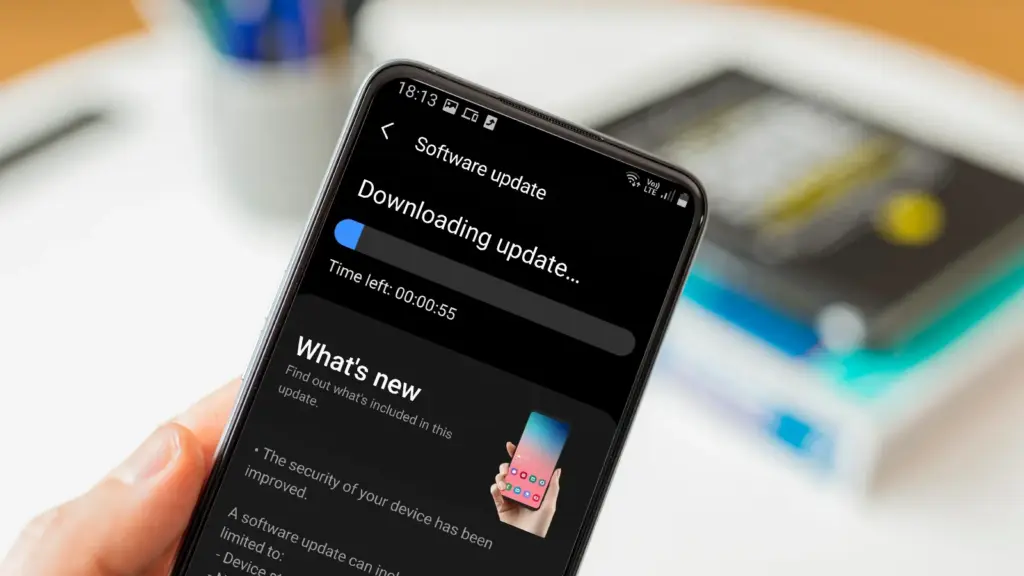
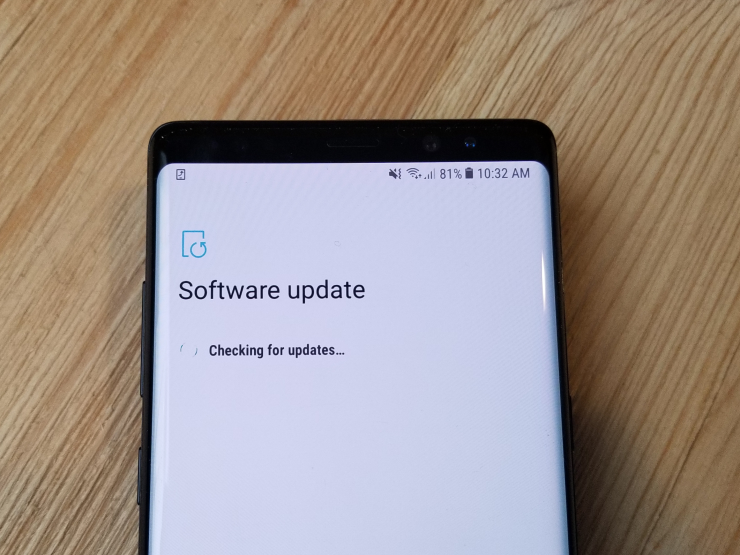
    Keeping your phone up to date with the most recent security update will help prevent hackers and remove any dangerous software that might infiltrate and cause your phone to lag. If you have an older phone, go to the settings menu, scroll down to Software Update, and click to see if there is an update available. Most phones will automatically ask you to install the most recent upgrades, and you sh

    This also applies to your apps, which must be updated to stay compatible with the iOS or Android version you’re using. Allowing apps to update automatically in the background is a good idea, but if you don’t, make sure you’re running the most recent versions by going into your preferred app store.

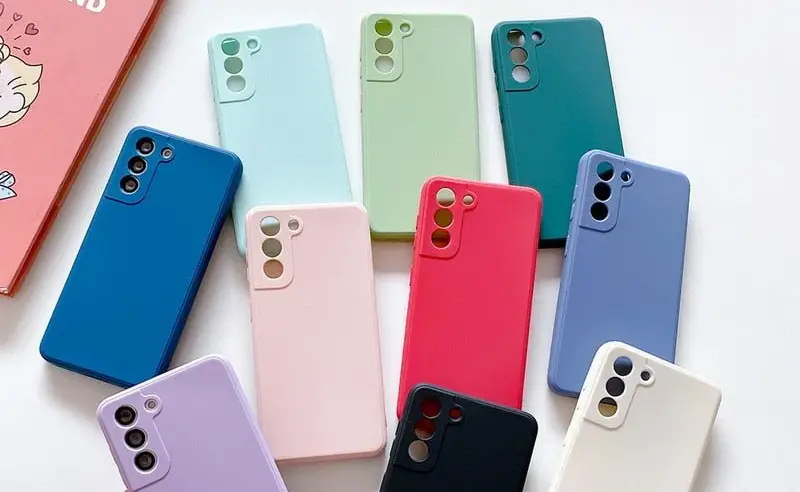
    Protect it with a case

    If you recently purchased a brand-new iPhone, installing a case right away is the best way to preserve it physically. In addition to protecting it in the event that you drop it, it will also assist prevent it from absorbing tiny scratches from your pocket’s coins or keys.

    Since there isn’t much you can do to repair your phone’s screen after it becomes damaged, a screen protector is also a smart option. You can easily change a screen protector if it gets a severe scratch, keeping the phone itself looking brand new for many years to come. When it’s time to update, keeping your phone looking new could help you sell it for more money on the used market, even if you don’t intend to keep it for many years.

    Replace the battery

    Over time, the battery in your phone will progressively degrade, giving it less life between charges than it did when it was brand-new. All phones are like this. Batteries in certain older phones might only provide 50% of their previous capacity. Your phone may even alert you when it senses that your battery isn’t providing enough power, in which case it may limit your processor to make up for it.

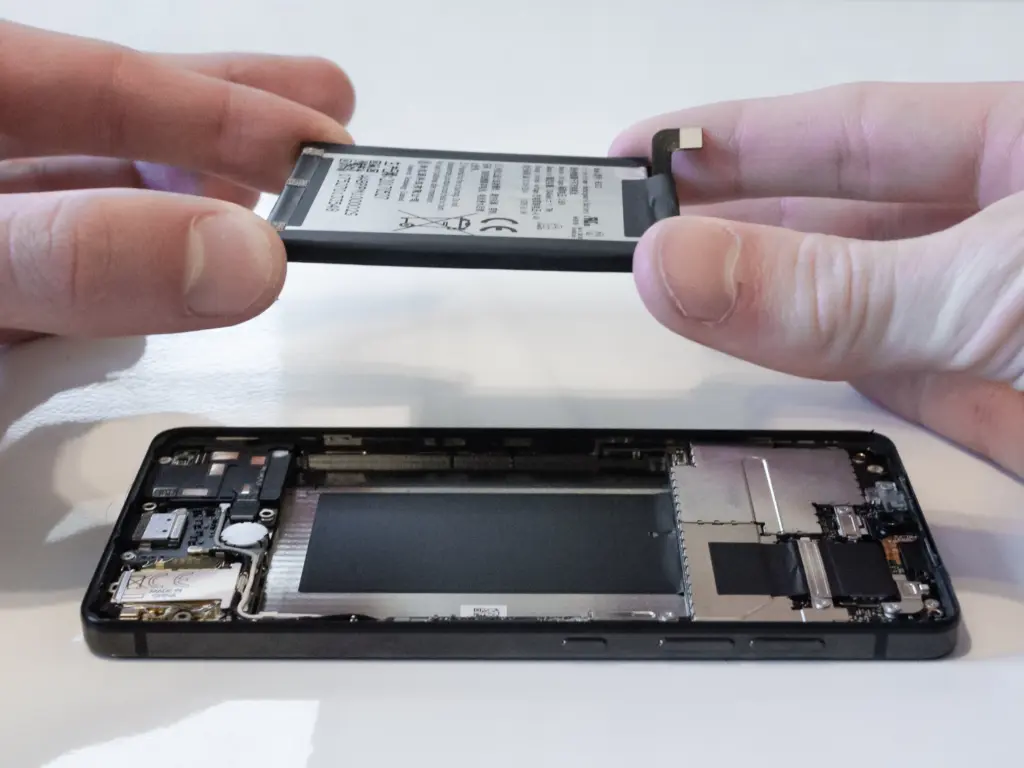
    Don’t worry; most phones have a battery that is rather simple to change on your own to give it a fresh lease on life. If your battery is about to die, it could be worth trying to repair it yourself. iFixit offers a wide range of kits and third-party replacement batteries to fit a large number of phones.

    If you’re not very confident with your screwdriver skills, this might be a nice alternative to think about. There are a number of places you can take your phone to have your battery replaced, or even other components like a broken screen. However, not all of them are really legitimate.
    Remove old apps that you are not using anymore

    Your phone is probably cluttered with thousands of pictures of your friends, pets, or the plates of food you’ve consumed over the years if you’ve owned it for a long time. You probably have a number of outdated apps and games that you downloaded on the spur of the moment, played for a few bus rides, and then switched to the newest mobile gaming craze.

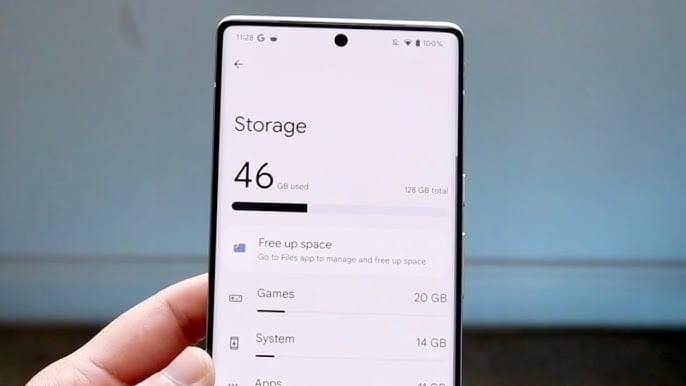
    In addition to negatively impacting your phone’s general performance, a shortage of storage may also make it more difficult to install important software updates. It’s worthwhile to look through your archives, remove anything from your phone that is wasting space, and backup any pictures and movies you wish to store to the cloud.

    It might even be worth backing up all of your crucial data and performing a complete factory reset, starting over, and only installing the necessary apps if your phone has been slow for a long period.

    Clean out your ports

    Last but not least, cleaning your phone can offer unexpected benefits. Your phone may suffer greatly from pocket fluff, especially when it comes to the charging connector, which frequently becomes clogged with bits of junk. As a result, your phone won’t charge when you plug in your charger because it can’t connect completely.

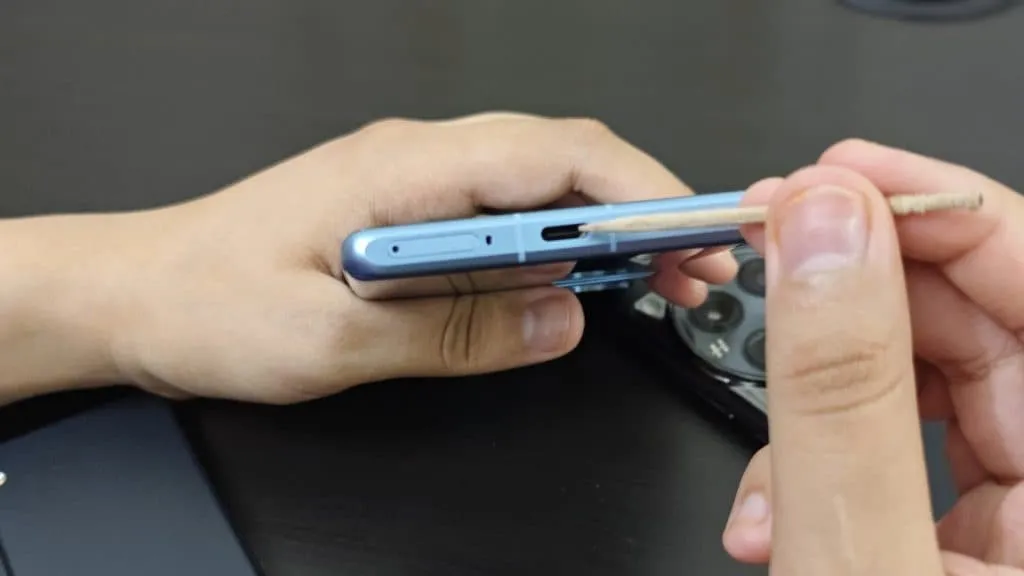
    It’s tempting to assume that something has broken, like the cable or the charging port itself, but it could just be that the port is overflowing with lint. To make sure your charger fits without requiring forceful wriggling, occasionally insert a wooden toothpick into the area and try to ease out any dirt or debris you notice.

    To make sure you can clearly hear—and be heard—during your phone calls, it’s also worthwhile to carefully brush away any debris you may discover near the speakers and microphones with an old toothbrush that has been cleaned and dried.

  • Speed up your Android device: 4 settings that can transform performance

    Speed up your Android device: 4 settings that can transform performance

    The first thing you should do if your Android phone has become sluggish is to wipe off its storage. Here are some tips for speeding up your outdated Android phone if you’re not sure where to start.

    Delete unused apps

    Phones can accumulate a large number of unused apps over time, leaving your device looking crowded. You may have used an outdated photo editing app or a QR scanner app from a restaurant on your previous trip. Uninstalling these apps is the best way to free up space on your Android phone.

    speed up android device

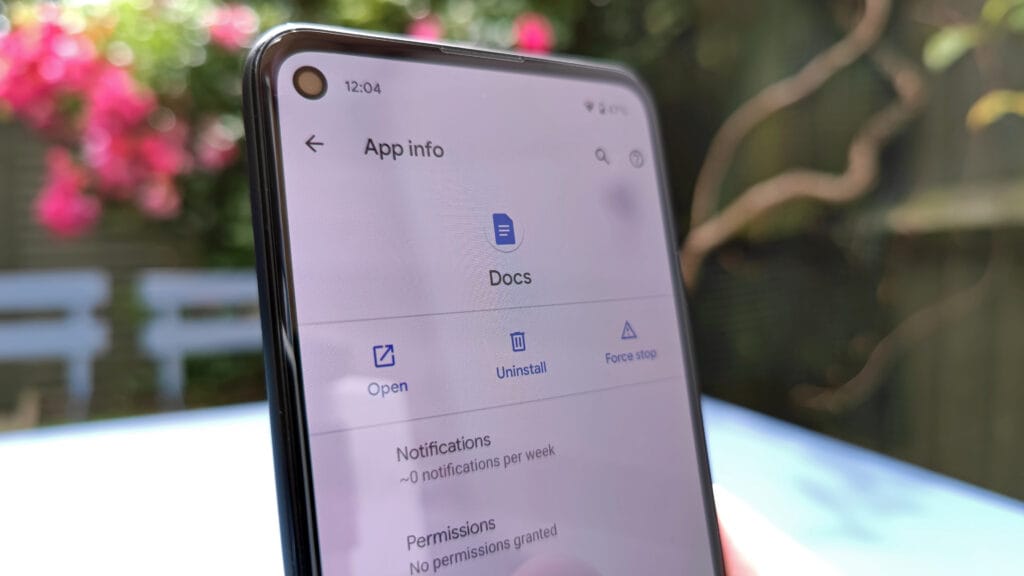
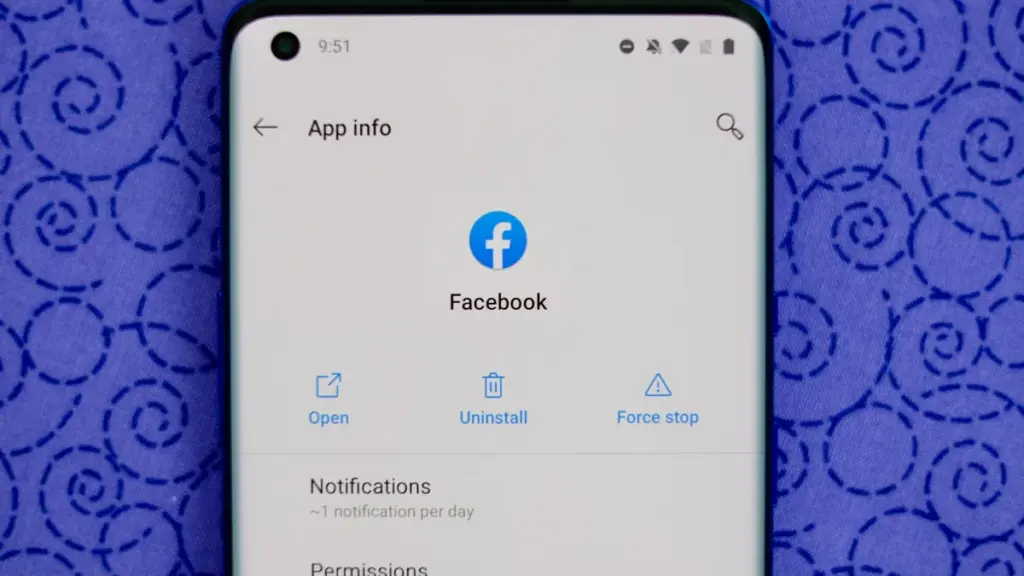
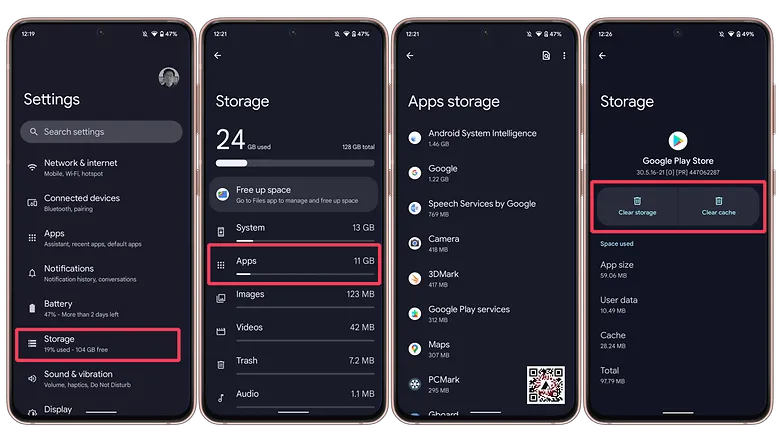
    Because your Android phone won’t have to spend resources on apps that aren’t being used, decluttering it can speed it up. Removing these APKs will improve resource management and make your phone quicker. To view the list of installed apps and remove those you no longer require, navigate to Settings > Storage > Apps. You may also long-press on these forgotten apps on the app screen to get App Info > Uninstall.

    Clear storage

    Files and long-forgotten pictures of school notes are just two examples of the trash that accumulates on old Android phones. Following the removal of unnecessary apps, you should try to free up space on your Android phone by browsing through the stored files and images.

    speed up android device - clean storage

    To see what’s saved, open the File app on your phone. The majority of garbage, including long-forgotten PDF files, images, etc., is frequently found in the Downloads folder. You should check two more areas to make sure the storage is clear.

    • Offload photos from your phone and save them to an external drive or the cloud. This helps create a backup of your memories and clear space on your old Android phone.
    • Clear the app cache. For the unaware, cache is bits of data that an app saves so it is quicker to operate the next time you open it. I recommend clearing the cache for less-used apps with no saved login information. You can go to Settings > Storage > App > Clear Cache to save more space.

    Check for updates

    Verify that the operating system on your Android phone is up to date. Updating it will install the most recent security procedures and make it snappier. To verify and install the most recent software version, navigate to Settings > General > System Update.
    After updating your old Android phone to the most recent OS version and removing the uninstalled apps, you should update the remaining apps from the Google Play Store. To get the newest features, enhanced security, and faster performance, it’s critical to utilize the most recent versions of these programs.

    Adjust the animation speed

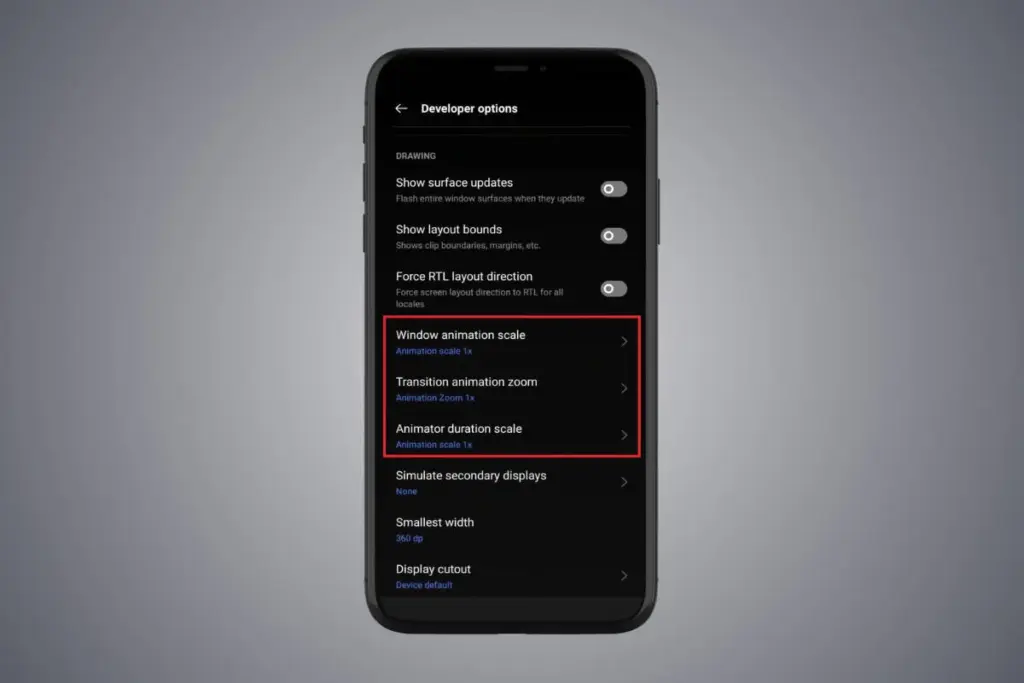
    A few features, such as Developer options to alter the animation speed, can be enabled or disabled to make your phone feel faster. This can make your phone feel much faster, but it’s a little trickier than the other settings discussed above.

    Go to Settings > About phone > Tap on Software details >, then tap your Build number seven times to enable Developer options. You should now be able to access various animation scale parameters as this should activate the Developer options.

    Next, locate the Window animation scale by scrolling down in the Drawing section of the Developer settings. To make apps and window pop-ups run faster, tap on it and adjust the animation to 0.5x.

    To reduce the speed at which you move between home screen panels and within apps, you may also change the Transition animation scale. Additionally, reduce the Animator duration scale to speed up typical UI motions like unlocking the phone and opening and closing apps.

    You may breathe fresh life into your aging Android phone by adjusting these settings. After adjusting, it ought to feel quicker and have more zip when performing daily tasks. If you want to give it a refresh, I recommend tinkering around with your home screen, changing the wallpaper, and modifying extra settings to help it stay longer.

  • Save $400 on Samsung’s slimmest Galaxy phone at its lowest price ever

    Save $400 on Samsung’s slimmest Galaxy phone at its lowest price ever

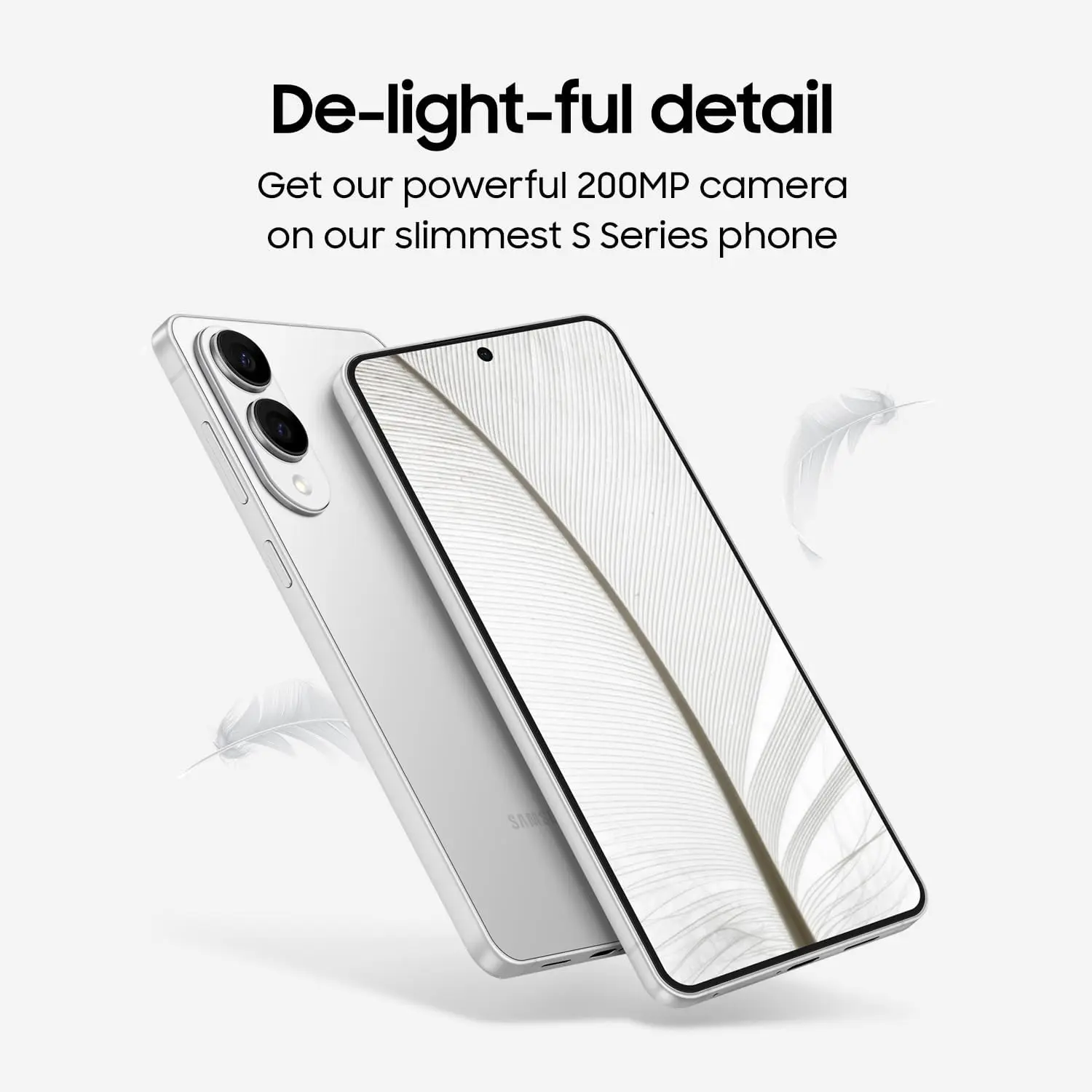
    Now might be the ideal moment to get your first ultra-thin phone, especially a Samsung Galaxy model, if you’ve been on the fence about it. Samsung’s incredibly thin and light Galaxy S25 Edge looks to be on sale right now. Amazon is selling the unlocked smartphone for $699, which is its lowest price to date.

    With this significant $400 discount, the base model with 256 GB of storage is now more than a third less expensive than it would normally be. Titanium Jetblack, Titanium Icyblue, and Titanium Silver are available hues from the vendor.

    samsung galaxy s25 edge

    Samsung Galaxy S25 Edge

    SUPER SLIM. SUPER LIGHT: Galaxy S25 Edge is surprisingly light and our slimmest S Series phone yet. You’ll want to show off this sleek, super-slim design that slips easily into your pocket or bag without bulking things up.

    1,099.99$699.99Amazon

    What sets the Samsung Galaxy S25 Edge apart from the rest?

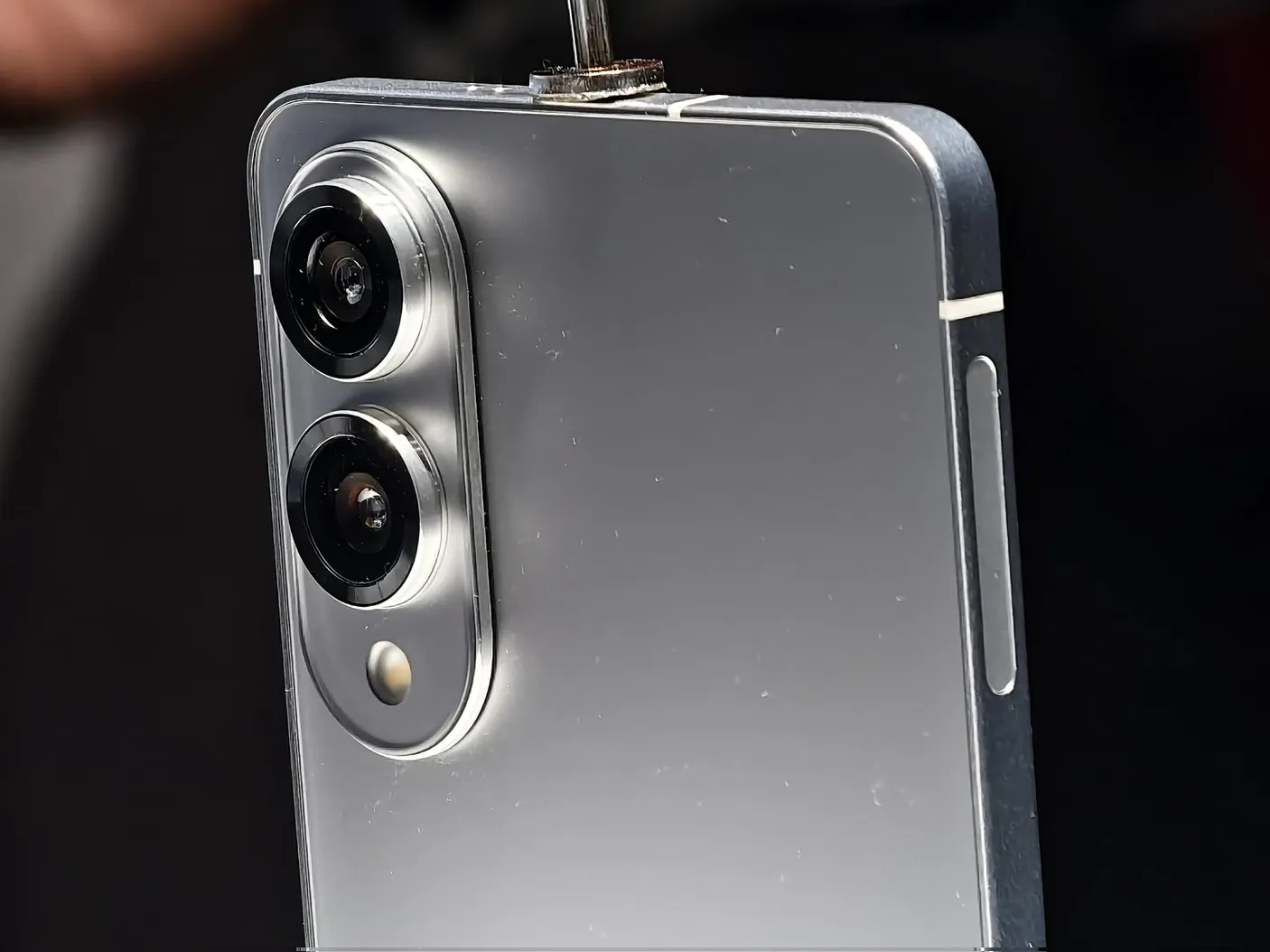
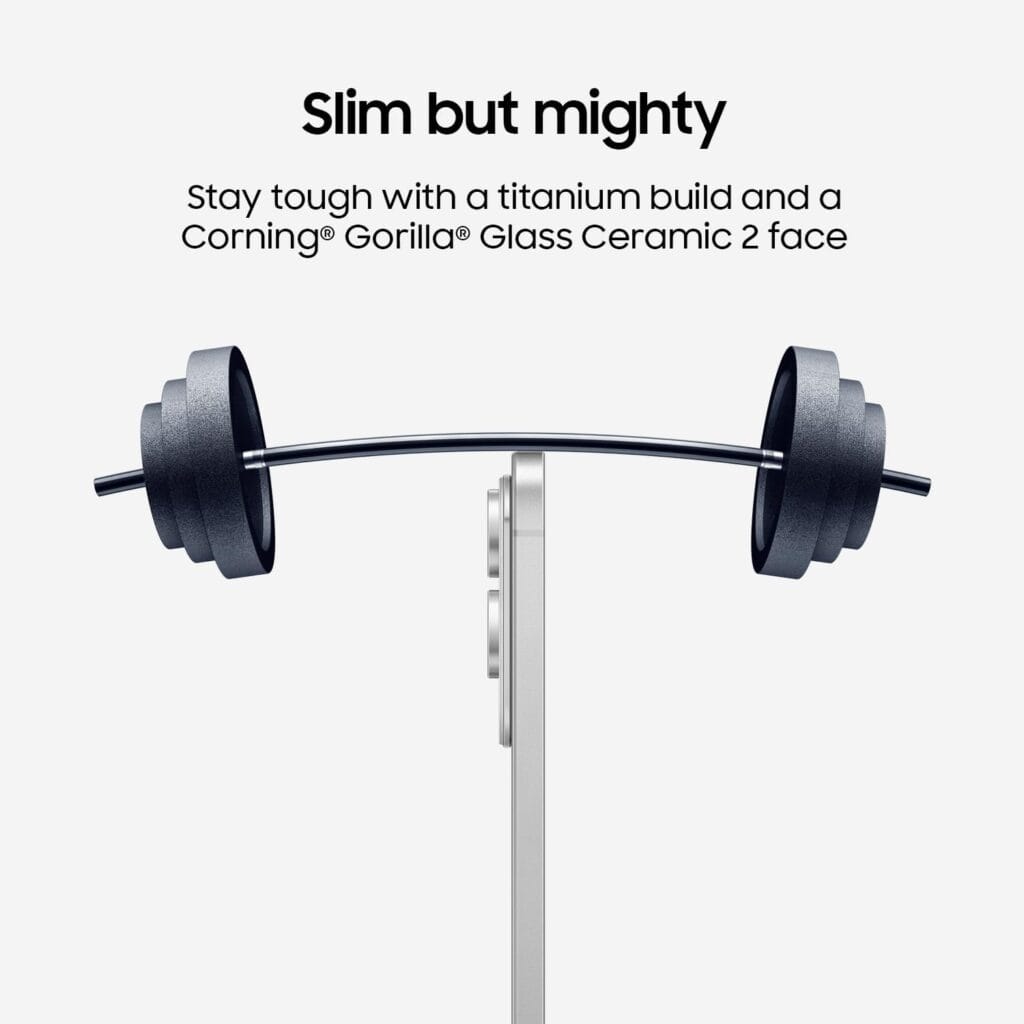
    We were astounded by how incredibly slim Samsung’s sleek Galaxy S25 Edge was. With the camera bump removed, the titanium chassis on which the device is constructed is 5.8 mm (0.23 inches) thick. Even with a case on, it is manageable to hold in one hand because to its exceptional light weight of 163 grams (5.75 oz). Like the normal Galaxy S25, it features an IP68 dust and water resistance rating despite its sleek design.

    The Galaxy S25 Edge still has high-end core components, even though it appears that some features were trimmed to create the incredibly tiny appearance. Among these is an amazing 6.7-inch AMOLED screen with a refresh rate of 120 Hz and 2,600 nits of brightness. Additionally, it makes use of a customized Gorilla Glass Ceramic 2, which is more resilient and scratch-resistant than the Victus 2 glass.

    samsung galaxy s25 edge

    Samsung Galaxy S25 Edge

    SUPER SLIM. SUPER LIGHT: Galaxy S25 Edge is surprisingly light and our slimmest S Series phone yet. You’ll want to show off this sleek, super-slim design that slips easily into your pocket or bag without bulking things up.

    1,099.99$699.99Amazon

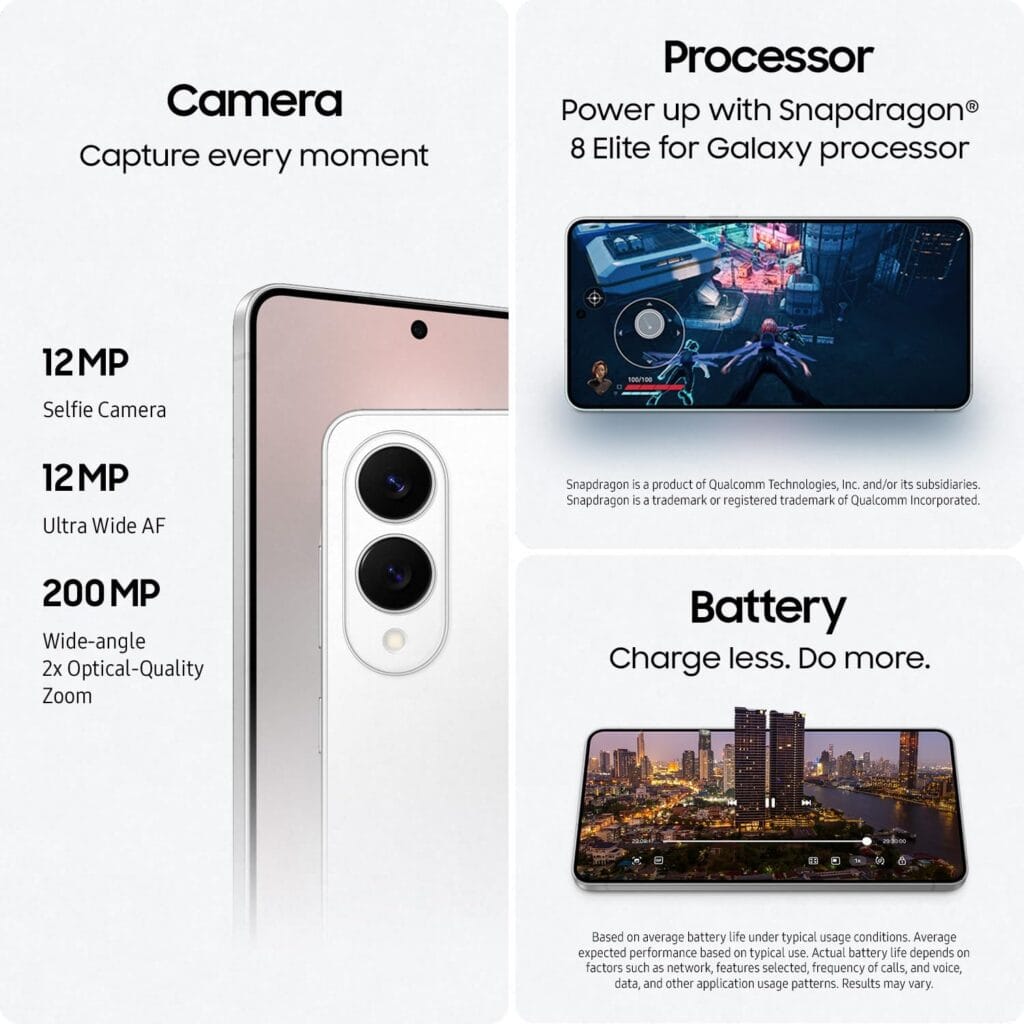
    Internally, the Galaxy S25 Edge is equipped with the most advanced Snapdragon 8 Elite CPU available for Galaxy devices. Even when doing graphics-intensive operations and demanding tasks, you can count on incredibly fluid performance.

    The telephoto lens, a reluctant casualty of the slim design, is one prominent omission. Nevertheless, the 200 MP primary camera is adaptable and competitive when combined with a 12 MP ultrawide sensor. For content creators, the phone’s ability to record up to 8K video is a plus.

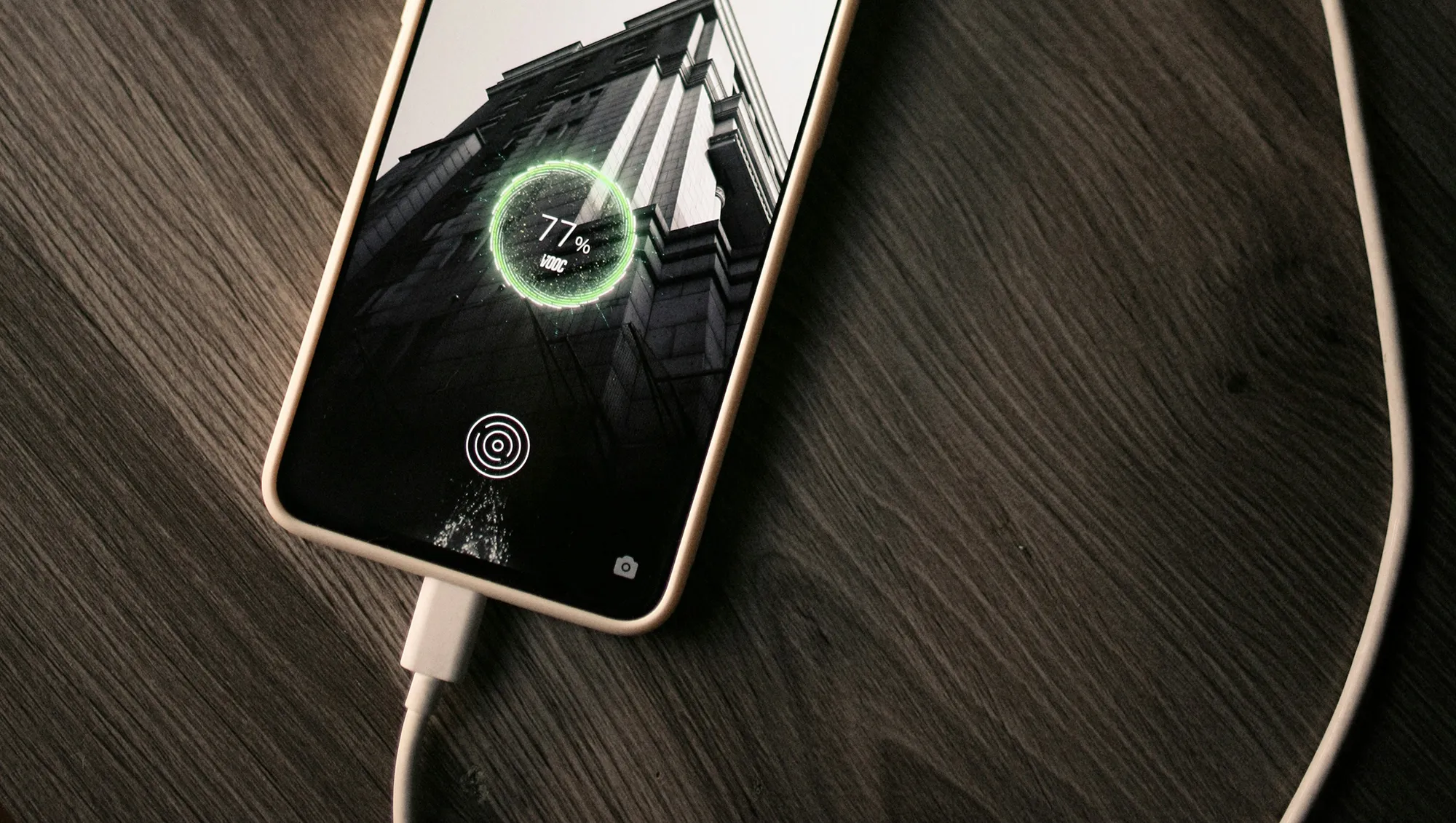
    Ultra-thin phones frequently struggle with battery life, but Samsung’s software optimization and effective chipset enable the S25 Edge to last a whole day – thankfully comparable to larger flagships. It charges quickly; a 25-watt charger will fill half the battery in 30 minutes.

  • Does charging your battery to 80% really extend its lifespan?

    Does charging your battery to 80% really extend its lifespan?

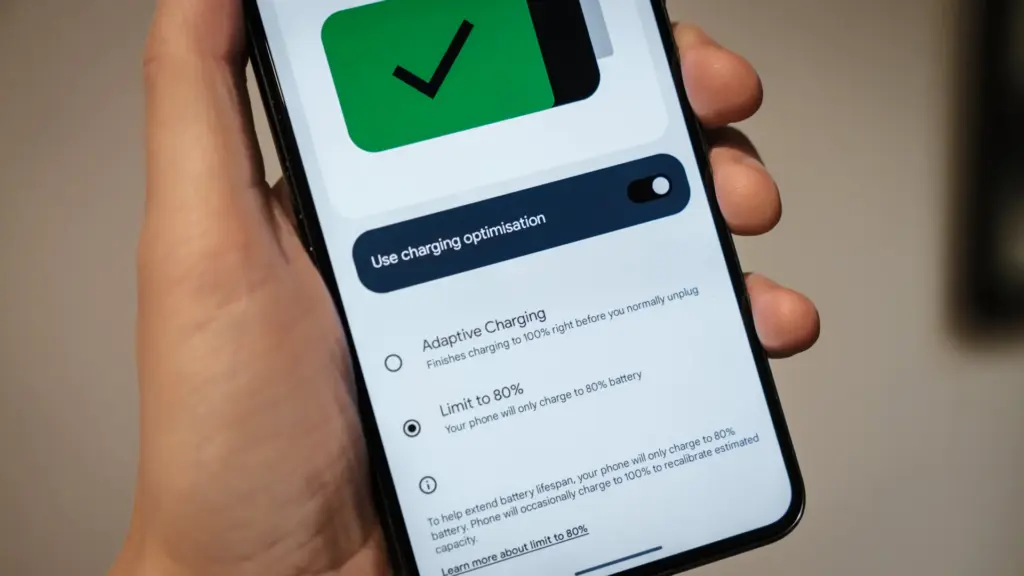
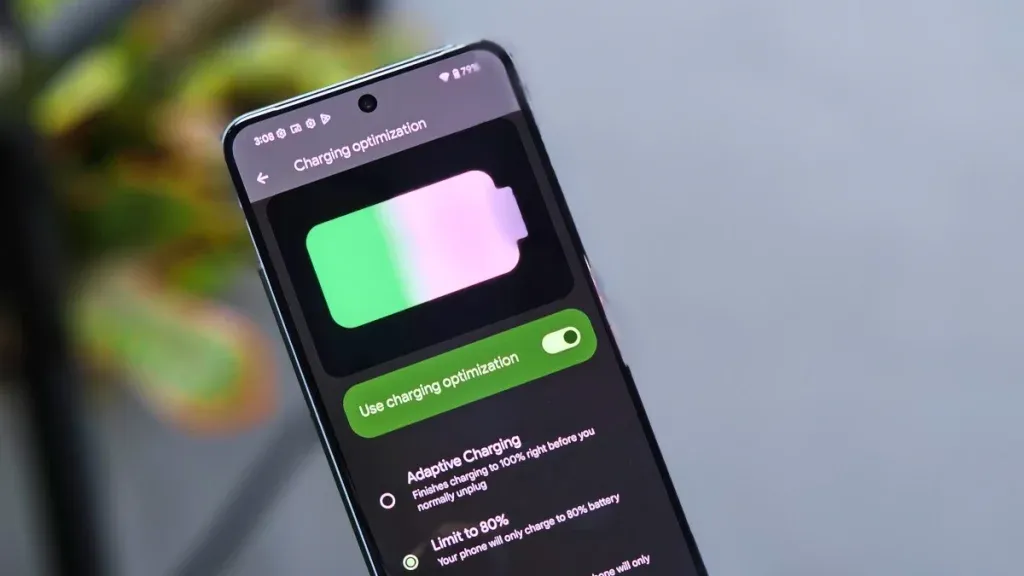
    Manufacturers are beginning to realize that battery health is a major concern for contemporary smartphones due to longer update commitments. In an effort to extend battery life, Android 15 added an optional 80% charging limit in addition to long-standing features like adaptive charging. Similar features were first introduced by Apple with the iPhone 15, and many Android phones now have them as well.

    However, doesn’t 80% seem like a pretty arbitrary number? Why would you want to cap yourself below your maximum capacity? It’s time to go through more fiction and truths about batteries. Here are some things to be aware of.

    Keeping batteries healthy for longer

    Heat and voltage are the two main enemies of battery health. Keeping your phone off of a hot dashboard, avoiding charging it beneath your pillow, and using slower charging when you don’t need a quick top-up are the main ways to manage the former. However, the user cannot effectively regulate voltage wear; voltage stress is merely a consequence of battery charging.

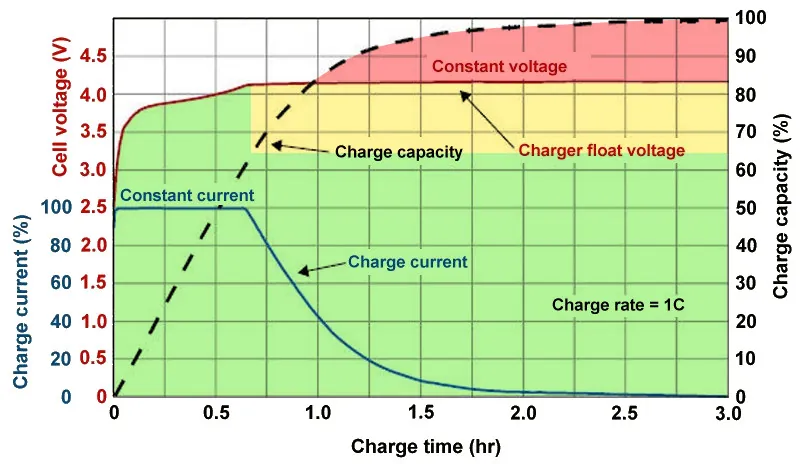
    As you can see, the voltage of a nearly depleted battery is lower than that of a full one. Because there is some wiggle area below the peak voltage, which increases tolerance for voltage peaks brought on by large currents, this voltage gap can actually be exploited to accelerate charging. Many lightning-fast charging solutions operate in this way without damaging your battery. There is less tolerance between the immediate and maximum voltages, though, because a battery’s voltage rises as it fills up. Li-ion batteries will explode if their rated voltage is ever exceeded! To fully charge a battery, you must go slowly and carefully.

    Although charging engineers take precautions to prevent battery explosions, wear can still happen simply by raising the battery’s voltage. The battery’s available lithium capacity eventually decreases due to anode saturation. When electrolytes are highly charged, they can also slowly break down into gases, and the cathode of the battery can also dissolve into the electrolyte. In a single case, none of this is concerning and is partly inevitable nevertheless, but over time, the additional wear accumulates and causes the battery’s capacity to gradually decrease more quickly than is ideal.

    The first 60% of a battery’s voltage usually increases the fastest, after which it gradually increases until it reaches full. Stopping at around 80% is a nice halfway house because the battery is sufficiently charged to last for hours even if it isn’t quite at its peak voltage, which is where the most harm happens. The seemingly arbitrary 80% measure has a lot of sound research behind it, but is it truly helpful in real-world situations?

    Should I only charge my phone to 80%?

    increase battery life charrge to 80%

    The truth is that no matter what you do, your phone’s battery will ultimately deteriorate; the best way to handle this gradual decline will depend on your demands. The most careful chargers who maintain their phone’s temperature and adhere to the 80% rule may be able to increase the battery’s life by a year or more, which is unquestionably valuable. Whether artificially restricting oneself to 80% now is worth the long-term benefits is a personal decision.

    Let’s examine the worst scenario. While many of today’s higher-end smartphones have ratings of 1,000 or even 2,000 cycles, modern smartphone batteries are typically rated for at least 500 charge cycles before depleting to 80% of their initial capacity. In the worst scenario, that amounts to about a year and a half of charging your phone every day from empty to full—a modest routine—and for longer-lasting phones, it may continue for several years. The majority of customers will most likely wait two to three years before detecting a decline in battery life, and much longer before it becomes a serious issue. And that’s assuming no additional safety measures are taken.

    A year or more could pass before you need to replace your battery if you limit yourself to 80% charge.

    Fortunately, most modern phones come with some built-in assistance. Taking your phone from the plug as soon as possible helps prevent stress from idle charging because phones tend to trickle charge for a time after displaying the completely charged notification, so the 100% charged notification is rarely actually quite full. By maintaining the battery at a reduced capacity and voltage until just before you normally unplug your phone in the morning, using Adaptive Charging or Optimized Charging—depending on the manufacturer of your phone—will help even more. Maintaining healthy habits like this could help your battery reach the three-year mark with ease.

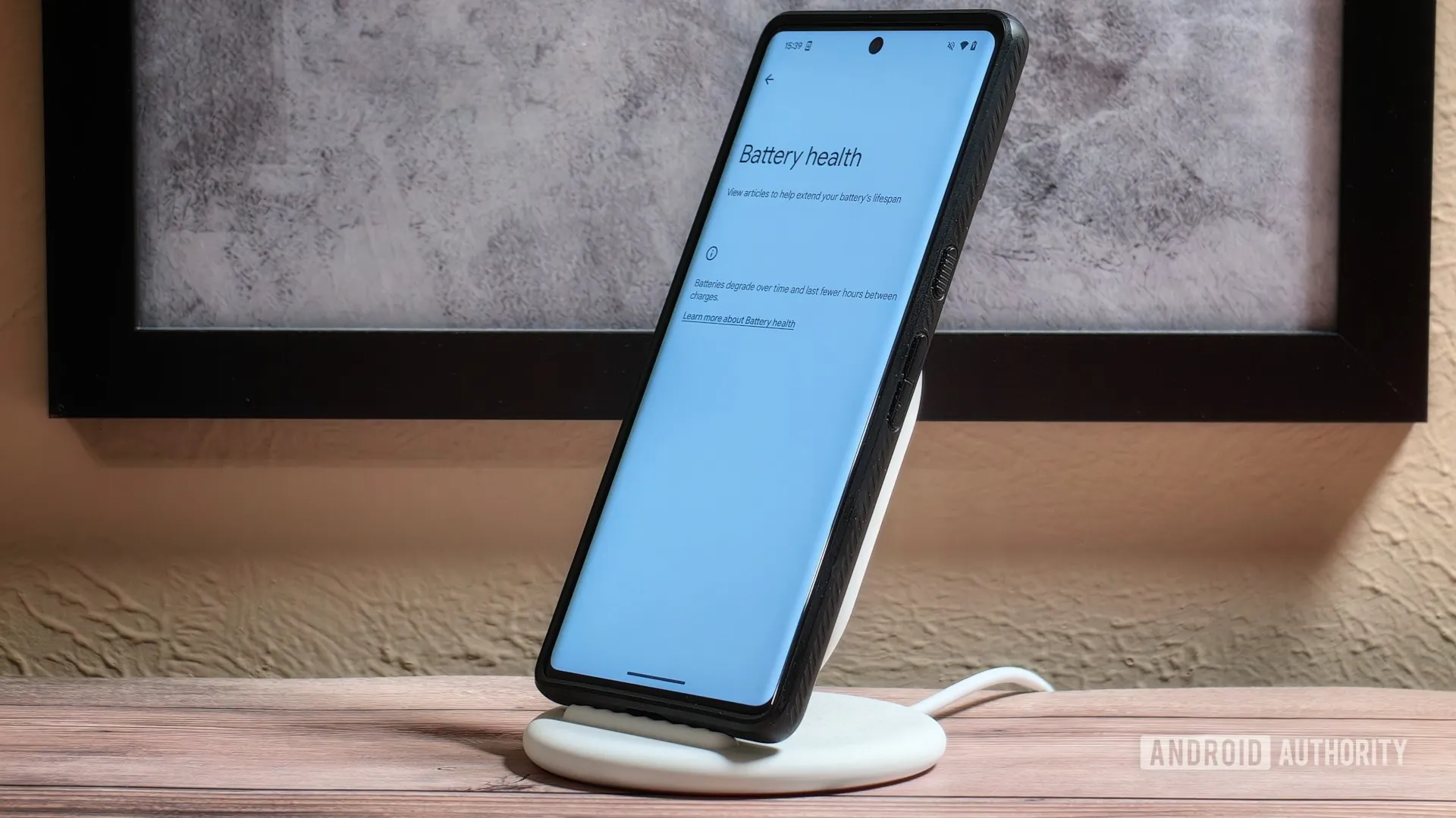
    Google’s latest Pixels go one step further, using Battery Health Assistance to gradually limit charging pace and battery capacity in software to keep a lid on long-term health and safety.

    battery life

    However, many people without extremely demanding workloads could still benefit from just charging their laptops, phones, and other devices to 80% charge (where possible) if they truly want to extend the life of their batteries. This can help you get through a normal day while also enhancing battery health. However, if you want to use your phone for the entire day, I wouldn’t advise unplugging it from the charger before 70%.

    Worrying about an 80% restriction isn’t worth the battery concern if you frequently run out of juice by the end of the day, play a lot of games, or (like me) have strange charging patterns where your phone is rarely full anyway. In order to further customize the maximum restriction to your requirements, certain phones additionally provide 85%, 90%, and 95% settings. In any event, use your phone whatever you like, but be mindful that the battery will need to be changed after a few years. Don’t worry, you will need a new battery for your phone whether you intend to keep it for five, six, or seven years.

    Fortunately, even for older phones, Apple, Google, and Samsung all have competitive battery replacement programs. It’s not awful to spend about $80 to keep a phone functional for many more years. However, in some areas, you may have to pay more than you should, and other brands’ availability and costs differ significantly. With long-term ownership, these expenses are unavoidable; the only question is how many months you can try to avoid them. Adhering to the 80% rule will undoubtedly be beneficial.

  • The simplified truth you need to know about AVIF to PNG

    The simplified truth you need to know about AVIF to PNG

    AVIF and PNG are the two most popular image formats, but both serve different functions. AVIF is developed primarily for excellent compression, which is superb for use on the Internet. PNG, on the other hand, is a conventional image format highly admired for its compatibility and transparency. 

    You may need to transform AVIF to PNG in specific cases, especially to gain support in old editing software. Transforming AVIF to PNG is also required to maintain transparency in applications that do not fully support it.    

    But how can you bridge the gap between the two? This is exactly what we will cover in this blog post. We will explore some of the best ways to convert AVIF to PNG using multiple tools and software. 

    Whether you need to convert your images one-by-one, or you need them in batch conversions, this blog will have you covered.

    The Whys of AVIF to PNG

    What makes AVIF stand out compared to other image formats is that it is a next-gen image format, offering superb compression and photo quality compared with PNGs. 

    But, there are other reasons why you need to change from AVIF to PNG. 

    • Compatibility: AVIF is like a cool new kid in the image neighbourhood, due to which many old browsers and applications do not fully support it.

    PNG, on the other hand, is also known as a universal image format that is recognized and supported in almost all devices and software.

    • Support for Transparency: The PNG image format is broadly used for its high transparency. 

    Although AVIF also supports transparency still some applications may not be able to render it properly.  

    • Editing Purposes: Many old image-editing tools do not have native support for AVIF. Therefore, you need to convert AVIF to PNG for editing purposes. 

    The Basics of AVIF and PNG Image Formats

    Both AVIF and PNG are highly popular image formats, but they differ in their purposes. 

    AVIF 

    In simple terms, AVIF stands for AV1 Image File Format, a new image format created for the Internet. This image format supports exceptionally high image quality at the lowest file sizes. It makes AVIF one of the most ideal for fast and data-efficient web pages. 

    AVIF also supports HDR and Wide Color Gamut, which gives images life-like visuals. These features give AVIF a perfect balance of compression, quality, and versatility.  

    PNG 

    PNG is a universally used lossless image format that is ideal for preserving image fidelity. The full form of PNG is Portable Network Graphics, which is the most efficient for compatibility. They are also great for making icons and logos with transparent backgrounds. 

    However, the biggest disadvantage of the PNG format is that they do not support advanced compression abilities. This makes a PNG image higher in file size. 

    Easy Ways to Convert AVIF to PNG

    There are multiple ways in which you can convert AVIF to PNG, ranging from online tools to editing software. In this section, we will take a closer look at some of the easiest ways to do so. 

    Online Image Converters

    If you want a fast and hassle-free way of converting AVIF to PNG, then online image converters are your best bet. You just need an active internet connection to work with these tools. 

    Some popular and efficient image converters are listed below. 

    1. RabbitLoader Image Converter: RabbitLoader’s image converter is a fast and easy-to-use tool for converting your AVIF images to PNG format. Visit the tool from your browser and follow the instructions to unlock hassle-free conversions in minutes. 

    2. Convertio: It is a great tool for fast and reliable image conversion from AVIF to PNG. This image converter boasts a highly user-friendly interface, which makes it easy to use. Convertio also offers a cloud space for easy storage of your images. 

    3. Zamzar: Zamzar is a highly popular online file converter admired for its efficiency and simplicity. The tool offers a quick and simple way to convert your AVIF images to PNG. All you need to do is visit the platform and select your output type, and initiate the conversion.  

    Software Tools

    Those who want more control over the image conversion process can opt for editing software tools. 

    Some of the most famous software tools for photo editing are summarized below. 

    1. GIMP: To save your image in PNG format from an AVIF file, you should first open the file in the GIMP software. Then, you need to navigate to “File” and “Save As” and then choose “Select File Type.” PNG must be the output format, and lastly, click on the “Export” button.   

    2. XnConvert: This software is a free and user-friendly batch image converter. It supports all other types of image formats, except AVIF and PNG. You can use this software for simple and advanced compression tasks. 

    Bulk Conversion of AVIF to PNG

    If you have many images in AVIF format and want them converted to PNGs, batch conversion is the most reliable and fastest way to do so. Instead of converting your images individually, batch conversion converts all your images at once. 

    The best way to batch convert your images from AVIF to PNG is by using RabbitLoader’s website optimization plugin. The plugin is primarily designed for WordPress websites, but site owners in WooCommerce and Shopify can also use RabbitLoader. 

    Installing RabbitLoader and connecting it with your website will leave you worry-free about handling hectic image conversions. RabbitLoader takes responsibility for converting your large-sized PNG or other conventional image formats to fast and efficient next-gen formats like AVIF and WebP. 

    The image optimization process in RabbitLoader is automatic. Apart from seamless image optimizations, RabbitLoader’s all-in-one optimization tool also offers advanced optimization techniques like lazy loading, minification, and caching to upgrade your website’s speed to a whole new level.

  • Change how notifications are displayed on Android lockscreen

    Change how notifications are displayed on Android lockscreen

    With Android 16 QPR1, changes on how the how lock screen notifications are displayed came. The abrupt shift may be a little confusing if you’re not used to it. Now that the “compact” and “full” views are available, this guide will assist you in selecting the appropriate one.

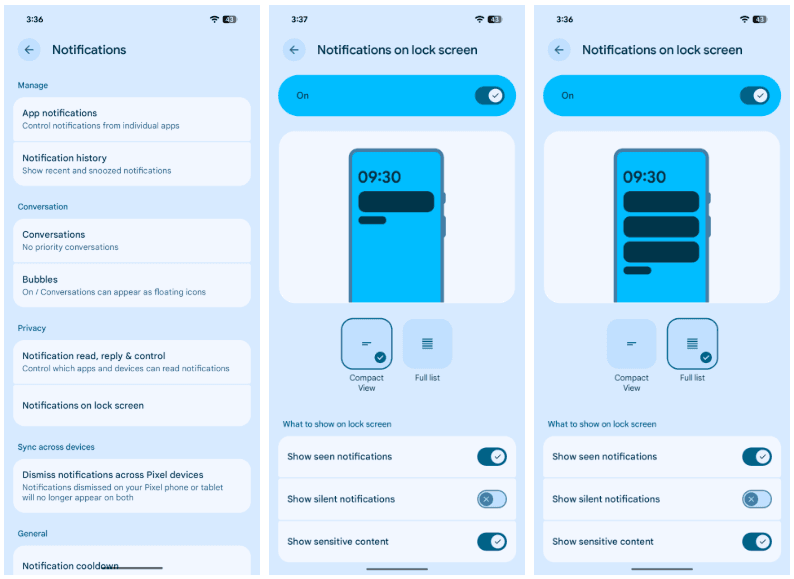
    In its new condensed layout, Google’s latest Android release by default shows notifications on the lock screen. merely one notification is displayed in the presentation; all other notifications are merely represented by app icons in the overflow menu below. The secondary compact portion receives alerts that are viewed.

    The only alternative way for alerts to appear on the Pixel’s lock screen is “full list.” Notifications are displayed in cards and in the order they were received. Although they can be enlarged, they do occupy a considerable lot of room.

    There are further choices as well. Notifications that are viewed without any action performed, such as unlocking the phone, are buried until the phone is unlocked when the “display seen notifications” setting is disabled. In order to keep the shade clear, the option to “Show silent notifications” will show alerts from apps that have been manually or automatically switched to silent.

    Here’s how to set your preferred view:

    1. On your Pixel running Android 16 QPR1 or later, head to settings.
    2. Find and tap Notifications.
    3. Hit Notifications on lock screen.
    4. Choose between Compact View and Full list.
    notifications list on Android 16

    Although you can always go back, for some people, full view can be the greatest choice. In contrast to compact mode, which only shows one notification at the top, all Pixel lock screen notifications are always shown in that mode. All of this depends on personal taste, but that’s what makes Android what it is!

  • HyperOS 3.0 panel on older versions

    HyperOS 3.0 panel on older versions

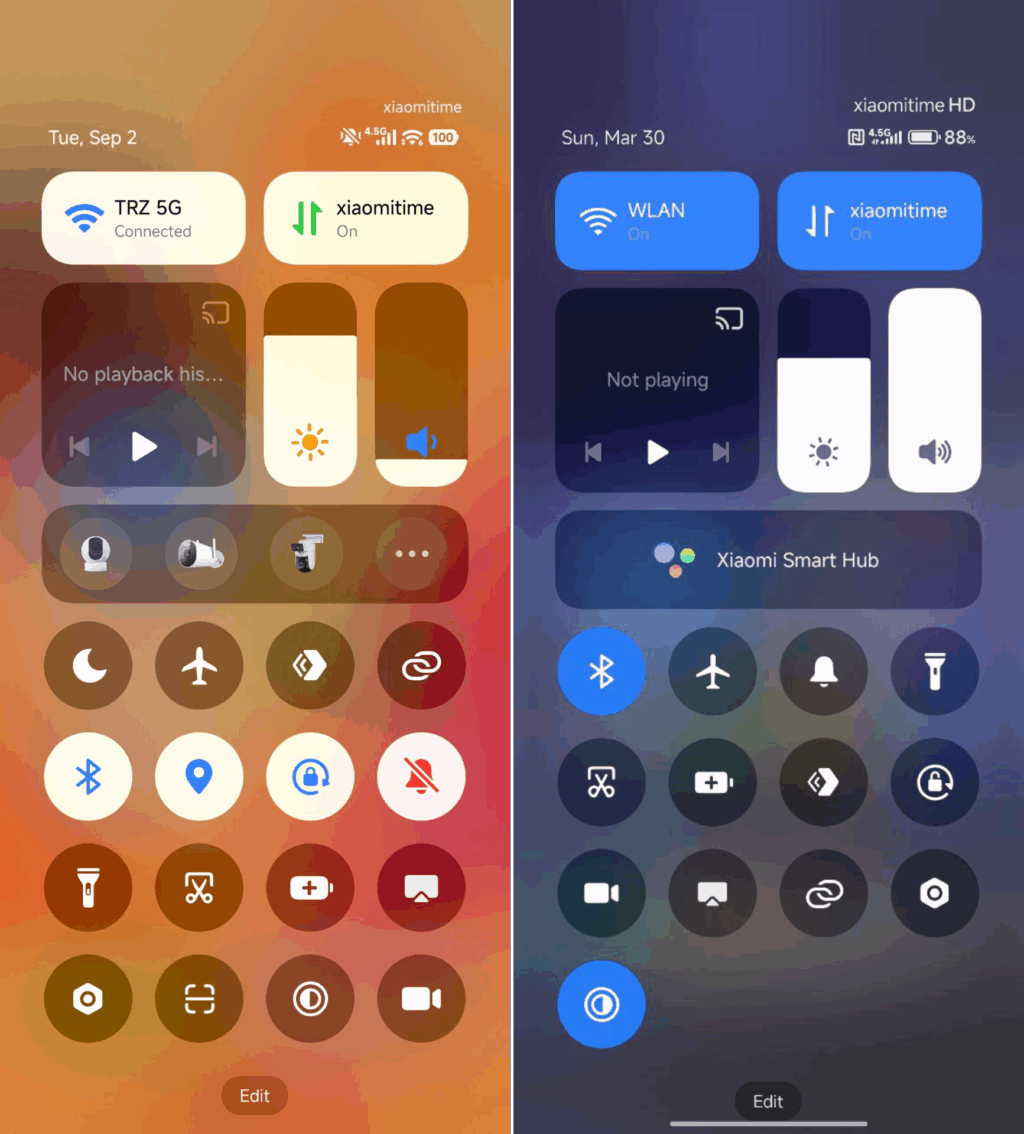
    HyperOS 3 has generated a lot of interest, particularly because of its revamped Control Center, which is obviously more useful and aesthetically pleasing than HyperOS 2. Users are asking whether it’s possible to extend the new Control Center experience to their existing HyperOS 2 devices, which is understandable given the excitement.

    To put it simply, that’s not feasible. You cannot just install the HyperOS 3 Control Center as a stand-alone feature. Because it depends on improved user interface elements, animations, and fundamental optimizations not seen in HyperOS 2, it is closely interwoven with the system. If you try to install it on an outdated system, you run the risk of software instability or, in the worst case, the device being unusable.

    Although it is not possible to migrate the actual Control Center from HyperOS 3 to HyperOS 2, there is a useful workaround for those that desire a comparable appearance. A variety of themes that visually update icons, the Control Center interface, and wallpapers to closely mirror the most recent design are available in the Xiaomi Themes shop, some of which are specifically inspired by HyperOS 3.

    It is crucial to remember that this is only a cosmetic remedy. You won’t get the new functionality or underlying speed improvements of HyperOS 3, just the redesigned graphics.

  • Guide on how to clear cache of any Android device

    Guide on how to clear cache of any Android device

    Your device may slow down as a result of cached data that builds up, corrupts, or just becomes out of date over time. Although a targeted cache clear is a quick fix that doesn’t require updating hardware, restarting your phone frequently helps.

    In June, Google introduced Android 16 to Pixel devices and a few OEMs, bringing with it new Material You updates, performance enhancements, and other improvements. Clearing the cache on your Android phone or tablet can give it a new boost and free up some storage space if you want to attempt this update but are concerned since you’ve observed it already feels too sluggish.

    Although each manufacturer may have somewhat different processes, the overall procedure is the same.

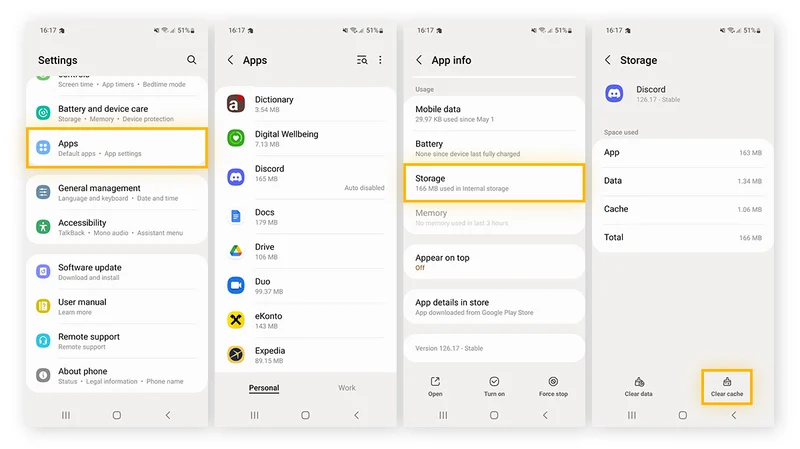
    Navigate to Storage in Settings, then select Apps. If there isn’t a specific Apps entry, you may easily locate it in Settings by using the search bar.

    Some Android devices now offer a “Free up space” option through the Google Files app in the Storage menu as well. This can be used by opening Files, selecting Clean from the three-line menu in the top-left. Examine each recommendation (such as duplicates, huge files, and useless apps), then follow the instructions to remove any files you no longer require.

    clear cache android

    (Avoid system services) press an installed app, choose “Storage and cache,” and then press “Clear cache.” Tap “Clear storage” only if you wish to fully reset the application.

    Clear cache for individual apps

    Do the same with any programs that consume a lot of storage. Data-hungry hogs like social apps and streaming services are a good place to start.

    Additionally, some Android versions make it simple to view which apps are using the most space when you’re in the Apps menu. Just choose Sort by Size from the three-dot menu that appears in the upper-right corner.

    Note: There may be an integrated clear-all-cache feature on some Android phones. There should be a ‘Select All’ button at the top under Settings > Storage > and App Cache.

    How to clear cache from Chrome

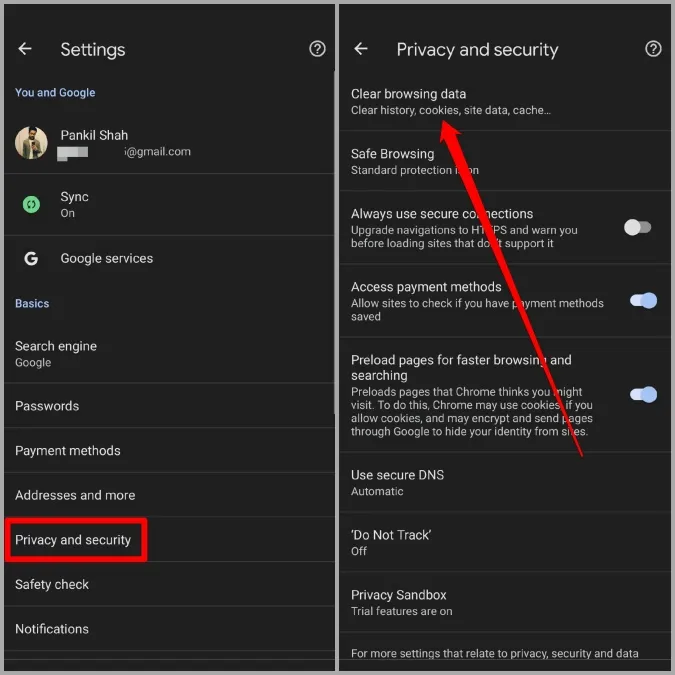
    Open Chrome, tap the three-dot menu Settings > History > Clear browsing data.

    Check “Cached pictures and files” (as well as anything else you want to delete) after choosing the time frame. Next, select “Clear data.”

    Every choice describes its function and how it impacts your experience. removing cached files and pictures may result in Chrome loading images more slowly the next time you visit a website, while removing cookies and site data will log you out of many or all websites.

    In recent versions of Chrome for Android, hitting the menu button brings up the Clear Browsing Data option. When you choose this, a pop-up window requesting that you delete your browsing history from a certain time frame will show up. Selecting More Options will bring up the Browsing Data screen, where you can pick which data to remove and what time period to use.