Blog

  • Battery life myths vs facts: how to make your phone last all day

    Battery life myths vs facts: how to make your phone last all day

    Battery Life is the one Android topic where everyone has an opinion—and somehow, half of those opinions are stuck in 2011. You’ve probably heard “drain it to zero,” “never charge overnight,” or “close every app or your battery will melt.” Meanwhile, your phone still hits 18% before dinner.

    This guide is here to cleanly separate Battery Life myths from the real fixes that make a difference. Not miracle tricks. Not “turn off everything until your phone is basically a calculator.” Practical stuff you can do today, plus a few habits that keep your battery healthier over time.​

    Battery Life tips for Android users checking settings

    Why Battery Life Feels Random (But Usually Isn’t)

    Battery Life can feel unpredictable because it’s influenced by things you don’t notice in the moment—signal strength, background syncing, location services, screen brightness, and heat. Sometimes you change one setting, your phone lasts longer, and you assume you found “the secret.” Other times you do everything right and it still drains fast.

    On the one hand, modern Android is genuinely good at managing power in the background. But here’s the catch: one badly-behaved app, a weak 5G signal, or a hot charging session can undo all that smart optimization. So the goal isn’t perfection. It’s control.

    Before we fix anything, let’s kill the myths that waste your time.

    Myth #1: “You Must Drain Your Phone to 0% to Keep the Battery Healthy”

    This one is everywhere, and it sounds logical… until you remember: modern phones use lithium-ion batteries, not the older battery types that suffered from “memory effect.” Deep discharges can stress lithium-ion batteries over time, which is why many guides recommend avoiding constant 0% runs.​

    What to do instead (realistic version):

    • Try not to make 0% a daily habit.​
    • If your day usually ends around 20–30%, that’s a pretty comfortable routine for both Battery Life and battery longevity.

    Small nuance: letting your phone hit 0% occasionally isn’t a crime. It’s the repeated “red zone lifestyle” that tends to age batteries faster.

    Myth #2: “Charging Overnight Overcharges and Ruins Your Battery”

    Modern phones are designed to stop charging at 100%, so the old-school “overcharging” fear is mostly outdated. Overnight charging, by itself, isn’t automatically destructive.

    But—and this is where people get it half-right—keeping a battery sitting at 100% for hours can add stress over the long term, especially if the phone is warm while charging. That’s why features like adaptive/optimized charging and charge limits exist.​

    Real fix:

    • Turn on “Adaptive Charging” / “Optimized Charging” if your phone offers it.
    • If there’s a “Protect Battery” or “Charge to 80–85%” option, use it when you can (especially if you keep phones for 2+ years).​

    Myth #3: “Closing All Apps Saves a Ton of Battery”

    This is the classic “swipe everything away” habit.

    Sometimes it feels like it helps, because your phone looks “clean.” But Android often manages background apps efficiently on its own, and constantly force-closing apps can even add overhead because apps need to reload again and again. (It’s like turning your car off at every red light to save fuel—technically it changes consumption, but not in the way you want.)

    When it actually helps: when a specific app is misbehaving—running in the background, looping, overheating, or abusing location. In that case, the fix isn’t “close everything.” It’s “find the one problem app and deal with it.”​

    Myth #4: “Fast Charging Always Kills Batteries”

    Fast charging is not automatically a battery death sentence. Real-world testing and good charging management have improved a lot. But here’s the catch: heat is the enemy.

    Fast charging can create more heat depending on the charger, phone design, and environment. Heat accelerates battery wear, so it’s not the speed itself you fear—it’s the temperature that sometimes comes with it.​

    Practical approach:

    • Use fast charging when you need it (workdays, travel).
    • Use slower charging when you don’t (overnight, desk time), especially if your phone tends to run warm.​

    Myth #5: “Wi‑Fi and Bluetooth Should Always Be Off”

    This used to be decent advice years ago. Today it’s more “it depends.”

    Wi‑Fi can actually be more power-efficient than mobile data in many situations, and modern Bluetooth is generally low energy. The bigger issue is constant scanning, weak signals, and background activity triggered by connectivity.

    Real fix:

    • Keep Wi‑Fi on if you’re in stable coverage; it can help Battery Life compared to a phone fighting for cellular signal.
    • Turn off unnecessary scanning settings if you don’t need them (varies by Android version/brand).
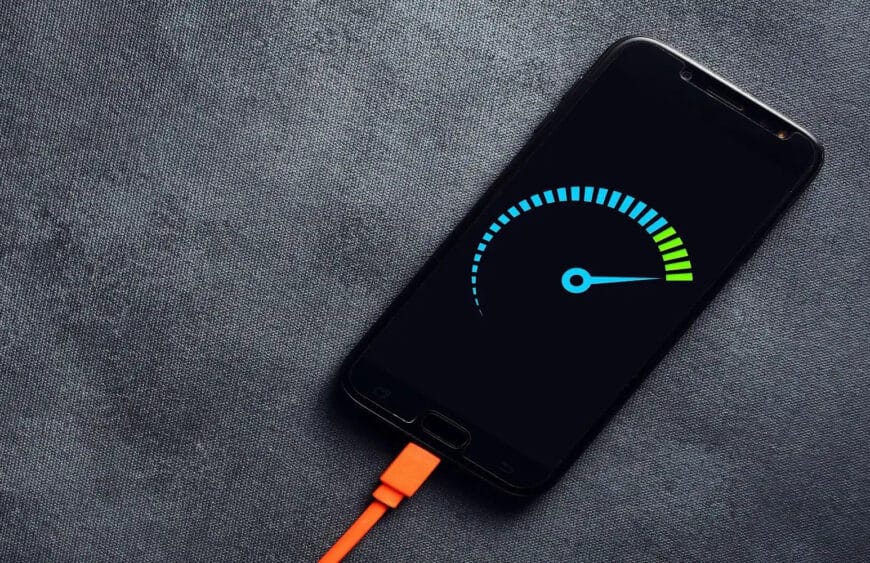
    Battery Life myth busting with a phone on charger

    The Real Fixes: What Actually Improves Battery Life (Without Making Life Miserable)

    Now the part that matters. These are the changes that most people can feel within 24–72 hours.

    Fix #1: Control the Screen (Brightness and Sleep Timer)

    For many users, the display is the biggest Battery Life drain. Not because your phone is “bad,” but because modern screens are bright and we keep them on longer than we realize.​

    Try this:

    • Enable Adaptive Brightness (so you’re not blasting 100% indoors).
    • Lower brightness one notch more than you think you need.
    • Reduce screen timeout (sleep) to something sensible (30 seconds to 1 minute).
    • Use Dark Mode if you like it—especially helpful on OLED screens.​

    Fix #2: Find Your “Battery Vampire” App

    Guessing wastes time. Checking takes two minutes.

    Go to:

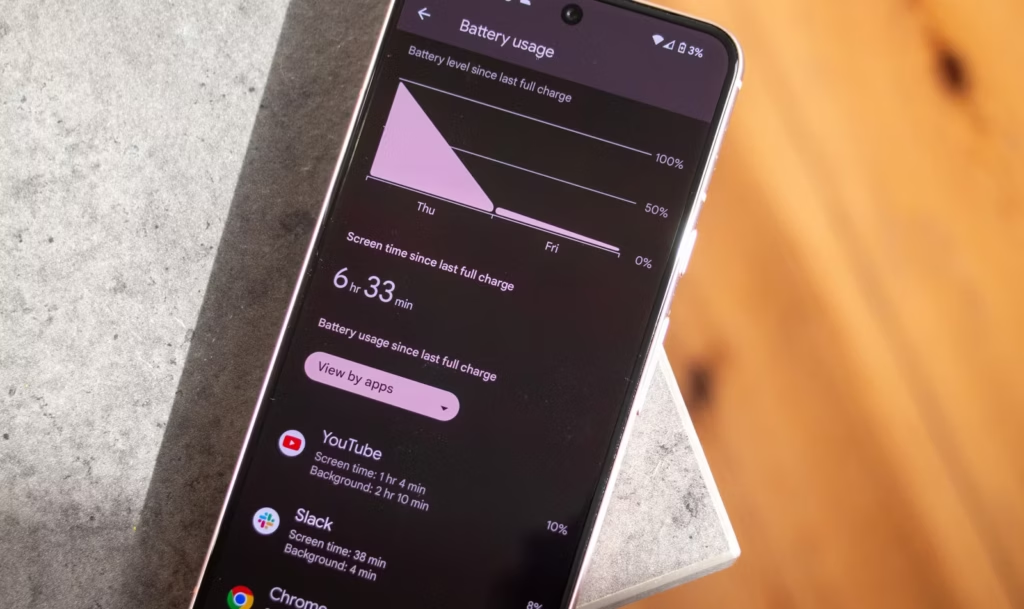
    • Settings → Battery → Battery usage (wording varies)

    Look for:

    • One app with unusually high background use
    • An app you barely use but that’s always near the top

    Then do one of these:

    • Update it (bad versions happen).
    • Restrict background activity (if Android offers it).
    • Remove it if it’s not essential.

    This is not anti-app paranoia. It’s basic hygiene. Even reputable apps can bug out after updates.

    Fix #3: Fix Location Permissions (Quiet Drain, Big Impact)

    Location is one of the easiest Battery Life drains to miss, because it doesn’t always “look active.”

    Set most apps to:

    • “While in use”

    Only keep “Always” for apps that truly need it:

    • navigation while driving (if you want alerts)
    • family safety apps (if you use them intentionally)

    Also consider turning off “precise location” for apps that don’t need it. Your weather app doesn’t need to know which side of the couch you’re on.

    Fix #4: Signal Strength Matters More Than People Think

    Here’s a sneaky Battery Life killer: poor signal.

    When your phone struggles to maintain connection, it works harder—especially on unstable 5G. If you’re in a weak coverage area, your battery can drop faster even if you’re barely using the phone.

    Try:

    • Use Wi‑Fi calling (if available).
    • Prefer Wi‑Fi when you’re home/work instead of letting mobile data do everything.
    • If 5G is unreliable in your area, test LTE for a day and compare Battery Life.

    Fix #5: Use Battery Saver Earlier (Not Only at 10%)

    Battery Saver isn’t only for emergencies. It’s a tool for predictable long days.

    Try:

    • Turn Battery Saver on at 30–40% if you know you’ll be away from a charger.
    • Use “Extreme Battery Saver” only when you truly need survival mode.

    This doesn’t mean living in Battery Saver forever. It means using it strategically—like carrying an umbrella when the sky looks suspicious.

    What Most People Get Wrong About Battery Life (A Quick Reality Check)

    Let’s call it out plainly:

    • People optimize the wrong things (closing apps constantly) and ignore the big drains (screen and signal).
    • People chase magic numbers (“always 80%”) but ignore heat, which often matters more.​
    • People think “new phone = perfect Battery Life,” but a single app or a bad network environment can wreck it.
    • People don’t verify backups/updates and blame “Android” when it’s actually one app misbehaving.

    And yes—sometimes the battery is simply aging. No setting can reverse chemistry.

    Battery Life Checklist (Do This Today)

    Quick checklist, no nesting, no drama:

    • Turn on Adaptive Brightness and reduce screen timeout.​
    • Check Battery usage and identify the top 3 apps.
    • Restrict or remove the top “background drain” app you don’t trust.
    • Review Location permissions and switch most apps to “While in use.”
    • Enable Adaptive/Optimized Charging or an 80–85% limit if available.​
    • Keep the phone cool while charging (no blankets, no hot car).
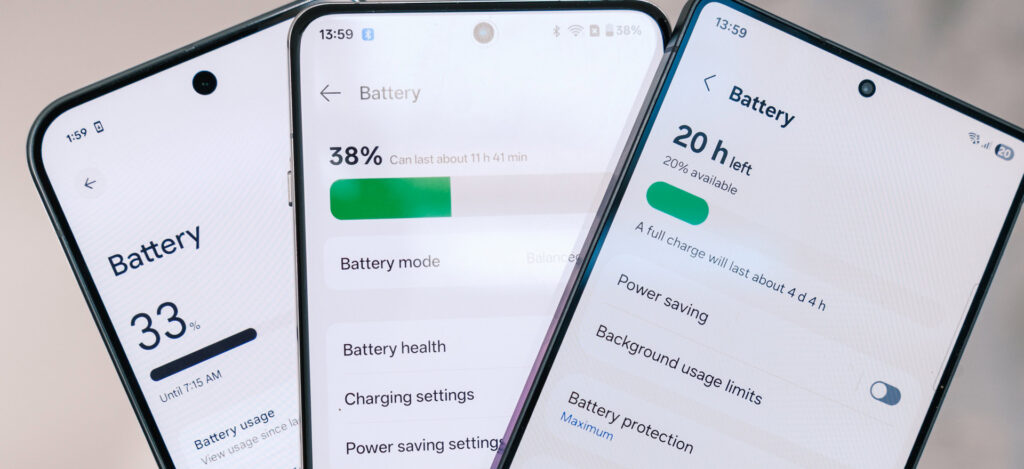
    Battery Life improvement checklist on an Android phone

    Charging Habits That Protect Battery Life Long-Term

    Battery Life today is one thing. Battery health over two years is another.

    A few habits that help longevity without making you obsessive:

    Keep heat low (the boring but true advice)

    Heat accelerates battery wear, so avoid:

    • charging under a pillow
    • gaming while charging
    • leaving the phone in direct sun while charging

    This isn’t fear-mongering. It’s just how batteries age.​

    Use the “80% rule” as a tool, not a prison

    Many sources recommend a “20–80%” or “30–80%” range for slower battery aging, but the exact number isn’t magical. The point is reducing time spent at very high charge levels, especially with heat.​

    If you’re traveling or need maximum Battery Life that day, charge to 100%. No guilt. Just don’t keep it sitting at 100% hot for hours every single day.​

    When It’s Not Settings: Signs Your Battery Is Actually Worn Out

    Sometimes your Battery Life issues aren’t fixable with tweaks because the battery has aged.

    Common signs:

    • Sudden drops from 30% to 10%
    • Random shutdowns at 15–20%
    • Noticeable heat during light tasks
    • Battery percentage behaving “jumpy”

    At that point, consider:

    • battery replacement (often worth it on mid/high-end phones)
    • or upgrading if the phone is old and already struggling with performance

    No shame either way. Batteries are consumables.

    FAQs

    1) Is it bad to charge my phone overnight?

    Modern phones prevent classic “overcharging,” but staying at 100% for hours—especially with heat—can contribute to wear over time, so adaptive charging or charge limits are helpful.​

    2) Should I always charge only to 80% for better Battery Life?

    Charging to 80–85% can reduce stress for long-term battery health, but it’s not mandatory. Use it when convenient, and charge to 100% when you need full-day Battery Life.​

    3) Does closing apps improve Battery Life?

    Not usually in a big way. It helps mainly when an app is misbehaving and draining battery in the background.​

    4) Does Dark Mode improve Battery Life?

    It can help, especially on OLED screens, because darker pixels can use less power. The impact varies by device and brightness.​

    5) Why does my Battery Life get worse in places with poor signal?

    Your phone works harder to maintain a connection when coverage is weak, which increases power use—even if you’re not actively using the phone.
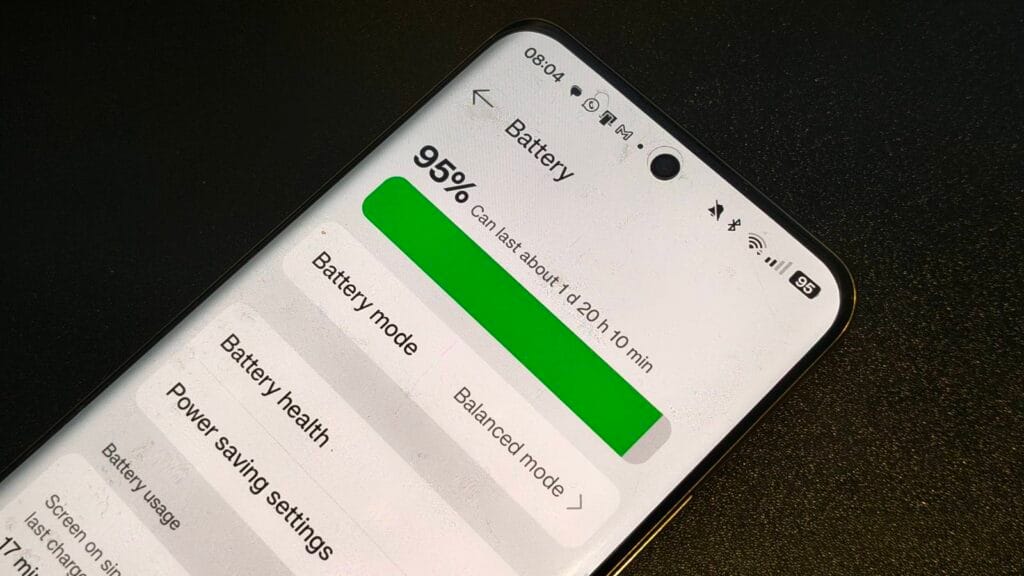
    What to Do Next

    If Battery Life has been frustrating lately, don’t try to fix everything at once. Do this in order:

    1. Check Battery usage and identify the top drainers.
    2. Reduce screen drain (brightness + timeout).
    3. Fix location permissions and notifications.
    4. Watch heat while charging for a week.
    5. If nothing improves, consider battery wear and replacement.

    Give it 2–3 days after changes and compare. Battery Life improvements are often “quiet,” not dramatic—but they’re real when you focus on the big levers.
  • Android device repair prep (stress-free) – the power guide to protect your data

    Android device repair prep (stress-free) – the power guide to protect your data

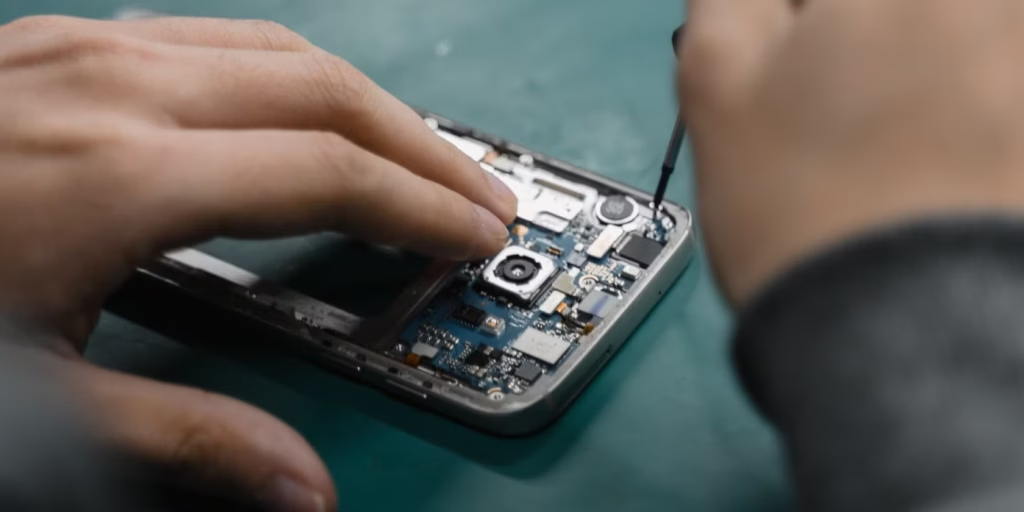
    Your android device is going in for service or repair, and yeah… it’s easy to tell yourself, “It’s just a screen replacement, what could happen?” Then you remember: your phone is basically your pocket brain. Photos, notes, bank apps, work chats, that one folder you never show anyone—everything.

    So let’s do this properly.

    This guide is a practical, no-drama checklist to prepare your android device before you hand it to a technician. Not the paranoid kind of prep. The smart kind. The kind that prevents data loss, protects your privacy, and makes the repair process smoother.

    android device preparation before repair

    Secondary keywords used naturally: Android backup, factory reset, phone repair checklist, protect personal data, Google account removal, SIM card and SD card, Find My Device.

    The “Quick Outline” (Internal, For Flow)

    You’ll go through:

    • Why prep matters (even with trustworthy shops)
    • Backup (cloud + local)
    • Remove SIM/SD and sensitive access
    • Decide on factory reset (and when not to)
    • Document your issue like a grown-up (so repairs go faster)
    • Privacy + security settings that actually matter
    • What to do at drop-off and pickup
    • Common mistakes and a simple final checklist

    Why Preparing an Android Device Before Repair Matters (More Than You Think)

    Here’s the uncomfortable truth: even honest repair shops can cause data loss.

    Not because they’re evil. Because diagnosing problems often involves resets, firmware updates, battery disconnects, or tests that can corrupt storage. And if your android device is acting weird already (boot loops, overheating, random restarts), the risk of “it died during testing” is real.

    Also, there’s privacy. Most technicians don’t care about your personal life. But your phone is still unlocked data sitting in someone else’s hands. It’s like leaving your house keys on the counter and hoping nobody opens the wrong door.

    You don’t need to be anxious. You just need a process.

    Step 1: Back Up Your Android Device (Cloud First, Local Second)

    android device backup

    If you only do one thing, do this.

    Use Google Backup (Fast and Built-In)

    On most phones:

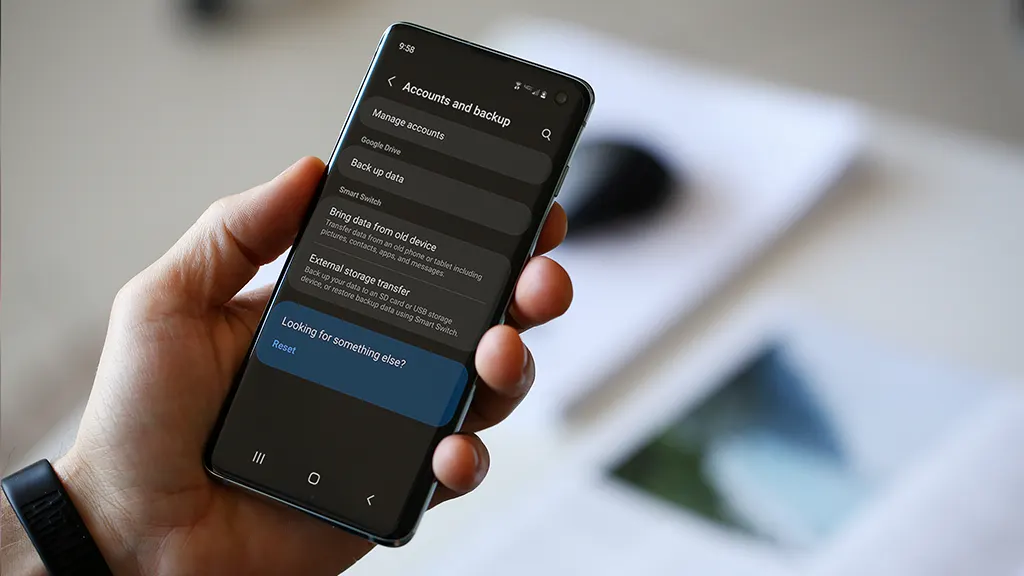
    • Settings → Google → Backup
      or
    • Settings → System → Backup

    Turn it on and let it run. Then check the backup timestamp. Don’t assume it worked “at some point.”

    What it usually covers:

    • App list and some app data
    • Call history
    • Contacts (often via Google Contacts sync)
    • Device settings
    • SMS/MMS (on many devices)

    But – small contradiction – Google backup is both great and not enough. It’s reliable for basics, but it’s not a perfect clone of your phone.

    Back Up Photos and Videos

    If you use Google Photos:

    • Open Google Photos → profile icon → Photos settings → Backup

    Then scroll your gallery and confirm recent photos actually uploaded. People think they’re backed up… until they aren’t.

    Make a Local Copy (Because Clouds Have Limits)

    Plug your android device into a laptop/PC:

    • Select “File Transfer” (MTP)
    • Copy these folders:
      • DCIM (camera photos/videos)
      • Pictures
      • Download
      • Documents
      • WhatsApp/Telegram media folders (if you use them heavily)

    If you don’t have a PC, use:

    • An external USB drive with an OTG adapter
    • A microSD card (if your phone supports it)

    Local backup feels old-school. But it’s the “seatbelt” you’ll appreciate if the cloud fails.

    [img here – alt: android device backup before service]

    Don’t Forget Two “Annoying” Things

    These are the ones that hurt most when they’re gone:

    • Notes (Google Keep / Samsung Notes / third-party apps)
    • Authenticators (2FA apps)

    For authenticator apps, check inside the app for export/transfer options before your device gets wiped. Otherwise you might lock yourself out of accounts. Not fun.

    Step 2: Remove SIM Card and SD Card (Small Action, Big Protection)

    This part is quick and oddly satisfying.

    • Remove the SIM card (your number and carrier access)
    • Remove the SD card (your personal files and media)

    Even if the repair shop is trustworthy, SIM/SD cards can be misplaced. They’re tiny. Things happen.

    Also, if your SD card has photos—don’t leave it in the phone. Just don’t.

    Step 3: Decide If You Should Factory Reset the Android Device

    This is where people get stuck.

    When a Factory Reset Makes Sense

    A factory reset is smart when:

    • The repair is software-related (crashes, freezing, weird bugs)
    • You’re shipping the phone to a service center
    • You don’t want anyone to access anything—even by accident
    • You’re okay with restoring everything later

    Path usually looks like:

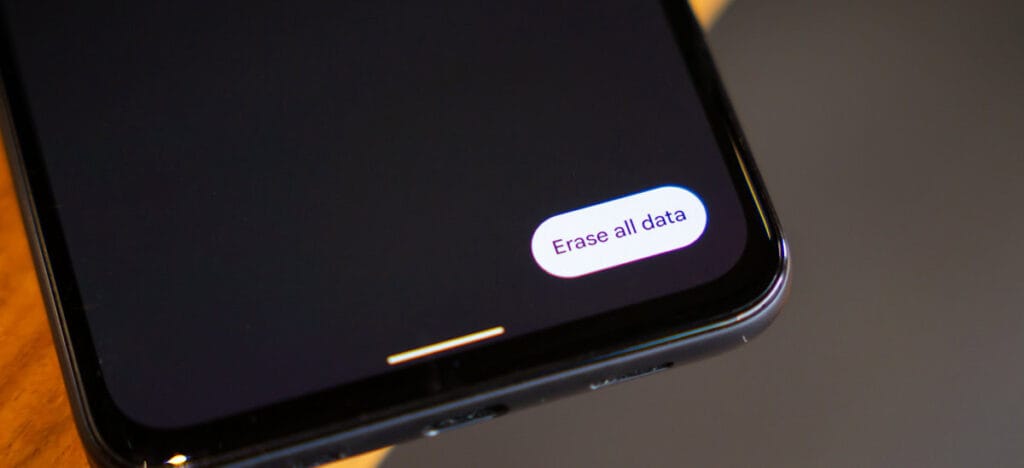
    • Settings → System → Reset options → Erase all data (factory reset)

    When You Shouldn’t Reset Yet

    Don’t reset if:

    • You need to show the issue (random reboots, screen glitch, camera error)
    • The repair center asks you not to (rare, but possible)
    • You rely on on-device data that you can’t back up properly

    Here’s the clarification: privacy matters, but so does diagnosis. If the technician can’t reproduce the issue, you might get the dreaded “no fault found” result. So sometimes you keep the data… but you lock it down.

    Step 4: Lock Down Access (Without Making the Repair Impossible)

    If you’re not factory resetting, this part is essential.

    Use a Strong Lock Screen

    Set a PIN (not 0000, please).
    Disable “Smart Lock” features that keep the phone unlocked at home or near a watch.

    Pause or Remove Highly Sensitive Apps

    For apps like:

    • Banking
    • Crypto wallets
    • Password managers

    At minimum:

    • Sign out
    • Remove biometric login
    • Consider uninstalling temporarily (after backup)

    Technicians don’t need that access to replace a screen.

    Keep “Find My Device” Enabled (Usually)

    If the phone is lost during transit or at a large facility, Find My Device can help locate it. Just make sure you remember your Google login.

    Step 5: Write a Simple Repair Note (This Speeds Everything Up)

    A good repair note is like giving the mechanic a clean description of the engine noise.

    Create a note (or email) with:

    • Phone model (e.g., “Samsung Galaxy A54”)
    • Android version (Settings → About phone)
    • What’s wrong (specific symptoms)
    • When it happens (after charging? after updates? only on Wi‑Fi?)
    • What you already tried (restart, safe mode, clearing cache, uninstalling an app)

    Example (copy style, not text):

    • “Screen goes black during calls, but touch still works. Happens 3–4 times/day. Started after last system update. Restart fixes temporarily.”

    That’s gold for technicians.

    Step 6: Clean Up “Embarrassing” Stuff (No Shame, Just Practical)

    This isn’t about being dramatic. It’s about comfort.

    Before service:

    • Close private tabs in your browser
    • Remove sensitive photos from the main gallery (move to a secure folder or cloud)
    • Turn off notification previews on lock screen

    Even if your phone stays locked, notifications can reveal a lot.

    [img here – alt: android device privacy before repair]

    Step 7: At Drop-Off—Ask the Right Questions (Politely)

    A simple script:

    • “Will you need my unlock code?”
    • “Is a factory reset likely?”
    • “Do you keep devices overnight, and how are they stored?”
    • “Can you note the condition (scratches/dents) on the intake form?”

    Also: take quick photos of your phone from all angles before you hand it over. It’s not accusatory. It’s just smart.

    Step 8: After Repair—Test Before You Leave

    Don’t rush out. Do a 2-minute test:

    • Screen touch everywhere
    • Charging port
    • Speaker and mic (quick voice recording)
    • Camera front/back
    • Wi‑Fi and Bluetooth
    • Fingerprint sensor (if you use it)

    If anything feels off, say it immediately. Fixes are easier on the spot.

    Common Mistakes People Make (So You Don’t)

    • Backing up “later” (and then forgetting)
    • Assuming Google Photos uploaded everything
    • Leaving the SIM/SD in the phone
    • Handing over a phone with banking apps logged in
    • Not writing down the symptoms (leading to “we can’t reproduce it”)
    • Forgetting 2FA authenticator migration
    • Not taking photos of device condition before drop-off

    The Final Checklist (Print This Mentally)

    Before service or repair:

    • Backup complete (cloud + local copy)
    • Photos verified in cloud
    • 2FA/authenticator transferred or backed up
    • SIM removed
    • SD card removed
    • Banking/password apps logged out or removed
    • Strong lock screen enabled (or factory reset done)
    • Repair note written (symptoms + model + what you tried)
    • Photos taken of device condition

    That’s it. That’s the whole play.

  • HyperOS 3 update rolls out to Xiaomi 12, 12S and more devices

    HyperOS 3 update rolls out to Xiaomi 12, 12S and more devices

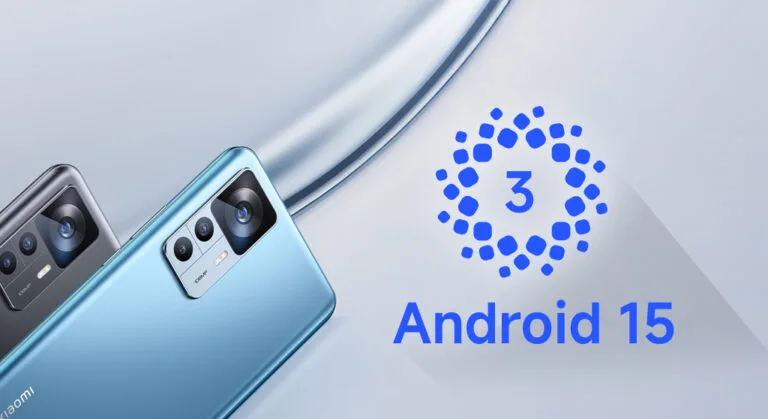
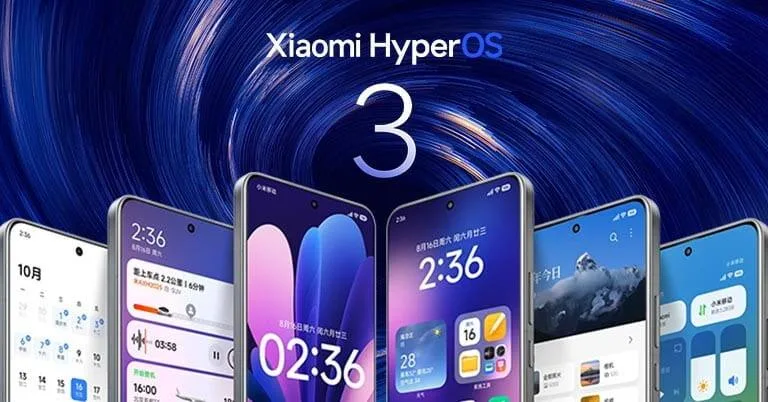
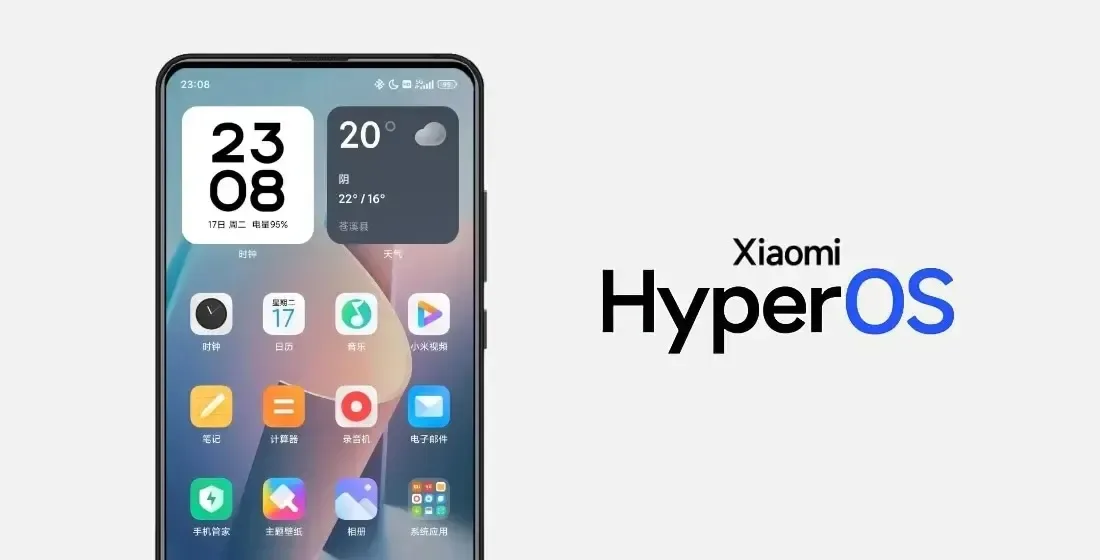
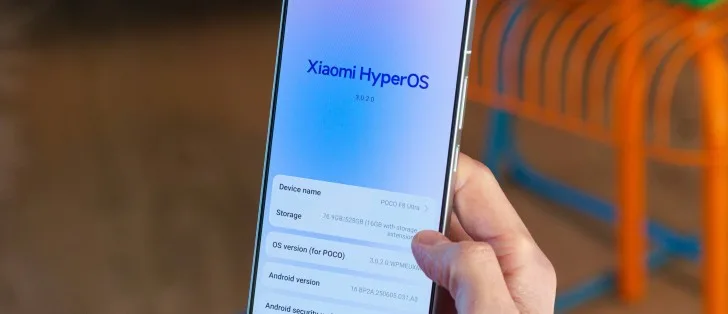
    The HyperOS 3 upgrade for a new range of devices has started to be released by Xiaomi. This build of HyperOS 3 is unique. Its foundation is Android 15, which just started to be released for the Redmi K60 and Xiaomi Pad 6 Pro series. It is now being extended to further devices, such as the Xiaomi 12 series, Xiaomi 12S series, and others.

    hyperos 3

    Currently, only China has access to the HyperOS 3 build, which is based on Android 15. According to Xiaomi Time, the most recent Xiaomi devices receiving this update are listed below, along with the firmware versions:

    • Xiaomi 12: OS3.0.2.0.VLCCNXM
    • Xiaomi 12 Pro: OS3.0.2.0.VLBCNXM
    • Xiaomi 12S: OS3.0.2.0.VLTCNXM
    • Xiaomi 12S Pro: OS3.0.2.0.VLECNXM
    • Xiaomi 12S Ultra: OS3.0.2.0.VLACNXM
    • Xiaomi Civi 3: OS3.0.1.0.VMICNXM
    • Xiaomi MIX Fold 2: OS3.0.1.0.VLRCNXM

    For these devices, the HyperOS 3 update is now accessible as a Mi Plot release, which is essentially a beta release. You must register to be a beta tester in order to receive this update (click here for all the processes). After Xiaomi confirms that the build is free of serious defects, the update will shortly be made available to non-beta customers.

    The HyperOS 3 update, which is based on Android 15, has not yet been verified to be released worldwide by Xiaomi. Nonetheless, the inclusion of international versions like the Xiaomi 12, Xiaomi 12 Pro, and Xiaomi Civi 3 on the aforementioned list is encouraging. Usually, the company releases the update in China first, and after a few weeks, it spreads to the rest of the world.

    We’ll continue to update our Xiaomi area with the most recent HyperOS updates. For the most recent information, don’t forget to frequently check this section. As an alternative, you may sign up for our Telegram channel to receive real-time notifications about new product releases, software updates, and the greatest tech news.

  • Leaked Honor Magic 8 Air design looks strongly inspired by Pixel 10

    Leaked Honor Magic 8 Air design looks strongly inspired by Pixel 10

    Earlier in October, Honor unveiled its flagship Magic8 series of smartphones, which includes the Magic8 and Magic8 Pro. According to reports, it now intends to expand the roster with another gadget. The phone was supposedly going to be released under the name Honor Magic8 Mini. It is possible, nevertheless, that the business will launch the gadget as the Magic 8 Air. A tipster has supplied an allegedly leaked photograph of the Honor Magic 8 Air (or Magic8 Air), which has revealed its potential design, even though there hasn’t been an official announcement yet.

    Honor Magic 8 Air design surfaces in fresh leak images

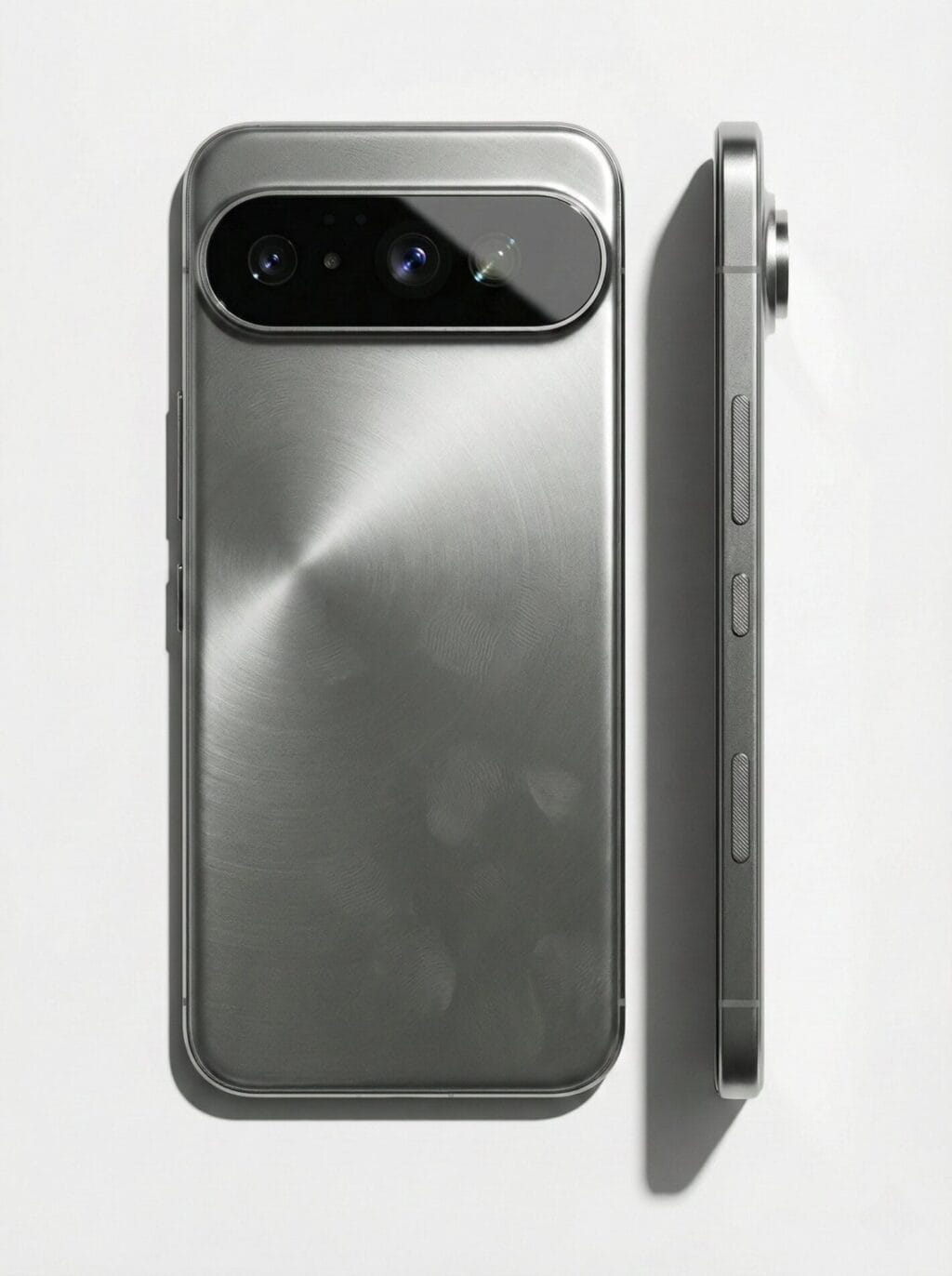
    The Honor Magic 8 Air will have a sizable horizontal camera island if the leaked image is accurate. It resembles the Google Pixel 10 series in terms of design. According to the leaked images, it will have a brushed aluminum rear. It’s important to note that this picture is only a render, therefore the real Honor Magic 8 Air can have a different design.

    Along with the power key and volume rocker, the device will also have a third physical button on the right side, according to the leaked render. Similar to the key on the previous Magic 8 series devices, there can be a specific key to activate the AI assistant.

    Honor Magic 8 Air design surfaces in fresh leak images

    Thicker, but lighter than the iPhone Air and Galaxy S25 Edge

    In addition to the design, the source disclosed information about the weight and thickness of the Honor Magic 8 Air. The Magic 8 Air will have a waist circumference of 6.3mm, according to the tipster. In actuality, it will be thicker than the Galaxy S25 Edge (5.8mm) and iPhone Air (5.6mm). The phone will, however, be lighter than its competitors. Compared to the 165 grams of the iPhone Air and the 162 grams of the Galaxy S25 Edge, it will only weigh 158 grams.

    Li Kun, the product manager of Honor, has also posted a picture that compares the Magic 8 Air to the iPhone Air on a scale. It demonstrates the Magic 8 Air’s superior weight over the iPhone Air.

    According to reports, it would have a 6.31-inch screen. The MediaTek Dimensity 9500 processor might be used to power it. A massive 5,500mAh battery with 80W fast charging, an ultrasonic fingerprint sensor, a 200MP primary camera, and a 50MP telephoto lens are possible further highlights.

    Magic 8 Air is anticipated to be released by Honor in the first quarter of 2026. Additionally, it will compete with the Galaxy S26 Edge, which is also anticipated to launch at the same time.

  • These Xiaomi, Redmi & POCO phones qualify for HyperOS 5-year update support

    These Xiaomi, Redmi & POCO phones qualify for HyperOS 5-year update support

    Xiaomi gives owners fantastic news to start 2026. For several models, the company offers up to five years of HyperOS support. POCO, Redmi, and Xiaomi tablets and phones get longer updates. For years, gadgets remain safe and continue to receive updates.

    Strong software support is currently available from Xiaomi. Updates for flagship phones will be available until 2031. Budget and mid-range gadgets come next. Tablets are also added to the list.

    The most recent HyperOS versions are longer enjoyed by users. AI tools, longer battery life, and security updates are added to phones. This aligns with Google’s and Samsung’s policies. People tend to keep gadgets longer. It benefits the environment and saves money.

    hyperosOS update support

    Launch date determines the duration of support. More years are awarded to newer models. Extra months are given to the elderly.

    HyperOS Eligible Devices – Support End Dates

    • Updates until 2031: Xiaomi 15T / 15T Pro, Xiaomi 15 Ultra, Xiaomi Pad 7, Redmi 15 / 15 5G / 13C, Redmi Note 14, POCO F8 Ultra / F8 Pro, POCO F7 / F7 Pro / F7 Ultra, POCO M7 / C85
    • Updates until 2029: Xiaomi 14T / 14T Pro, Xiaomi 14 Ultra, Xiaomi MIX Flip, Xiaomi Pad 7 Pro, Redmi A5, Redmi Pad 2 / 2 Pro / 2 Pro 5G series, POCO M7 Pro 5G, POCO Pad M1
    • Updates until 2028: Xiaomi 13T / 13T Pro, Xiaomi 13 / 13 Ultra, Redmi 14C, Redmi Note 13 series, POCO C75
    • Shorter support: Xiaomi 13 Lite (until 2027), older Xiaomi 12T / 12 series and some Redmi 12 models (extra months only)

    Updates are released progressively per area. To find the most recent version, check the settings on your phone. This list of devices that are compatible with HyperOS brings significant value. Xiaomi phones are becoming more intelligent purchases.

    The extended assistance is adored by fans. The action strengthens Xiaomi.

  • Google tops the list of most exploited platforms in the US

    Google tops the list of most exploited platforms in the US

    The foundation of our digital identity is our internet accounts, which are constantly targeted. Hackers are constantly looking for methods to access your data, whether it is through your social media accounts or your e-commerce login credentials, however they are more likely to target certain sites.

    Unsurprisingly, consumers’ Google accounts are the most commonly hijacked online platforms, according to a recent study from Click Insight that examined search trends between November 2024 and October 2025.

    It should come as no surprise that Google accounts are the holy grail for hackers since they are the key to unlocking a number of other native Google services. For this reason, there are more than 84,000 searches per month about “Google” account hacking.

    Now that Google is out of the way, Meta’s traditional heavyweight ranks second. According to search statistics, Facebook has 40,058 monthly queries, making it the second most abused site in the United States.

    Roblox, the third most commonly breached platform in the US, is ahead of another Meta-owned behemoth in the top five.

    RankPlatformAverage monthly hack-related searches
    1Google84,038
    2Facebook40,058
    3Roblox35,675
    4Instagram25,250
    5Microsoft18,643
    6Snapchat15,844
    7Apple13,906
    8Amazon9,092
    9TikTok8,508
    10Fortnite7,938

    Given that almost 40% of Roblox users are younger than 13, it is not shocking that threat actors find the site to be an easy target. Conversely, Instagram (#4), one of the most widely used social media sites, is a veritable treasure for hackers who want to obtain much more than simply data.

    Roblox and Instagram had 35,675 and 25,250 hack-related searches per month, respectively. With 18,643 monthly hack-related searches, Microsoft accounts complete the top five. Snapchat, Apple accounts, Amazon, TikTok, and Fortnite come next.

    You need to go beyond simple passwords in order to stay safe online, regardless of the platform. Enabling 2FA authentication and using a password manager that supports passkeys is your best line of defense against threat actors.

  • Honor Power 2 goes official, extreme battery life with an 8,000-nit OLED screen

    Honor Power 2 goes official, extreme battery life with an 8,000-nit OLED screen

    Recently, Honor has been quite focused about batteries. The company’s new Win series phones, which have remarkably big 10,000mAh batteries, may be familiar to you if you’ve been keeping up with recent releases. These are high-end smartphones featuring Snapdragon 8-series processors.

    With its new mid-range phone, Power 2, the business is adopting a similar strategy. Unexpectedly, it also has an even larger battery.

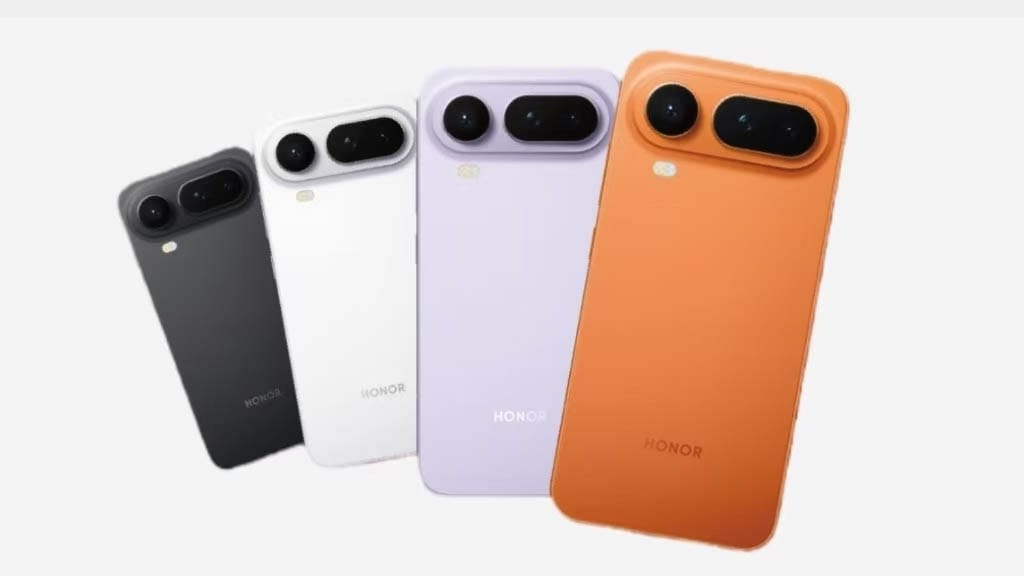
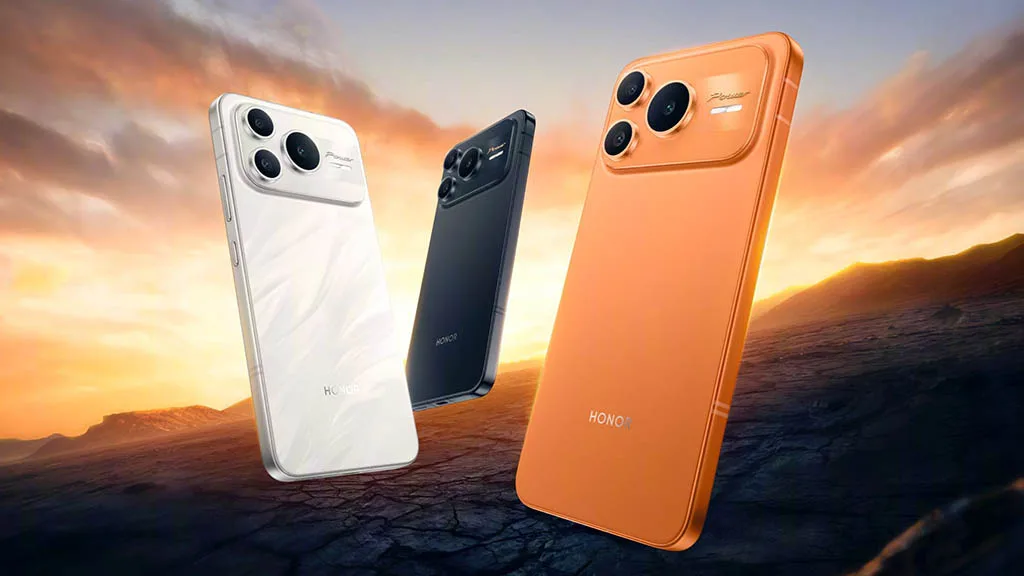
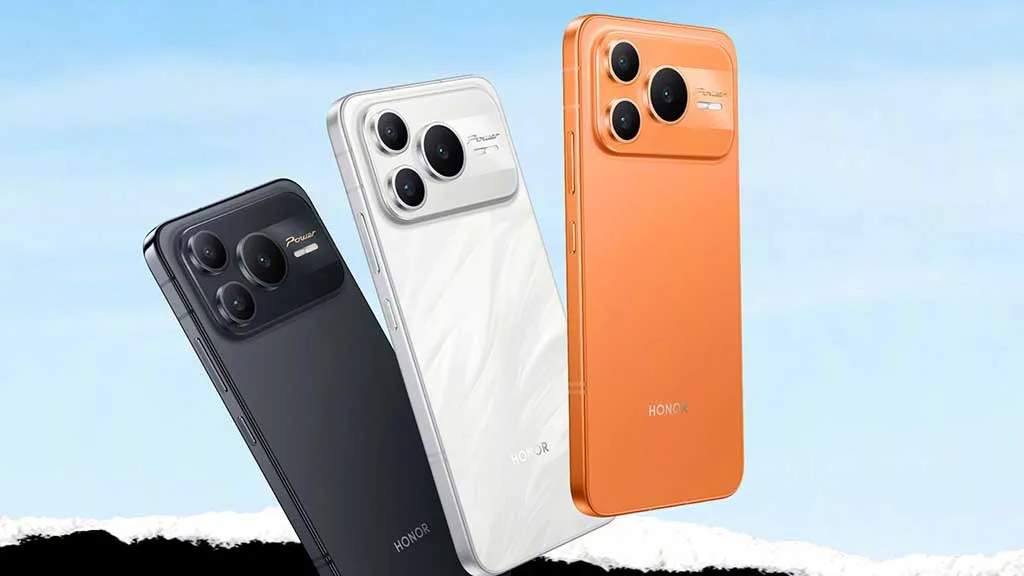
    honor power 2 colors

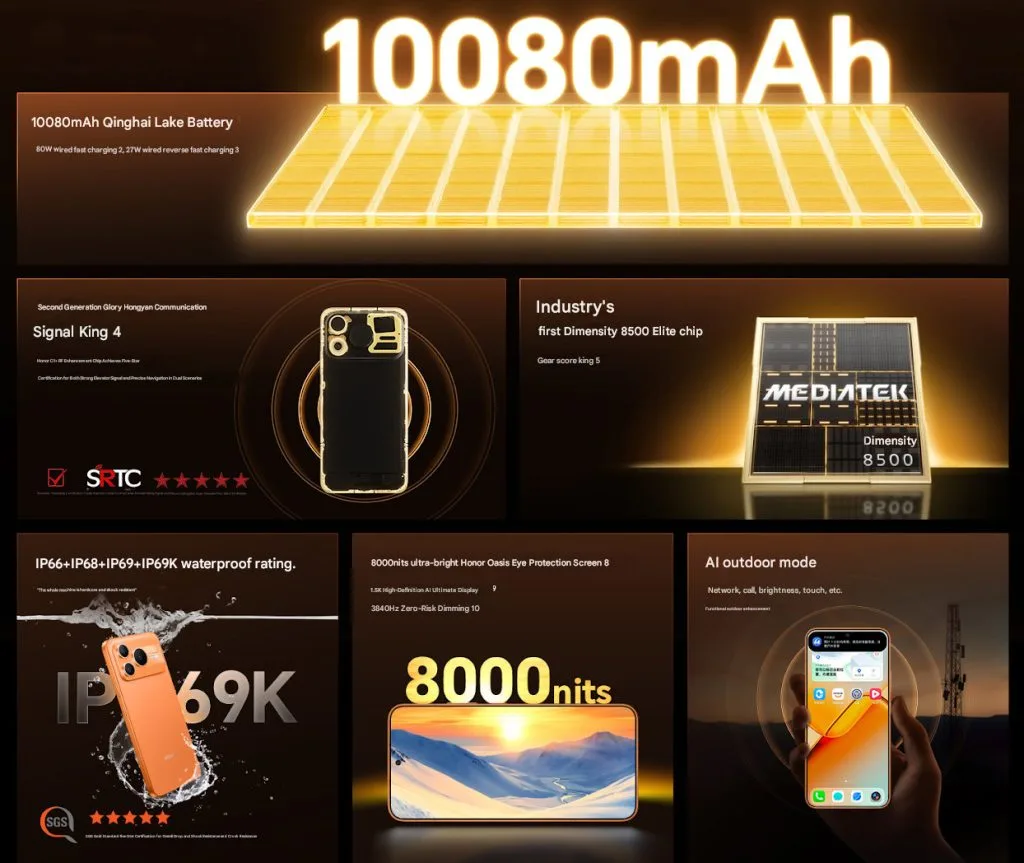
    The Power 2’s casing is only 7.98mm thick and contains a slightly larger 10,080mAh battery. In contrast, the iPhone 17 Pro is 8.8mm and does not even have a 5,000mAh battery. At just 216 grams, it is also not very hefty.

    In addition to supporting 80W wired charge, the battery also provides 27W reverse charging.

    Honor Power 2 Specifications

    The phone’s big 6.79-inch OLED LTPS flat display, which has a 1.5K resolution of 2600 x 1200 pixels, is located up front. Additionally, the screen’s 3,840Hz PWM dimming and maximum brightness of 8,000 nits are advertised.

    The gadget is powered by MediaTek’s Dimensity 8500 Elite processor, which is combined with UFS 4.1 storage and LPDDR5x RAM. Honor says that the Dimensity 8500, a new mobile processor, has more than 2.4 million AnTuTu points.

    honor power 2 specs

    Additionally, the Power 2 receives a respectable pair of camera configurations. A 5MP ultra-wide camera and a 50MP primary sensor with OIS are located on the back. On the other hand, the front has a 16MP camera. The Power 2’s operating system is Android 16 with a layer of MagicOS 10.

    A metal frame, two speakers, an in-display fingerprint scanner, and an exceptionally thorough durability rating with IP66, IP68, IP69, and IP69K certifications are further highlights. Wi-Fi 6, Bluetooth 6.0, IR blaster compatibility, and sophisticated satellite location are among the connectivity possibilities.

    The Honor Power 2’s 12GB RAM and 256GB storage model costs 2,699 CNY (about $385), while the 512GB model costs 2,999 CNY (around $430). Phantom Black, Snowfield White, and Rising Sun Orange are the possible colors for the phone.

  • Oppo Watch S debuts globally with a slim design, 3,000-nit screen, and powerful sensors

    Oppo Watch S debuts globally with a slim design, 3,000-nit screen, and powerful sensors

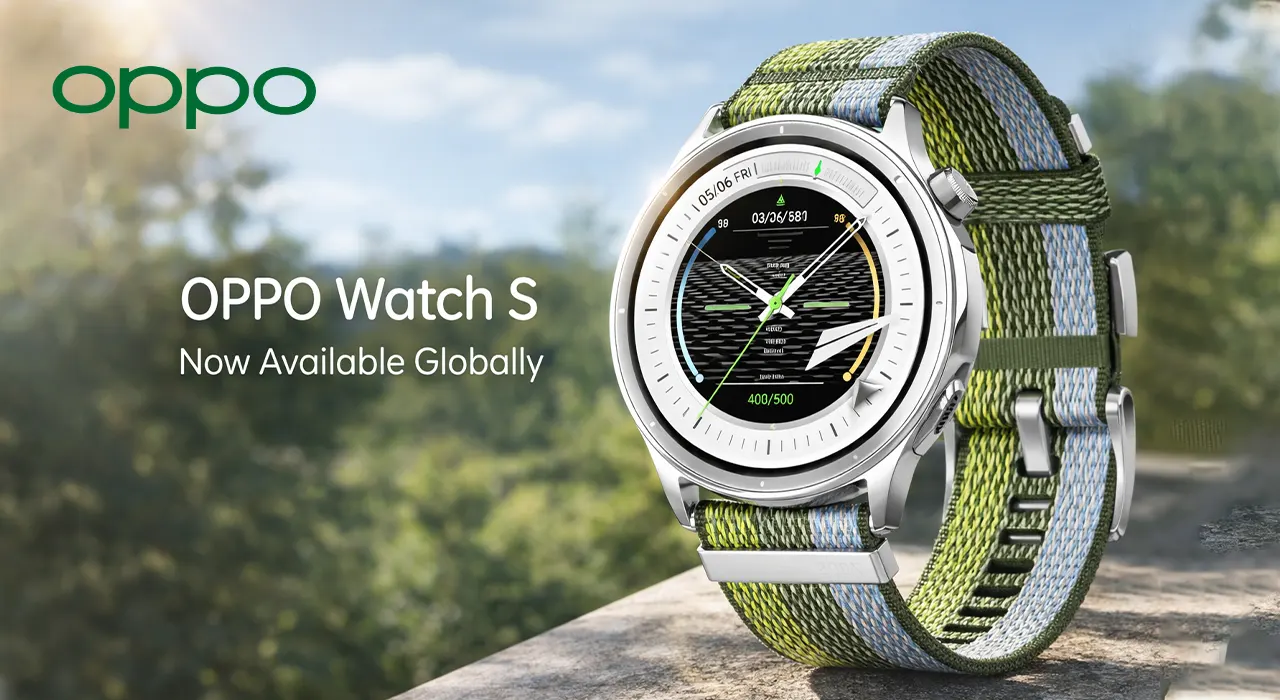
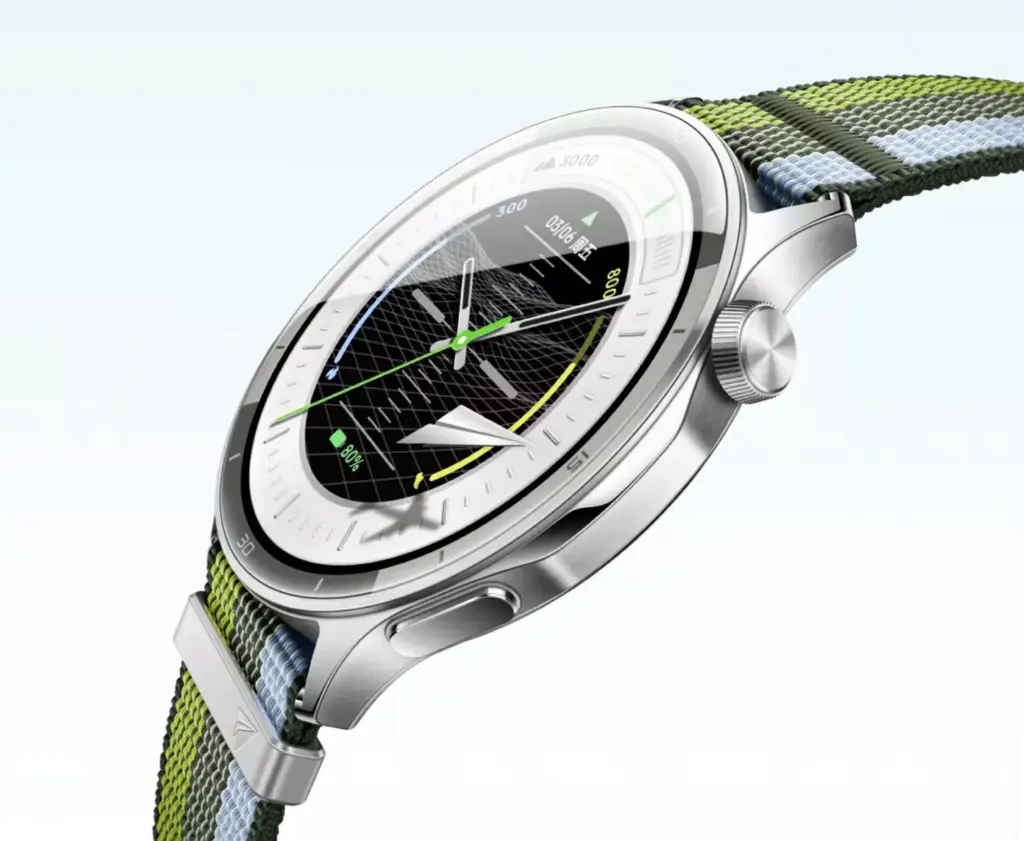
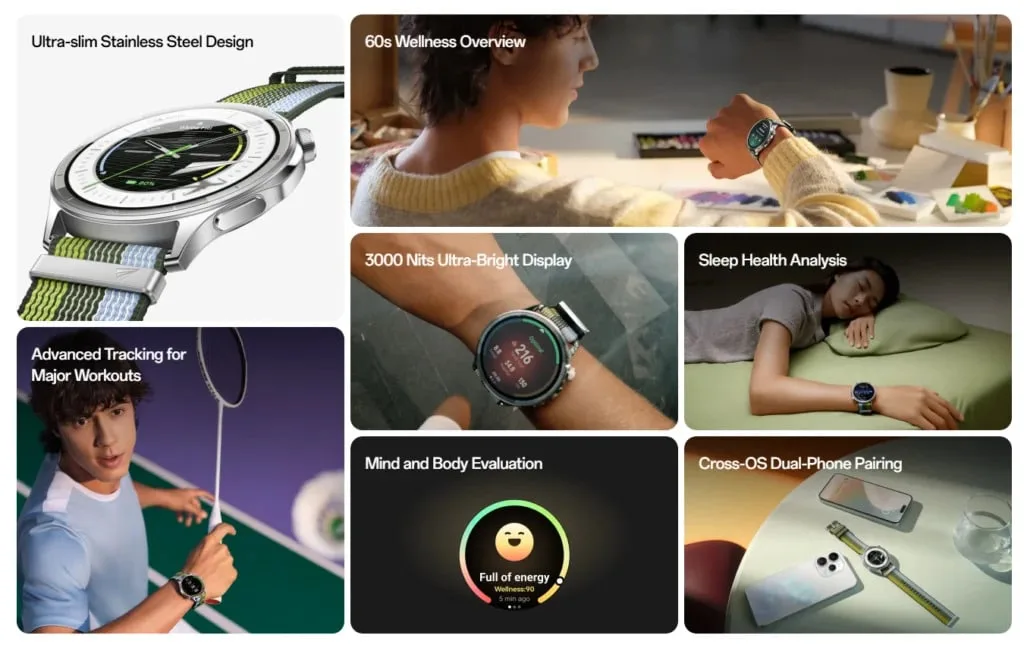
    The Oppo Watch S will be released worldwide. It’s unclear if the smartwatch will live up to the expectations despite being advertised with extremely high brightness, an incredibly thin stainless steel shell, cross-OS dual-phone connection, and sensors meant to offer real-time data for health aficionados and aspiring athletes.

    Since the wearable is now mentioned on the company’s worldwide website, a launch in additional markets is probably just around the corner. Oppo hasn’t yet disclosed any details on costs or precise release dates, though.

    Oppo Watch S debuts globally with a slim design, 3,000-nit screen, and powerful sensors

    In essence, the Oppo Watch S is a feature-rich smartwatch that strives to dazzle with its display. Oppo specifies a maximum peak brightness of 3,000 cd/m². The AMOLED panel is 1.46 inches in diameter and has a resolution of 464 x 464. The gadget can be used while swimming without worrying about damage because it is waterproof up to a test pressure of 5 ATM. The inbuilt dual-band GNSS module should be advantageous to athletes as well.

    Heart rate and oxygen saturation can be measured using optical sensors on board. Additionally, extensive and potent sleep monitoring features are promoted. Athletic activities can be recorded using more than 100 different sports profiles. The battery lasts four days when the display is always on, with an average lifespan of one week. For further information, prospective customers can visit the product site.

    oppo watch s specs
  • One UI 8.5 beta lineup revealed — supported Galaxy devices list

    One UI 8.5 beta lineup revealed — supported Galaxy devices list

    A beta program is released prior to the official release of every significant new One UI update for Galaxy devices that comes with an updated version of Android. Although Samsung has primarily restricted them to their foldable phones, we have also seen beta programs for minor One UI improvements where the Android version stays the same.

    For One UI 8.5, Samsung is making some changes this year. It is hosting a conventional beta program in six nations (the US, the UK, Korea, Germany, Poland, and India) that is not limited to Galaxy Z handsets. Which gadgets will be supported? To discover out, you’ve come to the correct spot.

    one ui 8.5 beta leak

    Eligible devices for One UI 8.5 beta

    The beta program supports the following devices:

    Yes, the initial list is rather short. At first, only the initial three models of the Galaxy S25 series are qualified. As usual, neither the Galaxy S25 Edge nor the FE model are receiving the beta.

    We’ll make sure to update this list when Samsung expands the beta program to new devices, so be sure to bookmark this site and return at a later time.

    Watch the video below to learn what One UI 8.5 has to offer. For more One UI 8.5 material, visit our YouTube channel.

  • How to get Xiaomi’s new control center on unsupported Redmi and POCO phones

    How to get Xiaomi’s new control center on unsupported Redmi and POCO phones

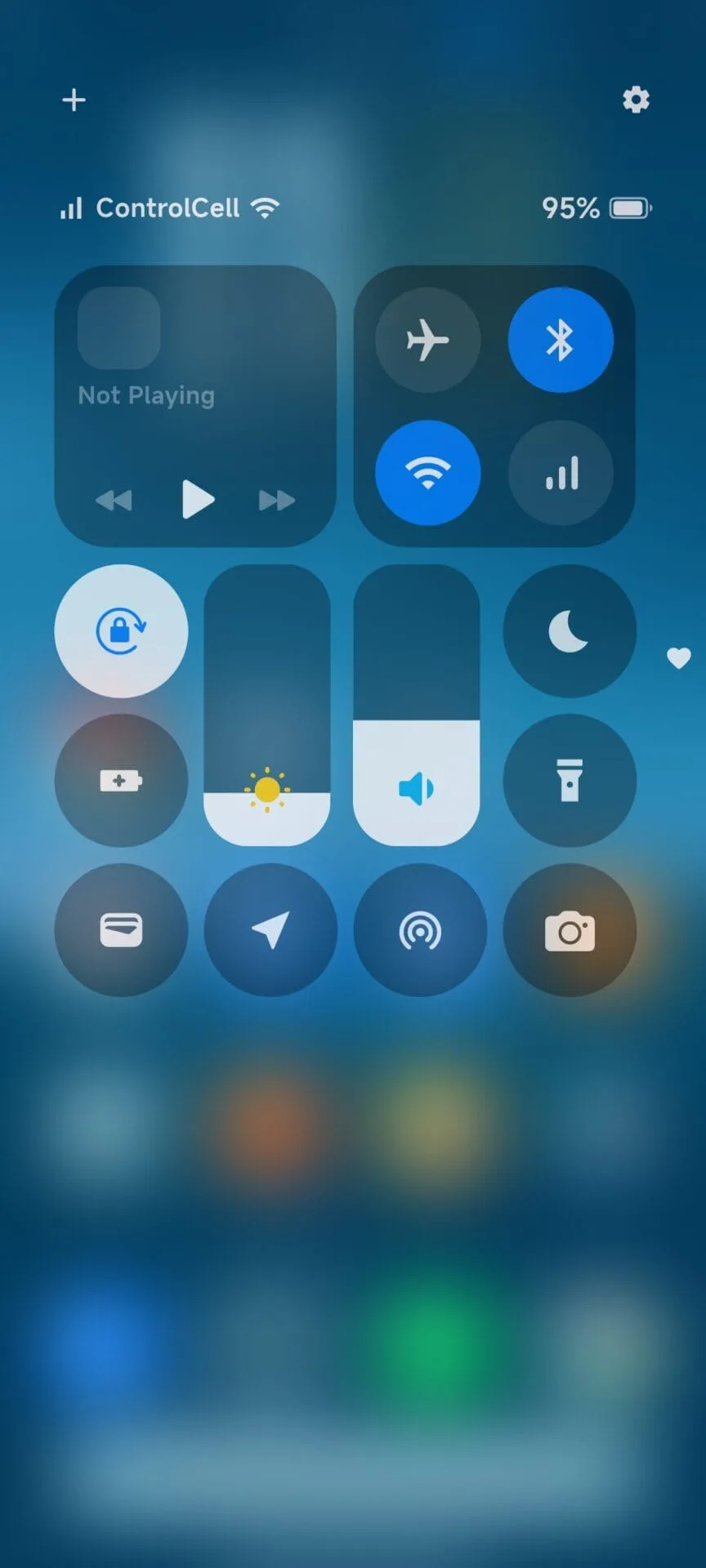
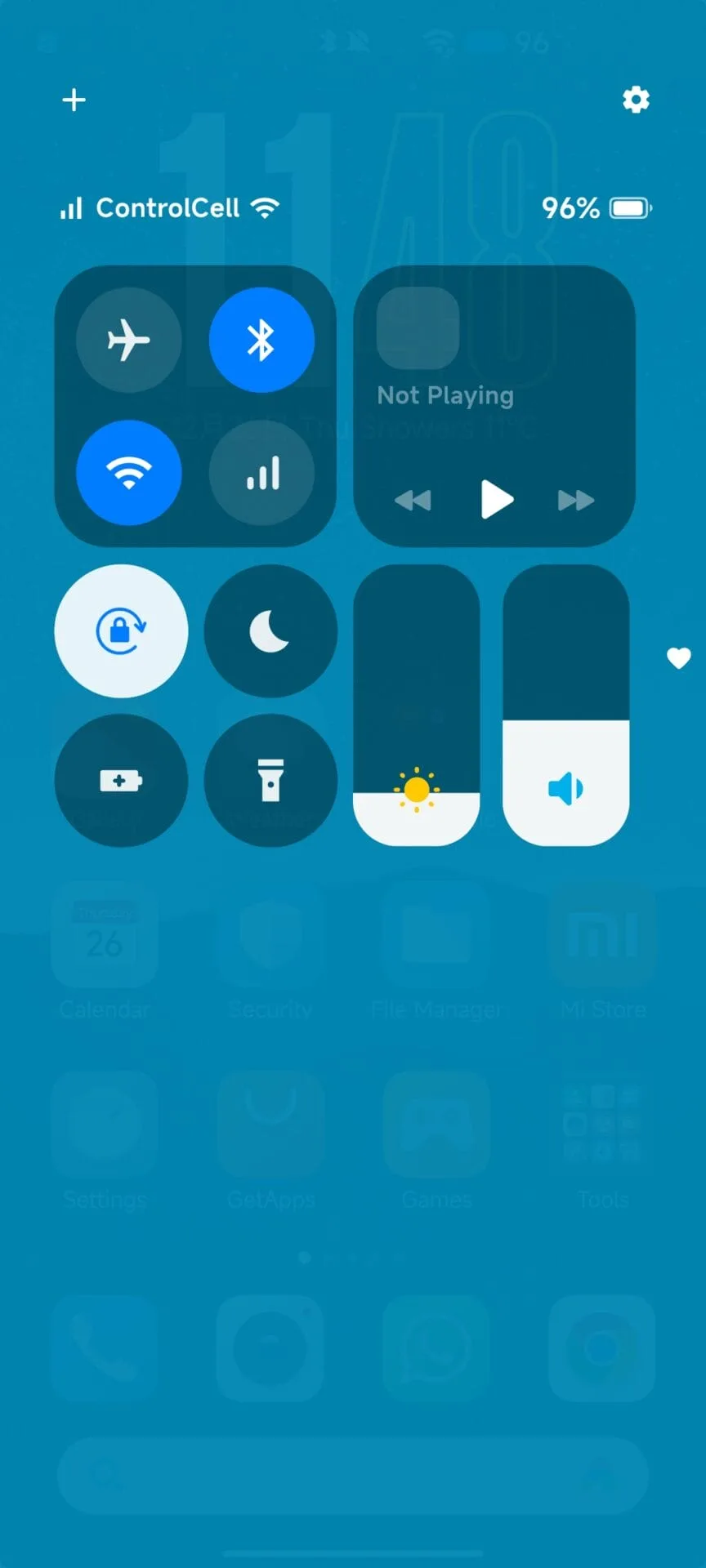
    Many affordable Xiaomi phones, such the Redmi 15, Redmi 14C, and Redmi 13X, continue to use the conventional Android-style control panel rather than the contemporary iOS-inspired Control Center found on high-end phones running HyperOS. The main cause of this limitation is hardware and performance issues, which make it difficult to execute sophisticated animations and transitions smoothly.

    Users of Xiaomi do not have to give up the new features and design in spite of this. It can be set up to mimic the new Control Center appearance on the majority of Redmi and POCO phones with the aid of third-party modification applications like Control Center 18.

    Announced alongside HyperOS 1.0, Xiaomi’s new Control Center features an iOS 18-like interface, smoother animations, and adjustable brightness adjustments. But not every gadget satisfies the necessary performance requirements. Xiaomi limits the new UI to mid-range and flagship smartphones since entry-level handsets with low GPU and memory capacity can encounter lag or frame drops.

    Xiaomi’s software framework is still adaptable, though. You may still improve the visual experience using third-party solutions like Control Center 18, which essentially replicates the look and functionality of the HyperOS Control Center, even if your phone doesn’t support the most recent control center natively.

    Get the New Control Center with Control Center 18

    You can simply duplicate the new Control Center with Control Center 18 app if your Redmi or Xiaomi phone does not have it natively loaded. With smooth animations, toggleable toggles, and quick access to your most commonly used options, this layout is almost exact.