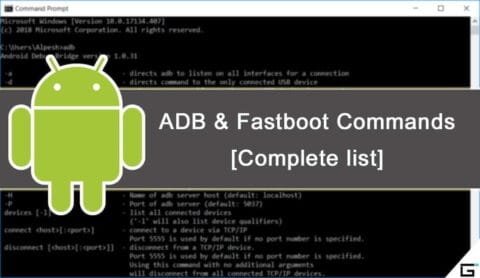
ADB and Fastboot commands are considered to be the system utilities that aid you in accessing the back end Android System when your device has been connected to Windows PC or Mac Or Linux.
Blog
-

Useful fastboot commands
To reboot your deviceTo boot your device into recovery modeRelocks the bootloader of your deviceunlock your bootloader with this commandcheck bootloader lock/ unlock statusflash recovery using fastboot modeboot directly into recovery without installing itflash flashable zip file from fastboot modedisplay CID of your phonelist of attached devices to computerrestart your smartphonereboot to bootloader or fastboot or download modereboot your device into fastboot modeget serial number of the connected devicesto install apps over adbif you have already installed app and want to update ituninstall an app using adbcopy file from computer to smartphonecopy file from phone to computerrun command in the terminal on the host android devicecreate a backup of your device and store it to your computerrestore backup to your phonepush and install flashable zip file or custom ROM on your deviceshows you real time log of your phonereboot your device into fastboot mode -
Unlock bootloader on Samsung Galaxy Series
Bootloader?
A device bootloader is a code which packs in an operating system to run every time we turn on our device. It basically tells the operating system and kernel to whether run recovery mode or initiate the boot process.
Because Android is open-source, it’s quite easy to unlock the bootloader. By unlocking it, you will be able to flash any third-party Custom ROM, Root, Mod files, Custom Recovery,etc ….
This is a simple access to you to tweak your device. Don`t worry, you can even lock the bootloader again.
PreRequisite
- PC / Laptop / Mac.
- charged phone.
- working USB cable.
- download and install ADB Fastboot Tools.
- Backup your Samsung Phone so as to not lose any data just in case.
- Download Mediatek VCOM Drivers. (if your phone has Mediatek chiset)
Before you proceed to unlock the bootloader of your device, you should do a complete back-up of the system. The unlocking process will sweep all the data of Android. So it is important to backup any photos, videos, app data or other files on your device to a computer, an SD card or the online cloud. Backup everything you want to keep, then continue to the next step.
Let`s unlock!
Enable Developer options and OEM Unlock at first on your handset.

Then you need to enable the USB Debugging as well from the Developer options to connect with your PC.

Connect your phone to the PC via the USB cable
Once the device is connected, switch off your phone and open the fastboot mode. You can do this by opening the command prompt pressing Shift Key + Right Mouse Click on a blank area in the ADB & Fastboot folder on your PC and typing: “adb devices” and then “adb reboot bootloader” (without quotes).
You may get a pop up to allow USB Debugging on your phone. Just tap on OK button.
Please Note: this will delete all the device data completely.
Once your phone is recognized follow the next command: fastboot oem unlock
You’re done. To reboot your device into the main system, type the following command and hit enter button: fastboot reboot
Your phone will reboot into the system. Wait for the complete boot process and enjoy.
-
Set up two-factor authentication on WhatsApp
WhatsApp is an top notch and revolutionary app. Simple to use, free, and with out a advertising, it isnow notunexpected that it isdesiredvia many users spherical the world. With its written and voice messaging system, the strength to form voice and video calls, it gives a service like that of a telephone.
Many peopleuse it on a each day and percentage tons of private data, that’s why it’scrucial to stay it secure. We, therefore, recommend that you trulydiscovered out two-aspect authentication to your account. This characteristic are going to be especially beneficialonce you log into WhatsApp on another device to feature additional safetyon your profile.
Enable two-factor authentication
There is only one method for two-factor authentication on WhatsApp. Once logged in, the application prompts you to create a custom PIN code.

- Open the WhatsApp application on your phone.
- Press the three dots in the upper right corner.
- Press Settings.
- Press Account.
- Press Two-step Verification.
- Press Activate.
- Enter your personalized PIN code before clicking on next.
- Re-enter your personalized PIN code.
- Press Confirm.
- Enter your email address before clicking on next.
- Re-enter your email address.
- Press Save.
- Press Done.

The two-factor authentication imagined by using WhatsApp has a as a substituteuncommon configuration however well, we do with what we have, as they say. Most important: greater securityfor your data.
The best small constraint of this selection is to remember this unique WhatsApp PIN code with a view to be used very rarely. Before developing it, I invite you to choose a password that is easy for you to take into account, butbest for you. -
#evolutionX for Xiaomi MI9T Pro / Redmi K20 PRO
Your warranty will be void. Droid Tools is not responsible for bricked devices, dead SD cards etc...
Evolution X is a Custom ROM to bring a true Pixel feel to Android Devices at first glance, with many additional options at your disposal. Evolution X aim to provide frequent builds with monthly security patches from the latest AOSP sources.
Main Features
- Pixel goodies
- Android Q UI
- Navbar Customization
- HW keys customization
- Status bar customization
- Timely updates
First Time Install / Clean Flash
1. Reboot to Recovery
2. Download the proper flashable ZIP for your device
3. Wipe Data/Cache/System when coming from non-AOSP ROMs
4 Flash MIUI 11 vendor/firmware for your device variant
5. Flash the ROM
6. Reboot to System
7. Reboot to Recovery
8. Flash Magisk (Optional)
9. Reboot to System and #KeepEvolvingUpdate / Dirty Flash
1. Reboot to Recovery
2. Download the proper ZIP for your device
3. Flash the ROM
4. Reboot to System and #KeepEvolvingScreenshots
-
Update LG Smartphone To The Latest Version Of Android
LG isn’t known for releasing updates to its Android smartphones in a very timely fashion. But once they do, you are going to want to know the way to get that update and fiddle with the most recent version of Android.
LG does roll out other updates for its smartphones, typically bug fixes and security updates are what LG smartphone owners will get. Which are arguably more important than the remake of Android updates that other phones get. As this keeps your phone and your information from becoming susceptible to being hacked or attacked.
So how exactly do you update your LG smartphone to the newest version of Android? Well it’s quite simple. Let’s start .
Settings app on your phone.

Go to System then tap on System Updates and tap Check for new system updates.


After that you will be either prompted by an update, which you can then just start the update. Or there will be a Check Now button you can use to check for a software update.
If there is an update available, you will see detailsof the update and the changelog, if there is one. The update will be large if it’s for a new version of Android. If you don`t want to install the update right now, just hit Later.
Updates do not wipe your data.
S However, it is always smart to go ahead and back up your data before you install a new update, just in case. As something could go wrong and you could end up needing to factory reset your phone following the update.
-
Exclusive – Samsung’s Galaxy Note 10 Lite & Galaxy S10 Lite

These are new and expected to be more affordable versions of the Galaxy S10 and Note 10 families.
There’s also an expectation that both Lite phones are due to go on sale soon.
From a Galaxy Note-only perspective, the changes with the Galaxy Note 10 Lite are less obvious compared to Galaxy S10 Lite. Both the Galaxy Note 10 and Note 10+ also feature a camera cutout in the same location as what’s shown here.
Both Lite smartphones appear to share the same front design, including the location of the front-facing camera cutout and how many cameras are included.
If you look close enough at the two renders then the bezels for the Galaxy Note 10 Lite do look a little thinner than those on the Galaxy S10 Lite. In addition, the earpieces also look a little different to each other. Although very few firm conclusions should be made on these points, considering the angle and style of the renders.
-

Galaxy Fold now in Canada
Canada is GREAT!
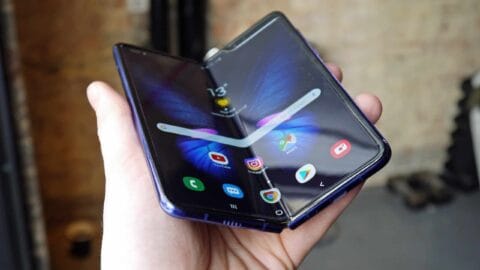
But until now, the country was lacking one thing: the Samsung Galaxy Fold. I have no idea how the people of Canada managed to survive without access to Samsung’s latest flagship, but now the phone has officially arrived in the country.
While the elusive Galaxy Fold is now available for purchase in Canada, it’s even harder to get there than in the US. While those of us in ‘Murica have a chance at finding it in a local carrier store or Best Buy, the Galaxy Fold in Canada will only be available from a handful of Samsung Experience Stores:
- CF Sherway Gardens
- CF Toronto Eaton Centre
- Metropolis at Metrotown
- West Edmonton Mall
- Yorkdale Shopping Centre
That means unless you live in Toronto, Edmonton, or Burnaby, you’ll have to go on an expedition if you want Samsung’s latest and greatest. Pricing starts at $2,599.99, which is fairly close to the ~$2,000 pricetag in America after currency conversion.
- Source: Samsung